Use sliders to change a material's color
Set up 3 sliders to control the red, green, and blue components of a material's color.
Read time 3 minutesLast updated 8 months ago
Use this example to understand how to set up sliders and control a material's color.
Create 3 sliders in your UI Canvas
- Select UI Canvas in the Hierarchy panel.
- Right-click the UI Canvas and select UI > Slider to create a new slider.
- Right-click your new slider, select Duplicate, and rename the duplicate slider.
- Repeat step 3 so you have 3 sliders. Each slider will control one of the elements of the material's color (red, green, or blue).
Add a Cube object to your scene and assign a new Logic script
- In the Hierarchy panel, select Add (+) > Primitives > Cube.
- Select your new cube. The Inspector window shows.
- From the Inspector panel, select Add Component.
- In the New Logic field, give a name to your new script.
- Select Create and Edit. The Logic Editor opens.
Set up the initial logic in the Logic Editor
-
Drag a When event listener into the Logic Editor.
-
Add a Play starts event inside the When node.
-
Unique name
Type
Description
red_sliderSliderControl the red element of the material's color. green_sliderSliderControl the green element of the material's color. blue_sliderSliderControl the blue element of the material's color. colorColorStore the changing color. -
Create the following method:
Unique name
Return Type
Description
Update_colorvoidHandle the slider values and change the color.
Create the method node
- Drag the method into the Logic Editor to create an Update_color node.
Update_color - On the node, set wait to false (do this for every
Update_colornode you add).Update_color - Drag a Set variable value node inside the method.
Update_color - Add the color > r node to the first socket and red_slider > value to the second.
- Repeat for color > g with green_slider > value, and for color > b with blue_slider > value.
Apply the color to the material
- Add the variable, expand it, and select GetComponent > MeshRenderer > Material > SetColor.
me - Type into the
_BaseColorsocket.name - Drag the variable into the second socket.
color - Move this node into the method.
Update_color
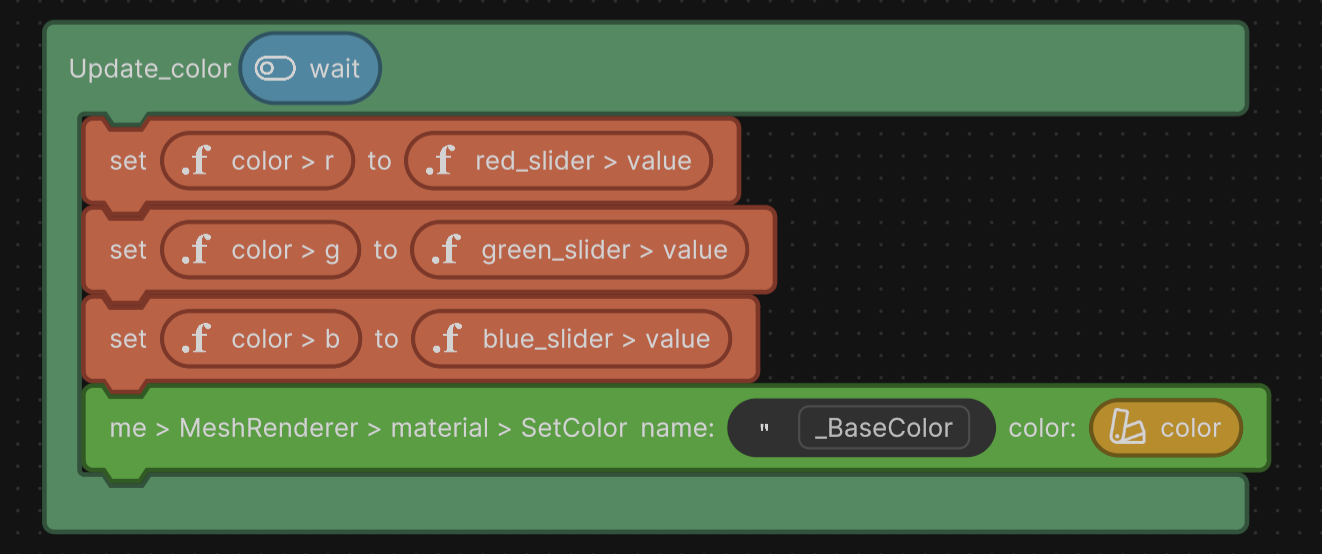
Example Logic script to change the material's color depending on slider values.
Make your script listen for slider changes
- Drag the method into the When node. This ensures the material starts with the same values as the sliders.
Update_color - Add another variable in the script, expand it, and select onValueChanged > AddListener. This node detects any time the user interacts with this slider.
red_slider - Drag another method into the red_slider > onValueChanged > AddListener node. When the node detects user interaction, this action updates the color with the slider's value.
Update_color - Repeat steps 2 and 3 for and
green_slider.blue_slider
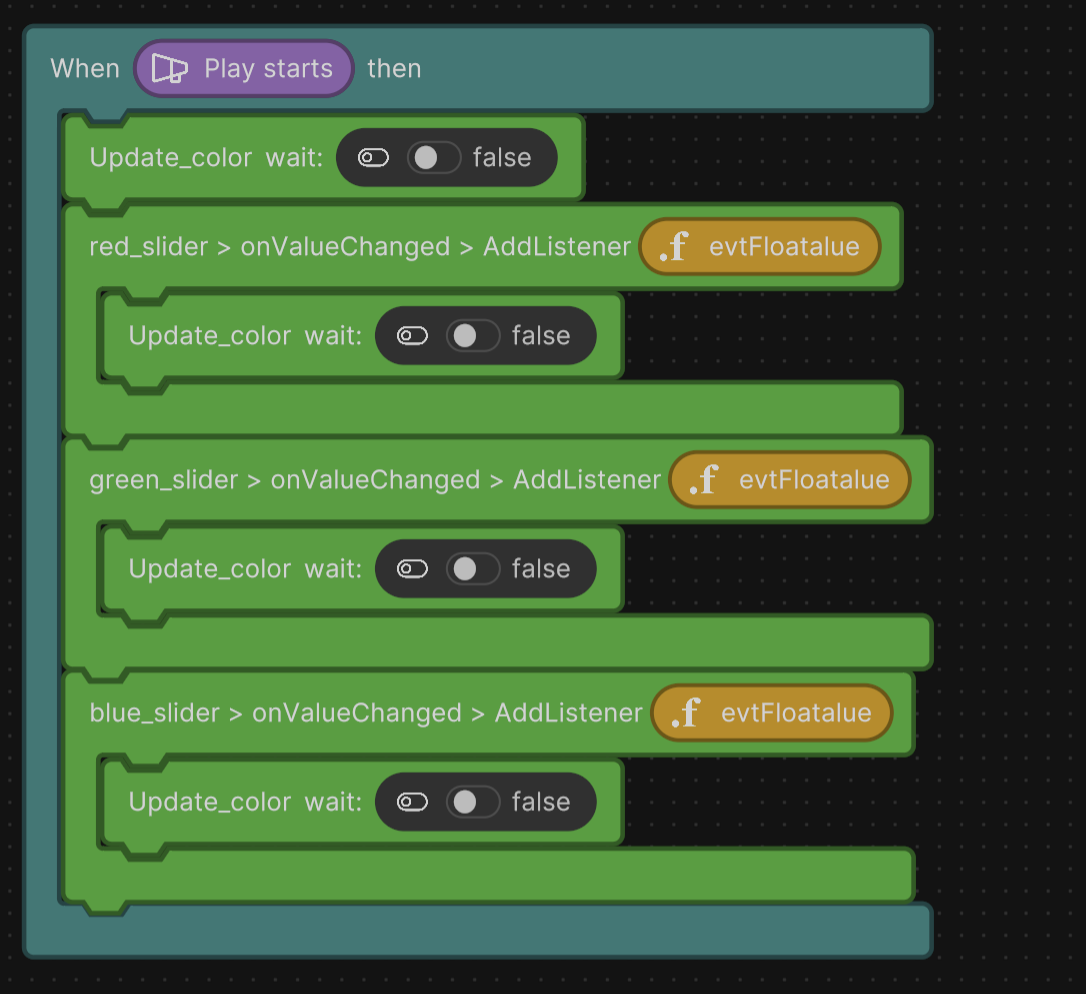
Example Logic script that shows how to detect slider changes.
- Close the Logic Editor.
Connect your Slider references
- In the Hierarchy panel, select the GameObject with the attached Logic script.
- Drag your sliders from the Hierarchy panel into the red_slider, green_slider, and blue_slider variable references in your script component.