Scene view
The main window where you build and arrange your 3D scene.
Read time 5 minutesLast updated 5 months ago
The Scene view is the main area where you build, arrange, and preview your 3D project. It's where you can interact and manipulate objects in your scene, and view how your final application might look.
Video tutorial
The following video gives an overview of how to navigate around the Scene view.
Unity Studio – Scene View Navigation
GameObjects in a new scene
When you create a new draft in Unity Studio, your scene starts with a few essential objects already in place:
Object | Description |
|---|---|
| Camera | Use the camera to capture and display the scene from a specific viewpoint. For more information about this GameObject, refer to Camera. |
| Plane | Flat surface at the bottom of your scene, which acts as the ground. Select it in the Hierarchy window to open its properties. |
| Directional Light | The light in the scene which emulates sunlight and brightens up the whole scene. Refer to Lights for more information. |
| Animation Director | Use the Animation Director to animate multiple GameObjects from the hierarchy in a shared timeline. For more information, refer to Animation Director. |
| UI Canvas | The base area for placing user interface elements (like buttons and text). For more information, refer to UI Creator. |
Navigate the scene
Use the following controls for a quicker way you move around your scene and edit objects:
Camera movement
Use the following hotkeys to control the camera and move around your scene:
Actions | Hotkeys |
|---|---|
| Rotate camera | Hold right-click and move your mouse. |
| Zoom | Use the scroll wheel on your mouse. |
| Pan | Hold the scroll wheel and drag. |
| Move | Press the following keys to move the camera in the following directions:
|
| Increase camera movement speed (x2) | Shift key + any camera movement. |
Mode selection
The toolbar at the bottom of the Scene view allows you to switch between Move mode and Comment mode.
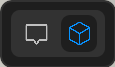
Move mode and Comment mode toolbar buttons.
Mode | Hotkey | Description |
|---|---|---|
| Move | V | Use this mode to interact with and manipulate objects in your scene. Refer to Move mode for more information. |
| Comment | C | Use this mode to add annotations to your scene. When you select an area in the scene, you can add a comment that's linked to that specific location. For more information, refer to Annotations. |
Move mode
Select Move mode (or press V) to interact with and manipulate objects in your scene. When you select an object in the scene, you can move, rotate, or scale that object using the gizmo handles.
The Toolbar for selected assets section gives more information about the different tools you can use to manipulate your objects when in Move mode.
Toolbar for selected assets
While in Move mode, when you select an object in the Scene view, a toolbar appears. This toolbar gives you quicker access to essential tools that allow you to edit that asset:

Object toolbar in Move mode.
Property | Hotkey | Description |
|---|---|---|
| Comment | C | Switch to Comment mode to add annotations to your scene. |
| Move | V | When this toolbar is visible, this option is highlighted because you're already in Move mode. |
| Free transform | 1 (top of keyboard) | Switch to a mode where you can move the object on all axes at once. |
| Move | 2 (top of keyboard) | Move the selected object around in the scene on the x, y, or z-axis. |
| Rotate | 3 (top of keyboard) | Rotate the selected object to change its orientation. |
| Scale | 4 (top of keyboard) | Make the object larger or smaller. |
| Toggle handle position | Z | Switch between moving the object from its center or from its pivot point (the spot it rotates around). |
| Toggle handle rotation | X | Switch between global (world) and local (object-based) rotation controls. When you select you get the following options:
|
| Duplicate | Ctrl + D | Create a copy of the selected object. |
| Delete | Delete | Remove the selected object from your scene. |
Object selection
Use the following hotkeys to select, copy, and paste objects in your scene:
Action | Hotkeys |
|---|---|
| Select objects | Left-click to select. To select multiple objects, hold left-click and drag your mouse across the objects. |
| Focus on selected object in scene | F key |
| Copy selected object | Cmd + C (macOS) or Ctrl + C (Windows). |
| Cut selected object | Cmd + X (macOS) or Ctrl + X (Windows). |
Scene view buttons
The following buttons are at the top of the Scene view:
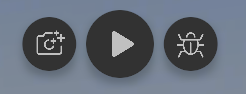
Scene view buttons.
Button | Description |
|---|---|
| Screenshot | Capture a screenshot of your scene and open the AI Screenshot Enhancements window where you can add AI enhancements to your image. For more information, refer to AI Screenshot Enhancement. |
| Play | Press Play to run your scene. Press Stop to return to editing mode. |
| Bug notification | A bug icon that notifies you of any issues in your scene. For more information, refer to Bug notification details. |
Bug notification details
When you select the bug icon, a panel appears with more information about the warnings or errors in your scene.
There are two types of notifications:
Yellow notifications (Warnings)
Yellow notifications are warnings about issues in your project that might cause problems, but won’t stop your scene from running. For example, there might be a warning if a reference is missing in a Logic component.
You can still play your scene with warnings, but it’s a good idea to fix them for best results.
Red notifications (Errors)
Red notifications are critical errors that you must fix before you can play your scene. For example, a logic error in a script will trigger a red error notification.
If there's a red notification, you need to resolve the issue before you can run your application. Select Show on a notification to bring you to where you can fix the error.