Documentation

​
​

Development

User Acquisition

Monetization

Industry

Unity Studio

Open Unity Studio

Unity Studio

​
​
Unity Studio
  • What's new in Unity Studio
  • Introduction to Unity Studio
  • Launch Unity Studio
  • Create your first Unity Studio project
  • Develop with Unity Studio
    • The Unity Studio interface
    • Save your progress
    • GameObjects
    • Assets
    • Materials
    • Scene settings
    • Logic
      • Introduction to Logic
      • Create a Logic script
      • The Logic Editor interface
      • Methods, variables, and parameters
      • Nodes
      • Logic examples
        • Use a button to transform a GameObject
        • Hide or show a User Interface (UI) element
        • Trigger an animation on key press
        • Adjust scene lighting with a button
        • Interact with an asset after an event
        • Display the name of a GameObject on hover
        • Enable or disable a property on a GameObject
        • Play audio when you click an object
        • Mute and unmute audio with the toggle element
        • Use sliders to change a material's color
    • The UI Creator
    • Animation
    • AI features
  • Collaborate in Unity Studio
  • Export drafts to the Unity Editor
  • Publish and share
  • Troubleshooting Unity Studio issues
  • Report bugs and share feedback
  • Manage your analytics and marketing preferences
  1. Unity Studio
  2. Develop with Unity Studio
  3. Logic
  4. Logic examples

Adjust scene lighting with a button

Change the scene’s light color or intensity when the user clicks a button.
Read time 2 minutes
Last updated 2 months ago

Use this example to understand how to change the scene’s light color or intensity when the user clicks a button.
1

Create a button in your UI Canvas

  1. Select UI Canvas in the Hierarchy panel.
  2. Right-click the UI Canvas and select UI > Button to create a new button.
2

Create a New Logic script

  1. In the Project panel, select the My Logic folder.
  2. Select Add (+).
  3. Select Script. Unity Studio creates a new Logic script in the folder.
  4. Enter a name for your script and press Enter.
3

Add the script to a GameObject

  1. Select or create a GameObject from the Hierarchy panel.
  2. From the Inspector panel, select Add Component.
  3. Choose your Logic script from the list.
4

Set up the logic in the Logic Editor

  1. In the Project panel, double-click the Logic script to open the Logic Editor.
  2. Drag a When event listener into the Logic Editor.
  3. Add a Clicked On event inside the When node.
  4. Create a new variable for the button and set its type to Object.
  5. Drag the button variable into the Clicked On socket.
  6. Drag a Set variable value node into the When node.
  7. Create a new variable for the light and set its type to Light.
  8. Expand the light variable and select the Color property.
  9. Drag the Color property into the Set variable value node.
  10. Click on the color code in the Set variable value node to open the color wheel and choose your desired light color.
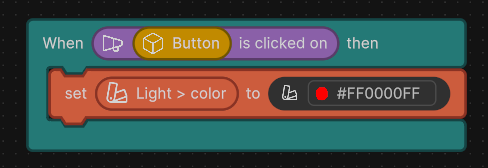
Example Logic script to change the light color on button click.

Example Logic script to change the light color on button click.

  1. Close the Logic Editor.
5

Connect your Button and Light references

  1. In the Hierarchy panel, select the GameObject with the attached Logic script.
  2. Drag your button from the Hierarchy panel into the Button variable reference in your script component.
  3. Drag your Light object from the Hierarchy panel into the Light variable reference in your script component.
Press Play to test your scene. When you click the button, the light color (or intensity) changes based on your specified logic.
Tip
Use the same approach to change the light intensity. Expand the Light variable and select the Intensity property, then set its value. Combine both color and intensity changes in the same Logic script to create unique lighting effects or atmospheres in your scene.

Additional resources

  • Introduction to Logic
  • The Logic Editor interface
  • Create a Logic script
  • Methods and variables
  • Nodes
  • Logic examples

Copyright © 2026 Unity Technologies
LegalPrivacy PolicyCookiesDocumentation Terms of UseDo Not Sell or Share My Personal InformationYour Privacy Choices (Cookie Settings)

"Unity", Unity logos, and other Unity trademarks are trademarks or registered trademarks of Unity Technologies or its affiliates in the U.S and elsewhere (more info here). Other names or brands are trademarks of their respective owners.

Some pages are machine-translated for convenience, and may contain inaccuracies. In the event of conflicting information, the English version is authoritative.

  • On this page
    • Additional resources


Report a problem with this page