Unity 패키지 통합
레벨플레이 Unity 플러그인 다운로드 프로젝트에 통합하여 광고 Mediation 및 수익화 기능을 활성화하다, 사용 가능하다.
읽는 시간 5분최근 업데이트: 한 달 전
1단계. Unity 프로젝트 레벨플레이 추가하기
다음과 같이 레벨플레이 패키지를 설치할 수 있습니다.
- 권장: Unity Window > 패키지 관리자 이동하여 프로젝트에 Ads Mediation 패키지를 추가합니다. 검색 “Ads Mediation” 및 설치 단추를 선택합니다. 이름으로 패키지를 추가할 수도 있습니다.
com.unity.services.levelplay - 또는 Unity 플러그인 버전 9.5.0(.unitypackage)을 다운로드하여 Unity 프로젝트로 임포트합니다.
빌트인 샘플이 설치되면 레벨플레이 연동을 살펴보고 실험할 수 있습니다. 패키지 관리자의 패키지 세부 정보 뷰에서 샘플로 이동하고 레벨플레이 샘플을 임포트하고 탐색을 시작합니다.
2단계. SDK 초기화
아직 하지 않았다면 레벨플레이 플랫폼으로 이동하여 새 앱을 생성하세요. 완료되면 앱 키를 사용하여 SDK를 초기화합니다.
- 네임스페이스 임포트: C# 스크립트 상단에 네임스페이스를 포함합니다.
using Unity.Services.LevelPlay; - SDK 초기화: Start() 메서드 내에서 이벤트 리스너를 등록하고 SDK를 초기화합니다.
public void Start() { // Register OnInitFailed and OnInitSuccess listeners LevelPlay.OnInitSuccess += SdkInitializationCompletedEvent; LevelPlay.OnInitFailed += SdkInitializationFailedEvent; // SDK init LevelPlay.Init("ThisIsYourAppKey");}
레벨플레이 초기화하기 전에 OnInitFailed 및 OnInitSuccess를 등록해야 중요. 이는 중요 인사이트를 제공하기 때문입니다.
OnInitSuccess – 레벨플레이가 성공적으로 초기화되면 트리거됩니다. 이 콜백 수신하면 앱에 광고를 표시할 수 있습니다.
OnInitFailed – 레벨플레이 초기화에 실패하여 광고가 표시되지 않을 때 트리거됩니다. 나중에 레벨플레이 초기화하는 것이 좋습니다(인터넷 연결이 가능하거나 오류 원인이 해결된 경우).
UserID 설정
레벨플레이 초기화할 때 사용자 ID를 전달 수 있습니다. 광고 품질의 사용자 여행을 사용하거나 사용자에게 보상을 제공하기 위해 서버 간 콜백을 사용하는 경우에 유용합니다.
LevelPlay.Init("ThisIsYourAppKey", "UserId");
3단계. 레벨플레이 네트워크 관리자
레벨플레이 네트워크 관리자 창은 레벨플레이 모든 요소를 한 번에 확인할 수 있는 곳입니다. Unity 상단 내비게이션 바의 Ads Mediation에서 찾을 수 있습니다. 여기에서 다음을 수행할 수 있습니다.
- 레벨플레이 SDK를 업데이트합니다.
- 선호하는 광고 네트워크를 설치하고 업데이트합니다. 설치가 완료되면 각 광고 네트워크를 별도로 설정 합니다. 자세히 알아보기
- 앱의 Info.plist를 설치한 광고 네트워크에 따라 SKAdNetwork ID로 자동으로 업데이트합니다.
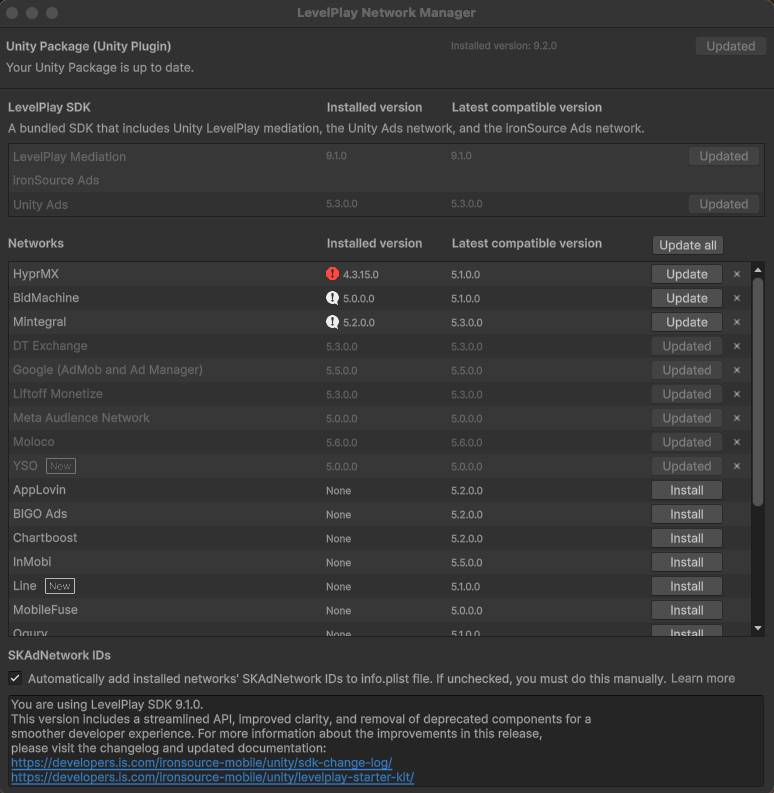
레벨플레이 Unity 패키지 8.8.1부터 Unity Ads 어댑터는 기본적으로 Ironsource Ads와 함께 설치됩니다. Unity Ads 계정 설정에 대한 자세한 내용은 Unity Ads 통합 가이드를 참조하십시오.
Android
변경 사항을 적용하고 관련 광고 네트워크 아티팩트를 다운로드 Resolver를 사용해야 합니다. 시트를 할당하려면 다음 경로로 이동합니다. Assets > Mobile Dependency Manager > Android Resolver > Resolve로 이동합니다.
레벨플레이 네트워크 관리자 변경될 때마다 이를 수행해야 합니다.
Gradle 사용하는 경우 프로젝트에 네트워크 아티팩트를 다운로드하지 않아도 됩니다. 대신, 아티팩트는 컴파일 중에 Gradle 파일에 추가됩니다.
이 프로세스를 활성화하다, 사용 가능하다 하려면 다음 단계를 따르십시오.
- 시트를 할당하려면 다음 경로로 이동합니다. 편집 > 프로젝트 설정 > 플레이어 > Android > 퍼블리싱 설정
- 커스텀 메인 Gradle 템플릿 활성화하다, 사용 가능하다
- 시트를 할당하려면 다음 경로로 이동합니다. Assets > Mobile Dependency Manager > Android Resolver > Resolve로 이동합니다.
- 선택 “Patch mainTemplate. Gradle”
- 'OK'를 눌러 변경 사항을 저장합니다.
4단계. 추가 설정
iOS
SKAdNetwork 지원
SKAdNetwork ID 자동화를 비활성화한 경우, SDK 7 이상을 사용하는 동안 광고 표시를 활성화하다, 사용 가능하다 앱 프로퍼티 목록 파일(Info.plist)에 설치된 각 네트워크의 SKAdNetwork ID를 수동으로 포함해야 합니다.
<key>SKAdNetworkItems</key><array> <dict> <key>SKAdNetworkIdentifier</key> <string>su67r6k2v3.skadnetwork</string> </dict></array>
앱 전송 보안 설정
- 'NSAppTransportSecurity' 딕셔너리에 를 추가합니다. 'Top Level Key'에 이 딕셔너리를 추가해야 합니다.
- 이 딕셔너리 안에 'NSAllowsArbitraryLoads'라는 부울을 추가하고 YES로 설정합니다.
- 이로 인해 충돌 발생할 수 있으므로 info.plist에 'NSAllowsArbitraryLoads' 외에 다른 예외가 포함되어 있지 않습니다.
- ATS에 대한 자세한 내용은 여기를 참조하십시오.
Android
Android 13 이상(API 레벨 33 이상)을 사용하는 앱 매니페스트 파일에 Google Play 서비스의 노멀 권한 다음과 같이 선언해야 합니다.
<uses-permission android:name="com.google.android.gms.permission.AD_ID"/>
Google Advertising ID 변경에 대한 자세한 내용은 여기에서 확인하십시오.
5단계 연동 확인
레벨플레이 패키지는 통합 테스트 제품군으로 통합이 성공적으로 완료되었는지 확인하는 간편한 방법을 제공합니다. 앱의 연동을 테스트하고, 플랫폼 설정을 검증하고, 설정된 네트워크와 관련된 광고를 검토합니다.
앱에서 테스트 제품군을 활성화하다, 사용 가능하다 SDK를 초기화하기 전에 다음을 호출.
LevelPlay.SetMetaData("is_test_suite", "enable");
레벨플레이 성공적으로 초기화한 후 다음을 호출하여 테스트 제품군을 실행.
LevelPlay.LaunchTestSuite();
레벨플레이 통합 테스트 제품군의 구현 예와 자세한 내용은 이 문서를 참조하십시오.
다음 단계
이제 레벨플레이 완전히 설정되어 준비되었습니다. 광고 형식을 구현하려면 연동 가이드를 따르십시오.