Sign in with Custom IDs
Sign in users to Vivox with custom identifiers.
Read time 4 minutesLast updated 8 months ago
If you already have an existing player management system that creates player IDs, you can use the Custom ID provider to link the identities.
Prerequisites:
- Set up a Unity Cloud project
- Make sure you have your project ID, environment ID, and environment name.
- Enable the UAS custom ID provider Make sure you have your Service Account credentials handy from this setup
The overall flow of this setup:
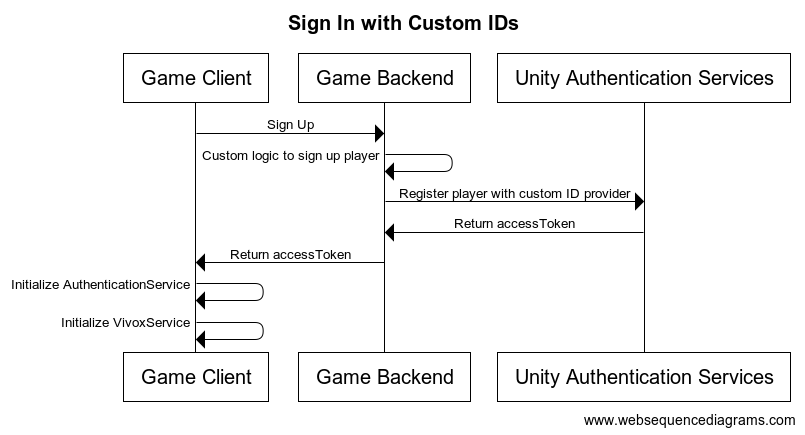
Sign in flow
- The game client sends the sign in request to the game back end
- The game back end either signs in the player using your custom logic or registers the player with a custom ID provider sent to UAS.
- UAS returns an access token to the game back end.
- The game back end then returns the access token to the game client.
- The game client then initializes the authentication service and the Vivox service to finish signing in the player.
Sign in steps
- Register all users with the UAS custom ID provider on sign-in and retrieve and
accessTokenfor players.sessionTokens - Set up the AuthenticationService in the client using the and
accessTokensessionToken
Client-side setup
Together with the server side sign in set up, an access token has to be retrieved from your back end
and processed with the :
AuthenticationServiceProcessAuthenticationTokensProcessAuthenticationTokensProcessAuthenticationTokensusing Unity.Services.Authentication;using Unity.Services.Vivox;void SignUserWithCustomTokenWithAutoRefresh(){ try { // Check if a cached player already exists by checking if the session token exists if (AuthenticationService.Instance.SessionTokenExists) { // This call will sign in the cached player. await AuthenticationService.Instance.SignInAnonymouslyAsync(); Debug.Log("Cached user sign in succeeded!"); } else { var userTokens = // Fetch the user tokens using your method calls AuthenticationService.Instance.ProcessAuthenticationTokens(userTokens.AccessToken, userTokens.SessionToken) } // Shows how to get the playerID Debug.Log($"PlayerID: {AuthenticationService.Instance.PlayerId}"); await VivoxService.Instance.InitializeAsync(); } catch (AuthenticationException ex) { // Compare error code to AuthenticationErrorCodes // Notify the player with the proper error message Debug.LogException(ex); } catch (RequestFailedException ex) { // Compare error code to CommonErrorCodes // Notify the player with the proper error message Debug.LogException(ex); } catch (Exception ex) { // Handle exceptions from your method call Debug.LogException(ex); }}
Note that the sample code is a method only, not a class.
The access token needs to be retrieved from your backend.
Refer to the Server-side setup below for more information on that.
Server-side setup
During player sign-in, ensure that each player is registered with the UAS custom ID provider and retrieve a and for the player.
If you haven't done it yet, refer to Enable the UAS custom ID provider to set it up.
Using the Service Account credentials you can send a request to register a player on your game server:
accessTokensessionToken- Call the Token Exchange API to retrieve a stateless token.
- Call the Sign In With Custom ID API:
curl --location 'https://player-auth.services.api.unity.com/v1/projects/<PROJECT_ID>/authentication/server/custom-id' \--header 'Content-Type: application/json' \--header 'UnityEnvironment: <ENVIRONMENT_NAME>' \--header 'Authorization: Bearer <STATELESS_TOKEN' \--data '{ "externalId": "YOUR_CUSTOM_PLAYER_ID"}'
The response of this request will contain an and a that you have to return to the client for initializing the .
The can be used as the in this context.
idTokensessionTokenAuthenticationServiceidTokenaccessTokenOptionally, you can use the Player Names API to set a name for the players.
This is useful if you are using the Vivox Safety products as it will allow the player names to be displayed to moderators in the Moderation dashboard.
Make sure you keep the player name up to date if players change it.
You can also directly manage player names from the client side using Player Name Management.