Documentation

​
​

Development

User Acquisition

Monetization

Industry

Vivox Unity SDK

Vivox Unity SDK

Vivox
​
​
Vivox Unity SDK
  • Overview
  • Get started
  • Release notes
  • Developer guide
    • Set up your project
    • Create voice and text channels
    • Messaging
    • Player management
    • Device management
    • Audio management
      • Acoustic echo cancellation
      • In-game control of audio levels
      • Audio source integration
        • Unity Editor Audio Tap components
        • General use of the Audio Tap components
        • Audio Taps component parameters
        • Access audio data
        • Use Audio Taps in C# scripts
      • Transmission
    • Mobile development
    • Text-to-speech
    • Speech-to-text
    • Real-time recording
    • Server-side-recording
    • Troubleshooting
  • Tutorials
  • Reference
  1. Vivox Unity SDK documentation
  2. Vivox Unity Developer Guide

General use of the Audio Tap components

Use the Audio Taps to modify audio directly through GameObject components.
Read time 2 minutes
Last updated 8 months ago

The Audio Tap components are available in the Vivox Unity package. With the package installed, you can add the taps through both the GameObject and Component Addition menus under Audio.
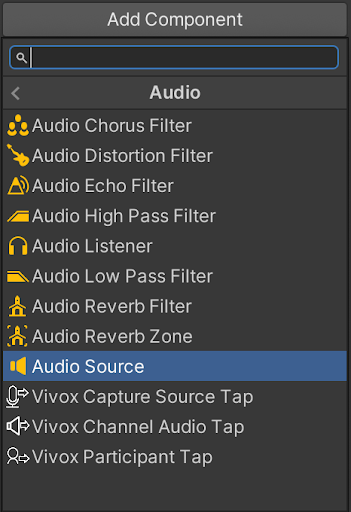
A screenshot of the Add Component window in the Unity Editor showing where to find the Audio Tap components within the Audio sub-section

A screenshot of the Add Component window in the Unity Editor showing where to find the Audio Tap components within the Audio sub-section

Note
You cannot create a Participant Tap for yourself, it must be created for another user.
Adding a tap adds an Audio Source component to the associated GameObject. You can modify the audio provided by the taps directly through GameObject components, such as the components supplied by Unity under Audio, or by routing it through an Audio Mixer.
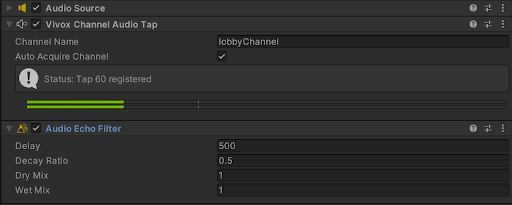
A screenshot of the Vivox Channel Audio Tap as shown in the Inspector window in the Unity Editor.

A screenshot of the Vivox Channel Audio Tap as shown in the Inspector window in the Unity Editor.

As shown above, in the Vivox Channel Audio Tap component screenshot, every Audio Tap has a visible loudness meter in its Inspector window to help monitor the audio stream activity during Play Mode.
Audio Mixers can also modify tap audio. After creating the Audio Mixer, in the Audio Source’s Output field, select the required Mixer Group to route the audio through the mixer. Note that all the components added to the Audio Source GameObject are applied before sending the audio to the Audio Mixer Group.

Audio Taps in channels

Audio Taps will only work when connected to a channel.
Taps will work in both positional (3D) and non-positional (2D) channels. In positional channels the participants must be within the audio range to hear each other.
Note
The Channel Audio Tap will only be applied to the first channel a user joins.

Vivox v16.2.0+

As of the 16.2.0 version of the Vivox package you can have more than one Participant Audio Tap applied to the same user across channels. However, if the Silence In Channel Audio Mix parameter is set to True at some point in the chain of taps, all following taps will be muted.

Copyright © 2026 Unity Technologies
LegalPrivacy PolicyCookiesDocumentation Terms of UseDo Not Sell or Share My Personal InformationYour Privacy Choices (Cookie Settings)

"Unity", Unity logos, and other Unity trademarks are trademarks or registered trademarks of Unity Technologies or its affiliates in the U.S and elsewhere (more info here). Other names or brands are trademarks of their respective owners.

Some pages are machine-translated for convenience, and may contain inaccuracies. In the event of conflicting information, the English version is authoritative.

  • On this page
    • Audio Taps in channels

    • Vivox v16.2.0+


Report a problem with this page