Audio device management
Allow players to select audio input and output devices.
Read time 3 minutesLast updated 9 months ago
The Vivox SDK automatically uses the system’s default audio input and output devices. You can override this behavior to give users a choice of which audio device to use for group voice chat, independent of the audio devices used for the game.
To perform this override, build a user interface in the game that displays a list of available devices to users from which they can select a device. Build this user interface for InputDevices and OutputDevices, and utilize the and to return a ReadOnlyCollection of either the or , then populate the UI with the names of these devices.
VivoxService.Instance.AvailableInputDevicesVivoxService.Instance.AvailableOutputDevicesVivoxInputDevicesVivoxOutputDevicesThis user interface should be subscribed to the and actions, and refresh the UI with the new lists from and to catch any additions or removals from the lists of AudioDevices.
VivoxService.Instance.AvailableInputDevicesChangedVivoxService.Instance.AvailableOutputDevicesChangedVivoxService.Instance.AvailableInputDevicesVivoxService.Instance.AvailableOutputDevicesAfter a user has selected a device from the list, use to set an input device or to set the output device.
VivoxService.Instance.SetActiveInputDeviceAsync(VivoxInputDevice device)VivoxService.Instance.SetActiveOutputDeviceAsync(VivoxOutputDevice device)The following example covers how an audio device should be set after it has been chosen from the list. This also includes a check to ensure that the audio device is still on the list of devices to ensure that a change in the audio devices didn't happen while the user interface was loaded.
async void SetVivoxInputDeviceAsync(VivoxInputDevice device){ if(VivoxService.Instance.AvailableInputDevices.Contains(device)) { await VivoxService.Instance.SetActiveInputDeviceAsync(device); }}await void SetVivoxOutputDeviceAsync(VivoxInputDevice device){ if(VivoxService.Instance.AvailableOutputDevices.Contains(device)) { await VivoxService.Instance.SetActiveOutputDeviceAsync(device); }}
The Chat Channel Sample has an example of a UI object controlling the AudioDevice list in .
AudioDeviceSettings.csIdentify effective device
Participants can use a virtual device such as or as their active device when using voice chat. Sometimes, you might need information about the physical device represented by a virtual device, like when trying to troubleshoot a device-specific bug.
Default System DeviceDefault Communication DeviceThe physical device is known as the effective device within the Vivox SDK.
The Vivox SDK contains properties and events that can check the effective input and output devices, and subscribe to their changes.
VivoxService.Instance.EffectiveInputDeviceChanged;VivoxService.Instance.EffectiveOutputDeviceChanged;VivoxService.Instance.EffectiveInputDevice;VivoxService.Instance.EffectiveOutputDevice;
As an example, when a player selects the as their in-game input device, the underlying microphone set as the in their system settings will be the real device used.
In this situation, returns an object representing the real input device being used.
The image is what this looks like in the Chat Channel Sample:
Default System DeviceDefault System DeviceVivoxService.Instance.EffectiveInputDevice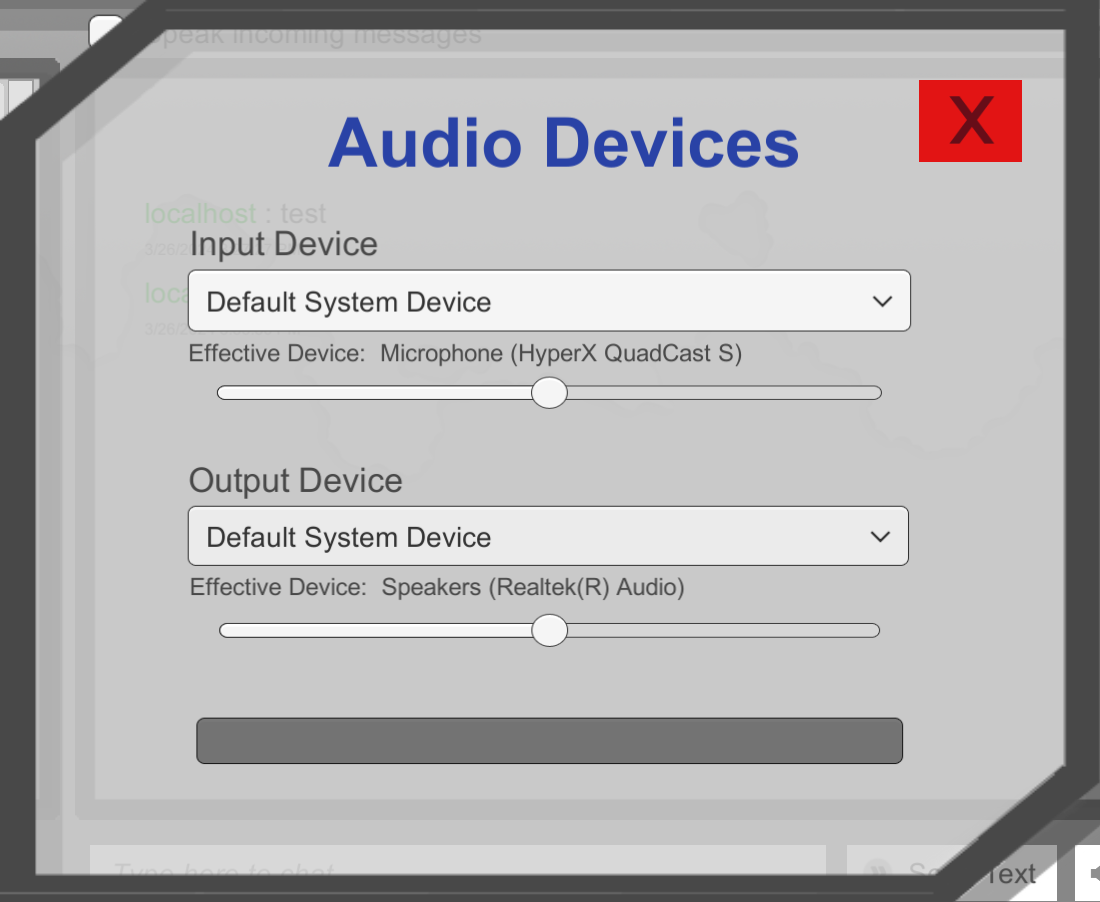
A screenshot of the Chat Channel Sample Audio Device Selection Menu with Effective Device Showing.
The effective device can change even if the available device list or the active device doesn't, such as when a user adjusts the in the System Settings on Windows machines.
In this case, neither the available device list or the active device changes but the effective device does because the real device that's used by has changed.
Default System DeviceDefault System Device