Using Vivox Access Tokens together with UAS
Follow this workflow to use Vivox Access Tokens together with Unity Authentication Services.
Read time 5 minutesLast updated 8 months ago
To have full control over which player can access which channels you can have your own back end mint Vivox Access Tokens (VATs).
Prerequisites:
- Set up a Unity Cloud project
- Make sure you have your project ID, environment ID, and environment name.
- Enable the UAS custom ID provider
- Make sure you have your Service Account credentials handy from this setup.
Creating VATs
- The Vivox SDK will request a VAT from the back end whenever one is needed using a custom token provider implementation.
- Add the to the request to the back end when requesting VATs within the
accessTokenmethod.GetTokenAsync - Validate and extract the needed information from the token in the back end and create the Vivox access token to send it back to the client.
VAT creation flow
This diagram covers the flow of creating VATs while using UAS:
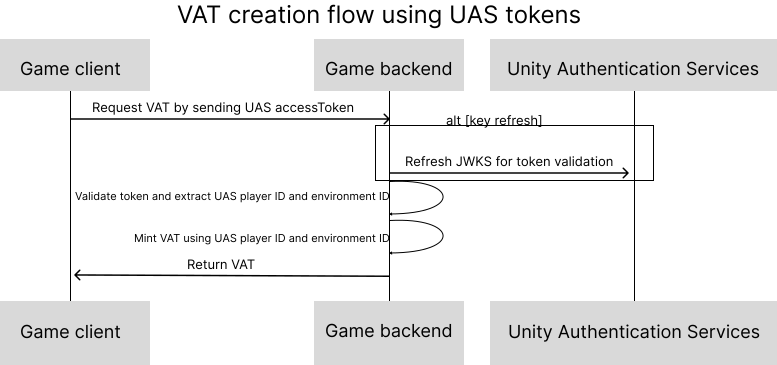
- The game client sends UAS access tokens to the game back end
- The game back end either gets token validation from the Unity Authentication Service with a JWKS refresh or validates the token itself using UAS player ID and environment ID.
- Once validated the game back end then returns a VAT to the game client.
Client-side setup
In your game client, create a class that implements the Vivox SDK’s interface and register it with the VivoxService.
IVivoxTokenProviderWhen you register your implementation of IVivoxTokenProvider by calling , Vivox calls your implementation's method whenever a token is needed for actions such as logging in.
VivoxService.Instance.SetTokenProviderIVivoxTokenProvider.GetTokenAsyncThe information needed to create a payload is provided as input to the overridden method. This information is used when crafting a VAT.
IVivoxTokenProvider.GetTokenAsyncYou must still set up server-side token vending and fetch the token within the overridden method.
IVivoxTokenProvider.GetTokenAsyncTo subscribe
Before logging in your player, you must register your implementation using:
IVivoxTokenProviderVivoxService.Instance.SetTokenProvider(new CustomTokenProvider());
Fetch the token
Create the payload with all the parameters provided in the overridden method, even if some are empty, and send it to your secure server to generate your Vivox Access Token.
Best practice is to send all the parameters; only what’s needed for the payload will be returned. Use the payload as input in the method.
GetTokenAsyncAdditionally, you will have to send the UAS in the payload of the request for the server to validate it and generate the Vivox Access Token from it.
accessTokenFor certain tokens, different parameters will be empty. For example, and will be empty for a login token. This is expected behavior.
targetUserUrichannelUriThe following is an example of token generation:
public class VoiceManager : MonoBehaviour{ async void Start() { // Must be done before any other Vivox action otherwise tokens will not be generated properly. VivoxService.Instance.SetTokenProvider(new VivoxTokenProvider()); await UnityServices.InitializeAsync(); await VivoxService.Instance.InitializeAsync(); }}class VivoxTokenProvider : IVivoxTokenProvider{ public Task<string> GetTokenAsync(string issuer = null, TimeSpan? expiration = null, string targetUserUri = null, string action = null, string channelUri = null, string fromUserUri = null, string realm = null) { if (!AuthenticationService.Instance.SessionTokenExists) { // Player not logged in! } var accessToken = AuthenticationService.Instance.AccessToken // Implement token fetching logic here. // The method parameters together with the accessToken from the AuthenticationService contain the necessary information for crafting the request payload. // This will be called whenever a token is needed for a Vivox action }}
Server-side setup
Your back end service needs to expose an API that the client can invoke within the function above, to receive a VAT when it's needed.
GetTokenAsyncRefer to Generate a token on a secure server to learn more about the implementation details on how to
create a VAT.
Refer to Access token payload for more information on the token payload.
When creating the VATs you need to be using the following user SIP URI as the subject:
sip:.issuer.unity_player_id.unity_environment_id.@domain.vivox.com
The refers to the Vivox issuer of your Unity project.
The refers to the UAS player ID.
The refers to the environment ID from your Unity Cloud environment.
issuerunity_player_idunity_environment_idThe VAT also requires the following format for the channel SIP URI in the token:
sip:confctl-g-issuer.channel_name.unity_environment_id@domain.vivox.com
The refers to the channel type: supported values .
The refers to the Vivox issuer of your Unity project.
The can be any identifier used by the game client.
The refers to the environment ID from your Unity Cloud environment.
ge, g, dissuerchannel_nameunity_environment_idThe and can be extracted from the accessToken that should be sent from the client to the backend within the method.
unity_player_idunity_environment_idGetTokenAsyncValidate the by following the steps described in Validate the token ID.
accessTokenThe claim of the token contains the UAS player ID.
The claim of the token contains the environment ID. The value is an array of case-sensitive strings, each containing a StringOrURI value.
subaudaud{ "header": { "alg": "RS256", "kid": "<id>", "typ": "JWT" }, "payload": { "aud": [ "upid:{{unity_project_id}}", "envName:{{environment_name}}", "envId:{{unity_environment_id}}" // unity environment id ], "exp": 1617677595, // expires at "iat": 1617673872, // issued at "nbf": 1617673872, // not valid before "sub": "{{unity_player_id}}", // UAS player ID "project_id": "{{unity_project_id}}" // unity project id }}
With that you can create the VAT and return it to the client.