Text Chat Sample
Explore the Text Chat Sample project for messaging features.
Read time 1 minuteLast updated 3 days ago
This text-focused sample showcases a comprehensive chat experience that demonstrates sending, editing, and deleting DMs or channel messages along with retrieving past conversations and their message history.
Import the Text Chat Sample
After adding the Vivox package to your Unity project, you can find a Samples tab on the Vivox page of the Package Manager.- Open the Unity Package Manager and select Vivox.
- Expand the Samples section.
- Select Import.
Use the Text Chat Sample
Prerequisite: Before running the sample scene make sure your Unity project is connected to the Unity Dashboard and your Vivox credentials have been set. You can do this from within the Unity Editor by navigating to Services > Vivox > Configure. After you have imported the sample you can find it in the Samples folder under Assets. Navigate to Samples > Vivox > versions # > Text Chat Sample > Assets > TextChatSample > Scenes and run the TextChatSample scene.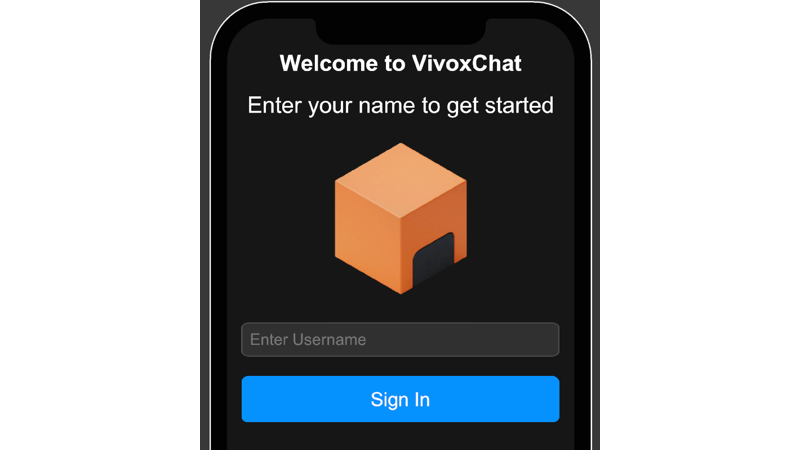
The Vivox text chat sample sign in screen.