Mesh Menu
Asset Transformer Studio Mesh menu reference for repairing and manipulating meshes
Read time 3 minutesLast updated 9 hours ago
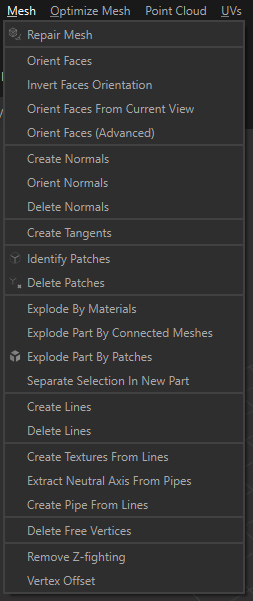
The Mesh menu contains the most commonly used mesh data preparation algorithms:
Menu option | Description |
|---|---|
| Repair Mesh | Automatically repairs selected meshes (tessellated geometries): stitches disconnected edges within the given tolerance, orients faces consistently |
| Orient Faces | Orients consistently polygons' faces and normals in the same direction by propagating orientation information from one polygon to the other, for the selected meshes. See About Face and Vertex Normals |
| Invert Faces Orientation | Inverts polygons' faces and normals orientation, for the selection. The selection can be either parts, patches or polygons. |
| Orient Faces From Current View | Orient Faces From Current View executes a semi-automatic repair of polygons' face orientation, based on the viewport camera. It uses the camera's position to properly and automatically orient meshes faces toward its direction. TIP: Use it step by step around your model until you are satisfied with mesh face orientation |
| Orient Faces (Advanced) | Orients all polygon faces in the same direction, automatically and at once, on a full model, using a scattering of cameras to determine faces final orientation |
| Create Normals | Creates normals on the polygons of the selection See About Face and Vertex Normals |
| Orient Normals | Orients consistently clockwise the vertex normals of a mesh in order to correct its smoothing See About Face and Vertex Normals |
| Delete Normals | Deletes normals from a mesh WARNING: Deleting normals from a mesh can result in an improper shading (black or faceted) See About Face and Vertex Normals |
| Create Tangents | Creates tangents on selected meshes, accordingly to their UVs (requires UVs in order to work) |
| Identify Patches | Creates patches boundaries on the selected meshes, based on geometrical information (attributes, edges angle, former CAD information…) |
| Delete Patches | Deletes patches boundaries |
| Explode Part By Materials | Creates one Part occurrence by material applied on the patches of the selected parts |
| Explode Part By Connected Meshes | Splits all the connected meshes within a Part into one new Part per connected mesh, for the selected parts |
| Explode Part By Patches | Splits meshes following patch boundaries and creates one single Part occurrence per old patch |
| Separate Selection in New Part | Creates a new part out of a selection of submeshes (patches, polygons…) |
| Create Lines | Creates polylines (made of free edges connected together) out of patches boundaries |
| Delete Lines | Deletes polylines (made of free edges connected together) TIP: It can be useful to delete lines prior to exporting to FBX files, in order to limit the file size and avoid performance issues in some cases. |
| Create Textures From Lines | Create textures out of coplanar polylines (made of free edges connected together) |
| Extract Neutral Axis From Pipes | Create a polyline (or a group of polylines) out of any swept shape like pipes, wiring, tubing |
| Create Pipes From Lines | Extrudes a circular section along an underlying polyline (sweep) |
| Delete Free Vertices | Deletes all free vertices of a selection of meshes |
| Remove Z-fighting | Remove Z-fighting (surfaces overlapping) by slightly shrinking the selected parts' surfaces |
| Vertex Offset | Moves the vertices by offsetting their position along their normal, positively or negatively |