Exporting Files
How to export files from Asset Transformer Studio
Read time 3 minutesLast updated 9 hours ago
After 3D/CAD models have been imported, assembled, prepared and optimized in Asset Transformer Studio, they can be exported in several file formats, among the most used in the industry: FBX, glTF, USDZ…
Find here all the formats supported at export in Asset Transformer Studio.
How To
To export, use the several options available in the File menu:
Menu option | Description | Keyboard Shortcut |
|---|---|---|
| Export Scene | Used to export the current scene to a supported file format. Choose a format using the filters, a file name and save: 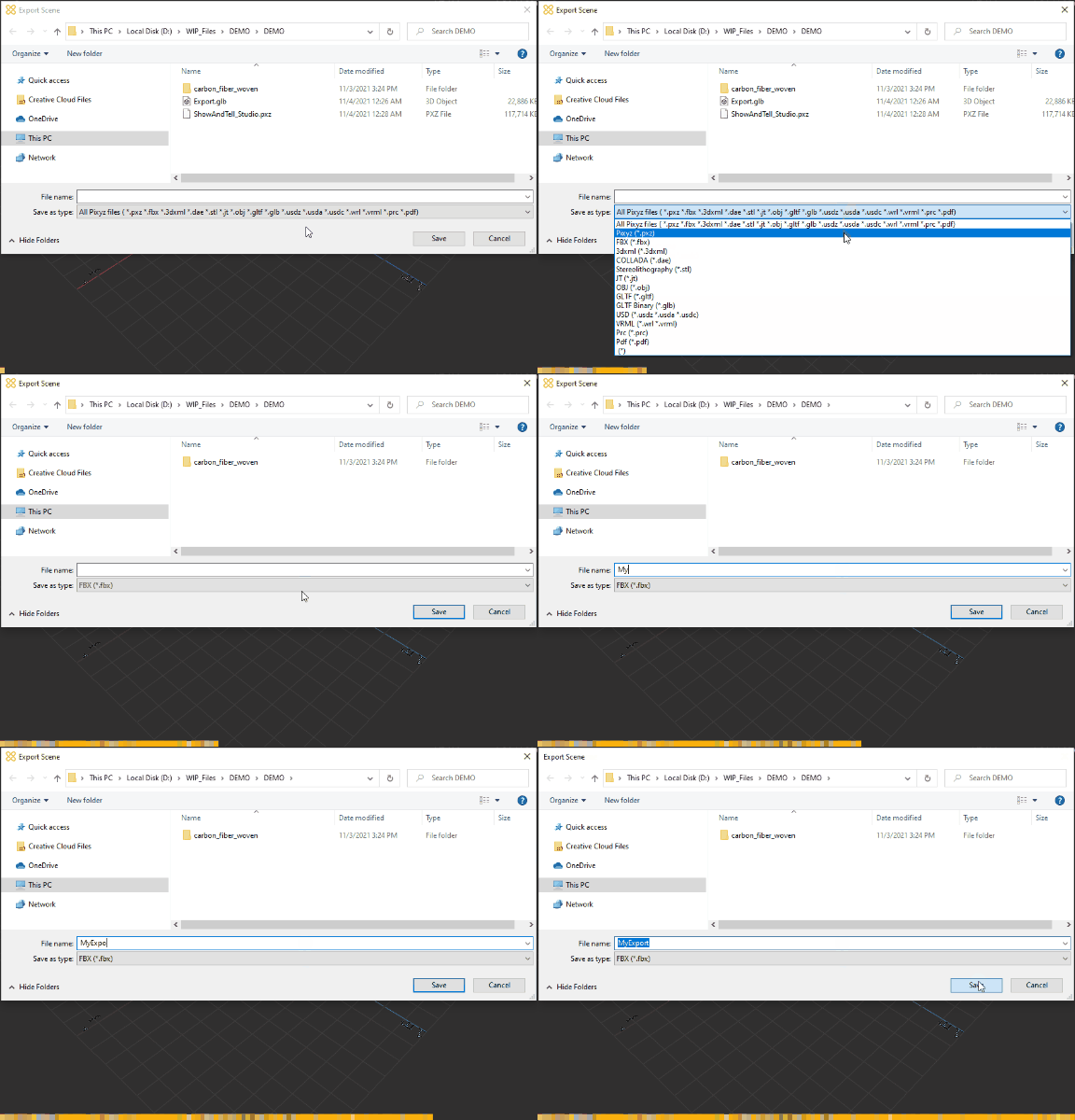 | CTRL + E |
| Export Selection | Used to export the selected occurrences to a supported file format | CTRL + SHIFT + E |
| Save Project | Used to save the current project | CTRL + S |
| Save Project As | Used to save the current project as new *.pxz project | CTRL + ALT + S |
| Save Selection | Used to save the current selection in a new *.pxz project |
Exporting to Unity Editor
To export optimized models using Asset Transformer Studio in a Unity Editor project, there are several options. Each has its advantages and limitations — the choice depends on the project requirements.
Recommended paths are: and the workflow.
Upload Scene To Unity Cloud Asset ManagerglTF+glTFastWorkflow option | Workflow description | Workflow limitation |
|---|---|---|
| Upload Scene To Unity Asset Manager | Upload the meshes from the scene to Unity Asset Manager. Assets can then be imported in Unity Editor from the Asset Manager. | Asset is stored on Unity Cloud, which can be a limitation in closed environments. |
| glTF | Export files as binarized glTF files in .glb format, then use the Unity glTFast plugin to import the generated files into the Unity Editor. Works with Unity Runtime apps as well. | You must first export files in glTF format, then import them into the Unity Editor using the plugin. glTFast currently doesn't export metadata to the .glTF format. As a workaround, use the .fbx format to preserve metadata. |
| Unity Editor native importers | Export in a format natively supported by Unity Editor at import, such as .fbx or .obj. | Some information might get lost depending on the format used. For example, the OBJ format loses the hierarchy. |
| Prefab | Export as a .prefab file directly in the targeted Unity project. | Prefab workflow is the most straightforward, but some information is not preserved like metadata, animation or 2nd UV channels. Thus it is not recommended. |
Export parameters
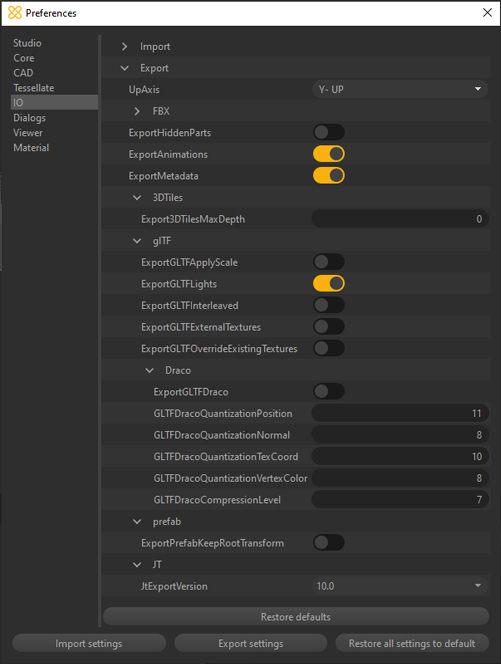
Export Preference | Description |
|---|---|
| UpAxis | Use to define the Up-axis of the exported files. Affects FBX and USD formats only. Other formats are exported in the up-axis defined in their specification. If undefined, Asset Transformer Studio's up-axis is used (Y-up). |
| ExportHiddenParts | Hidden parts are exported if enabled (as hidden parts). |
| ExportAnimation | Animations are exported if enabled, providing the export format supports animation (see Supported formats table). |
| ExportMetadata | Metadata stored in Metadata components on top of occurrences are exported if enabled, providing the export format supports metadata (see Supported formats table). |
Exporting Textures
To export textures, see the dedicated page here.
Export and scripting
Exporting files using the Python API is not possible in Asset Transformer Studio, as batching files is not allowed. Functions such as are not exposed in the API.
pxz.io.exportScene()Asset Transformer SDK is the dedicated tool for batching/automation purposes.