Upload Scene To Unity Asset Manager
How to upload a scene from Asset Transformer Studio to Unity Asset Manager
Read time 2 minutesLast updated 9 hours ago
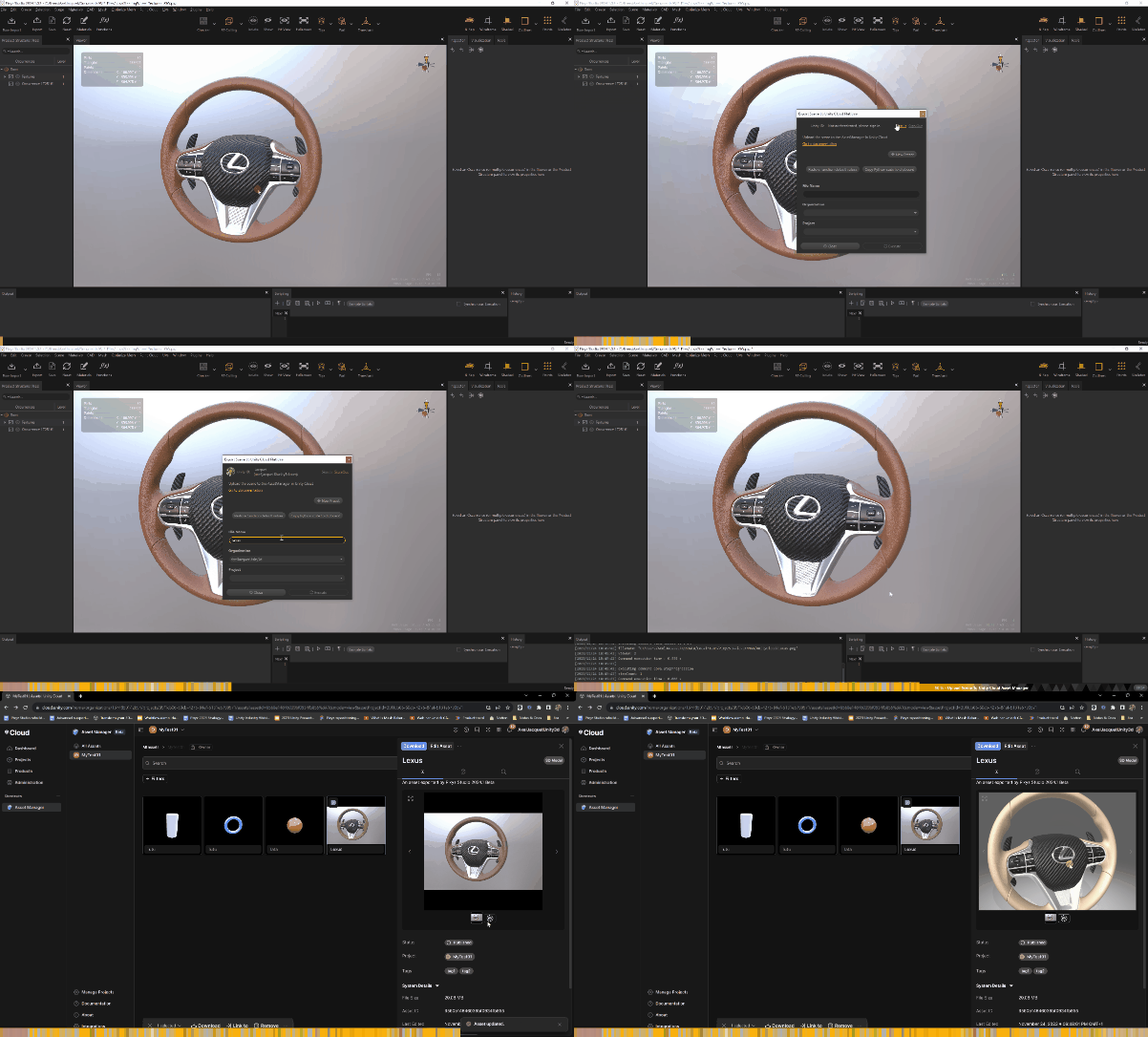
From Asset Transformer Studio, you can upload any scene to Unity Asset Manager to share, manage, transform and stream it.
Why use Asset Transformer Studio with Unity Asset Manager
Connecting Asset Transformer Studio to Unity Cloud gives 3D data preparation specialists tools they need to:
- Locally import and assemble multiple 3D source files together, from any source
- Locally prepare and optimize 3D models to fit their business needs, interactively and with precision
- Upload prepared models to the Asset Manager as assets for review and collaboration with key stakeholders and partners
Before you start
Before you can successfully upload your Scene to Unity Cloud, verify that you:
- Have a UnityID allowing you to connect to Unity Cloud
- Are an Organization Owner or Content Manager User role and permissions for your Organization in the Unity Cloud dashboard (see documentation)
Upload a scene to Unity Asset Manager
To upload your scene to the Asset Manager, follow these steps:
- Prepare your 3D scene using Asset Transformer Studio.
- Go to the File menu and select
.Upload Scene to Unity Asset Manager- From the function's dialog:
- Sign-in with your Unity ID: a web page is opened to sign-in to the Unity Cloud Dashboard.
- Go back to Asset Transformer Studio and wait for the connection to be established.
- Select the
andOrganizationto which you want to upload your scene.Project- Define optional parameters.
- Click
: the upload process starts. When finished and by default, a web page is opened where the new asset can be managed.Execute
Upload process
Asset Transformer Studio exports your scene locally as a temporary and then uploads it to the Asset Manager as a new asset in the Unity Cloud Project you selected.
.glbBy default, the new asset has the same name as the Asset Transformer Studio scene you used for the upload. After the file successfully uploads, the system deletes the local temporary file.
Limitations
- Upload is not iterative: each time the function is triggered, a new file is generated from the scene and uploaded to the Asset Manager as a new asset.
.glb - Only upload is possible: existing assets cannot be retrieved from the Asset Manager to be prepared and optimized locally.
- The Asset Transformer Studio scene cannot be exported as a .pxz scene, only as a .glb file.