Plugins
Extend Asset Transformer Studio with custom plugins
Read time 2 minutesLast updated 10 hours ago
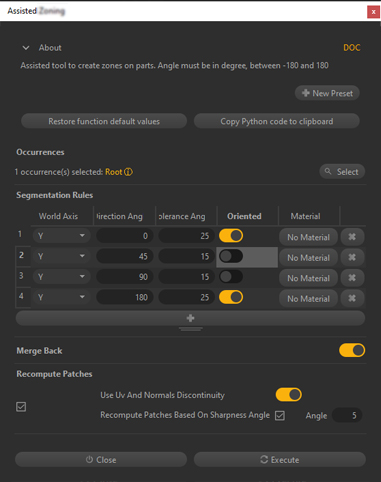
Extend Asset Transformer Studio's core features by encapsulating your data preparation process using plugins.
A plugin is composed of:
- One or several Python script files (.py): they embed the data preparation code to execute
- An XML file (.xml), used to provide an interface, which exposes the arguments to feed as input/output to the scripts
- Python modules dependencies
Why plugins?
Plugins can be created to add custom functionalities and behavior to Asset Transformer Studio, by creating dedicated data preparation tools with their own interface, menu, or button, for example to automate repetitive tasks.
How are plugins developed?
Plugins can be developed:
- By you: Plugins can be easily created from a Template accessible in the Plugins menu, which can be modified in the Scripting Editor or using your favorite IDE (see Creating a Plugin), with the help of the API Reference.
- For you: Please contact Unity if you are interested in the creation of a bespoke scenario, based on your specific data preparation process.
Editable versus Published plugin
By default, a plugin is editable: all its files are accessible and can be modified, within Asset Transformer Studio using the Scripting Editor, or outside using an IDE. A plugin that can be edited is an .
Editable pluginA plugin can be published in the form of a binarized archive file, with a .pxzext extension. It is then called a , easier to store and exchange with other Asset Transformer Studio users.
Published pluginPlugins folder locations
In order to be loaded and executed in Asset Transformer Studio, plugins must be placed in one of the following predefined locations on a computer:
- folder (
ProgramData): place a plugin folder here to make it available for all computer users (see Creating a Plugin) — recommended location%programdata%/PixyzStudio/plugins - folder (
AppData): place a plugin folder here to restrain plugin access to the concerned user (see Creating a Plugin)%appdata%/PixyzStudio/plugins - Asset Transformer Studio installation directory (): folder where default plugins are located, when existing — do not modify
PixyzStudioInstallationDirectory/bin/plugins
At startup, Asset Transformer Studio loads all the plugins located in these 3 folders.