Documentation

​
​

Development

User Acquisition

Monetization

Industry

Asset Transformer Studio

2026.5.0

Supported
​

User Manual

Python API

Changelog

Asset Transformer Studio

2026.5.0

Supported
​

​
​
Get started
  • About Asset Transformer Studio
  • Getting started
  • Additional Resources
User Interface
  • Overview
  • Menu Bar
  • Toolbars
  • Window
  • Customizing the User Interface
Data Preparation Fundamentals
  • Overview
  • General Information
  • Typical Data Preparation Workflow
  • About 3D Models Types
  • About the Product Structure (Tree)
  • About Occurrences
  • About Instances & Prototypes
  • About Face and Vertex Normals
  • About UVs
  • About Tessellation
  • About Decimation
  • About Animation
  • Glossary
Working With Asset Transformer Studio
  • Overview
  • Videos and Tutorials
  • Supported File Formats
  • Importing Files
  • Exporting Files
  • Scripting With the Python API
  • Interrupting a Process
  • Plugins
    • Creating a Plugin
    • Running a Plugin
    • Managing Plugins
    • Publishing a Plugin
    • Plugins Shortcuts
      • Customize Menus
  • Errors in Asset Transformer Studio
Python API Reference
  • Overview
Changelog
  • Changelog
  1. Asset Transformer Studio
  2. Working With Asset Transformer Studio
  3. Plugins

Plugins Shortcuts

How to add plugins to toolbars, menus, and keyboard shortcuts in Asset Transformer Studio
Read time 1 minute
Last updated 13 hours ago

Once a plugin is created and loaded in Asset Transformer Studio, it can be executed from the Plugins menu, but it can also be executed from other locations in the interface.

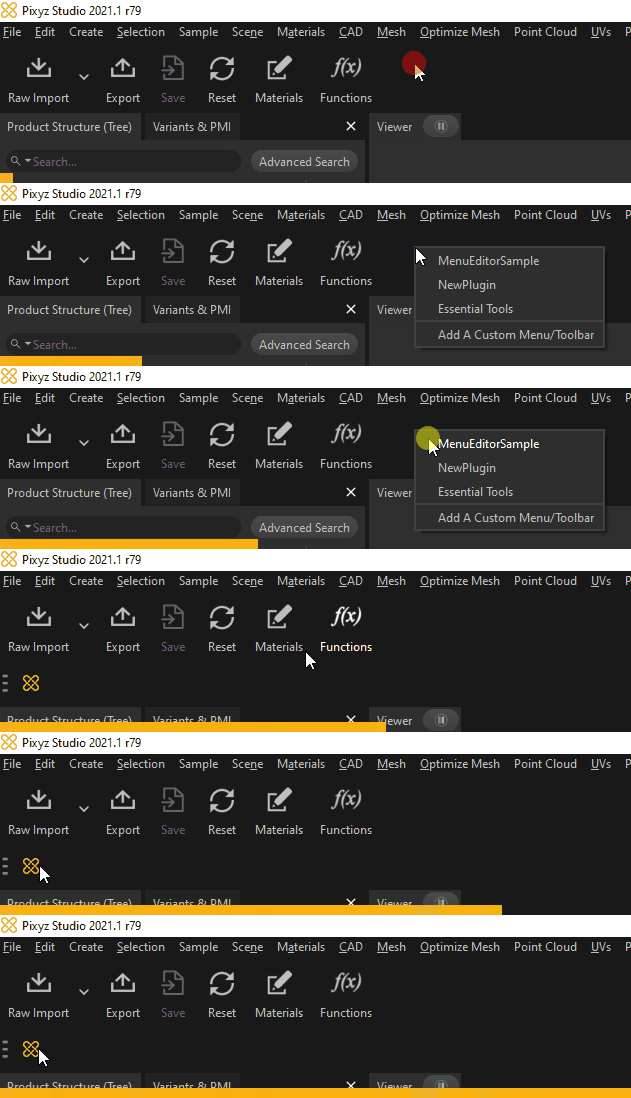
Toolbar

Plugins can be made available through buttons in a custom toolbar.
Right-click in the Main Toolbar and select the plugin:
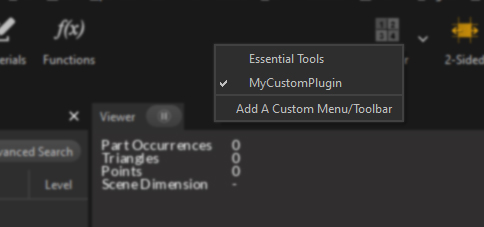
Plugin toolbar button
Plugin selection list
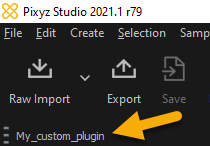
Buttons can be personalized using icons.
To do so, create an
icons
folder at the root of the plugin. Add your icon image (.png) and rename it with the entry function name (
my_custom_plugin.png
).
Toolbar plugin icon

Menus

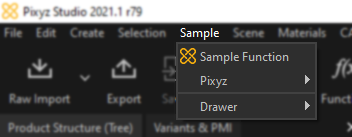
Plugin menu entry
A plugin's functions can be added in a dedicated menu or in any of the default menus available in the Menu Bar.
Read more about customizing menus.

Keyboard shortcuts

Like any other function available in Asset Transformer Studio, it is possible to add a keyboard shortcut to a plugin's function.
Note
A plugin can be executed in scripting from the Scripting Editor.

Copyright © 2026 Unity Technologies
LegalPrivacy PolicyCookiesDocumentation Terms of UseDo Not Sell or Share My Personal InformationYour Privacy Choices (Cookie Settings)

"Unity", Unity logos, and other Unity trademarks are trademarks or registered trademarks of Unity Technologies or its affiliates in the U.S and elsewhere (more info here). Other names or brands are trademarks of their respective owners.

Some pages are machine-translated for convenience, and may contain inaccuracies. In the event of conflicting information, the English version is authoritative.

  • On this page
    • Toolbar

    • Menus

    • Keyboard shortcuts