About Animation
How animation works in Asset Transformer Studio
Read time 2 minutesLast updated 9 hours ago
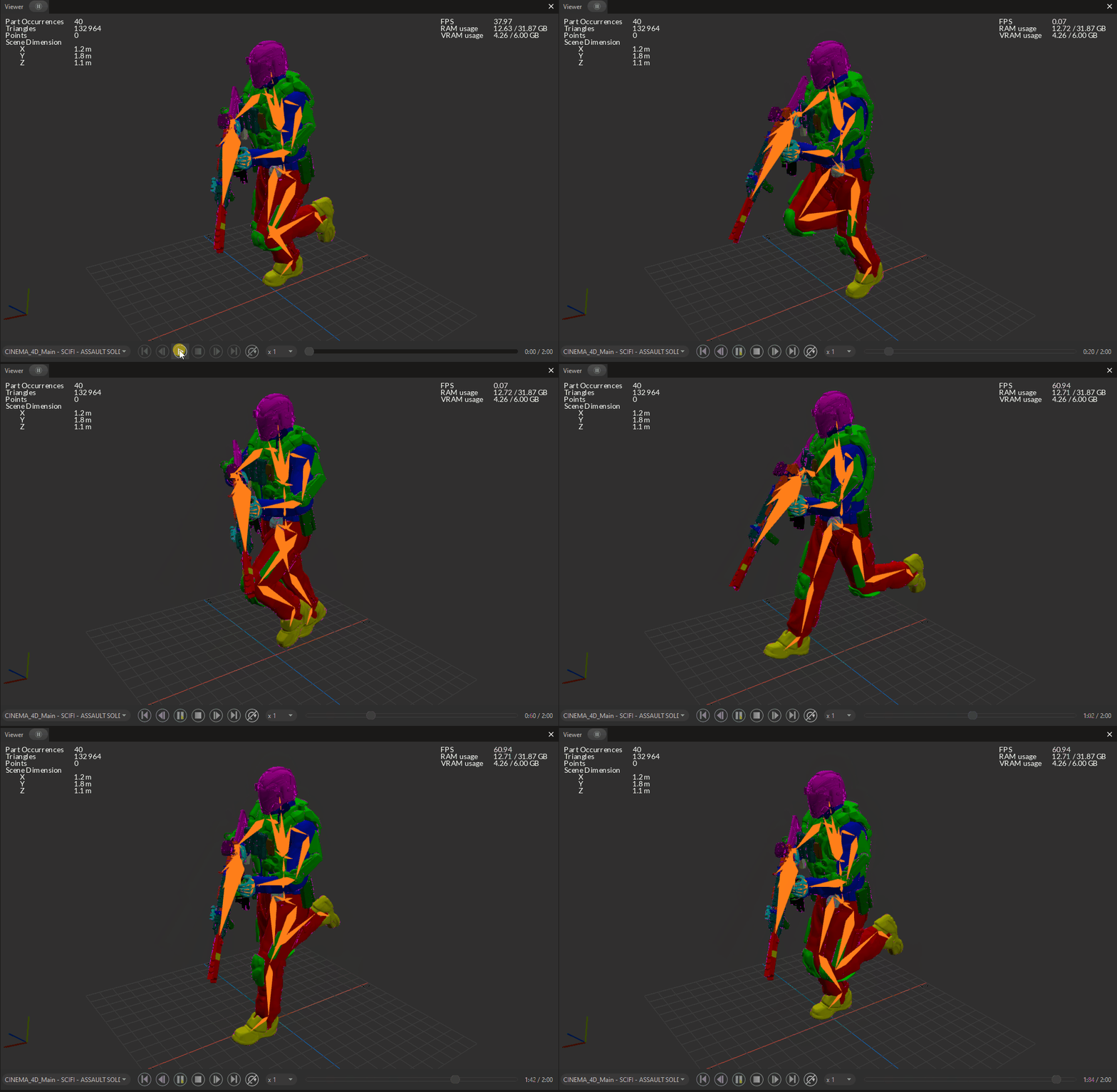
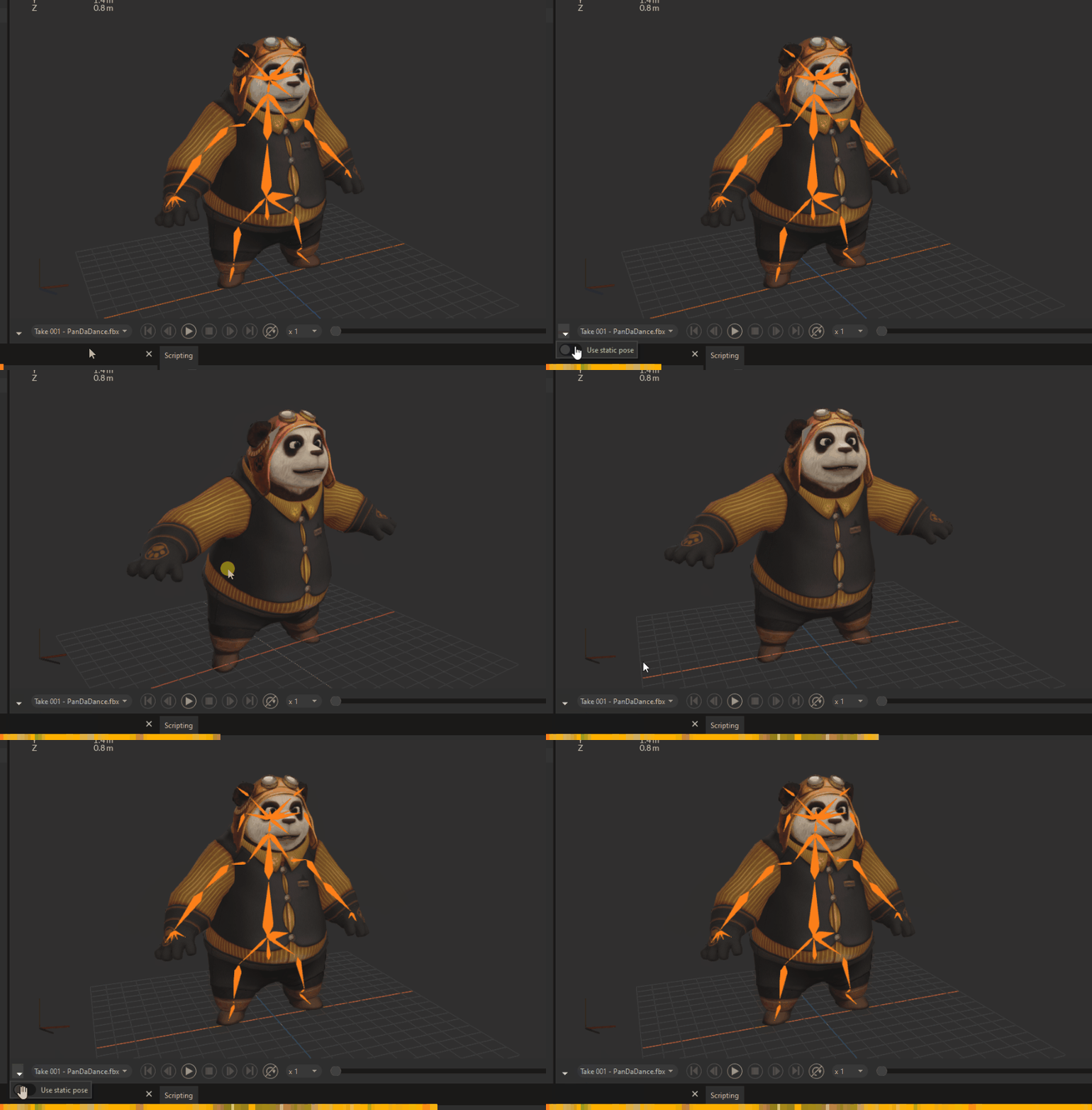
A lot of 3D models are animated, especially models from the game industry, to create lifelike 3D scenes and experiences in real-time engines like Unity.
Asset Transformer Studio supports animations, giving users (and 3D artists in particular) the possibility to optimize animated 3D models, using the full power of the Asset Transformer toolbox.
Here are the main features regarding Animation:
- Animations contained in FBX, glTF and USD files can be imported (including multiple clips/sequences animations)
- Animated models can be exported as FBX, glTF and USD files (and saved in scenes)
- The types of animations supported are solid animations and skeletal animations. Morph targets are not supported.
- Imported animations can be played through the Animation Player panel and visualized in the Viewer panel
- Animated models can be optimized using all the main functions available, such as Decimation, Remove Occluded Geometries, Repair Mesh…
Solid animation example
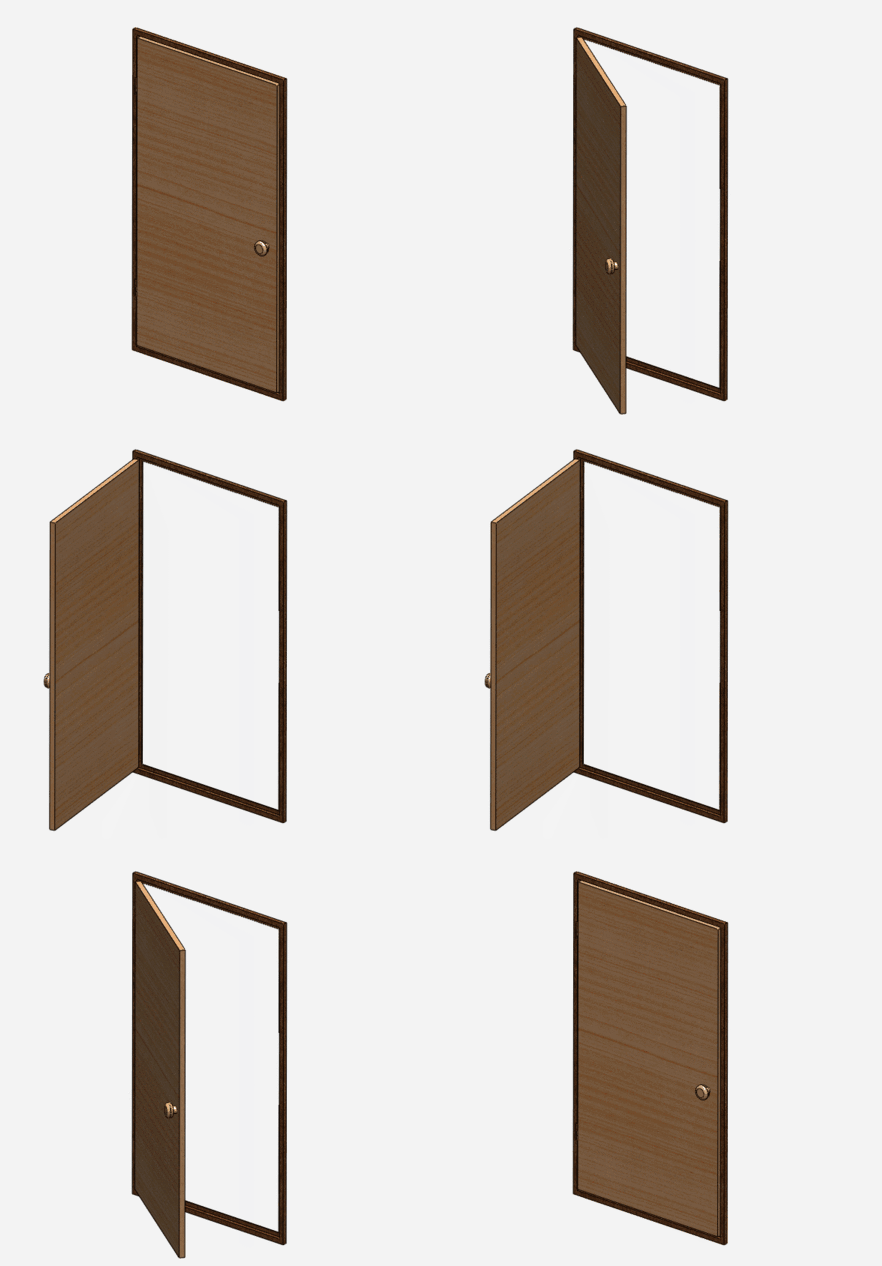
A solid animation is an animation for which only the translation, rotation and scale of an occurrence (transformation properties) are animated. The meshes are not deformed, only moved.
A simple example is the animation of an opening door, for which the rotation property on the up-axis is animated, from 0 to 90 degrees.
Solid animations are often used for mechanical models.
Skeletal animation example
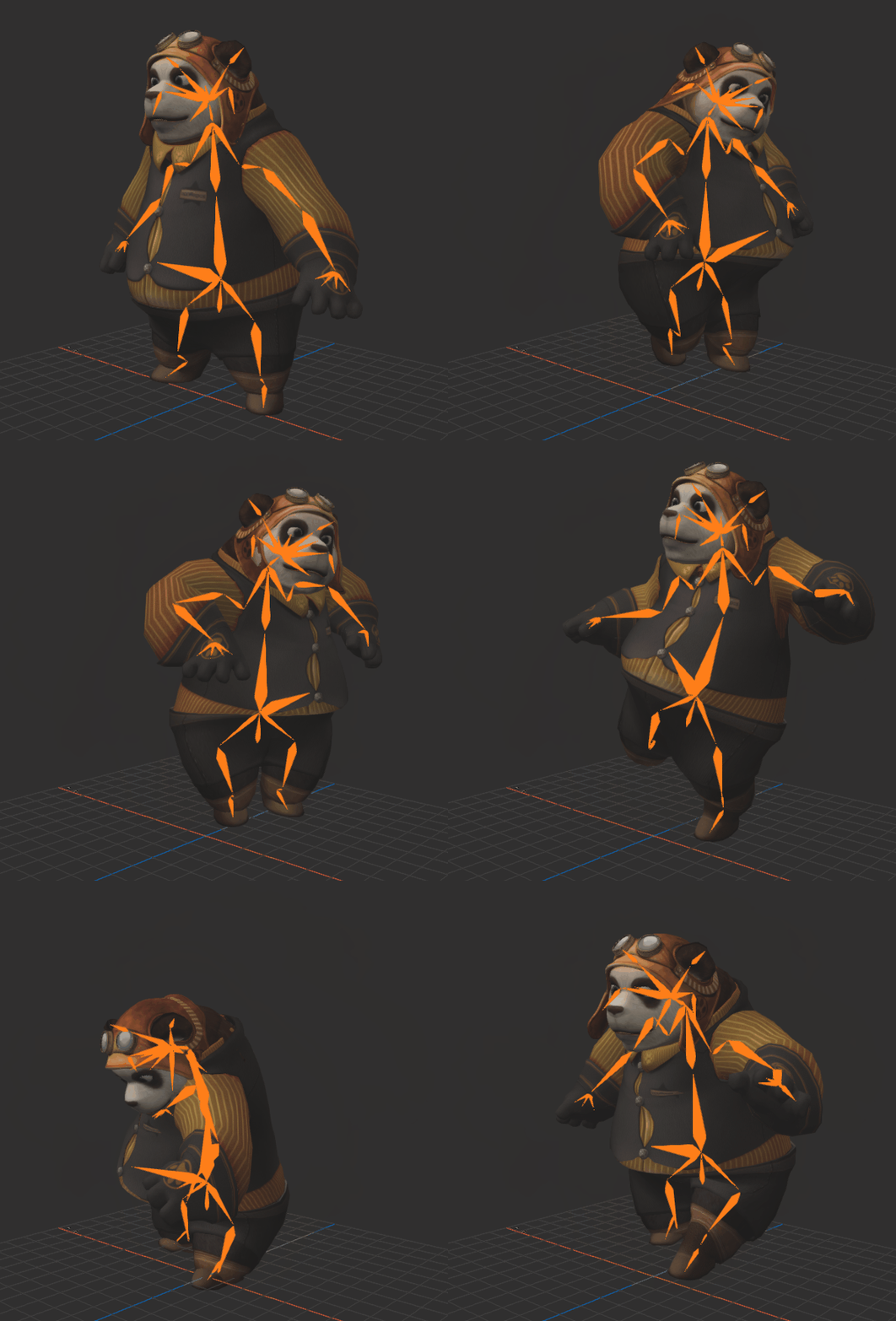
A skeletal animation is when a virtual skeleton made of bones is animated, deforming and animating the meshes of the 3D model.
The skin is the information contained in the mesh that binds the mesh to the joints of the bones, in order for the mesh to be deformed and animated.
Joint occurrences can have their transformation properties translation, rotation and scale animated.
Limitations
- In Asset Transformer Studio, animations cannot be edited through an animation editor; they can only be played through the panel.
Animation Player - Animation should not be confused with the concept of kinematics, existing in some CAD models. Kinematics define mechanical bonds between 3D objects (axes, joints, springs, etc.) and degrees of mechanical freedom. Kinematics are not supported in Asset Transformer Studio.
- The following are not yet supported:
- Animation of material parameters' value (e.g. opacity evolving over time)
- Blend shapes/morph target animation for facial animation
- Audio sources parametrization animation