File Menu
Asset Transformer Studio File menu reference
Read time 1 minuteLast updated 9 hours ago
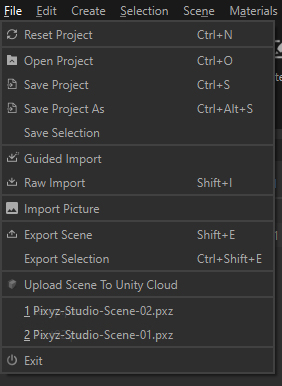
The File menu contains the actions for creating and saving projects, and the actions for importing and exporting CAD and Tessellated models in/from the project:
Menu option | Description | Keyboard Shortcut |
|---|---|---|
| Reset Project | Used to reset the current Asset Transformer Studio scene | CTRL + N |
| Open Project | Used to open a *.pxz project | CTRL + O |
| Save Project | Used to save the current project | CTRL + S |
| Save Project As | Used to save the current project as new *.pxz project | CTRL + ALT + S |
| Save Selection | Used to save the current selection in a new *.pxz project | |
| Guided Import | Used to import CAD/3D models in Asset Transformer Studio, using the Guided import window. When importing a file (or multiple files) with the Guided import, Asset Transformer Studio helps you convert and ready your 3D model with guided parameters. See also: Importing Files, Guided Import, Supported File Formats | |
| Raw Import | Used to import CAD/3D files in the scene. When importing a file in the scene with the Raw import, all the raw data included in the 3D model is simply imported without any other process. See also: Importing Files, Supported File Formats | |
| Import Picture | Used to import a picture within the scene directly creating a 3D plane from it, ready to be used as a movable object.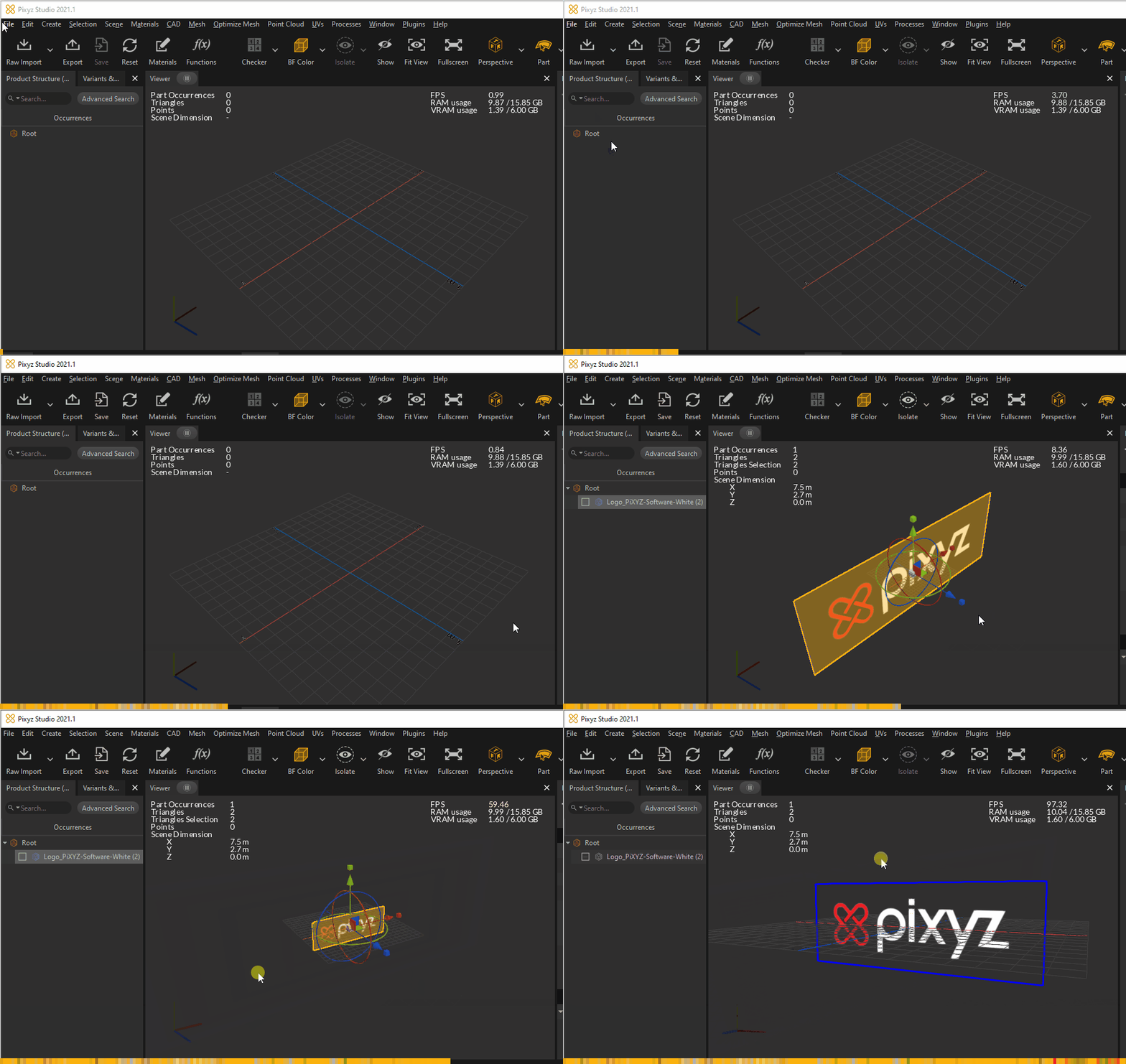 | |
| Export Scene | Used to export the current scene to a supported file format. See also: Exporting Files, Supported File Formats | |
| Export Selection | Used to export the selected occurrences to a supported file format | |
| Upload Scene To Unity Asset Manager | Upload the scene to Unity Asset Manager to share, manage, transform and stream it | |
| Recent Projects | Shows recently opened *.pxz projects | |
| Exit | Exits the program |