Import Mode
Understanding import modes in Asset Transformer Studio
Read time 3 minutesLast updated 12 hours ago
Importing a 3D/CAD file is generally the very first action to start working with Asset Transformer Studio, as importing, converting and optimizing a 3D model is the most common use case!
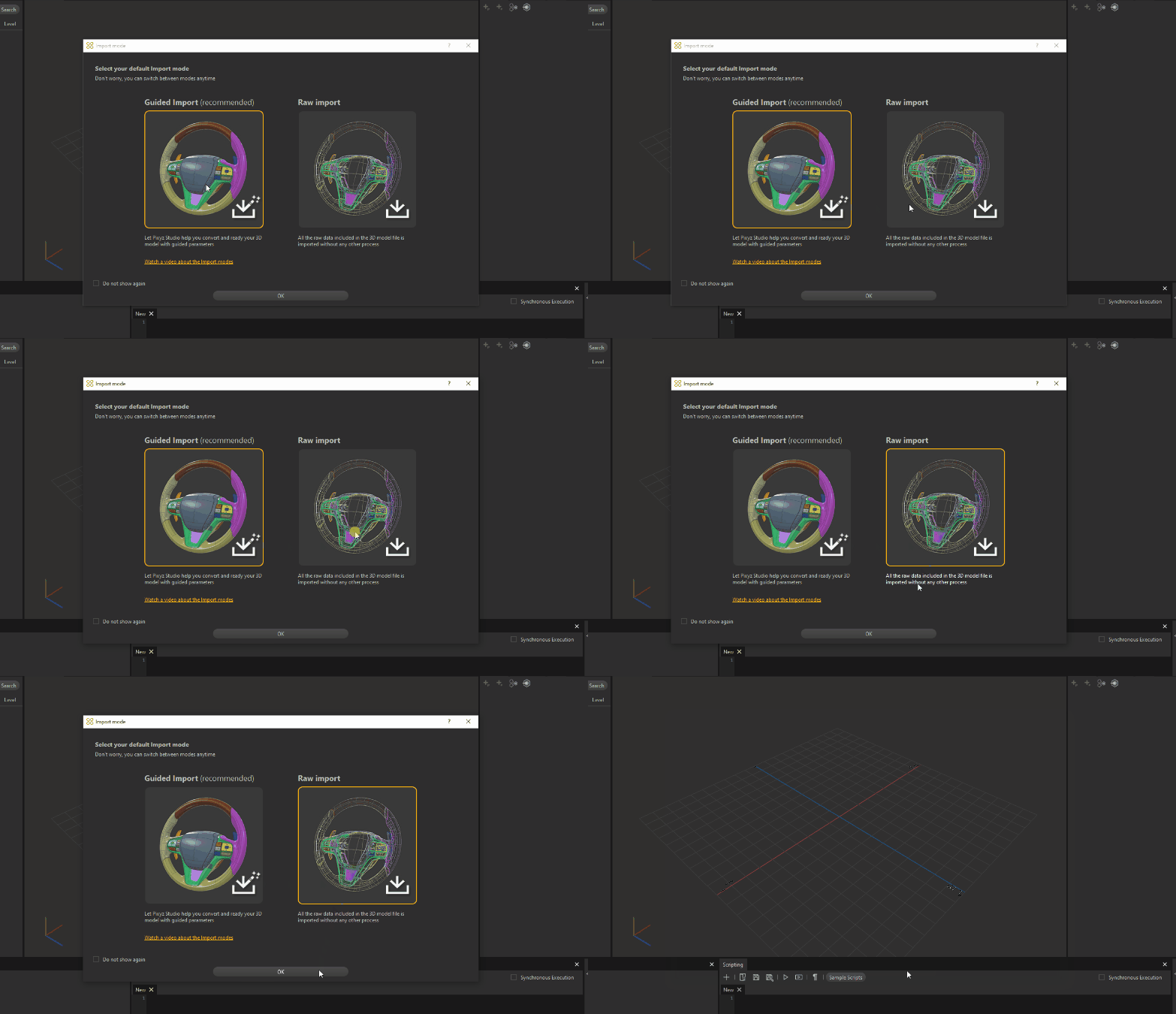
When opening Asset Transformer Studio for the first time, the user is asked to choose an preference.
Import modeThe Import mode defines how a model is imported in Asset Transformer Studio, and 2 modes are available: and .
Raw importGuided importRaw import
All the raw data included in the 3D model is simply imported without any other process
The Raw import mode is basically the legacy mode: when a model is imported in Asset Transformer Studio, all the raw data included in the 3D model is simply imported without any other process.
The import options (like or ) used with this import mode are the ones defined by the user prior to import, in Preferences (F9) > > .
Load HiddenImport AnimationsIOImportUsing this mode, the user has full control over how the imported model will be data-prepared. In this regard, the Raw import mode is intended for advanced and legacy users, with a good knowledge of 3D model import and conversion, as well as a good knowledge of Asset Transformer Studio data preparation features and algorithms.
After importing the model, the user still needs to prepare it using all the features of Asset Transformer Studio, giving them more control.
Guided import
Let Asset Transformer Studio help you convert and ready your 3D model with guided parameters
Compared to the Raw import, the Guided import is a simplified, guided method to import a 3D model in the scene.
In this regard, the Guided import mode is intended for novice users, who want to quickly convert any 3D model without requiring advanced data preparation knowledge.
But it is also convenient for advanced users that want to rely on Asset Transformer expertise, embedded in the data preparation recipe, or want to leverage the embedded features in order to gain time and productivity.
How To
Setting the preference
The window is displayed when opening Asset Transformer Studio for the first time, and will be displayed every time the software is launched until the option is ticked.
Import modeDo not show againTo define your Import mode, simply click the dedicated picture, and click .
OKDepending on the Import mode chosen, the icon used in the main toolbar will be set to either Raw import or Guided import:
Import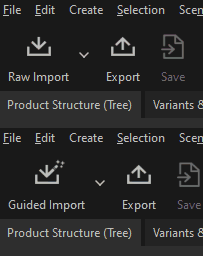
Changing the preference
The preference can be changed in 3 different ways:
Import mode
- Every time Asset Transformer Studio is launched, the
window will be displayed, allowing to modify the Import mode, until theImport modeoption is ticked (go to Preferences (F9) >Do not show againand disable theDialogspreference to show it again at startup).Hide Import Mode Dialog- To change the general preference for the
set by the user at startup (without restarting Asset Transformer Studio to display theImport modewindow again), two possibilities:Import mode
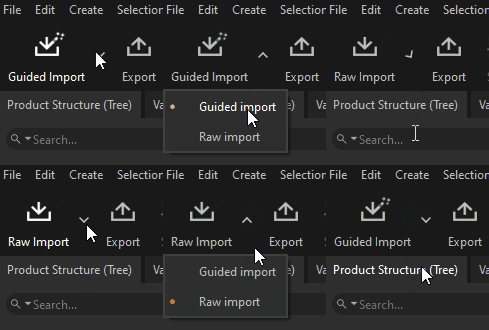
- Clicking the arrow on the right-side of the import icon in the Main Toolbar and choosing the mode:
- Going to Preferences (F9) >
>Studio, and change the mode with the drop-down list.Import Mode