Documentation

​
​

Development

User Acquisition

Monetization

Industry

Asset Transformer Studio

2026.5.0

Supported
​

User Manual

Python API

Changelog

Asset Transformer Studio

2026.5.0

Supported
​

​
​
Get started
  • About Asset Transformer Studio
  • Getting started
  • Additional Resources
User Interface
  • Overview
  • Menu Bar
  • Toolbars
  • Window
  • Customizing the User Interface
Data Preparation Fundamentals
  • Overview
  • General Information
  • Typical Data Preparation Workflow
  • About 3D Models Types
  • About the Product Structure (Tree)
  • About Occurrences
  • About Instances & Prototypes
  • About Face and Vertex Normals
  • About UVs
  • About Tessellation
  • About Decimation
  • About Animation
  • Glossary
Working With Asset Transformer Studio
  • Overview
  • Videos and Tutorials
  • Supported File Formats
  • Importing Files
    • Import Mode
    • Guided Import
    • Importing Alias Files
    • Importing VRED Files
    • Importing RVM Files
    • Importing ReCap Files
  • Exporting Files
  • Scripting With the Python API
  • Interrupting a Process
  • Plugins
  • Errors in Asset Transformer Studio
Python API Reference
  • Overview
Changelog
  • Changelog
  1. Asset Transformer Studio
  2. Working With Asset Transformer Studio
  3. Importing Files

Importing Alias Files

How to import Autodesk Alias .wire files in Asset Transformer Studio
Read time 1 minute
Last updated 12 hours ago

Importing an Alias file (*.wire) in Asset Transformer Studio requires Autodesk Alias to be installed (with a valid license) on the same computer on which Asset Transformer Studio is running.

Configuring Asset Transformer Studio

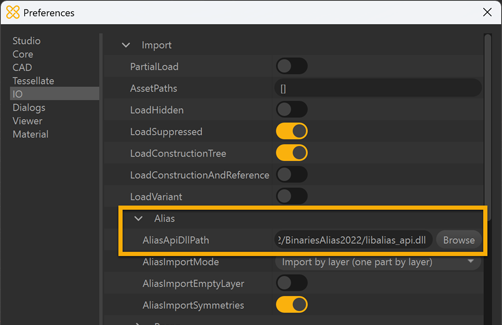
To start importing *.wire files in Asset Transformer Studio, the software needs to be configured first from the menu Preferences:
  1. Press
    F9
    or go to Edit menu > Preferences >
    IO
    >
    Import
    >
    Alias
  2. Fill the path in the
    AliasApiDllPath
    field: browse to the
    libalias_api.dll
    file (most likely located in the
    bin
    directory).
Alias configuration
If the path is not properly configured, Asset Transformer Studio will prompt the following error message:
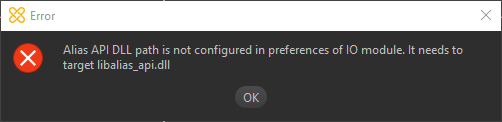
Alias error
Important
The
libalias_api.dll
is not the only file required to import a *.wire file: other files located in the same directory where
libalias_api.dll
is located are also needed.

Import preferences

The import of Alias files can be parametrized using additional import preferences:

Preference

Description

AliasImportMode-
Import by layer (one part by layer)
(default): the resulting hierarchy corresponds to the
By Layers
display mode in Alias, with each layer imported as a single Part occurrence.
-
Import by object
: the resulting hierarchy corresponds to the
By Objects
display mode in Alias, with the full hierarchy of objects.
-
Import by layer
: the resulting hierarchy corresponds to the
By Layers
display mode in Alias, with each layer imported as a root occurrence for all its children objects.
AliasImportEmptyLayerIf enabled, empty layers are imported as empty occurrences.
AliasImportSymmetriesIf enabled, symmetrized layers are imported. Each symmetrized layer is an instantiated symmetry of its prototype layer.

Copyright © 2026 Unity Technologies
LegalPrivacy PolicyCookiesDocumentation Terms of UseDo Not Sell or Share My Personal InformationYour Privacy Choices (Cookie Settings)

"Unity", Unity logos, and other Unity trademarks are trademarks or registered trademarks of Unity Technologies or its affiliates in the U.S and elsewhere (more info here). Other names or brands are trademarks of their respective owners.

Some pages are machine-translated for convenience, and may contain inaccuracies. In the event of conflicting information, the English version is authoritative.

  • On this page
    • Configuring Asset Transformer Studio

    • Import preferences