Edit Menu
Asset Transformer Studio Edit menu reference
Read time 2 minutesLast updated 9 hours ago
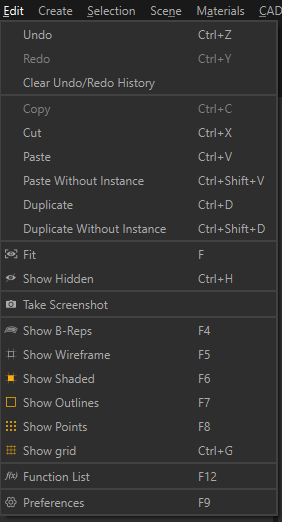
The Edit menu allows you to access the most common settings for the Viewport display, the Function List (all Asset Transformer Studio algorithms) and the program preferences:
Menu option | Description | Keyboard Shortcut |
|---|---|---|
| Undo | Undo last action | CTRL + Z |
| Redo | Redo last action | CTRL + Y |
| Clear Undo/Redo History | Clears all recorded undo/redo steps (empties History panel) | |
| Copy | Copies the selected occurrences to the clipboard | CTRL + C |
| Cut | Cuts the selection | CTRL + X |
| Paste | Inserts the occurrences that were copied into the selected location, as instances of the copied occurrences | CTRL + V |
| Paste Without Instance | Inserts the occurrences that were copied into the selected location, as new occurrences (without creating instantiation from the copied occurrences) | CTRL + SHIFT + V |
| Duplicate | Copies and inserts each selected occurrence at the same location as the copied occurrence (with creating instantiation from the copied occurrences) | CTRL + D |
| Duplicate Without Instance | Duplicate/clone a selection of occurrences, without any link/instantiation to the original selection | CTRL + SHIFT + D |
| Fit | Fits camera-view to the selection | F |
| Show Hidden | Switches to No-Show (hidden parts of the scene). Also accessible from the Main Toolbar | CTRL + H |
| Take Screenshot | Saves the current camera-view as a PNG picture | CTRL + SHIFT + S |
| Show B-Reps | Displays B-Rep/CAD geometries (displayed as wire shapes in the viewport) | F4 |
| Show Wireframe | Displays the wireframe and draws mesh edges in the viewport. The wireframe mode shows specific colors for some edges: - Edges in blue are disconnected edges (free boundaries). - Edges in red are non-manifold edges (shared by more than two faces). | F5 |
| Show Shaded | Displays shaded mesh: polygon faces are drawn in the viewport | F6 |
| Show Outlines | Displays mesh outlines information. Outlines are either CAD patches boundaries (displayed black by default) or Lines (displayed white by default) | F7 |
| Show Points | Displays vertices (CAD points, free vertices, point clouds) | F8 |
| Show Grid | Displays the grid in the viewer | CTRL + G |
| Function List | Opens Asset Transformer Studio's Function List | F12 |
| Preferences | Opens Asset Transformer Studio Preferences window to adjust application settings | F9 |