Selection Menu
Asset Transformer Studio Selection menu reference
Read time 2 minutesLast updated a day ago
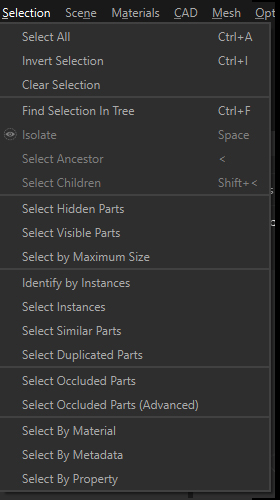
The Selection menu contains a set of functions to quickly and automatically select parts in the scene.
Menu option | Description | Keyboard Shortcut |
|---|---|---|
| Select All | Selects all part occurrences (or parts) from the scene (visible and hidden) | CTRL + A |
| Invert Selection | Switches the current selection | CTRL + I |
| Clear Selection | Clears the current selection | CTRL + SHIFT + A |
| Find Selection In Tree | Used to find the current selection in the Product Structure (Tree) | CTRL + F |
| Isolate Selection | Displays the current selection in a temporary view, in order to visualize it and process it independently from the whole scene | SPACE |
| Select Ancestor | Selects the first common ancestor of the current selection | < |
| Select Children | Selects the children for each occurrence of the current selection | > |
| Select Hidden Parts | Selects all Parts not visible in the viewer (shown in the No-Show view), i.e. with their | |
| Select Visible Parts | Selects all Parts visible in the viewer | |
| Select By Maximum Size | Selects Parts within a specified maximum Bounding Box diagonal size. | |
| Identify by Instances | Selects Parts that are instantiated in the scene more than the specified value. | |
| Select Instances | Selects all the instances of the currently selected occurrence (providing it is instantiated multiple times in the scene) | |
| Select Similar Parts | Scans the entire scene to identify parts similar (geometrically identical) to the current selection (select Parts before using). | |
| Select Duplicated Parts | Select duplicate parts, meaning identical parts that are superimposed (with similar size, polygon count, position and orientation). NOTE: Requires tessellated objects (meshes): will not work with CAD/Brep objects. | |
| Select Occluded Parts | Selects Parts not viewed from a set of cameras placed spherically around the selection. Works the same way as the Hidden Removal function, but is not destructive (selects only). NOTE: Requires tessellated objects (meshes): will not work with CAD/BRep objects. | |
| Select Occluded Parts (Advanced) | Selects Parts not viewed from a set of cameras automatically generated and scattered around the selected model. NOTE: Requires tessellated objects (meshes): will not work with CAD/BRep objects. | |
| Select By Material | Allows you to select Parts from the scene that visually show a given material (independently from how the material is actually set, be it as a Material Property, applied to patches, or inherited from a parent) | |
| Select By Metadata | Selects all occurrences sharing an identical metadata property | |
| Select By Property | Allows you to select occurrences sharing an identical property, among the default properties like Name, Material or Visibility, or custom user-defined properties |