About Asset Transformer Studio and Selections
How selections work when running functions in Asset Transformer Studio
Read time 2 minutesLast updated 12 hours ago
In Asset Transformer Studio, if a selection is empty when opening a function that requires a list of occurrences to be processed, the whole scene will be processed.
A message warns about that behavior, before opening the function's dialog:
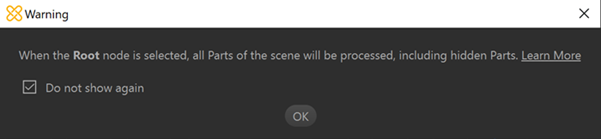
Also, in the functions' dialog box, the occurrence is displayed in orange and comes with a tooltip reminding the user of this specific behavior:
Root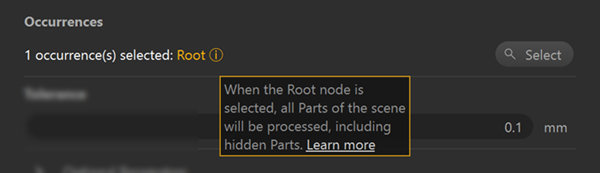
Advanced explanation
To process a 3D model present in the scene with a function (like Tessellate, Repair Meshes, Decimate…), the user generally selects "manually" the occurrences to process using the Viewer or the Product Structure.
In Asset Transformer Studio, if nothing is selected when running a function requiring a list of occurrences as input, the node is automatically selected. Which means all occurrences of the scene will be processed, whether they are visible or not (the full hierarchy is parsed).
RootThis behavior can be very handy, for example when the user wants to tessellate or retessellate all the parts of the scene.
But it can also have unexpected impacts. For example:
- When executing a Decimate To Target on the whole scene, hidden parts will also be decimated and counted in the triangle target
- When doing a , all parts of the scene will be selected, including hidden ones
Select All
CONCLUSION: The user should be careful with their selection when running a function!
Modifying the selection
To modify a selection once a function's dialog box is open, either:
- Use the button to modify the selection
Select - Close the dialog box, modify the selection and open the dialog box again
Disable warning in dialogs
The warning message displayed when the node is selected can be disabled:
Root- Use the "Do not show again" checkbox to prevent the warning from opening every time.
- Go to Preferences (F9) > and enable the parameter
DialogsHideRootWarningDialog