Documentation

​
​

Development

User Acquisition

Monetization

Industry

Asset Transformer Studio

2026.5.0

Supported
​

User Manual

Python API

Changelog

Asset Transformer Studio

2026.5.0

Supported
​

​
​
Get started
  • About Asset Transformer Studio
  • Getting started
  • Additional Resources
User Interface
  • Overview
  • Menu Bar
  • Toolbars
  • Window
  • Customizing the User Interface
Data Preparation Fundamentals
  • Overview
  • General Information
  • Typical Data Preparation Workflow
  • About 3D Models Types
  • About the Product Structure (Tree)
  • About Occurrences
  • About Instances & Prototypes
  • About Face and Vertex Normals
  • About UVs
  • About Tessellation
  • About Decimation
  • About Animation
  • Glossary
Working With Asset Transformer Studio
  • Overview
  • Videos and Tutorials
  • Supported File Formats
  • Importing Files
    • Import Mode
    • Guided Import
    • Importing Alias Files
    • Importing VRED Files
    • Importing RVM Files
    • Importing ReCap Files
  • Exporting Files
  • Scripting With the Python API
  • Interrupting a Process
  • Plugins
  • Errors in Asset Transformer Studio
Python API Reference
  • Overview
Changelog
  • Changelog
  1. Asset Transformer Studio
  2. Working With Asset Transformer Studio
  3. Importing Files

Importing RVM Files

How to import RVM files in Asset Transformer Studio
Read time 1 minute
Last updated 9 hours ago

RVM is a 3D format broadly used to exchange data in the energy, oil, and gas industries. For example, it is used as a bridge between Aveva PDMS and Autodesk Navisworks.
RVM files are usually very large assets with hundreds of thousands of parts which can be very demanding for your hardware.
RVM files imported in Asset Transformer Studio can then be optimized using all available features before being converted/exported into a more commonly used format (FBX, glTF, USD…).
Note
To learn more about the RVM format, please read this article!

How To

To import a file in Asset Transformer Studio, check out this page.
To import metadata from *.att files, the *.rvm and *.att files must share the same name and be located in the same folder.
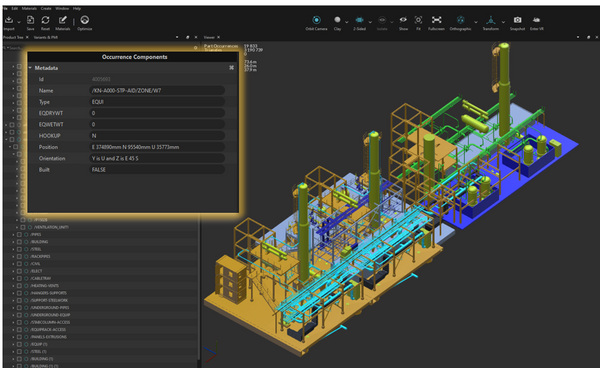
To read metadata, simply select an occurrence and look in the Inspector panel for metadata fields:
RVM metadata
An *.rvm file can contain both tessellated geometries (meshes) and BRep geometries (CAD surfaces). BRep geometries need to be tessellated by using the Tessellate function (using the Repair CAD function first might be required in order to obtain properly connected meshes).

Copyright © 2026 Unity Technologies
LegalPrivacy PolicyCookiesDocumentation Terms of UseDo Not Sell or Share My Personal InformationYour Privacy Choices (Cookie Settings)

"Unity", Unity logos, and other Unity trademarks are trademarks or registered trademarks of Unity Technologies or its affiliates in the U.S and elsewhere (more info here). Other names or brands are trademarks of their respective owners.

Some pages are machine-translated for convenience, and may contain inaccuracies. In the event of conflicting information, the English version is authoritative.

  • On this page
    • How To