Importing VRED Files
How to import Autodesk VRED .vpb files in Asset Transformer Studio
Read time 3 minutesLast updated 9 hours ago
VRED models can be imported within Asset Transformer Studio, in order to optimize and reuse them in other virtual experiences.
Importing a *.vpb file in Asset Transformer Studio requires or to be installed (with a valid license) on the same computer on which Asset Transformer Studio is running.
Autodesk VRED ProAutodesk VRED DesignConfiguring Asset Transformer Studio
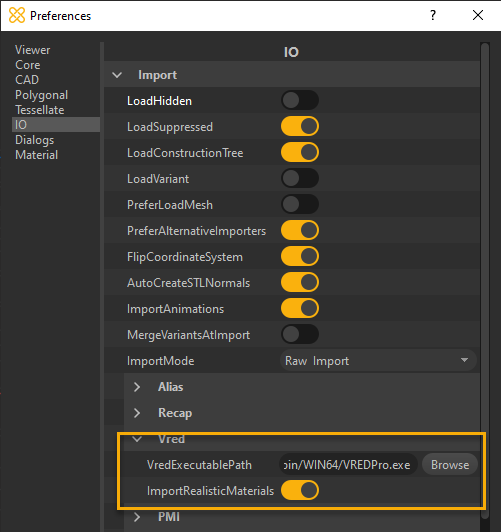
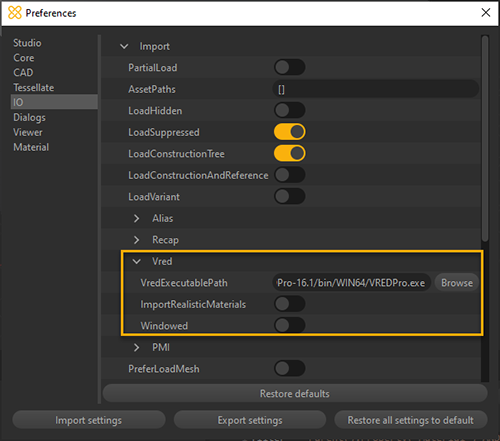
To start importing *.vpb files in Asset Transformer Studio, the software needs to be configured first from the menu Preferences:
- Press
or go to Edit menu > Preferences >F9>IO>ImportVred- Fill the path in the
field: browse to theVredExecutablePathfile (most likely located in theVREDPro.exedirectory).bin/WIN64/
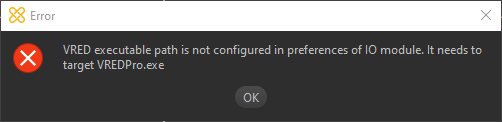
If the path is not properly configured, Asset Transformer Studio will prompt the following error message:
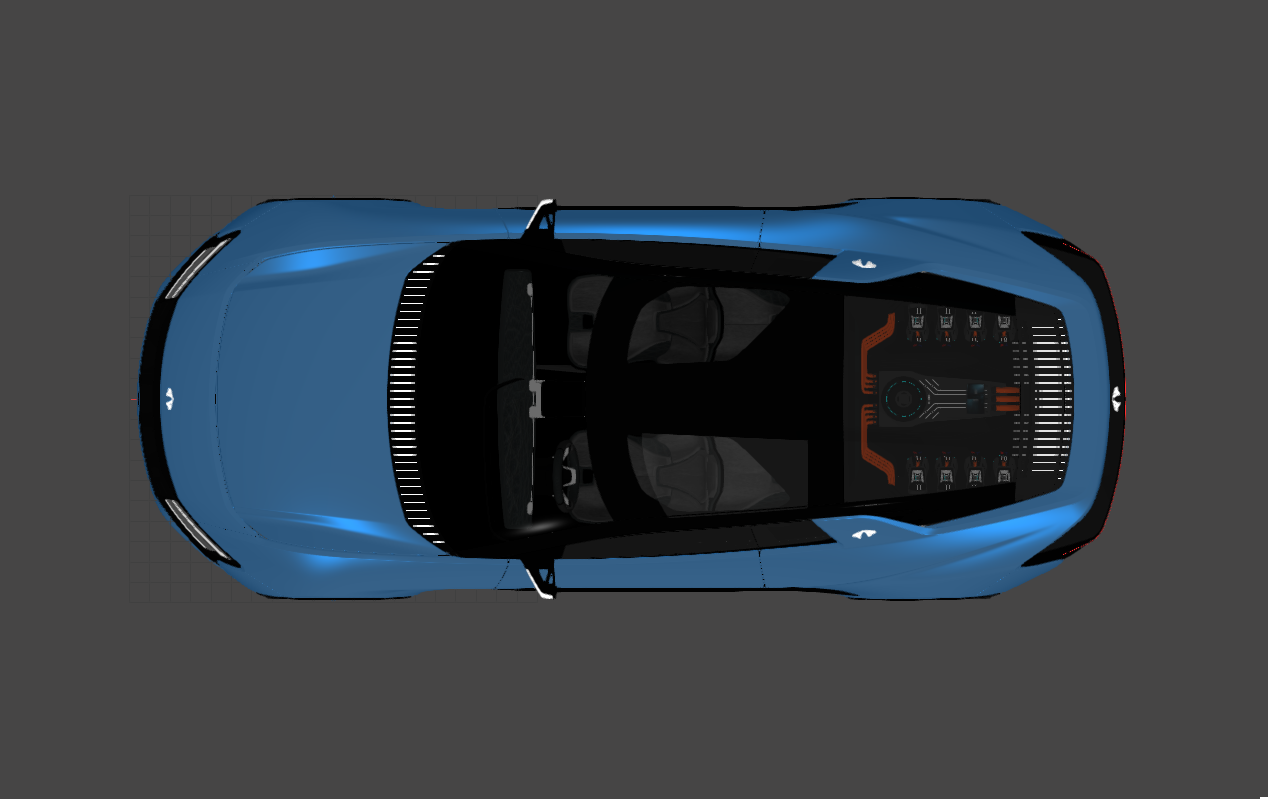
Importing a *.vpb file
PreferLoadMesh
: False
PreferLoadMeshIf the *.vpb model contains NURBS data, you can choose to import these by setting the preference > > to 'False'.
IOImportPreferLoadMeshBecause of how *.vpb files are formatted, all the surfaces will be divided in different occurrences. This will considerably increase the import time and the number of parts.
We strongly advise to use Merge Final Level, followed by Repair CAD ( = 'False') functions after importing:
orient
- Importing (wireframe view): 94 235 parts, surfaces are not stitched together.
MergeFinalLevel: 3 545 parts and surfaces are stitched together.RepairCAD- Tessellation: 5M triangles.
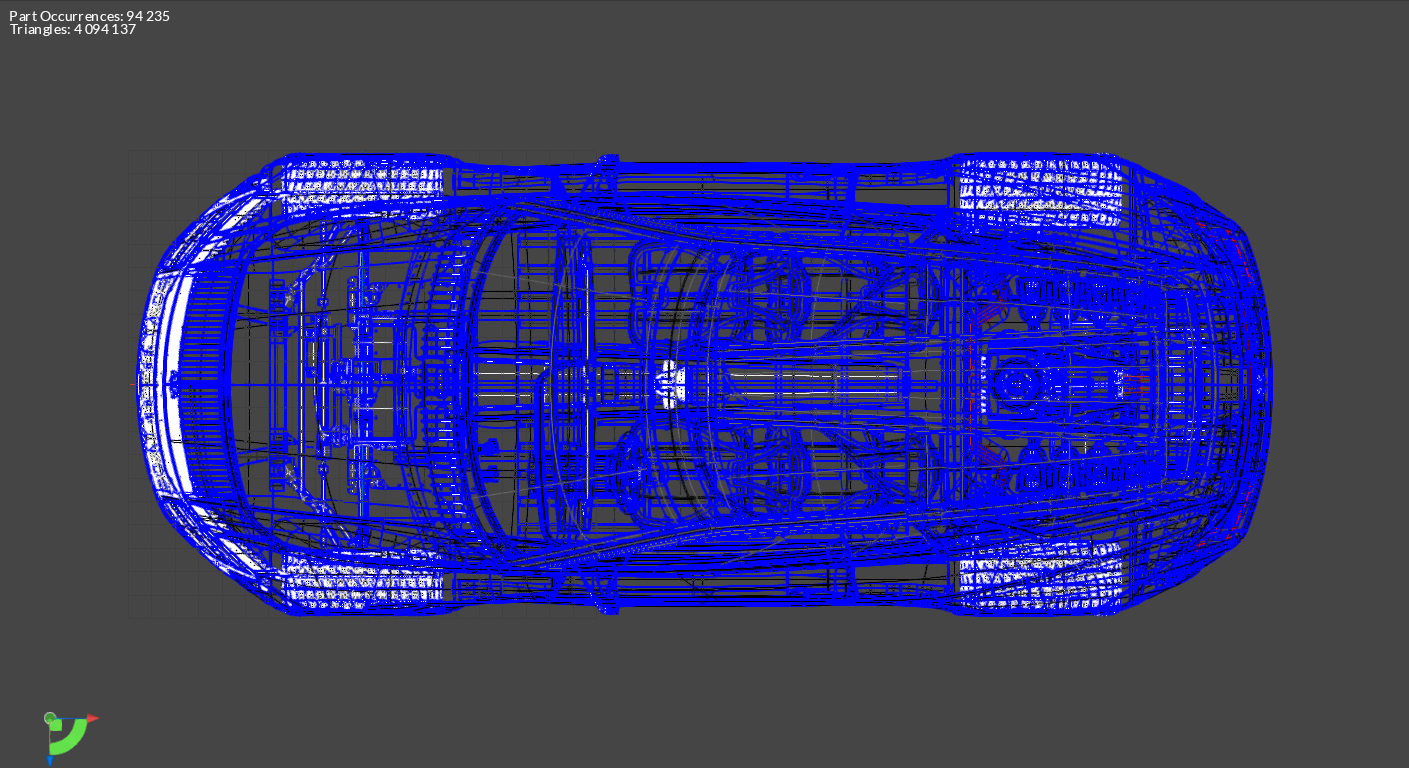
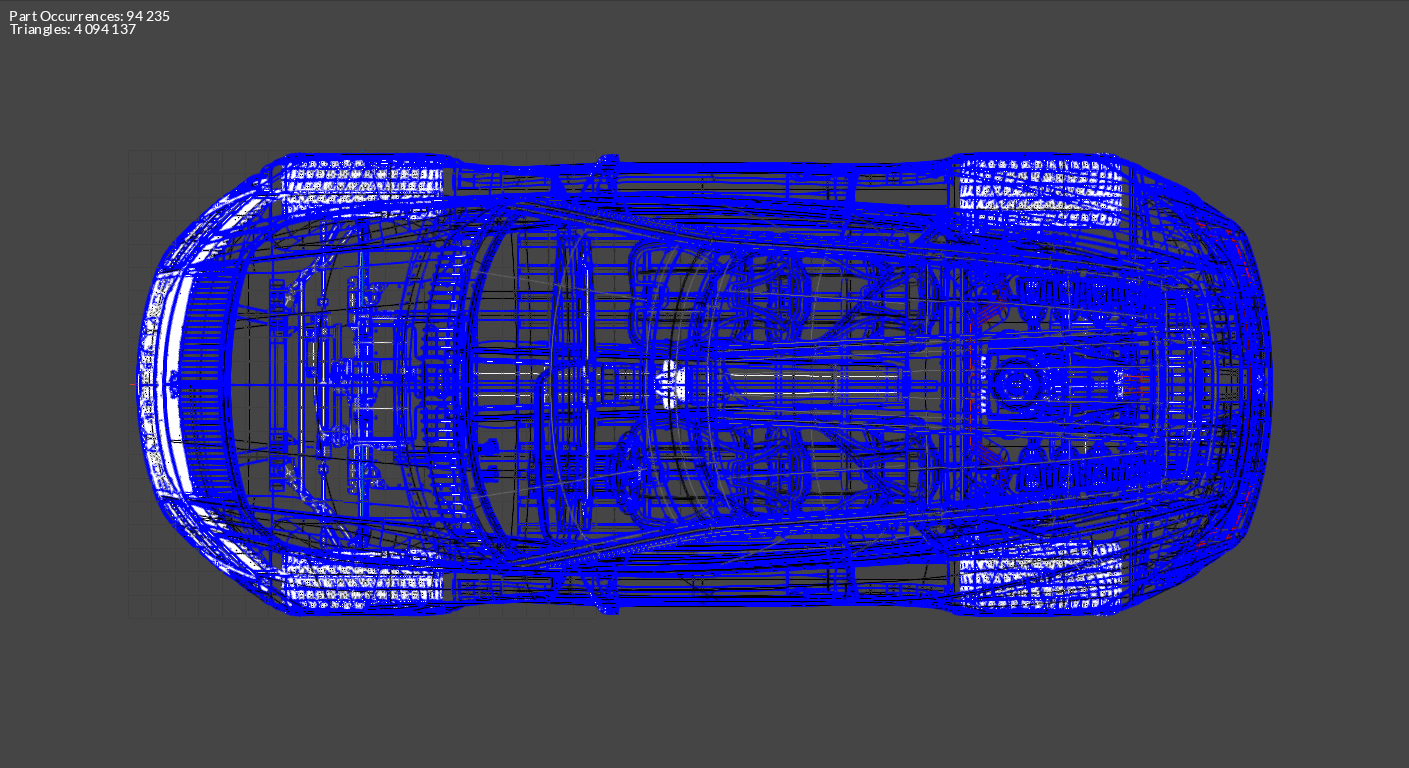
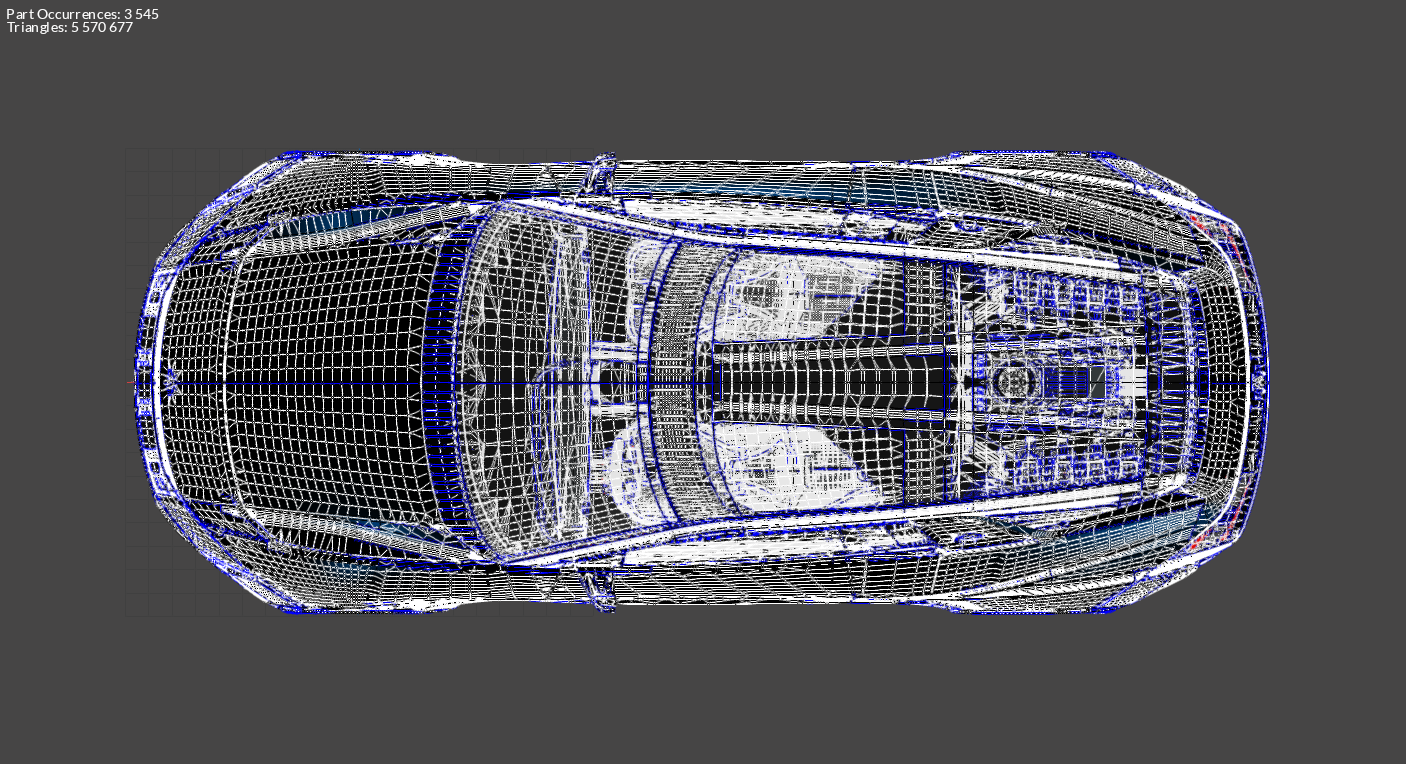
If the preference > > is set to 'True', the mesh displayed in VRED will be imported (UVs and ambient occlusion are imported).
IOImportPreferLoadMeshPreferLoadMesh
: True
PreferLoadMeshVRED Mesh: 50M triangles:
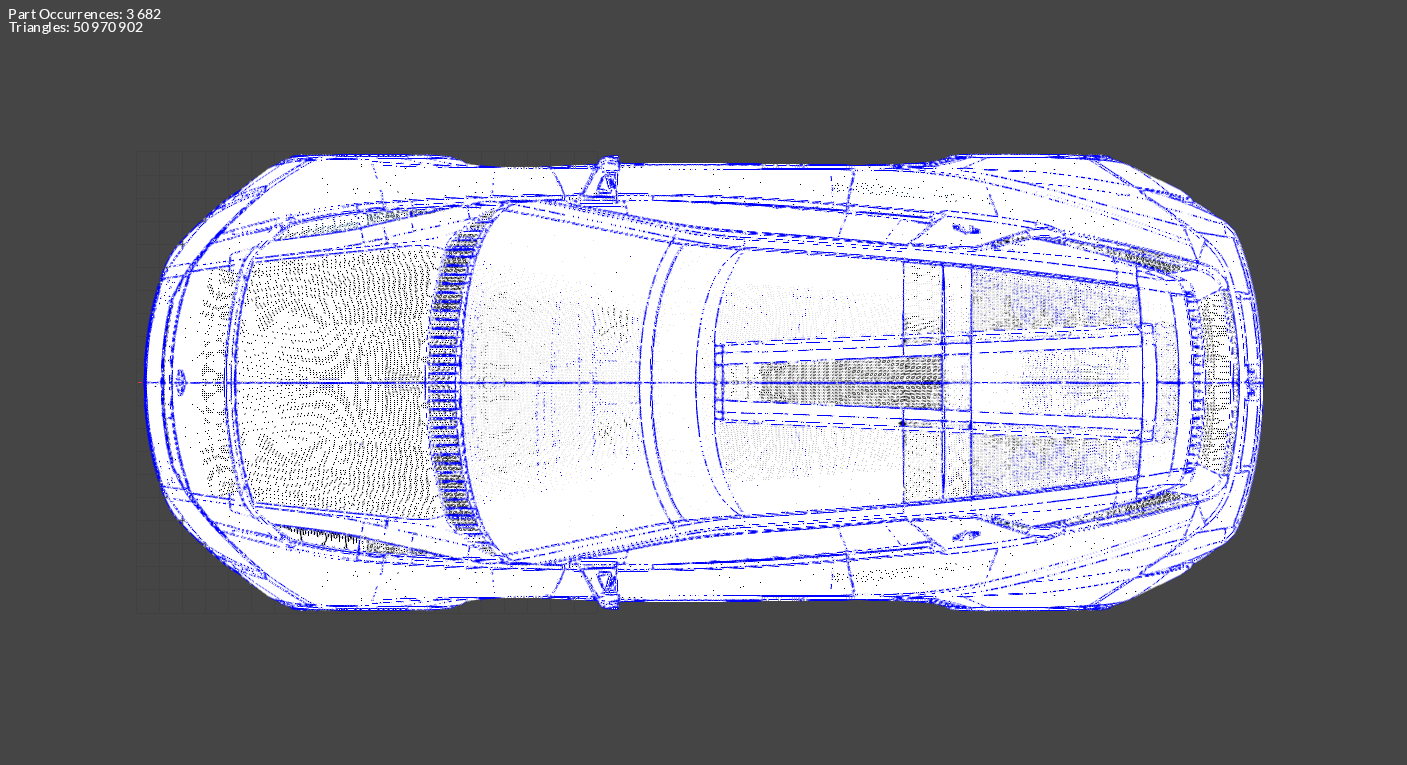
To import ambient occlusion as vertex colors, open Autodesk VRED and set to 'True' in Preferences > > > :
ExportVertexColorsFileIOFBXExport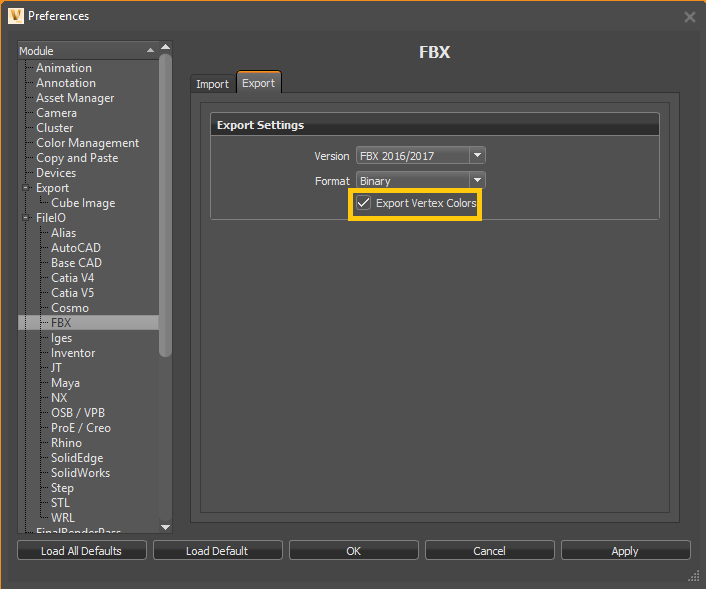
Importing Variants
If the preference > > is set to 'True', geometrical variants and material variants are imported:
IOImportLoadVariant- The custom property is added to the switch occurrences.
_PIXYZ_TRANSFORM_SWITCH_TAG - The custom property is added to occurrences having a material switch.
<_PIXYZ_MATERIAL_SWITCH_TAG, *switch material name*> - Material variants can be retrieved in the material library or in the occurrence in the Product Structure:
_Pixyz_MATERIAL_POOL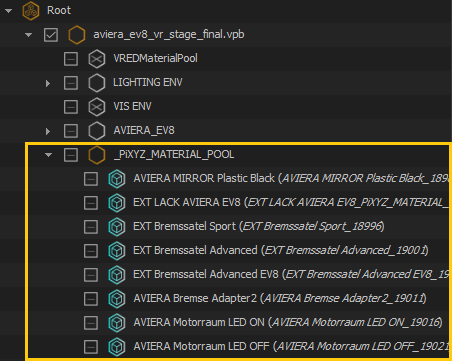
- More information regarding the imported *vpb materials and variants can be found in additional files (created at import). Their links are attached to the node as custom properties:
Root
Importing animations
An *.fbx file containing information on the *.vpb animations is exported during the process (animations are preserved when importing a *.vpb file). The link is attached to the node as a custom property:
Root
Importing Realistic materials
Properties of VRED shaders included in a *.vpb file can be retrieved at import as Custom Materials, by enabling the preference in > > .
ImportRealisticMaterialIOImportVredImporting these Custom Materials will not create a VRED-like shader/material ready to display in Asset Transformer Studio. The purpose of keeping this information is for digital continuity.
For example, if a user wants to recreate VRED-like shaders in an application, they can use the properties to do so.
Custom Materials