Documentation

​
​

Development

User Acquisition

Monetization

Industry

Asset Transformer Studio

2026.5.0

Supported
​

User Manual

Python API

Changelog

Asset Transformer Studio

2026.5.0

Supported
​

​
​
Get started
  • About Asset Transformer Studio
  • Getting started
  • Additional Resources
User Interface
  • Overview
  • Menu Bar
  • Toolbars
  • Window
  • Customizing the User Interface
Data Preparation Fundamentals
  • Overview
  • General Information
  • Typical Data Preparation Workflow
  • About 3D Models Types
  • About the Product Structure (Tree)
  • About Occurrences
  • About Instances & Prototypes
  • About Face and Vertex Normals
  • About UVs
  • About Tessellation
  • About Decimation
  • About Animation
  • Glossary
Working With Asset Transformer Studio
  • Overview
  • Videos and Tutorials
  • Supported File Formats
  • Importing Files
  • Exporting Files
    • Exporting Textures
    • Exporting GLB With Draco Compression
    • Export Unity Prefab
    • Upload Scene To Unity Asset Manager
  • Scripting With the Python API
  • Interrupting a Process
  • Plugins
  • Errors in Asset Transformer Studio
Python API Reference
  • Overview
Changelog
  • Changelog
  1. Asset Transformer Studio
  2. Working With Asset Transformer Studio
  3. Exporting Files

Exporting Textures

How to export textures from Asset Transformer Studio
Read time 2 minutes
Last updated 9 hours ago

In Asset Transformer Studio, it is possible to define if textures should be exported as PNG or JPEG files, with a parameterization of image quality for JPEG, and image compression for PNG.
Data preparation is not only about mesh optimization. Texture maps (whether imported in Asset Transformer Studio or generated through a baking process) can also be optimized to be lighter, while having control over their quality.
Almost all export formats handled by Asset Transformer Studio support the export of textures, whether they are embedded or as separate files: FBX, glTF, OBJ, USDZ, etc.
Note
Depending on the export format, not all texture types may be included — some formats support only certain map types, and some support no textures at all. Examples of types that may be excluded: Normal maps, Opacity maps, NPOT maps…

Embedded vs Not embedded textures

When exporting a 3D model that uses textures, depending on the format used to export, textures can be embedded within the file, or saved separately:
  • Embedded: .fbx, .glb, .usdz, .jt, .3dxml
  • Separate files: FBX, .gltf, .obj, .usda, .usdc, .vrml
The FBX format has an export parameter
Fbx Embedded Textures
to define whether textures should be exported as embedded within the FBX file (default), or separately.
Go to Preferences (F9) >
IO
>
Export
>
FBX

How To

Exporting textures
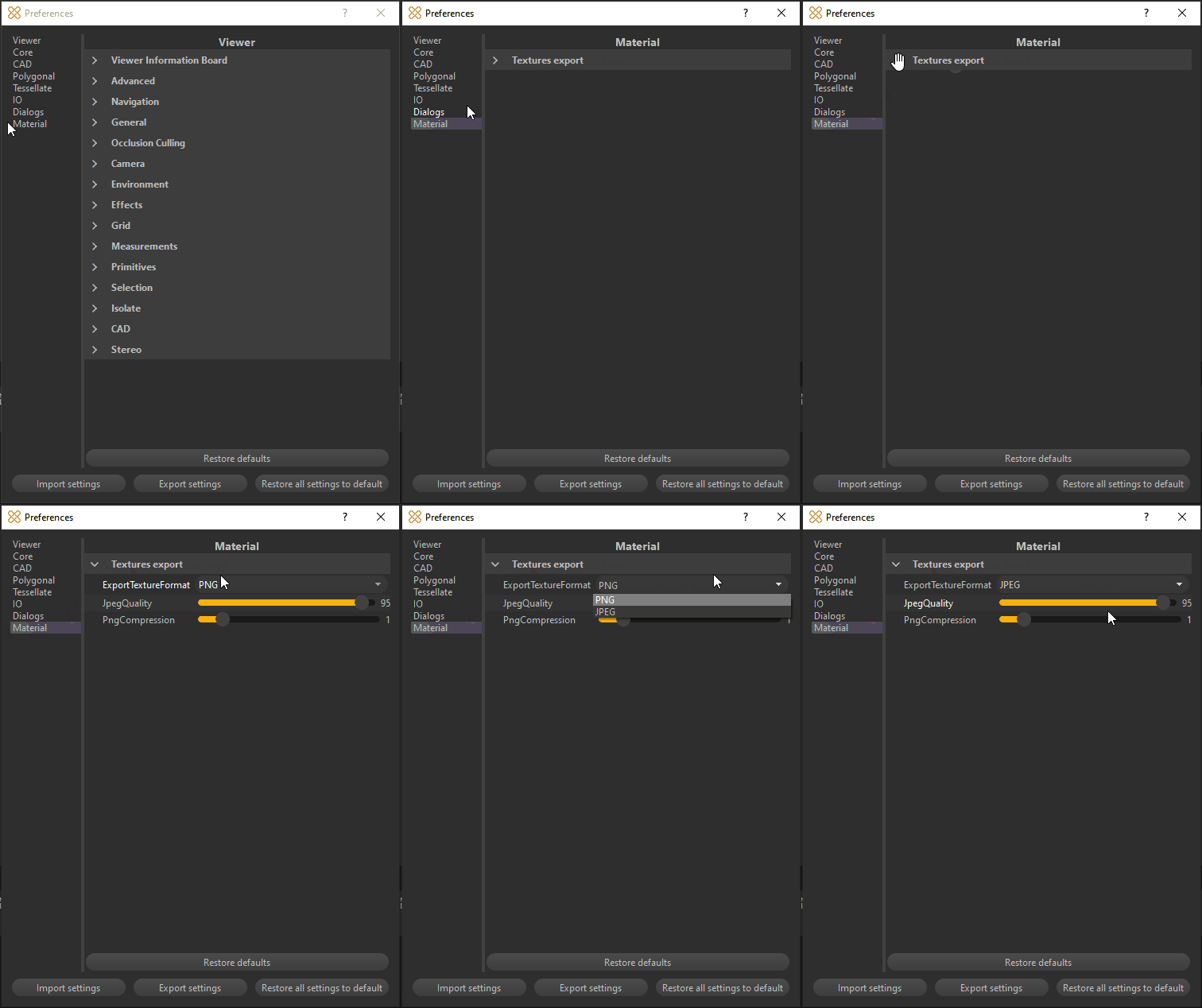
To define how textures are exported from Asset Transformer Studio, select Preferences (F9) >
Material
>
Texture export
.
Fine-tune the exposed parameters to your liking:

Export Texture Format parameter

Choose between PNG (default) and JPEG as the default texture export format for Asset Transformer Studio.
Important
  • When saving a file from the Texture Editor, the extension can be chosen from the Export texture dialog box (overriding Asset Transformer Studio's general preference).
  • When exporting a file in script, using the function material.exportImage(), the extension can be chosen in the Filename path.
With the 2 methods, the Quality and Compression used are the ones defined in the Preferences.

JPEG Quality parameter

Defines the Quality of the textures saved as JPEG files. Choose between 0 and 100 (the higher is the better), 95 being the default value.

PNG Compression parameter

Defines the level of compression for textures saved as PNG files, from 0 to 9. A higher value means a smaller size and longer compression time.
Note
The JPEG format is lossy by definition, even if the quality level is set to 100. With the PNG format, even with the highest compression level the image is saved/loaded lossless. However, the saving/loading time increases with higher compression. The compression level is a trade-off between file size and encoding/decoding speed.

Scripting

These parameters can be set in a script using the following commands:
core.setModuleProperty("Material", "ExportTextureFormat", "JPEG")core.setModuleProperty("Material", "JpegQuality", "[95, 0, 100]")core.setModuleProperty("Material", "PngCompression", "[1, 0, 9]")

Copyright © 2026 Unity Technologies
LegalPrivacy PolicyCookiesDocumentation Terms of UseDo Not Sell or Share My Personal InformationYour Privacy Choices (Cookie Settings)

"Unity", Unity logos, and other Unity trademarks are trademarks or registered trademarks of Unity Technologies or its affiliates in the U.S and elsewhere (more info here). Other names or brands are trademarks of their respective owners.

Some pages are machine-translated for convenience, and may contain inaccuracies. In the event of conflicting information, the English version is authoritative.

  • On this page
    • Embedded vs Not embedded textures

    • How To

      • Export Texture Format parameter

      • JPEG Quality parameter

      • PNG Compression parameter

      • Scripting