Workspace
Managing workspaces in Asset Transformer Studio
Read time 1 minuteLast updated 9 hours ago
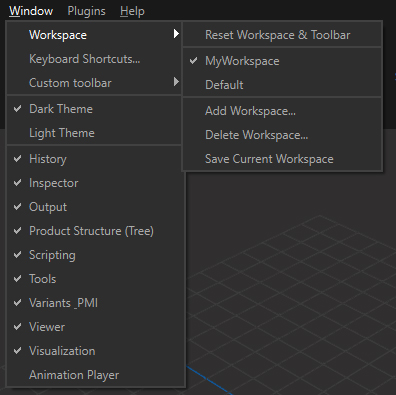
The Workspace menu allows you to manage user workspaces (window layout), and keyboard shortcuts.
See also Customizing the User Interface.
Menu option | Description |
|---|---|
| Workspaces List | Lists the workspaces available. By default, only the Default workspace is listed. The workspaces created by the user are listed below. TIP: Click the Default entry if you messed with the original layout and want to set it back. |
| Add Workspace | Creates a new user defined workspace. A window is prompted to enter the new workspace name: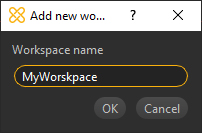 The newly created workspace is listed in the Workspace menu: 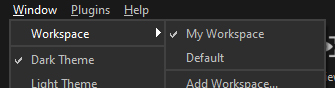 |
| Delete Workspace | Deletes the chosen user defined workspace. A window is prompted to choose the user defined workspace to delete: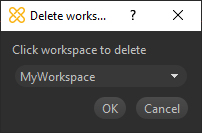 |
| Save Current Workspace | Saves the current Workspace layout |
| Reset Workspace & Toolbar | Resets the whole interface in one-click. Sometimes the current workspace can be upside down, as well as the Main Toolbar: use this to recover the default user interface |
| Keyboard Shortcuts | Opens the window to handle keyboard shortcuts in Asset Transformer Studio |
Customize the Workspace
Asset Transformer Studio user interface is entirely customizable.
In particular, a smart docking system gives the user more flexibility to create their preferred workspace and be more efficient: