Optimize Mesh Menu
Asset Transformer Studio Optimize Mesh menu reference
Read time 2 minutesLast updated a day ago
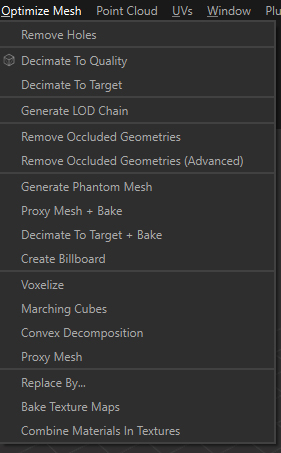
The Optimize Mesh menu contains advanced mesh data optimization/reduction algorithms:
Menu option | Description |
|---|---|
| Remove Holes | Removes holes from the meshes of the selected parts, or fills them with a specified material. See also: Remove Holes in Asset Transformer SDK documentation |
| Decimate To Quality | Reduces meshes density (polygon count) on the selected parts by performing a decimation algorithm. See also: About Decimation |
| Decimate To Target | Reduces the polygon density targeting the triangle count defined by the user. See also: About Decimation |
| Generate LOD Chain | Automatically generates 3 LODs for the current selection. See also: Generate LOD Chain |
| Remove Occluded Geometries | Automatically deletes parts, patches or polygons not viewed from a set of cameras placed spherically around the selected parts. See also: Remove Occluded Geometries in Asset Transformer SDK documentation |
| Remove Occluded Geometries (Advanced) | Automatically deletes parts, patches or polygons not viewed from a set of cameras automatically generated and scattered around the selected model. See also: Remove Occluded Geometries (Advanced) in Asset Transformer SDK documentation |
| Generate Phantom Mesh | Automatically generates one unique optimized mesh out of the models in the scene, with materials |
| Proxy Mesh + Bake | Automatically generates a proxy mesh (or remeshing) out of the current selection, with optional automatic texture maps generation (by baking) |
| Decimate To Target + Bake | Automatically decimates a selection of meshes, using as a target a triangle count or a ratio (reduction percentage), and bakes Normals information into a texture (plus other textures). |
| Create Billboard | Create a billboard (textured planes) out of a selection of parts |
| Voxelize | Automatically generates a voxelization representation out of the external skin of the selected parts |
| Marching Cubes | Automatically generates a marching cubes representation out of the meshes of the selected Parts |
| Convex Decomposition | Creates a new set of convex meshes approximating the given meshes |
| Proxy Mesh | Automatically generates a proxy mesh (or remeshing) out of the current selection |
| Replace By | Use to replace a selection of occurrences with another occurrence, its Bounding Box, a Convex Hull envelop or a primitive |
| Bake Texture Maps | Create textures maps (map types: Diffuse, Normal, Opacity, Roughness, Specular, Metallic, AO, Part ID, Material ID…) out of the selected parts, providing they have normalized UVs. TIP: By default, maps are baked with a padding (or "dilation") of a few pixels, defined in the |
| Combine Materials in Textures | Combines materials into one baked material, assigned to the selection (no parts merging) |