PubMatic と LevelPlay の統合
PubMatic を LevelPlay 対応の iOS アプリケーションと統合する方法を説明します。
読み終わるまでの所要時間 2 分最終更新 6日前
PubMatic を LevelPlay 対応の iOS アプリケーションと統合する方法を説明します。LevelPlay でのアカウント設定、アプリケーション設定、広告単位の作成、およびアダプタのインストールについて説明します。以下のステップに従って、広告プレースメントが PubMatic 入札用に正しく設定されていることを確認します。
前提条件
PubMatic アカウントの作成
- PubMatic Web サイトに移動し、アカウントを作成します。
- アカウントが承認されるまで待ちます。
- PubMatic Monetizationダッシュボードにサインインします。
アプリケーションと広告ユニットの作成
アプリケーションの追加
LevelPlay で PubMatic をアクティベートする前に、アプリケーションを追加し、PubMatic ダッシュボードで広告ユニットを設定します。
- PubMatic Monetizationダッシュボードにログインします。
- **Set Up (**設定) > Apps (アプリケーション) を選択します。
- Add アプリケーション を選択します。

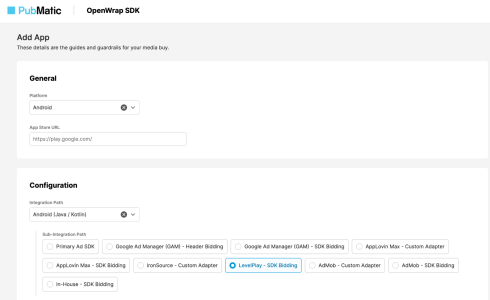
- General (全般) セクションで、以下を行います。
- ターゲットプラットプラットフォーム (iOS または Android) を選択します。
- 有効な アプリストア または Google 再生 URL を入力します。
- 自動生成されたアプリケーション名を確認または編集します。
- 設定セクションでは、以下を行います。
- インテグレーションパスを選択します。
- サブインテグレーションパスを「LevelPlay – SDK Bidding」に設定します。
- Advanced セクションでは、以下を行います。
- 通貨が USD に設定されていることを確認します。
- Add アプリケーション を選択します。
広告ユニットの作成
アプリケーションを追加したら、LevelPlay が入札中にリクエストする個々の広告ユニットを作成します。
- **Set Up (**設定)> Ad Units (広告ユニット) を選択します。
- アプリケーションを選択して広告ユニットをビュー。
- Create Ad Unit (広告単位の作成) を選択します。

- 広告単位 ID を入力します。
- 広告形式を選択し、必須フィールドに入力します。
- Save (保存) または Save & Create Another (別のものを保存して作成) を選択します。
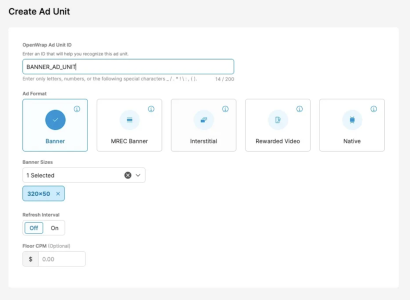
PubMatic によって広告単位 ID が生成され、Ad Units (広告単位) セクションに表示されます。
入札パートナーの管理
広告ユニットにアクセスできる入札パートナーを確認します。
- **Set Up (**設定)> **Bidder Partners (**入札パートナー) を選択します。
- アプリケーションを選択します。
- トグルを使用して、各入札パートナーの広告ユニットを有効または無効にします。
LevelPlay 設定で PubMatic をアクティベート
PubMatic でアプリケーションと広告ユニットを設定したら、LevelPlay 内で PubMatic ネットワークワークをアクティベートして、PubMatic の認証情報をプレースメントに接続します。
- LevelPlay で、「Monetize」>「設定」>「**SDK Networks」**を開きます。
- 使用可能なネットワークのリストから PubMatic を選択します。
- 必要なパラメータを入力し、アクティベート、保存を選択します。
- 設定したネットワークから再度 PubMatic を選択し、設定を選択します。
- PubMatic ダッシュボードで以下の値を入力します。
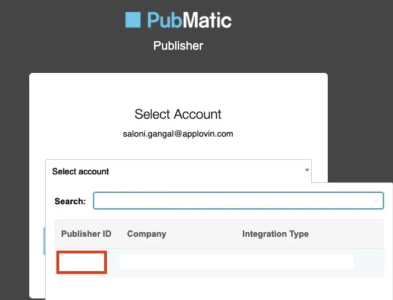
- パブリッシャーID:PubMaticパブリッシャーアカウントにあります。
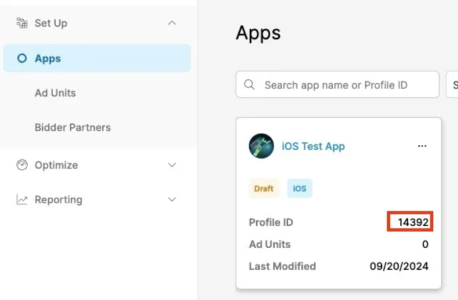
- プロファイル ID: Apps ページにあります。
- 広告単位 ID: 広告単位セクションにあります。
- 状態を Active (アクティブ) に設定し、Save (保存) を選択します。
これで、設定 ダッシュボードで PubMatic がメディエーションに対してアクティブとして表示されます。
PubMatic アダプターの追加
入札者のインテグレーションを完了するには、PubMatic SDK と LevelPlay PubMatic アダプターを iOS プロジェクトに追加します。これを行うには、CocoaPods を使用する方法と、SDK とアダプターを手動でプロジェクトに統合する方法の 2 つがあります。
CocoaPods とのインテグレーション (推奨)
PubMatic アダプターを LevelPlay に統合するには、以下の行を Podfile に追加します。
pod 'LevelPlayPubMaticAdapter', '5.0.0.0'
以下のコードを実行して、アダプタと SDK をインストールします。
pod install --repo-update
手動での統合
- 最新の PubMatic SDK for iOS をダウンロードします。
- 必要なすべての .xcframework ファイルとバンドルをプロジェクトに追加します。
- 最新の LevelPlay PubMatic アダプターをダウンロードします。
ハンドルユーザー同意
GDPRおよびその他のプライバシー フレームワークに準拠するには、アプリケーションがPubMatic SDKに正しい同意情報を提供していることを確認してください。
- PubMatic SDKは、IAB TCF 2.0標準を使用して、共有の環境設定またはユーザー デフォルト(理想的にはCMP SDKを使用)を通じてGDPR値を取得します。
- PubMatic は、GPP 同意信号を取得するための IAB GPP 標準もサポートしています。
- 同意値を渡す方法については、PubMatic SDK Advanced Topics を参照してください。