Guided Import Parameters
Parameter reference for the Guided Import window in Asset Transformer Studio
Read time 6 minutesLast updated 12 hours ago
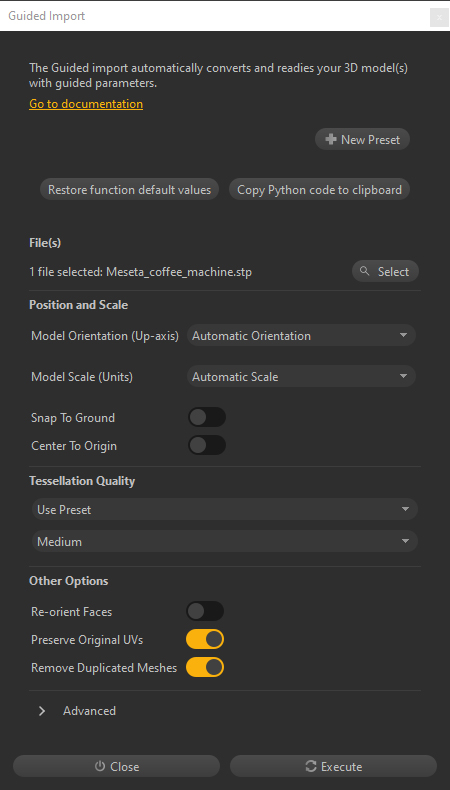
When using the Guided import to import files in Asset Transformer Studio, a dedicated window is opened, listing some parameters (or options), which modulate the import process depending on how they are set.
Find below more information for each parameter available.
File(s)
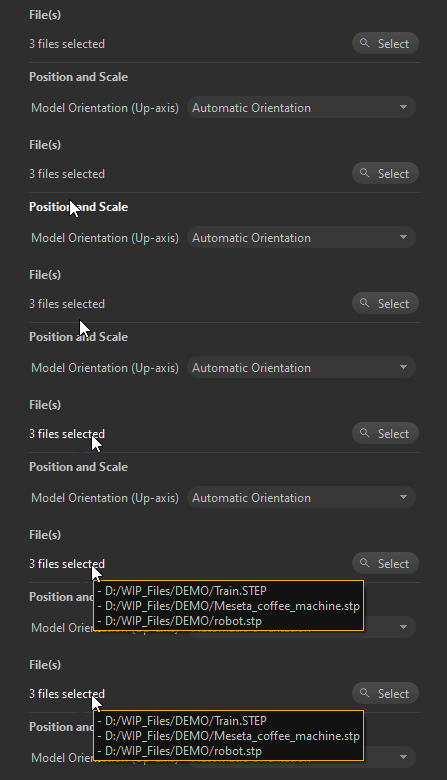
The File(s) parameter is used to choose the list of files to import. One or several files can be imported at once.
Importing multiple files at once with the Guided import
- When doing so, all files are first imported, and then processed all together. Importing them all at once allows the import process to be parallelized, in most cases (more efficient than importing one after the other).
- Importing multiple files at once is relevant when a 3D model is shattered in multiple files. This way the complete model will be processed as if it were combined in a single file, allowing for example the creation of continuous UVs, or the creation of instantiated parts when subparts are repeated inside the model.
- Careful though when importing multiple models that have nothing to do with each other, as the data preparation will try to find some inexistent connection between them. In this regard, the Guided import is not a batching tool: it is only meant to help processing one model at a time as correctly as possible.
- When importing multiple files, it is recommended to import one file format at a time (for example, only Catia files, or only FBX files).
Importing .pxz files or PointCloud files with the Guided import
- When importing a .pxz file through the Guided import, no automatic data preparation process is run on it. It is only imported as a subfile within the current scene. It is equivalent to importing it with the Raw import mode.
- Importing a PointCloud file (extensions .e57, .pts, .ptx, .rcs, .rcp) through the Guided import is equivalent to importing it with the Raw import mode: no automatic data preparation process is run on it. To perform more optimization on a PointCloud, use the functions available in the Point Cloud menu.
Position and Scale
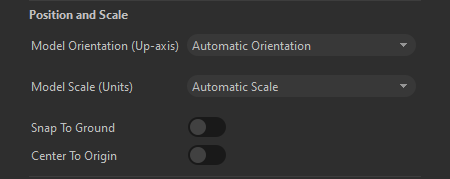
When importing a 3D model in Asset Transformer Studio, the goal is to get a model that has a correct absolute scale (e.g. a car should be a few meters long), and that is not tilted to the side, or mirrored.
In the below example, the train is only 1/10th of its correct size, and it is tilted: meaning its Coordinate system and units are not correctly matched with Studio's.
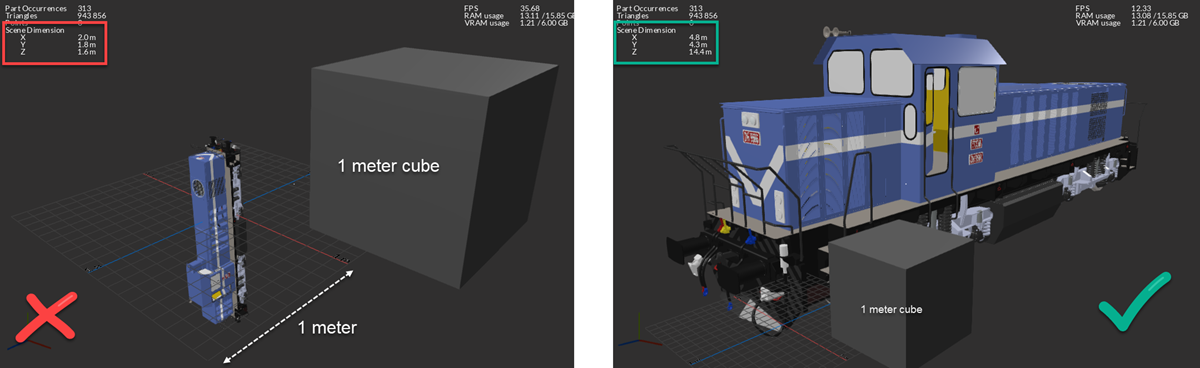
Position and Scale parameters help properly positioning, orienting and scaling the imported model, to match Asset Transformer Studio's own configuration:
- The coordinate system is right-handed, Y is the up-axis
- Units are millimeters (mm)
Parameter label | Parameter description |
|---|---|
| Model Orientation (Up-axis) | 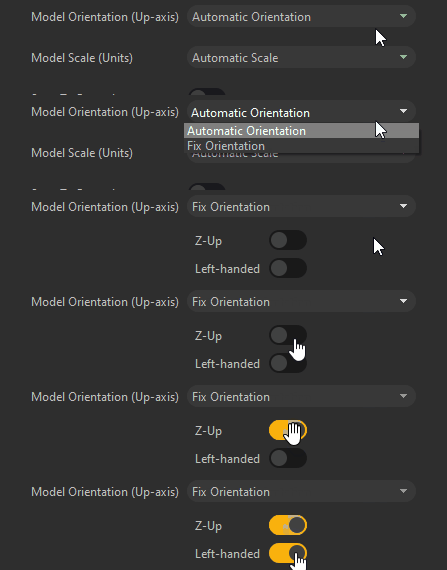 Defines how the imported model's orientation (or Coordinate system) is evaluated, to be correctly converted to match Asset Transformer Studio's own system (right-handed, Y is the Up-axis). - Automatic orientation: Asset Transformer Studio performs an automatic conversion. - Manual orientation: Use if the automatic detection does not work. Fill in the characteristics about the imported file's coordinate system: Z-Up (if enabled, the original orientation is Z-up) and Left-handed (if enabled, the original coordinate system is Left-handed). Additional information: When importing multiple files, the same setup is used for all files. Once you found the correct setup for a file format, create a Preset to reuse it. Once imported, the up-orientation can still be fixed by right-clicking the first node in the Product Structure and using |
| Model scale (units) |  Defines how the imported model's scale and units are evaluated, to be correctly converted to match Asset Transformer Studio's own units (mm). - Automatic scale: Asset Transformer Studio performs an automatic units conversion and applies a corrective scale if required. - Manual scale: Use if the automatic detection does not work (e.g. set 0.1 to convert centimeters to millimeters). - Scale: value applied to the root node of the imported file to adjust its scale and match Studio's units/scale. |
| Snap to ground | Automatically snaps/moves the imported model onto the ground of the scene (on the grid). This parameter changes the imported model's original position relatively to the origin, in the upward direction (Y-axis). Do not use this option to preserve the model's original absolute position. |
| Center to origin | Automatically centers the imported model to the origin of the scene. Do not use this option to preserve the model's original absolute position. |
Tessellation quality
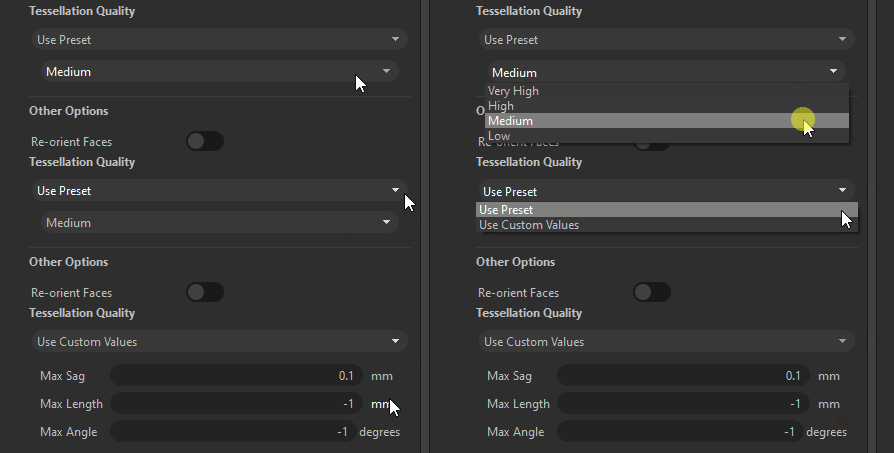
Tessellation is the process of converting CAD models into meshes, usable by any 3D app.
See more information about this concept in the About Tessellation section.
The Tessellation Quality can be set using 2 modes:
- Use preset: Choose a preset to define the final mesh quality: Very High, High, Medium and Low. The values used for each preset are the same as the ones used in the Tessellate function.
- Use custom values: Tessellation values can be set manually for the 3 tessellation parameters: Max Sag, Max Length and Max Angle.
Other options
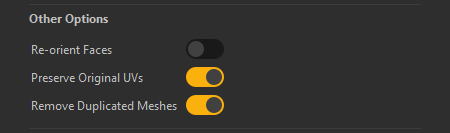
This section lists interesting optional parameters that can be enabled for more control at import:
Parameter label | Parameter description |
|---|---|
| Re-orient faces | If enabled, Asset Transformer Studio tries to orient model's faces (normals) consistently so they face the proper direction. Do not use this option if the original model's face orientation is already correct, as the process may destroy it. If the model is not properly oriented after import, use the functions from the Mesh menu to fix face orientation. 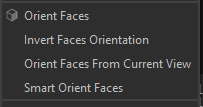 |
| Preserve original UVs | UVs applied to a mesh are used to properly display materials using texture maps. If enabled, Asset Transformer Studio imports the UVs included in the imported meshes (on any channel), and creates UVs on meshes that have none (by a 400x400x400mm Bounding Box projection on channel 0). If disabled, all UVs are destroyed and new ones are created (same Bounding Box projection). |
| Remove duplicated meshes | Use to remove duplicate/superimposed meshes (multiple similar parts being superimposed). Do not use if the imported model includes different configurations of the same model, resulting in intentionally duplicate parts. |
Optional Parameters
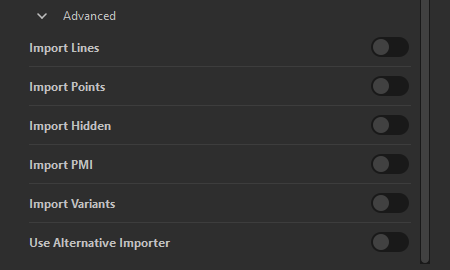
This section lists optional advanced parameters for more control at import:
Parameter label | Parameter description |
|---|---|
| Import lines | Use to import lines (CAD curves or polylines) included in the imported model. |
| Import points | Use to import points (CAD points or free points) included in the imported model. Not needed when importing Point clouds. |
| Import hidden | Use to import parts that are originally hidden in the imported model. They are imported but not made visible. |
| Import PMI | Use to import the PMI attached to the imported model (applicable for relevant CAD models only). |
| Import variants | Use to import the variants attached to the imported model (applicable for relevant CAD models only). |
| Use alternative importer | Some 3D/CAD formats can be imported through 2 different importing technologies. When one file is not properly imported, use this parameter to test an alternative importer. |