Product Structure Right-click Menus
Contextual menu actions available in the Product Structure panel
Read time 4 minutesLast updated 9 hours ago
The Product Structure offers actions accessible from contextual menus (right-click).
Depending on whether one occurrence, multiple occurrences, or no occurrence are selected, the contextual menu is different.
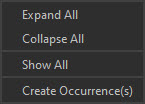
With nothing Selected
Menu option | Description |
|---|---|
| Expand All | Expands all the occurrences of the tree recursively, all at once. Warning: When the scene contains very large and complex models (thousands of occurrences and millions of triangles), expanding the whole tree might take a long time. |
| Collapse All | Folds all the occurrences of the tree, all at once. |
| Show All | Shows all the occurrences of the tree, by setting each occurrence's visibility (or |
| Create Occurrence(s) | Creates one empty occurrence, child to the |
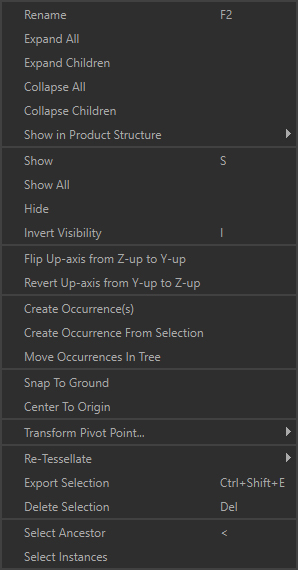
With one Occurrence Selected
Menu option | Description | Keyboard Shortcut |
|---|---|---|
| Rename | Renames a selection of occurrences (all selected occurrences will be renamed with the same name at once). | F2 |
| Expand All | Expands all the occurrences of the tree recursively. Warning: When the scene contains very large and complex models, expanding the whole tree might take a long time. | |
| Expand Children | Expands all the child occurrences of the selected occurrences, recursively. Warning: Expanding a subassembly with a lot of occurrences might take a long time. | |
| Collapse All | Folds all the occurrences of the tree, all at once. | |
| Collapse Children | Folds all the child occurrences of the selected occurrences. | |
| Show in Product Structure | Used to define which occurrence properties can be defined as a Fast Property. | |
| Show | Shows the selected occurrences, by setting each selected occurrence's visibility to | S |
| Show All | Shows all the occurrences of the tree, by setting each occurrence's visibility to | |
| Hide | Hides the selected occurrences, by setting each selected occurrence's visibility to | H |
| Invert Visibility | Inverts the selected occurrences' visibility. | I |
| Flip Up-axis from Z-up to Y-up | Rotates the selected occurrence -90° on the X axis, to flip a model originally imported with a Z-up orientation (Asset Transformer Studio is Y-up oriented). Tip: This is a shortcut to the Apply Transform function, accessible from the Scene menu or the Function List (F12). | |
| Revert Up-axis from Y-up to Z-up | Rotates the selected occurrence +90° on the X axis, reverting a Flip Up-axis action. Tip: This is a shortcut to the Apply Transform function, accessible from the Scene menu or the Function List (F12). | |
| Create Occurrence(s) | Creates one empty child occurrence for each occurrence of the selection. Note: This is different from Create Empty Occurrence in the Create menu, which works for one selected occurrence only. | |
| Create Occurrence From Selection | Creates a new occurrence parenting the selected occurrences, grouping them. | |
| Move Occurrences In Tree | Moves the selected occurrences in the tree by parenting them to the Tip: This can also be done by drag-and-dropping occurrences in the Product Structure. | |
| Snap to Ground | Positions the selected part on the ground (the whole selection, not each part individually).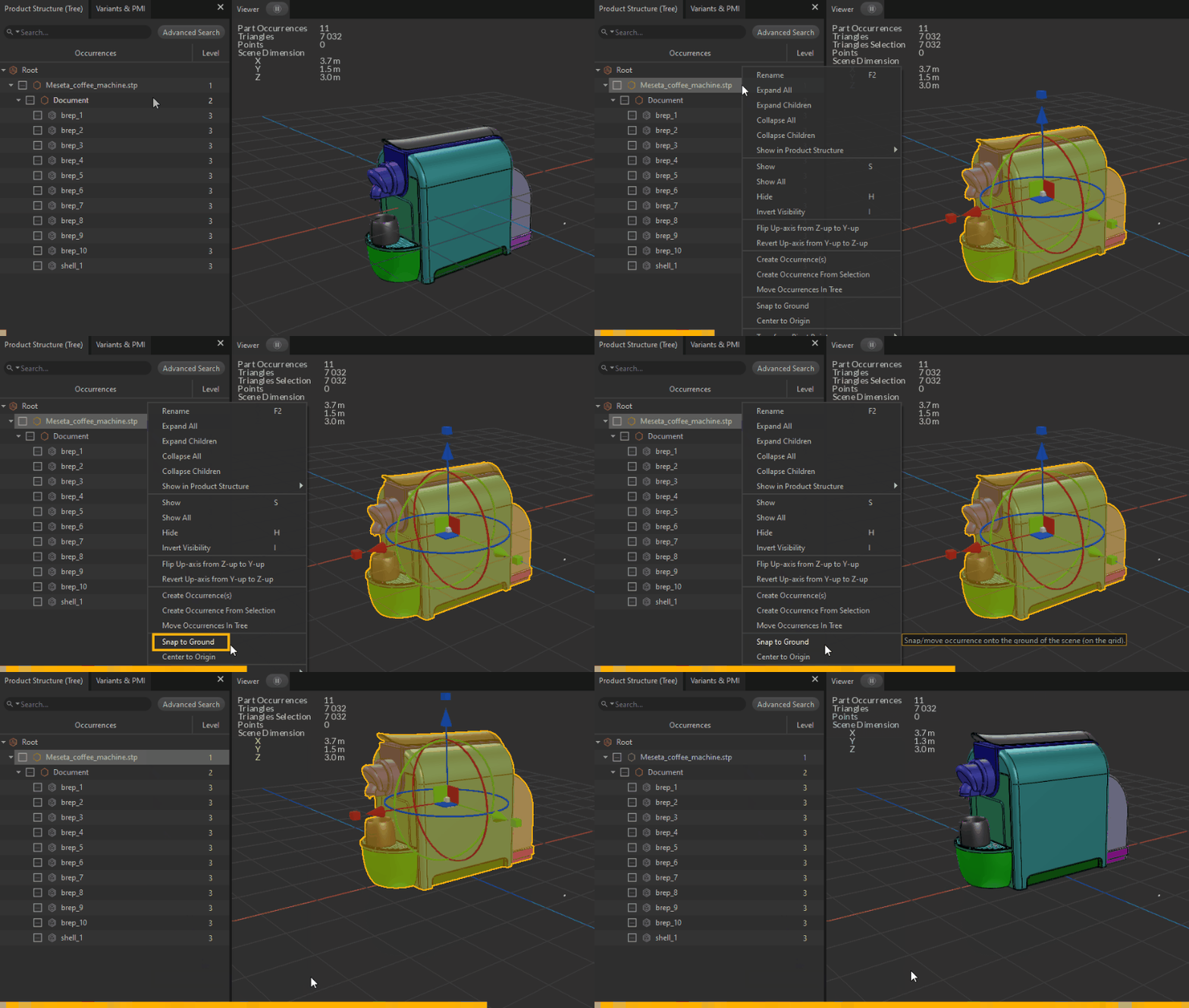 | |
| Center to Origin | Positions the selected part at the origin of the scene (the whole selection, not each part individually).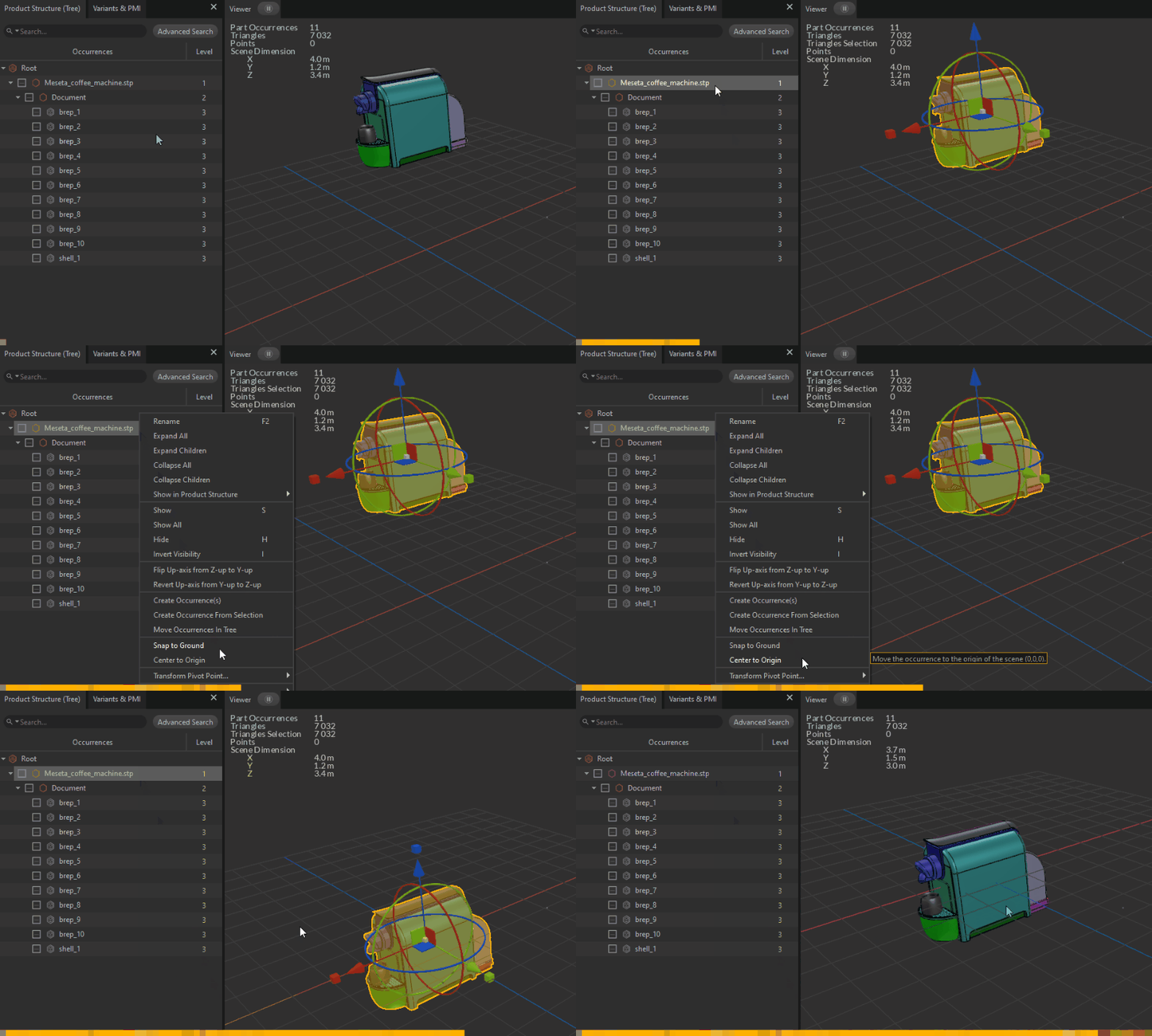 | |
| Transform Pivot Points | Used to manage the pivot point of the selected occurrences. | |
| Re-Tessellate | Lists functions used to manage retessellation capabilities. | |
| Export Selection | Exports the selected occurrences to a supported file format. | |
| Delete Selection | Deletes the selected occurrences. | DEL |
| Select Ancestor | Selects the first common ancestor of the current selection. | < |
| Select Children | Selects the children for each occurrence of the current selection. | > |
| Select Instances | Selects all the instances of the currently selected occurrence. |
With Multiple Occurrences Selected
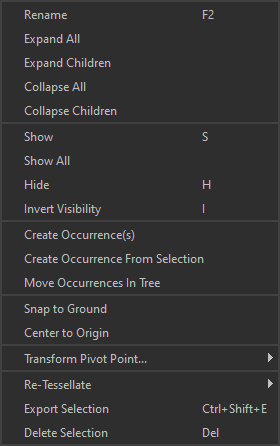
Menu option | Description | Keyboard Shortcut |
|---|---|---|
| Rename | Renames a selection of occurrences (all selected occurrences will be renamed with the same name at once). | F2 |
| Expand All | Expands all the occurrences of the tree recursively. Warning: Expanding the whole tree might take a long time with very large models. | |
| Expand Children | Expands all the child occurrences of the selected occurrences, recursively. | |
| Collapse All | Folds all the occurrences of the tree, all at once. | |
| Collapse Children | Folds all the child occurrences of the selected occurrences. | |
| Show | Shows the selected occurrences, by setting visibility to | S |
| Show All | Shows all the occurrences of the tree, by setting visibility to | |
| Hide | Hides the selected occurrences, by setting visibility to | H |
| Invert Visibility | Inverts the selected occurrences' visibility. | I |
| Create Occurrence(s) | Creates one empty child occurrence for each occurrence of the selection. | |
| Create Occurrence From Selection | Creates a new occurrence parenting the selected occurrences, grouping them. | |
| Move Occurrences In Tree | Moves the selected occurrences in the tree by parenting them to the | |
| Snap to Ground | Positions the selected part on the ground (the whole selection, not each Part individually). | |
| Center to Origin | Positions the selected part at the origin of the scene (the whole selection, not each Part individually). | |
| Transform Pivot Points | Used to manage the pivot point of the selected occurrences. | |
| Re-Tessellate | Lists functions used to manage retessellation capabilities. | |
| Export Selection | Exports the selected occurrences to a supported file format. | |
| Delete Selection | Deletes the selected occurrences. | DEL |