Image Management
Images are a crucial type of objects in the SDK, especially concerning scene appearance, since they are used to define textures for model materials.
Read time 9 minutesLast updated 8 months ago
material.blurImagematerial.clearImageRoImaterial.convertFloat32To8BitsImagematerial.convertImagematerial.createCheckerboardImagematerial.createImageFromDatamaterial.createImageFromDefinitionmaterial.createImagesFromDefinitionsmaterial.exportImagematerial.extractImageChannelsmaterial.extractImageComponentsmaterial.fillImageWithColormaterial.fillUnusedPixelsmaterial.flipImageYmaterial.getAllImagesmaterial.getExportImageFormatsmaterial.getImageColorRangematerial.getImageComponentTypematerial.getImageComponentTypeNamematerial.getImageDefinitionmaterial.getImageDefinitionsmaterial.getImageLayoutmaterial.getImagePixelColormaterial.getImagePixelInfomaterial.getImagePixelInfoFromDefinitionmaterial.getImagePixelInfoFromLayoutAndTypematerial.getImageSizematerial.getImagesSizesmaterial.getImportImageFormatsmaterial.getSubImagematerial.importImagematerial.invertImageColormaterial.overrideImageFormatmaterial.resizeImagematerial.rotateImagematerial.setImageRoImaterial.setSubImagematerial.stretchImagematerial.transformImagematerial.translateImagematerial.updateImageFromDefinitionmaterial.updateImagesFromDefinitions
Images are a crucial type of objects in the SDK, especially concerning scene appearance, since they are used to define textures for model materials. Additionally to the pixel data themselves, each image comes with a description of how these data are encoded and interpreted as well as a toolset of useful functions for processing and manipulation.
Image formats
The pixel format of an image describes how its binary data must be interpreted in order to produce a color. A format is defined by:
- a layout, saying how many channels the image is made of and which component is stored in each of them,
- a component type, describing how values of image components are encoded.
Layout
The layout describes which component is stored in each image channel. Each component can be either R (red), G (green), B (blue), A (alpha) or Lum (luminance, for gray scale images), and the layout is a combination of these values. It can be recovered by the functions material.getImageLayout and material.getImageDefinition. Note that the layout corresponds to the internal arrangement of the image data, but accessing image pixels via the material.getImagePixelColor function is agnostic to the internal representation and always returns a consistent color.
The set of supported image layouts is listed in the following table:
Layout | Number of | Color returned by |
|---|---|---|
| 1 | |
| 1 | |
| 1 | |
| 1 | |
| 1 | |
| 2 | |
| 3 | |
| 4 | |
| 3 | |
| 4 | |
| 4 | |
| 1 | |
| 2 | |
material.ImageLayout.Component type
A component type is defined by four attributes:
- a size (number of bits), which implicitely defines the numerical precision of the type,
- an internal representation (floating point or integer),
- a signedness flag, defining whether negative values are allowed or not,
- a normalization flag, indicating whether integers must be interpreted as reals or not.
The list of supported component types is defined by combinations of these attributes:
Type | Size | Internal | Signed | Normalized |
|---|---|---|---|---|
| 1 | integer | ✔ | |
| 1 | integer | ||
| 1 | integer | ✔ | ✔ |
| 1 | integer | ✔ | |
| 2 | integer | ✔ | |
| 2 | integer | ||
| 2 | integer | ✔ | ✔ |
| 2 | integer | ✔ | |
| 2 | floating point | ✔ | |
| 4 | integer | ✔ | |
| 4 | integer | ||
| 4 | integer | ✔ | ✔ |
| 4 | integer | ✔ | |
| 4 | floating point | ✔ | |
| 8 | integer | ✔ | |
| 8 | integer | ||
| 8 | integer | ✔ | ✔ |
| 8 | integer | ✔ | |
| 8 | floating point | ✔ |
material.ImageComponentType.The component type of a given image can be recovered by the functions material.getImageComponentType and material.getImageDefinition. The values of the aforementionned attributes for a given type can be queried via functions material.getImagePixelInfo, material.getImagePixelInfoFromDefinition and material.getImagePixelInfoFromLayoutAndType, which provide useful details about image formats.
The internal floating point representation follows the IEEE754 norm, meaning that Float16, Float32 and Float64 respectively correspond to half, single and double precision floats, and their ranges of valid values are as defined by the norm.
Non normalized integers are interpreted as they are, with a range of possible values depending on the type size in bits: for unsigned integers, and for signed integers.
N[0, 2^N-1][-2^{N-1}, 2^{N-1}-1]Normalized integers are interpreted as reals in the range for unsigned integers and for signed integers. The corresponding real value is obtained by dividing the integer by the maximum value allowed by the type size : for unsigned integers, and for signed integers. Note that, according to these conversion rules, the valid signed integer is expected to be lower than . To avoid issues, this particular value is simply clamped to so as to not exceed the normalized range boundaries.
[0, 1][-1, 1]x_rx_iNx_r = \frac{x_i}{2^N - 1}x_r = \frac{x_i}{2^{N-1} - 1}x_i = -2^{N-1}-1-1Format conversion rules
The API provides functions for image conversions between different formats (, and ). Since each format has its own constraints in terms of supported components, value range and precision, some rules apply when switching from one to another:
material.convertImagematerial.convertImageToDefinitionmaterial.convertFloat32To8BitsImage- a component that exists in both source and destination layouts is transferred by converting the data type:
- out-of-bound values are clamped to the validity range of the destination type, if needed,
- reals are converted to integers by rounding them to the closest one.
- if a component in the destination does not exist in the source, a default value is assigned to it:
- default R, G, B or Lum = 0.0,
- default A = 1.0.
- the Lum component in the source is transferred to any of the destination component of type R, G or B.
- the R, G and B components in the source are converted to the Lum component in the destination by: .
Lum = (R + G + B) / 3 - if only the layout is modified and not the component type, channels are rearranged so as to match the destination format but their contents are left unchanged.
According to these rules, converting from layout to layout , for instance, does not result to converting image colors from to ), but to . If you want to change the way image channels are interpreted, use the function instead.
material.ImageLayout.Rmaterial.ImageLayout.B(R, 0, 0, 1)(0, 0, B = R, 1(0, 0, 0, 1)material.overrideImageFormatImage operations
Import / export
The list of image file formats and extensions available for and can be recovered thanks to the following functions:
material.importImagematerial.exportImageDuring export, image data are converted to be compliant with the selected export format requirements (eg. HDR images are converted to 8 bits when exported to PNG).
Creation
- can be used to create an image from the raw data corresponding to a valid image file format.
material.createImageFromData - /
material.createImageFromDefinitionmaterial.createImagesFromDefinitions - /
material.updateImageFromDefinitionhave the same behaviour asmaterial.updateImagesFromDefinitions, except that they replace existing images instead of creating a new ones.createImageFromDefinition - creates a bicolor checkerboard. Mainly useful for tests or debugging purposes.
material.createCheckerboardImage
Accessors
The two main structures that contain information about images are:
- , which allows to access raw image pixel data, as well as image dimension and format,
material.ImageDefinition - , which gives additional details about the pixel format, like component count and size, and type attributes (internal representation, normalization, signedness).
material.PixelInfo
Access to image format details (see above for more details):
material.getImageComponentTypematerial.getImageComponentTypeNamematerial.getImageFormatNamematerial.getImageLayout- /
material.getImagePixelInfo/material.getImagePixelInfoFromDefinitionmaterial.getImagePixelInfoFromLayoutAndType
Access to image attributes and content:
- returns the list of all images available in the current session.
material.getAllImages - /
material.getImageDefinitionreturns the definition (as described above) of one or multiple images.material.getImageDefinitions - /
material.getImageSizereturn the dimensions (width and height) of one or multiple images.material.getImagesSizes - returns the color quadruplet (R,G,B,A) of a single image pixel, converted from the raw data according to the image format.
material.getImagePixelColor - returns a bi-linearly interpolated color from image coordinates expressed as real numbers.
material.getImageColorBilinear - returns, for each color component, the min and max values of the whole image. This can be provided, for instance, to the function
material.getImageColorRangein order to remap from an unbound range to a valid 8bits range.convertFloat32To8BitsImage
Modifiers
Conversion and component manipulation:
- enables to change the image format of an image without modifying its data, in order to change the way data are interpreted.
material.overrideImageFormat - /
material.convertImage/material.convertImageToDefinitionprovide a way to convert the image from one format to another.material.convertFloat32To8BitsImage - /
material.extractImageChannelsallow to decompose the different components the image is made of.material.extractImageComponents
Transformation:
- changes the image dimensions and rescales its content accordingly.
material.resizeImage - applies a rotation to the image content.
material.rotateImage - applies a non-uniform scaling to the image content.
material.stretchImage - applies a translation to the image content.
material.translateImage - applies a generic 3x3 matrix to the image content.
material.transformImage
Processing:
- fills a sub-part or a whole image with a single color.
material.fillImageWithColor - replaces, for each pixel, the value V by 1 - V. This function is not expected to produce relevant results for images with non-normalized component types.
material.invertImageColor - /
material.setSubImagespecifies or extracts the sub-part of an image.material.getSubImage - applies a box or a Gaussian filter to the image.
material.blurImage - allows to fill pixels in areas considered as "invalid" by dilation of valid areas. The pixel validity state can be specified either by a background color or by a validity mask.
material.fillUnusedPixels - reverts the order of scanlines along the image Y axis.
material.flipImageY
Edge filters
Some of the image modifiers listed above accept an edge filter as argument ( for instance). The edge filter describes how to manage coordinates that exceed the image boundaries. There are four possible ways to assign colors to these out-of-bound locations:
material.blurImage
|
|
|
|
|---|---|---|---|
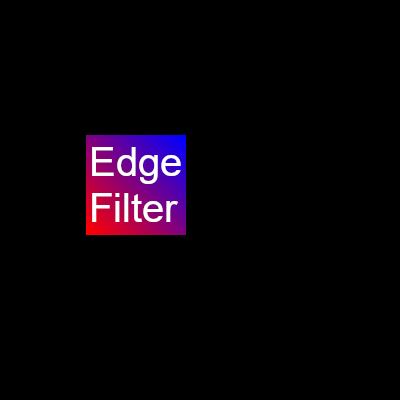 | 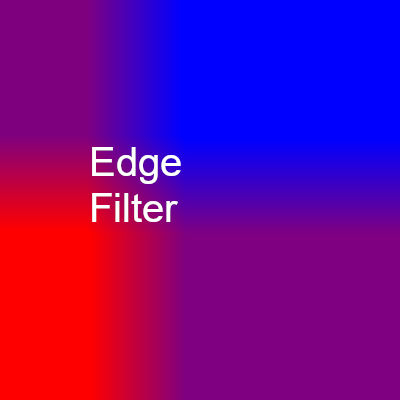 | 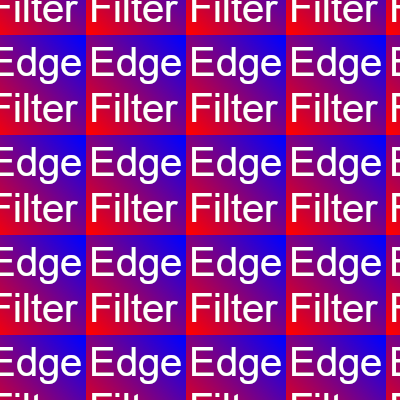 | 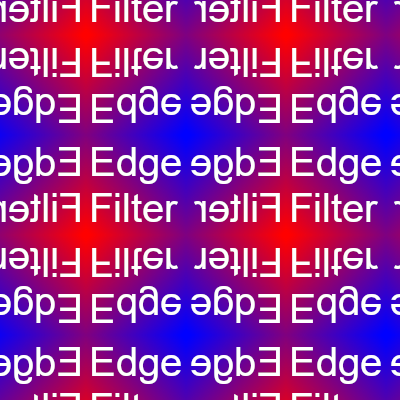 |
The default color | The color of the closest valid boundary pixel is returned | The image is repeated by taking coordinates modulus | The image is repeated in a mirrored way |
Regions of interest
Sometimes, it may be desired to apply a modifier to only a sub-part of an image. This can be achieved by the mean of regions of interest (RoI). The function enables to specify a rectangular window inside the image frame which defines the pixels that will be affected by the subsequent processes.
material.setImageRoIThe following example illustrates the result of the function applied to the whole image, or to only a part of it specified thanks to a RoI:
material.rotateImage |  |  |
|---|---|---|
| Original image | Rotation without RoI | Rotation with RoI |