Setting up Pixyz UI
Pixyz SDK comes with a copy of Pixyz UI. Depending on the setup, there are multiple ways to launch it.
Read time 3 minutesLast updated 10 months ago
Prerequisites
To run Pixyz UI, it is necessary to have Python installed on your machine. We recommend version 3.10 or newer.
Installation via pip
Open Pixyz UI
After the initial setup of Pixyz SDK for python via pip, Pixyz UI is already installed. To launch the UI, open a terminal and activate the virtual environment. Then, run
pxzui
or
pixyzui
Both are executables in your virtual environment's Script folder. Sometimes it can be useful to create a shortcut on windows to have Pixyz UI ready without opening a terminal. To do so, just right-click on (with being the name of your virtual environment) in the explorer and select "Create shortcut".
<VENV>/Scripts/pxzui.exe<VENV>Inspect Pixyz UI's sources
To better understand what Pixyz UI is doing in order to write your own UI with pixyz or extend Pixyz UI with your functionality, its sources are accessible. Inside of the virtual environment, there is a folder . Here, you can find the source code and see how the DefaultUI is created. For further information on how to create a customized UI, see Create a Custom UI.
<VENV>/Lib/site-packages/pxzuiInstallation via downloaded zip
There are multiple ways to run Pixyz UI after downloading the zipped Pixyz SDK from pixyz-software.com.
Windows
Start from Batch File
We recommend executing , which can be found in the Pixyz UI folder. It will automatically set up the virtual environment and install all necessary dependencies. This will take a moment, but is only necessary once. Afterwards, it will just launch Pixyz UI, as long as the virtual environment is up to date.
PixyzUI.batcd PixyzUI./PixyzUI.bat
Developer setup
If you wish to check under the hood of Pixyz UI or want to develop your own UI application, we recommend you to set up Pixyz UI with PyCharm.
Open the Pixyz UI folder via . If you have already run the bat/sh script from the previous chapter, PyCharm should automatically detect the virtual environment in .
File/Open...PixyzUI/.venvIf not, you can perform the setup with the required packages yourself via PyCharm
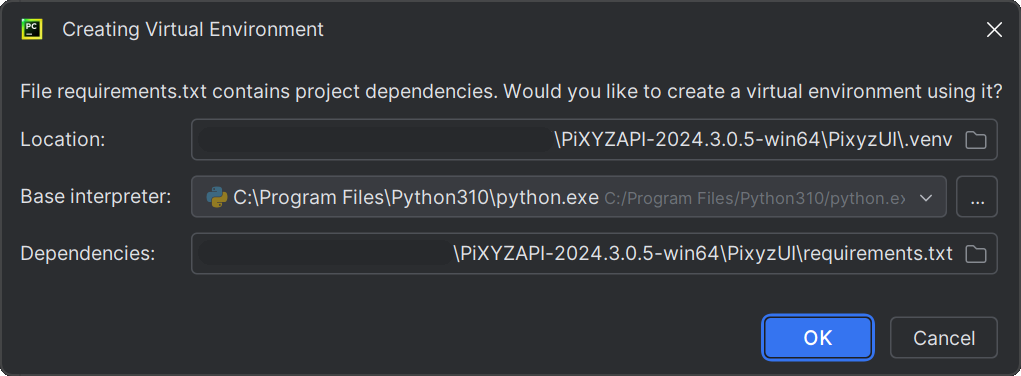
or by setting up the virtual environment from command line:
python -m venv .venv.\.venv\Scripts\activatepip install -r .\requirements.txt
In order to launch main.py, you will need to pass the path to the binaries as a parameter. They are in the directory of Pixyz SDK. It might help to setup a run configuration for main.py in PyCharm and pass as "Script Parameter".
bin../bin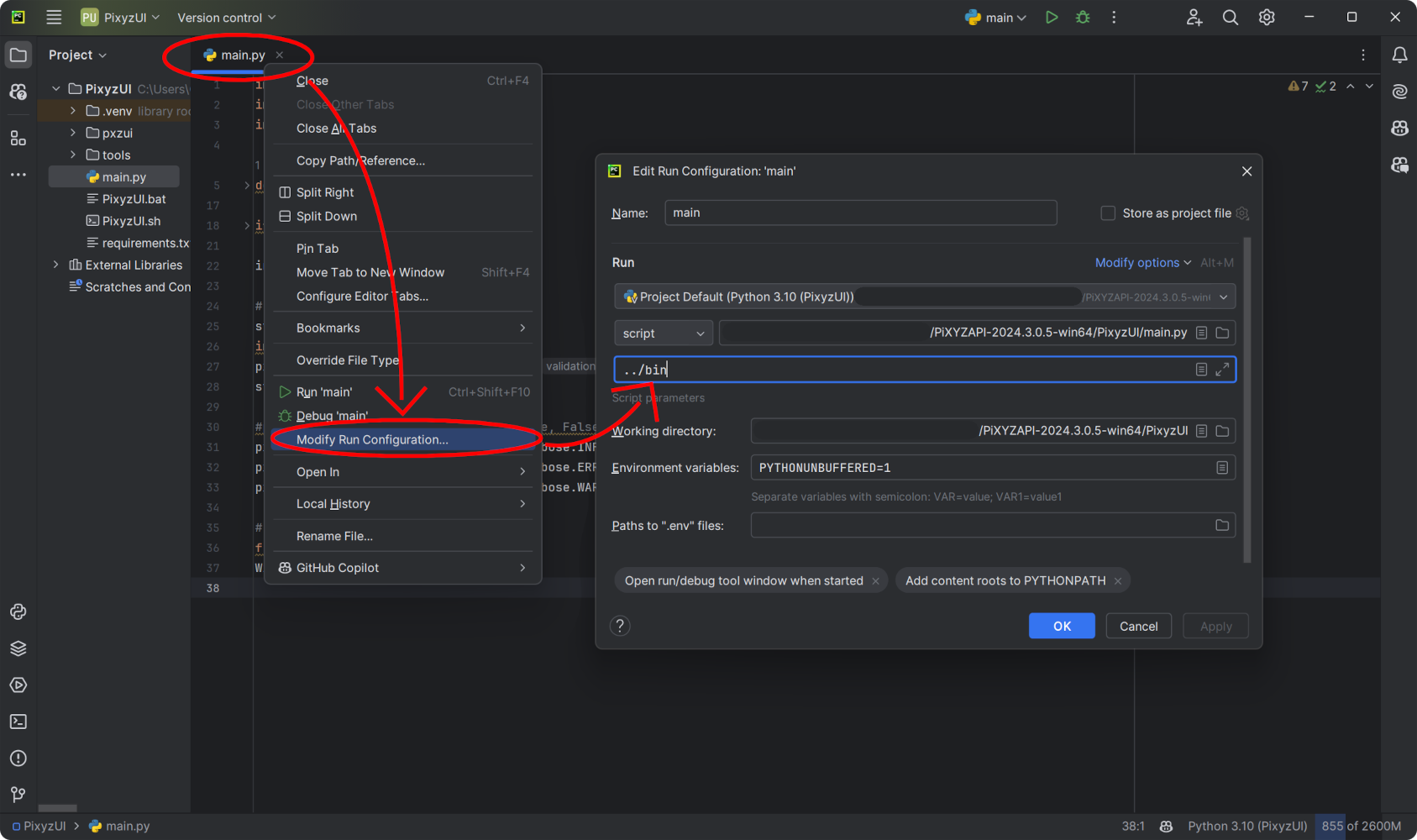
From the command line, you can simply pass the path as an argument to launch Pixyz UI.
python main.py "../bin"
Keep in mind that the python interpreter won't automatically discover the modules of the sdk for autocompletion, unless you add the binaries to your interpreter path. Check out the PyCharm installation instructions in Pixyz SDK Setup on how to do that.