Pixyz UI Overview
This page provides an overview of the Pixyz UI, covering model import, navigation controls, selection modes, and ways to execute SDK functions.
Read time 2 minutesLast updated 8 months ago
The Pixyz UI is a simple interface where you can test Pixyz SDK functionality on your models and familiarize yourself with Pixyz concepts. When you open it for the first time, you will see our DefaultUI, the following is a short overview of its functionality. If you want to modify it or create your own, see Create a Custom UI.
Importing a model
To import any file, just drag and drop it on the Pixyz UI. A list of supported file formats can be found here. Alternatively, you can select a file via in the menu bar or by pressing Ctrl+I.
IO/Import FileNavigation
| Camera Rotation | Set Rotation Center | Camera Panning | Camera Zoom | Selection | Depth Selection |
| ALT + LMB (drag) | MMB click | ALT + MMB (drag) | ALT + RMB (drag) or scroll wheel | LMB | RMB |
Selection
| New Selection | Invert Selection | Add To Selection | Remove From Selection |
| LMB | CTRL + LMB | CTRL + SHIFT + LMB | SHIFT + LMB |
Selection modes
It is possible to select either Connected Meshes, Edges, Parts (default), Patches or Polygons. However, note that almost all algorithms can only work with occurrences that are selected using the mode.
PartExecuting Pixyz SDK functions
Function Browser
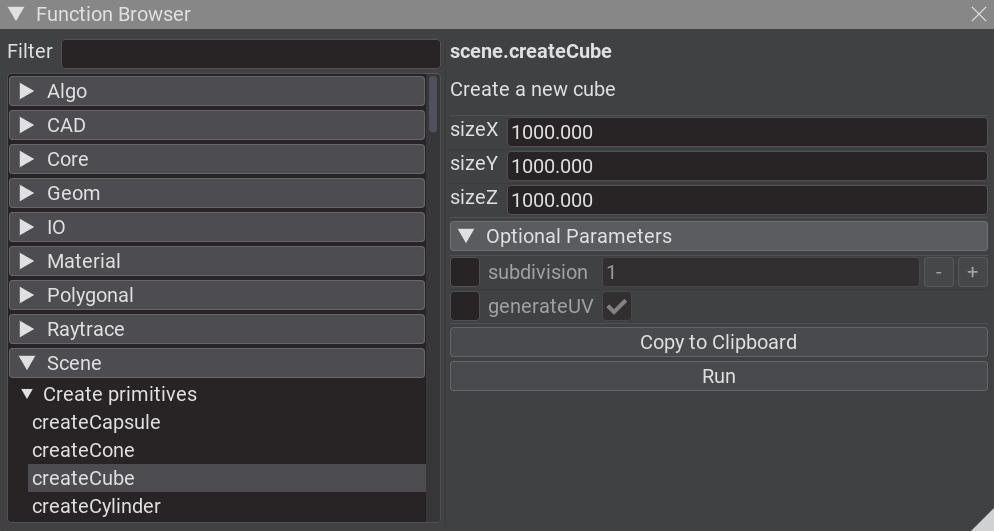
Any function available in the SDK can be tested by opening the Function Browser window at . After entering your parameters, it is also possible to copy the function code as a python snippet to clipboard.
Windows/Function BrowserCommand Palette
There is also a simple Command Palette available, which can be opened with Ctrl+Shift+P. You can search for functions and press Enter to open a popup which enables you to execute that function. This is not different from the Function Browser, but more convenient for working quickly.
Scripting
Additionally, there is a scripting window which can be opened via . Due to its limited functionality, it is not recommended to write long scripts inside the Pixyz UI. It has proven most efficient for small iterations, to import and test existing scripts or just to tweak parameters. Anything else should be done using your preferred IDE with the Pixyz SDK.
Windows/ScriptingModifying Preferences
Pixyz SDK properties can be modified via . For Viewer properties, can be used to access preferences that are viewer-specific. Keep in mind that these settings will be saved in between sessions.
Windows/PropertiesWindows/VisualizationAdditional Functionality
Pixyz UI comes with multiple predefined windows, which can be accessed via the dropdown in the menu bar. They range from a simple animation player to a more elaborated UV Viewer tool and many others.
Windows