Documentation

​
​

Development

User Acquisition

Monetization

Industry

Asset Transformer SDK

2026.1

Supported
​

User Manual

Python API

C# API

Changelog

Discussions

Asset Transformer SDK

2026.1

Supported
​

​
​
Get started
  • System requirements
  • Licensing
  • Setup
    • Python SDK
    • C# SDK
    • Docker
  • Migrate from Scenario Processor
Framework
  • Framework
  • Preferences
Input/output files
  • Supported formats
  • Import files
  • Export files
  • Export textures
  • CAD vs Mesh
Scene
  • Product structure
  • Occurrence
  • Component
  • Material
  • Image
Algorithms
  • CAD
  • Healing
  • Optimization
  • Combine and bake
  • Reconstruction
  • UVs
Viewer
  • Viewer
Pixyz UI
  • Setup
  • Overview
  • Create a custom UI
Guidelines
  • Data preparation
  • Process point clouds
Debug and diagnose
  • Log files
  • Debug best practices
Other
  • Samples
  • Glossary
  1. Asset Transformer SDK (ex Pixyz)

Python SDK

This guide provides step-by-step instructions for installing and setting up the Pixyz Python SDK, including prerequisites, pip installation, and running your first script.
Read time 2 minutes
Last updated 9 months ago

Prerequisites

  • Compatible system
  • Python 3.1 minimum. 3.10 or newer recommended
  • A valid Pixyz SDK license on your Pixyz license portal

Setup

Setup using pip (recommended)

  1. Run
    pip install pxz --extra-index-url https://unity3ddist.jfrog.io/artifactory/api/pypi/pixyz-pypi-prod-local/simple
  2. Setup your license
  3. Run your first script

SDK without UI frontend

In this case, you will only have access to the Python API/SDK and not the UI frontend.
  1. Run
    pip install pxz --no-deps --extra-index-url https://unity3ddist.jfrog.io/artifactory/api/pypi/pixyz-pypi-prod-local/simple
  2. Setup your license
  3. Run your first script
Note
The package is hosted at the following index location:
https://unity3ddist.jfrog.io/artifactory/api/pypi/pixyz-pypi-prod-local/simple
More information about installing from custom indexes.
Important
Windows only: be aware of warnings related to search paths such as
WARNING: The scripts PiXYZFinishInstall.exe, PiXYZGenerateActivationCode.exe and PiXYZInstallLicense.exe are installed in [...] which is not on PATH
.
If this happens, simply add missing paths to PYTHONPATH or add the base path prefix to the script.

Setup without pip

PyCharm

  1. Download SDK from archive
  2. Open project
  3. Locate your Pixyz SDK binaries folder on your machine or local dev environement
  4. Add Pixyz binaries folder to your interpreter path (check PyCharm documentation)
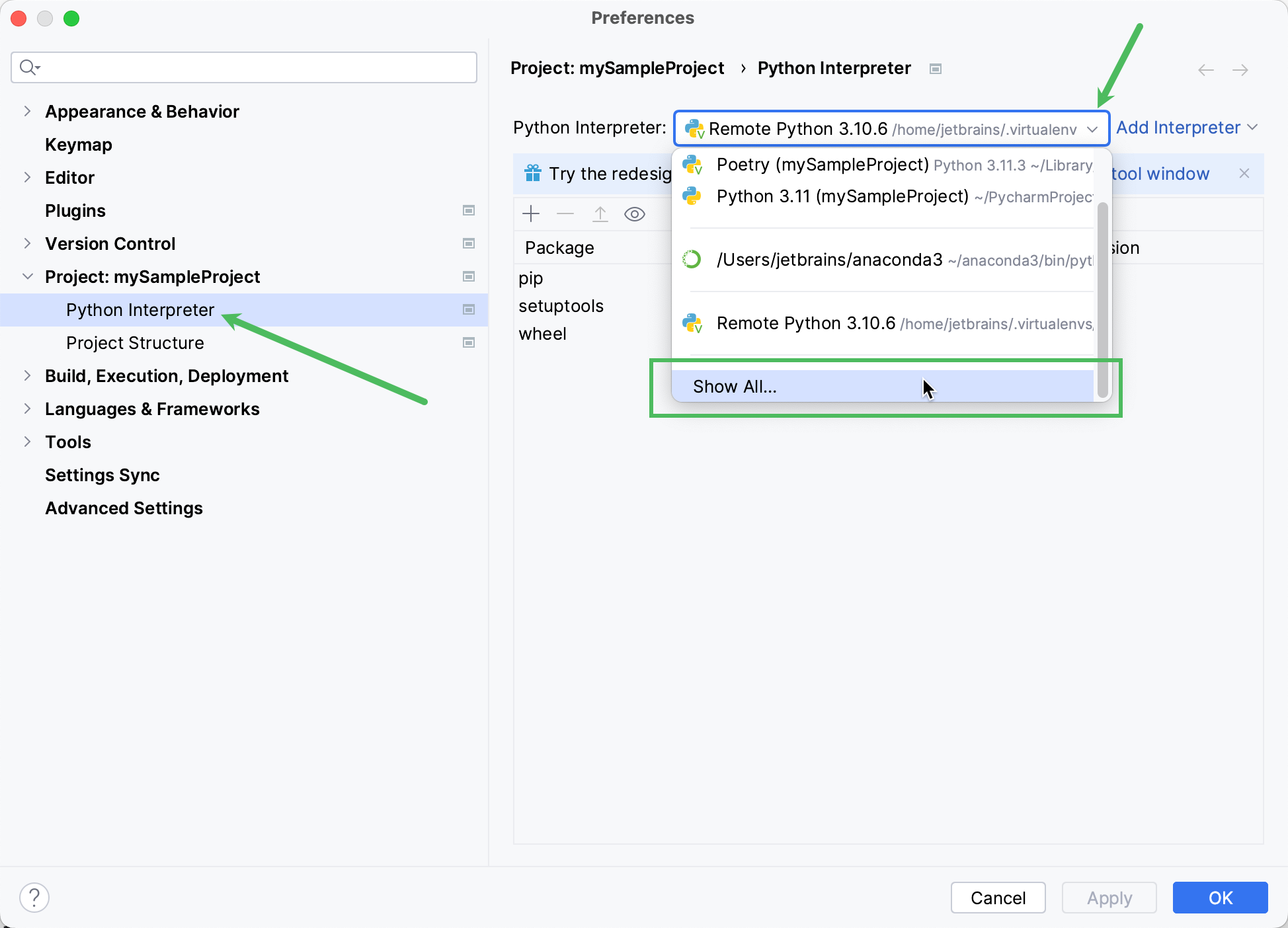
pycharm
  1. Setup your license server
  2. Run your first script

Visual Studio Code

  1. Download SDK from archive
  2. Open project
  3. Create a Python environment
  4. Set
    PYTHONPATH
    to the Pixyz binaries folder path (by adding an .env file to the project for example)
  5. Setup your license
  6. Run your first script

Run your first script

import pxzfrom pxz import core# init Pixyzpxz.initialize()# print Pixyz versionprint(core.getVersion())# set log level to INFO so you can see the logs in the consolecore.configureInterfaceLogger(True, True, True)core.addConsoleVerbose(core.Verbose.INFO)# if no license is found, try to configure a license serverif not core.checkLicense(): core.configureLicenseServer("company-server-hostname", 27000, True)# use io.importScene to import a file and enjoy :)

Copyright © 2026 Unity Technologies
LegalPrivacy PolicyCookiesDocumentation Terms of UseDo Not Sell or Share My Personal InformationYour Privacy Choices (Cookie Settings)

"Unity", Unity logos, and other Unity trademarks are trademarks or registered trademarks of Unity Technologies or its affiliates in the U.S and elsewhere (more info here). Other names or brands are trademarks of their respective owners.

Some pages are machine-translated for convenience, and may contain inaccuracies. In the event of conflicting information, the English version is authoritative.

  • On this page
    • Prerequisites

    • Setup

      • Setup using pip (recommended)

        • SDK without UI frontend

      • Setup without pip

        • PyCharm

        • Visual Studio Code

    • Run your first script


Report a problem with this page