Decimate meshes based on quality criteria
Use this feature to efficiently reduce the polygon count of models while preserving visual quality as much as possible.
Read time 2 minutesLast updated 8 months ago
API function: algo.decimate
Use this feature to efficiently reduce the polygon count of models while preserving visual quality as much as possible.
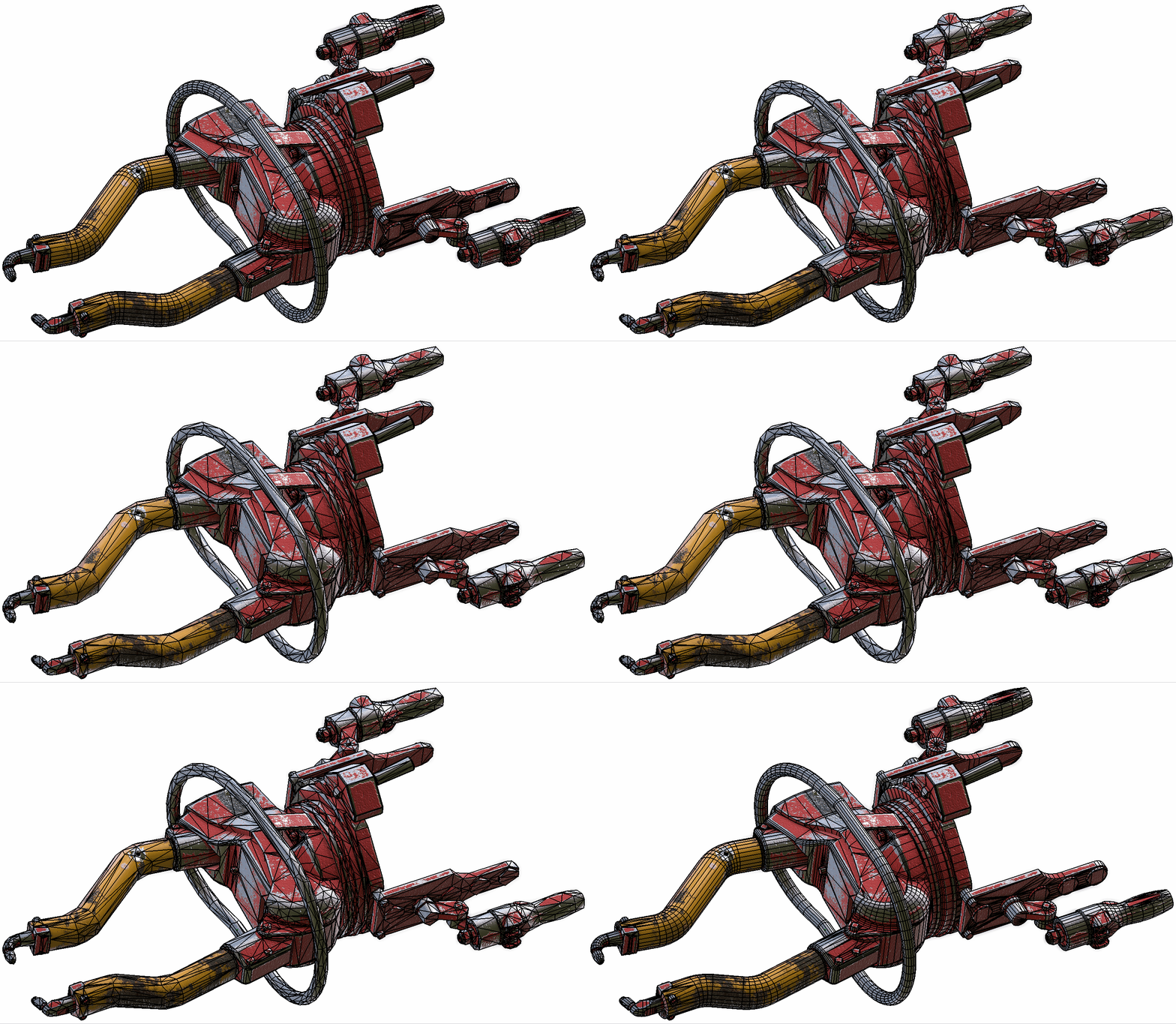
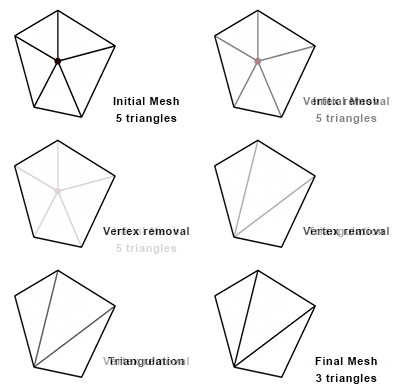
The algorithm deletes vertices from meshes using the vertex removal technique. It uses a quality criteria to choose which vertices to delete to avoid artifacts that result from smoothing and irregularities in topology.
Prerequisites
We strongly recommend that you perform these operations before decimation, to ensure the efficiency of decimation:
- Repair meshes, to avoid widening cracks or gaps in meshes. Read more.
- Remove unnecessary texture coordinates. Read more.
Parameters
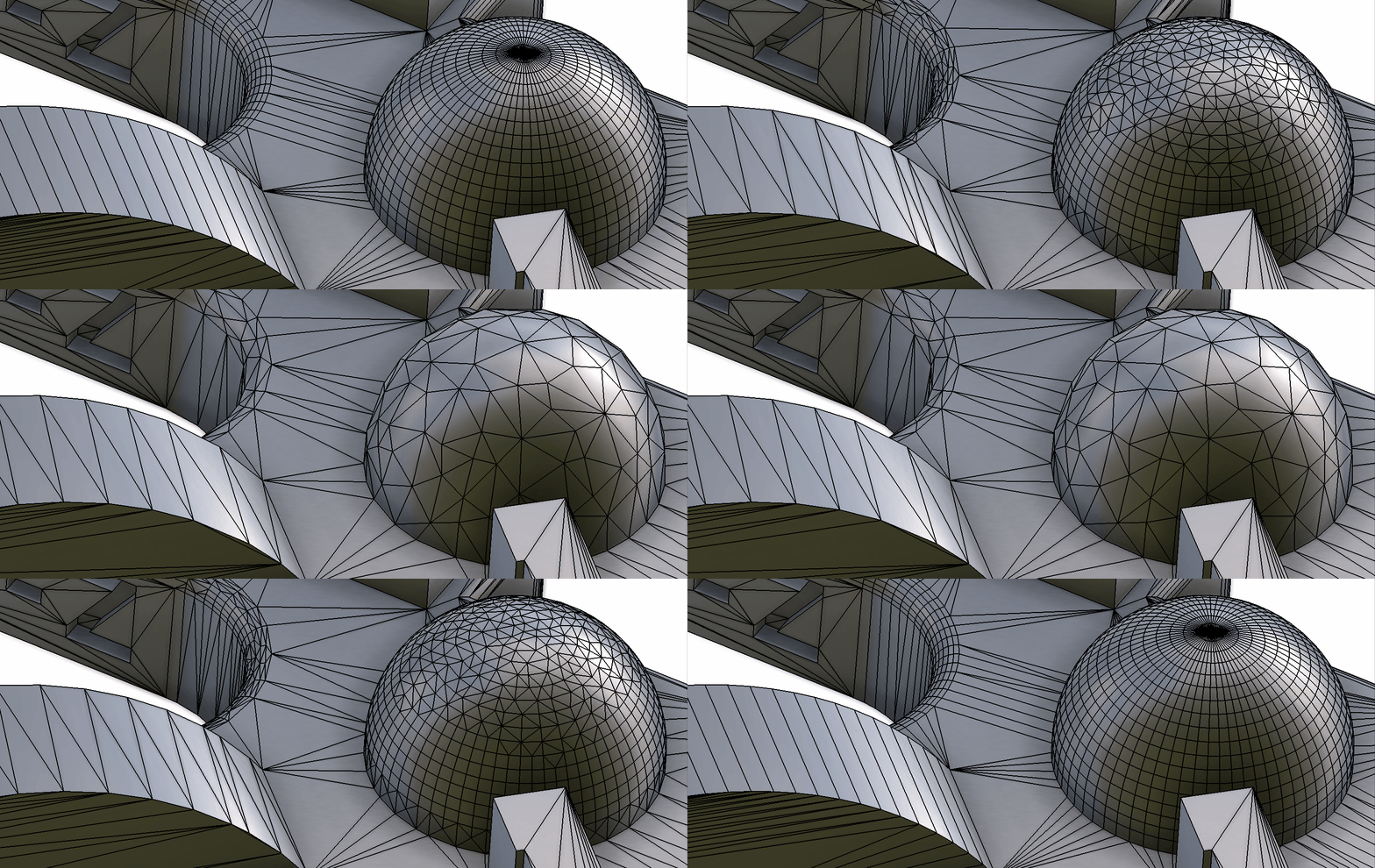
Decimation parameters are geometric tolerances. Use these parameters to find the optimal balance between the polygon count and visual quality according to your needs.
The higher the tolerance values, the lower the polygon count but the lower the visual quality. To bypass a tolerance, set the parameter to -1 .
Surface tolerance
This parameter defines the maximum distance between vertices of the original model and those of the decimated surfaces.
The unit is the unit of length of the meshes to process.
Line tolerance
This parameter defines the maximum distance between lineic vertices of the original model and the decimated lines. This tolerance is equivalent to the surface tolerance, but applied only to sharp edges, hard edges, and lines of interest.
Use the line tolerance to preserve the boundaries of the original surface, where edges are sharp or hard.
The unit is the unit of length of the meshes to process.
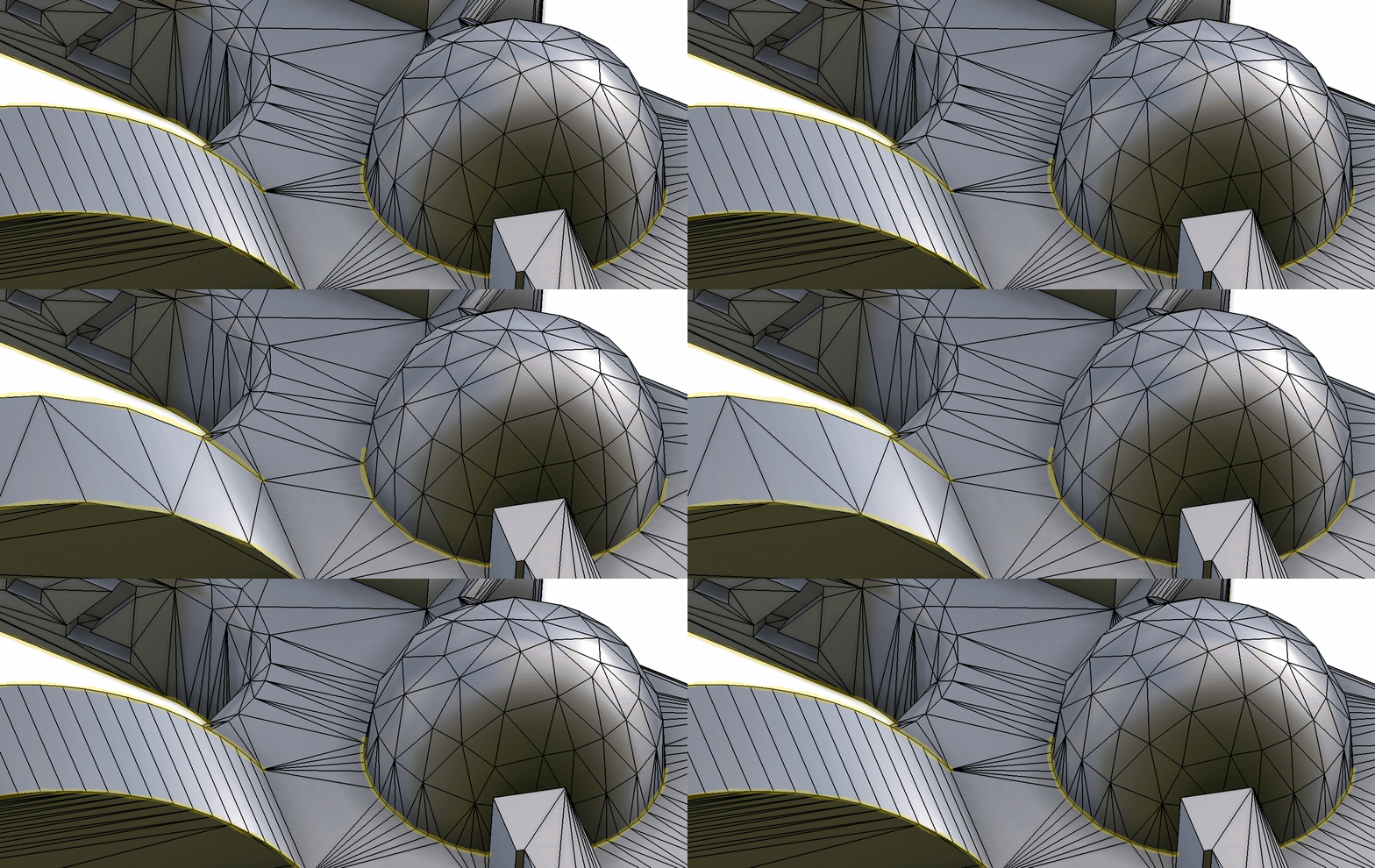
This parameter proves particularly efficient with CAD models, because they contain many hard edges.
Normal tolerance
This parameter defines the maximum angle between the normal of each vertex and the interpolated normal of the decimated surface.
Use this parameter to preserve the quality of the reaction of light on mesh surfaces.
Use this parameter in combination with the surface tolerance to maintain polygons where the surface curvature is important and to preserve visual quality.
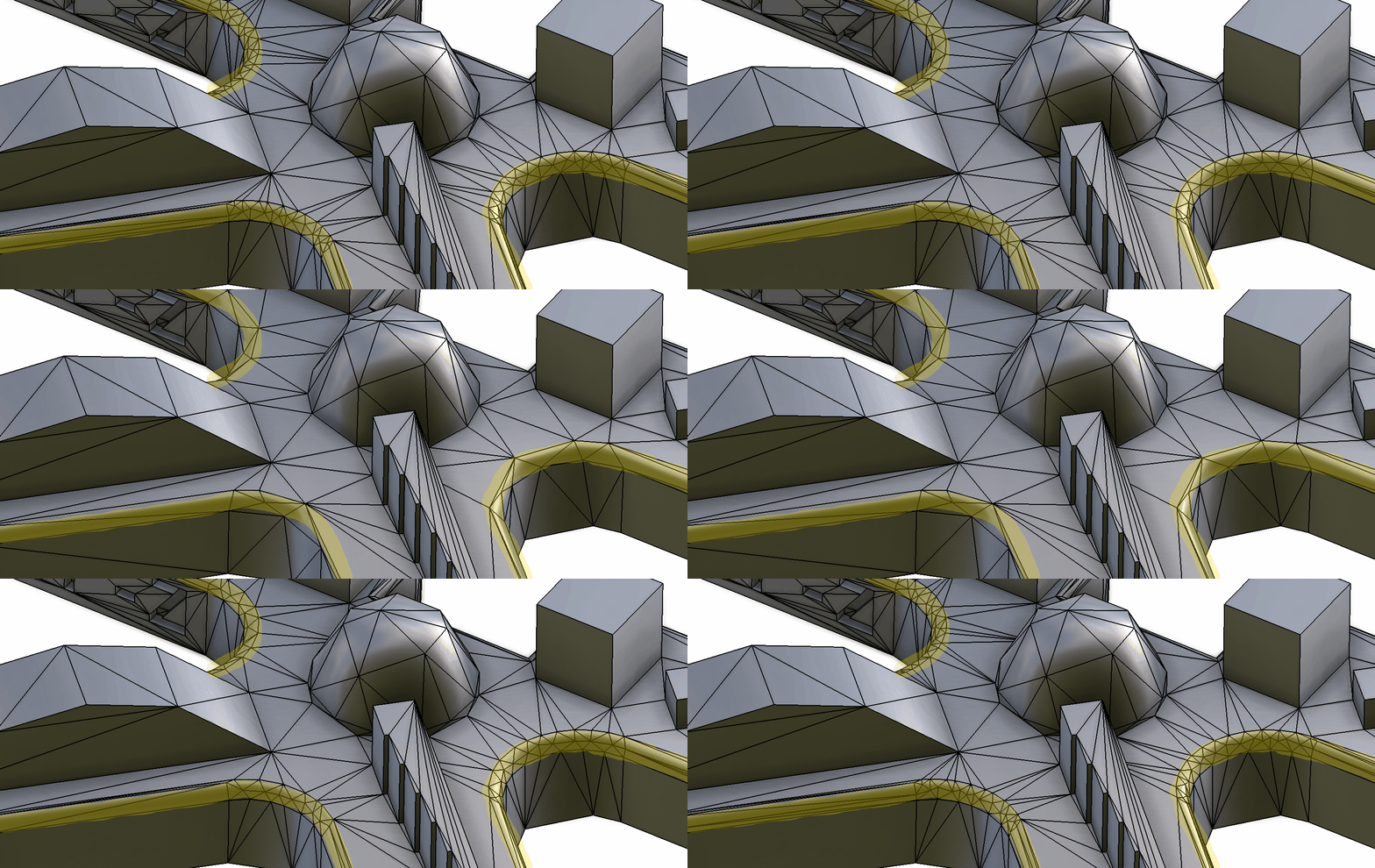
Texture coordinates tolerance
Use this parameter to avoid that texture coordinates be distorted during decimation.
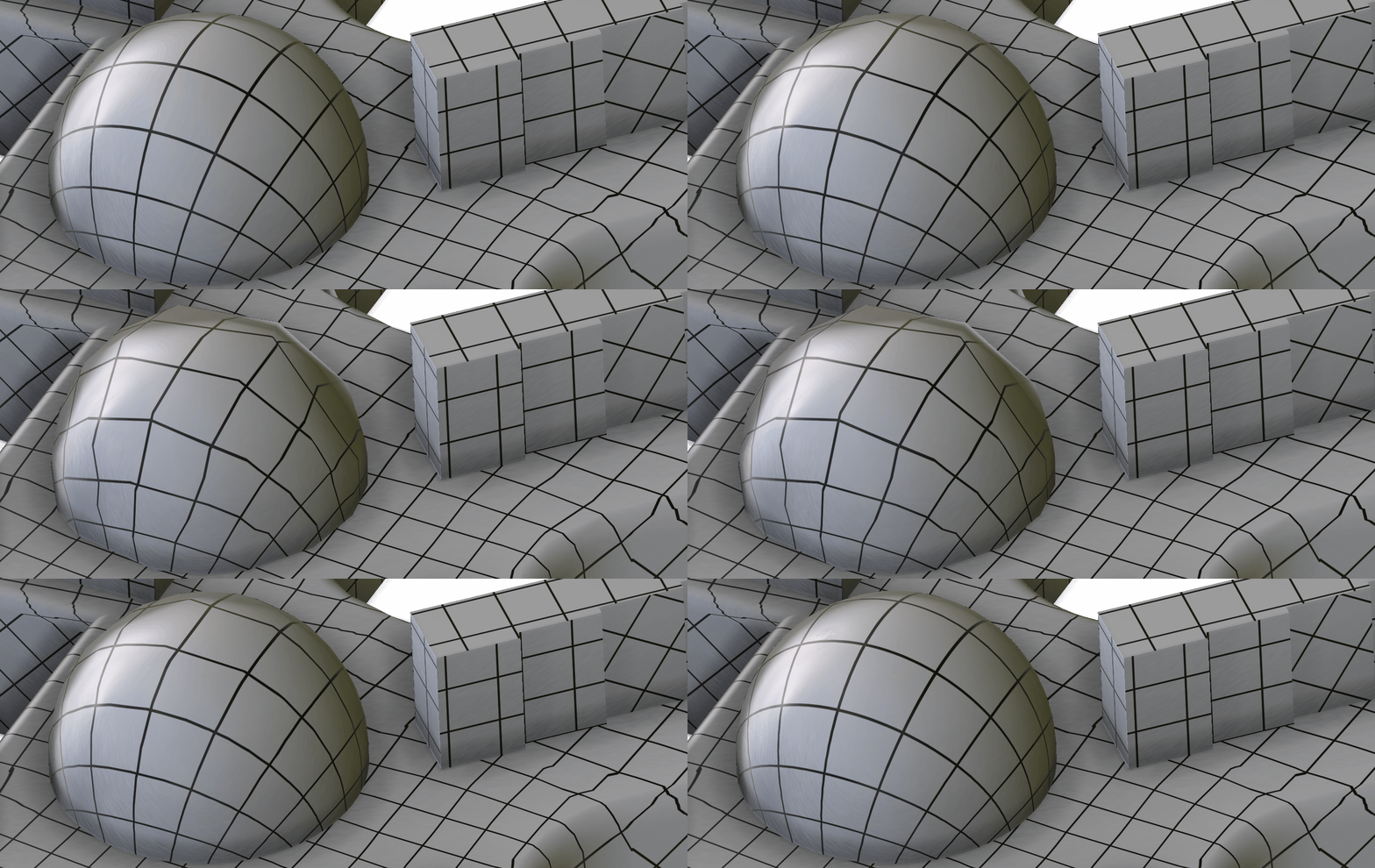
You can specify 0.01 for most models.
UV seams, such as sharp edges, may not be decimated enough, although they're affected by the line tolerance. In this case, delete texture coordinates before decimating meshes, to further reduce the polygon count in these areas.
Example
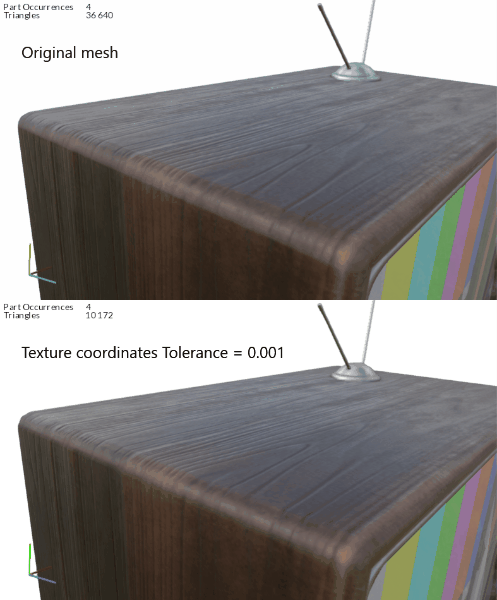
This example illustrates the decimation of a mesh with a wooden texture:
Without texture coordinates tolerance | With a tolerance of 0.001 mm |
|---|---|
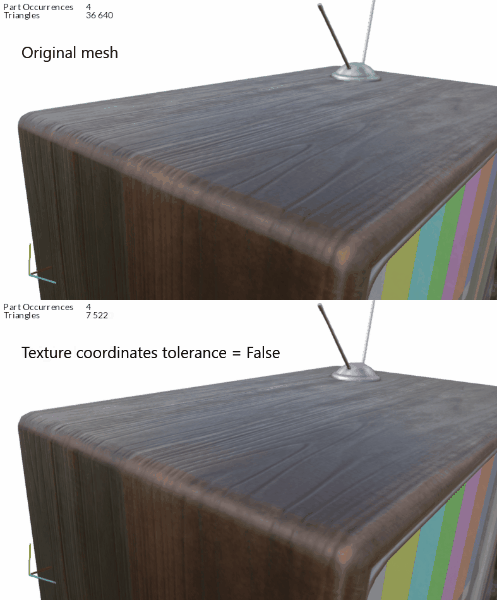 |  |
Without any tolerance, texture coordinates move because of decimation. The wood grain is distorted.
With a very small tolerance, for example 0.001 mm, texture coordinates are better preserved. The wood grain is less distorted.