사용 사례 샘플: 새로 가입한 플레이어를 기본 구성 값으로 초기화
Initialize new players with default values in Cloud Save when they first sign up.
읽는 시간 3분최근 업데이트: 하루 전
이 사용 사례 샘플은 신규 플레이어가 가입했을 때 Triggers를 사용하여 Cloud Save에서 기본 체력과 스태미나 값으로 플레이어를 초기화하는 방법을 보여 줍니다. 이 샘플은 Authentication 서비스에서 발생된
signedUp필수 조건
먼저 필요한 액세스 역할로 서비스 계정을 생성하고 UGS CLI를 구성해야 합니다.서비스 계정을 사용하여 인증
Triggers 서비스를 호출하려면 먼저 서비스 계정을 사용하여 인증해야 합니다.- Unity Dashboard로 이동합니다.
- Administration > Service Accounts를 선택합니다.
- New 버튼을 선택하고 서비스 계정의 이름과 설명을 입력합니다.
- Create를 선택합니다.
- Manage product roles를 선택합니다.
- 다음 역할을 서비스 계정에 추가합니다.
- LiveOps 드롭다운에서 Triggers Configuration Editor와 Triggers Configuration Viewer를 선택합니다.
- Admin 드롭다운에서 Unity Environments Viewer를 선택합니다.
- LiveOps 드롭다운에서 Triggers Configuration Editor와 Triggers Configuration Viewer를 선택합니다.
- Save를 선택합니다.
- Add Key를 선택합니다.
- base64 인코딩을 사용하여 Key ID와 Secret key를 인코딩합니다. 포맷은 ‘key_id:secret_key’입니다. 이 값을 기록해 둡니다.
UGS CLI 구성
다음 단계를 따라 UGS CLI를 시작합니다.- UGS CLI를 설치합니다.
-
다음과 같이 프로젝트 ID와 환경을 구성합니다.
ugs config set project-id <your-project-id>
ugs config set environment-name <your-environment-name> - 이전에 생성한 서비스 계정을 사용하여 인증합니다. 인증 받기를 참고하십시오.
signed-up 이벤트 확인
Authentication 서비스는 신규 플레이어가 생성될 때signed-up이벤트 페이로드는 Cloud Code에 파라미터로 전달됩니다. 인증을 참고하십시오. 자세한 내용을 보려면 가입하십시오.{ "playerId": "string", "providerId": "string", "createdAt": "string"}
Cloud Code 설정
Cloud Save를 호출하는 스크립트 또는 엔드포인트를 정의하여 새로 인증된 플레이어를 기본 체력과 스태미나 값으로 초기화합니다.Cloud Code C# 모듈
필수 문자열 인자인playerIdInitializeNewPlayer모듈을 배포합니다. 모듈을 배포하는 방법을 알아보려면 Hello World 배포를 참고하십시오.using Microsoft.Extensions.DependencyInjection;using Microsoft.Extensions.Logging;using Unity.Services.CloudCode.Core;using Unity.Services.CloudCode.Apis;using Unity.Services.CloudCode.Shared;using Unity.Services.CloudSave.Model;public class ModuleSample{ private const string HealthKey = "HEALTH"; private const string StaminaKey = "STAMINA"; private const int DefaultValue = 100; private readonly ILogger<ModuleSample> _logger; public ModuleSample(ILogger<ModuleSample> logger) { _logger = logger; } [CloudCodeFunction("InitializeNewPlayer")] public async Task InitializeNewPlayer(IExecutionContext ctx, IGameApiClient gameApiClient, string playerId) { try { var response = await gameApiClient.CloudSaveData.GetItemsAsync(ctx, ctx.ServiceToken, ctx.ProjectId, playerId, new List<string>() { HealthKey, StaminaKey }); if (response.Data.Results.Count == 0) { await gameApiClient.CloudSaveData.SetItemBatchAsync(ctx, ctx.ServiceToken, ctx.ProjectId, playerId, new SetItemBatchBody(new List<SetItemBody>{new (HealthKey, DefaultValue), new (StaminaKey, DefaultValue)})); _logger.LogInformation("The player has been initialized with the {HealthKey} and {StaminaKey} keys with values of {DefaultValue}", HealthKey, StaminaKey, DefaultValue); } } catch (ApiException e) { _logger.LogError("Failed to initialize player data in Cloud Save. Error: {Error}", e.Message); throw new Exception($"Failed to initialize {playerId} data in Cloud Save. Error: {e.Message}"); } } public class ModuleConfig : ICloudCodeSetup { public void Setup(ICloudCodeConfig config) { config.Dependencies.AddSingleton(GameApiClient.Create()); } }}
Cloud Code JavaScript 스크립트
다음과 같이 콘텐츠를 사용하여 필수 문자열playerIdInitializeNewPlayerJavaScript
const { DataApi } = require("@unity-services/cloud-save-1.4");const CLOUD_SAVE_HEALTH_KEY = "HEALTH";const CLOUD_SAVE_STAMINA_KEY = "STAMINA";const DEFAULT_VALUE = 100;module.exports = async ({ params, context, logger }) => { const cloudSaveApi = new DataApi(context); try { // Check if player has been initialized yet const cloudSaveGetResponse = await cloudSaveApi.getItems(context.projectId, params.playerId, [CLOUD_SAVE_HEALTH_KEY, CLOUD_SAVE_STAMINA_KEY]); if (cloudSaveGetResponse.data.results.length === 0) { // Record new values for player await cloudSaveApi.setItemBatch(context.projectId, params.playerId, { data: [ { key: CLOUD_SAVE_HEALTH_KEY, value: DEFAULT_VALUE, }, { key: CLOUD_SAVE_STAMINA_KEY, value: DEFAULT_VALUE, }, ], }); logger.info(`The player has been initialized with the ${CLOUD_SAVE_HEALTH_KEY} and ${CLOUD_SAVE_STAMINA_KEY} keys with values of ${DEFAULT_VALUE}`, { "affectedPlayerId": params.playerId }); return; } logger.info("The player has already been initialized.", { affectedPlayerId: params.playerId }); } catch (err) { logger.error("Failed to update Cloud Save data", { "error.message": err.message }, { "affectedPlayerId": params.playerId }); throw err; }};// Uncomment the code below to enable the inline parameter definition// - Requires Cloud Code JS dev environment setup with NodeJS (https://docs.unity3d.com/Packages/com.unity.services.cloudcode@latest/index.html?subfolder=/manual/Authoring/javascript_project.html)//// module.exports.params = {// playerId: { type: "String", required: true },// };
스크립트를 배포하는 방법을 알아보려면 Hello World 배포를 참고하십시오.
트리거 구성
Cloud Code 리소스를 Authenticationsigned-upnew-fileCloud Code 스크립트를 생성한 경우, 다음 구성으로ugs triggers new-file triggers-config
triggers-config.trCloud Code 모듈을 생성한 경우, 다음 구성으로{ "$schema": "https://ugs-config-schemas.unity3d.com/v1/triggers.schema.json", "Configs": [ { "Name": "initialize-new-player", "EventType": "com.unity.services.player-auth.signed-up.v1", "ActionUrn": "urn:ugs:cloud-code:InitializeNewPlayer", "ActionType": "cloud-code" } ]}
triggers-config.tr다음과 같이 UGS CLI 툴을 사용하여 구성을 배포합니다.{ "$schema": "https://ugs-config-schemas.unity3d.com/v1/triggers.schema.json", "Configs": [ { "Name": "initialize-new-player", "EventType": "com.unity.services.player-auth.signed-up.v1", "ActionUrn": "urn:ugs:cloud-code:ModuleSample/InitializeNewPlayer", "ActionType": "cloud-code" } ]}
다음과 유사한 응답이 표시됩니다.ugs deploy triggers-config.tr
이제 플레이어가 가입할 때 Cloud Code 스크립트 또는 모듈을 실행하는 트리거를 만들었습니다.Deployed:triggers-config.tr
결과 확인
결과를 확인하려면 Authentication 서비스를 사용하여 새 플레이어를 등록합니다. 플레이어로 인증된 Unity Gaming Services를 호출하여 이 작업을 수행할 수 있습니다. 예를 들어 Unity Dashboard의 Cloud Code 스크립트 페이지를 통해 신규 플레이어 ID를 생성하여 플레이어 인증 플로를 트리거할 수 있습니다.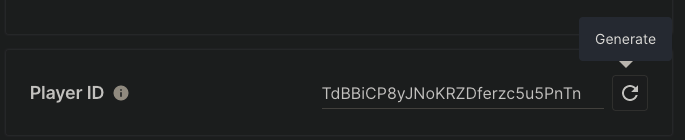
signed-up- Unity Dashboard로 이동합니다.
- Products > Player Management를 선택합니다.
- 목록에서 플레이어 중 한 명을 선택합니다.
- Cloud Save > Data 탭으로 이동합니다.
- 기본값이 인
100와HEALTH키를 확인할 수 있습니다.STAMINA