Seasonal Events
Create rotating seasonal events with limited-time content, rewards, and dynamic gameplay elements.
Read time 12 minutesLast updated 7 months ago
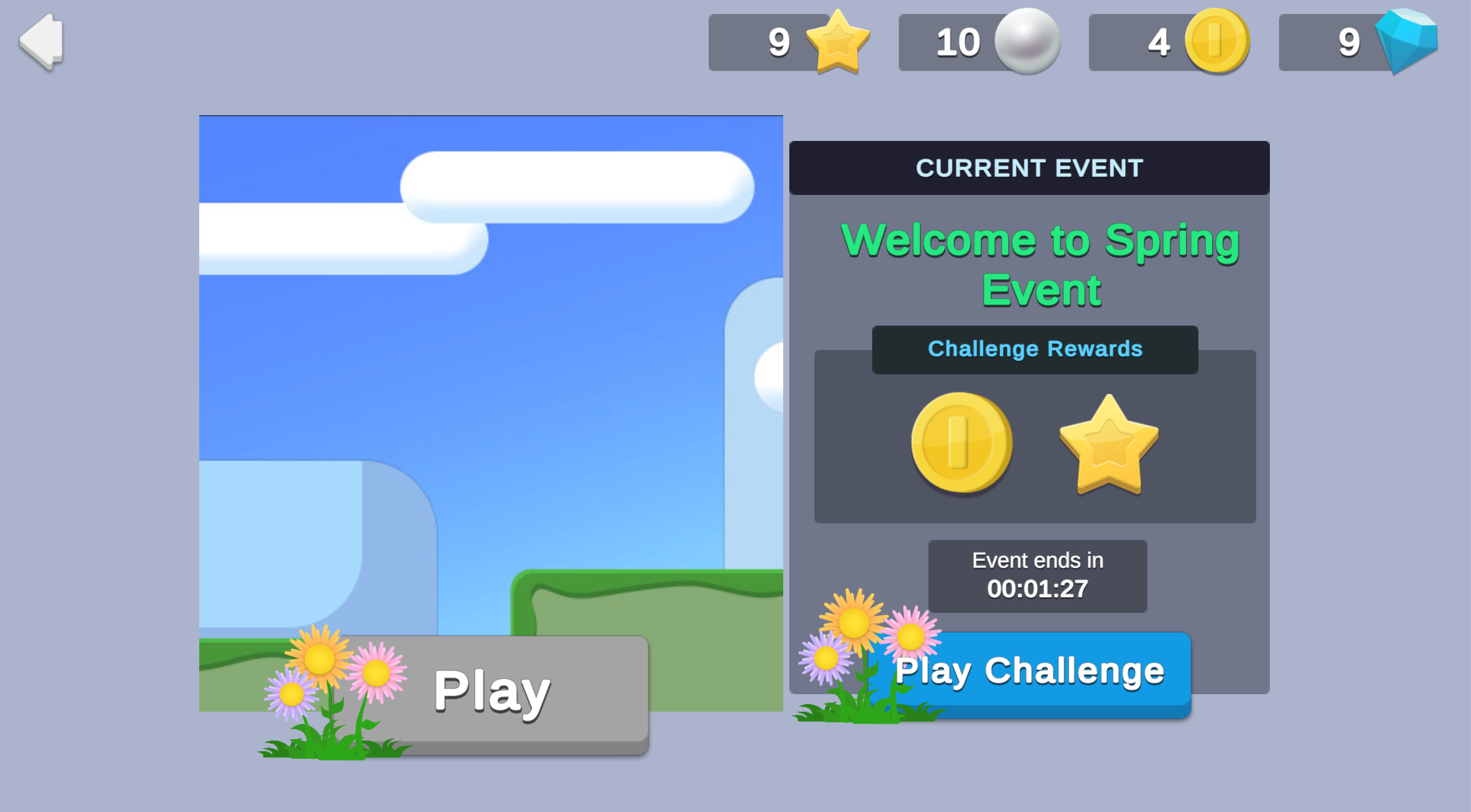
Seasonal events can increase game sessions and overall interest in a game, because they give existing players new and fun content throughout the year to look forward to, and can entice new players to begin playing. This sample shows how you can set up seasonal events. It showcases four events, Fall, Winter, Spring, and Summer, however you can extend this example to configure events for anything you want. Each event displays the currency rewards you can win during the event, a countdown indicating how much time is left in the current event, and a Play Challenge button that opens a pop-up where players can collect their rewards for winning the challenge.
Prerequisites
To use this sample use case, you must download and install the UGS Use Cases project in your Unity project.
Overview
To see this use case in action, open the samples menu and navigate to Seasonal Events. To open this scene directly and interact with the use case:
- In the Unity Editor Project window, select Assets > Use Case Samples > Seasonal Events, then double-click to open the sample scene.
SeasonalEventsSample.unity - Press Play to enter Play mode.
Initialization
The script performs the following initialization tasks in its function:
SeasonalEventsSceneManager.csStart- Initializes Unity Gaming Services.
- Signs in the player anonymously using the Authentication service. If you’ve previously initialized any of the other sample scenes, Authentication will use your cached Player ID instead of creating a new one.
- Retrieves and updates the player's currency balances from the Economy service.
- Calls the Cloud Code function in order to base Game Override and Remote Config data off the server time.
GetServerTime - Queries the Remote Config service to get the current values for event-related keys (see section on event parameters below).
Event parameters
The Remote Config service stores key-value data for displaying the active event name, the potential rewards for completing the event challenge. These keys are also used to retrieve the event’s themed interface visuals from the Addressables service.
Remote Config also conveys when the event ends, which the script references to determine how much time remains for the current event. When that time runs out, it triggers a new call to Remote Config to get the updated values for the next event.
CountdownManager.csFunctionality
Collect Rewards
The Play Challenge button is an abstraction for gameplay that the player might engage in to earn event rewards. Clicking it opens a pop-up where players can collect rewards for "winning" the challenge. When you click the Collect Rewards button, the following occurs:
-
The button’smethod calls the
OnClickCloud Code script, which queries the Remote Config service to determine which rewards to distribute.SeasonalEvents_GrantEventReward.jsNote: Rewards could potentially differ from what the player expects, if they're altering their device clock or if they initiated their claim at the very end of an event. -
Cloud Code then calls the Economy service to grant the appropriate rewards and update the player’s currency and inventory balance.
-
Once rewards are distributed, the calling script updates the currency HUD and closes the collect rewards pop-up.
You can only play the challenge once per active event, so after the Cloud Code script distributes rewards, it saves the current event name and timestamp to Cloud Save. The client uses this information to determine whether the current event has already been played, and if it has, to disable the Play Challenge button.
Setup
Requirements
To replicate this use case, you'll need the following Unity packages in your project:
Package | Role |
|---|---|
| Addressables | Allows asset retrieval by address. Wherever the asset resides (local or remote), the system will locate it and its dependencies and then return it. In this sample, it retrieves event-specific images and prefabs based on information from Remote Config. |
| Authentication | Automatically signs in the user anonymously to keep track of their data on the server side. |
| Cloud Code | Contains important validation logic on the server side. In this sample, it distributes rewards for the event challenge. It also independently verifies the timestamp at the time of reward distribution on the server-side to confirm which event rewards to distribute. |
| Cloud Save | Stores a flag for whether the current challenge has already been played, to prevent the player from participating multiple times. |
| Deployment | Provides a cohesive interface to deploy assets for Cloud Services. |
| Economy | Retrieves the player's starting and updated currency balances at runtime. |
| Game Overrides | Maintains the four seasonal events and returns different values for certain keys based on which Game Override is deemed active. |
| Remote Config | Provides key-value pairs that can be changed server-side, either manually or based on specific Game Overrides. |
To use these services in your game, activate each service for your Organization and project in the Unity Dashboard.
Unity Cloud services configuration
To replicate this sample scene's setup in your own Unity project, configure the following items:
- Cloud Code scripts
- Economy items
- Remote Config values
- Remote Config Game Overrides
To configure these items you can use the Deployment package, or manually enter them using the Unity Dashboard.
The recommended best practice is to use the Deployment package as it greatly accelerates this process.
Using the Deployment package
To deploy configurations using the Deployment package:
- Open the Deployment window.
- Check in and
Common.Seasonal Events - Click .
Deploy Selection
This deploys the following items:
- Cloud Code scripts
- Economy items
- Remote Config values
The Deployment package doesn't support the following items:
- Remote Config Game Overrides
To configure them, refer to Using the Unity Dashboard.
Using the Unity Dashboard
You can use the Unity Dashboard to manually configure your services by project and environment.
Refer to the following sections to configure this sample.
Cloud Code
Publish the following scripts in the Unity Dashboard:
Script | Parameters | Description | Location in project |
|---|---|---|---|
| None | Verifies and distributes rewards. | |
| None | Retrieves the current timestamp from the server in order to base the UI on server-authoritative time. | |
Economy
Configure the following resources in the Unity Dashboard:
Resource type | Resource name | ID | Description |
|---|---|---|---|
| Currency | Coin | | A challenge reward during the fall, winter, and spring events. |
| Currency | Gem | | A challenge reward during the winter and summer events |
| Currency | Pearl | | A challenge reward during the fall and summer events |
| Currency | Star | | A challenge reward during the spring and summer events |
Remote Config
Set up the following config values in the Unity Dashboard:
|
|
|
|
|---|---|---|---|
| string | The name of the event to display in the scene. | |
| string | The key used to look up event-specific values, such as the addresses for the specific images. | |
| int | The last digit that matches in the Audience JEXL statement, i.e. the last digit of the latest timestamp that would return this campaign. | |
| JSON | The json that specifies what rewards are distributed when a challenge has been "won". |
|
Game Overrides
Configure the following Overrides in the Unity Dashboard:
Details | Name the Override “ ”. |
Targeting | Select JEXL with the following JEXL code:
|
Content | Select Choose content type > Config Overrides, then enter override values for the following keys:
|
Scheduling | Set the following start and end dates:
|
Status | After finishing creating the Game Override, click Enable. |
Details | Name the Override “ ”. |
Targeting | Select JEXL with the following JEXL code:
|
Content | Select Choose content type > Config Overrides, then enter override values for the following keys:
|
Scheduling | Set the following start and end dates:
|
Status | After finishing creating the Game Override, click Enable. |
Details | Name the Override “ ”. |
Targeting | Select JEXL with the following JEXL code:
|
Content | Select Choose content type > Config Overrides, then enter override values for the following keys:
|
Scheduling | Set the following start and end dates:
|
Status | After finishing creating the Game Override, click Enable. |
Details | Name the Override “ ”. |
Targeting | Select JEXL with the following JEXL code:
|
Content | Select Choose content type > Config Overrides, then enter override values for the following keys:
|
Scheduling | Set the following start and end dates:
|
Status | After finishing creating the Game Override, click Enable. |