Starter Packs
Create starter packs to improve the onboarding experience for new users and boost engagement.
Read time 5 minutesLast updated a month ago
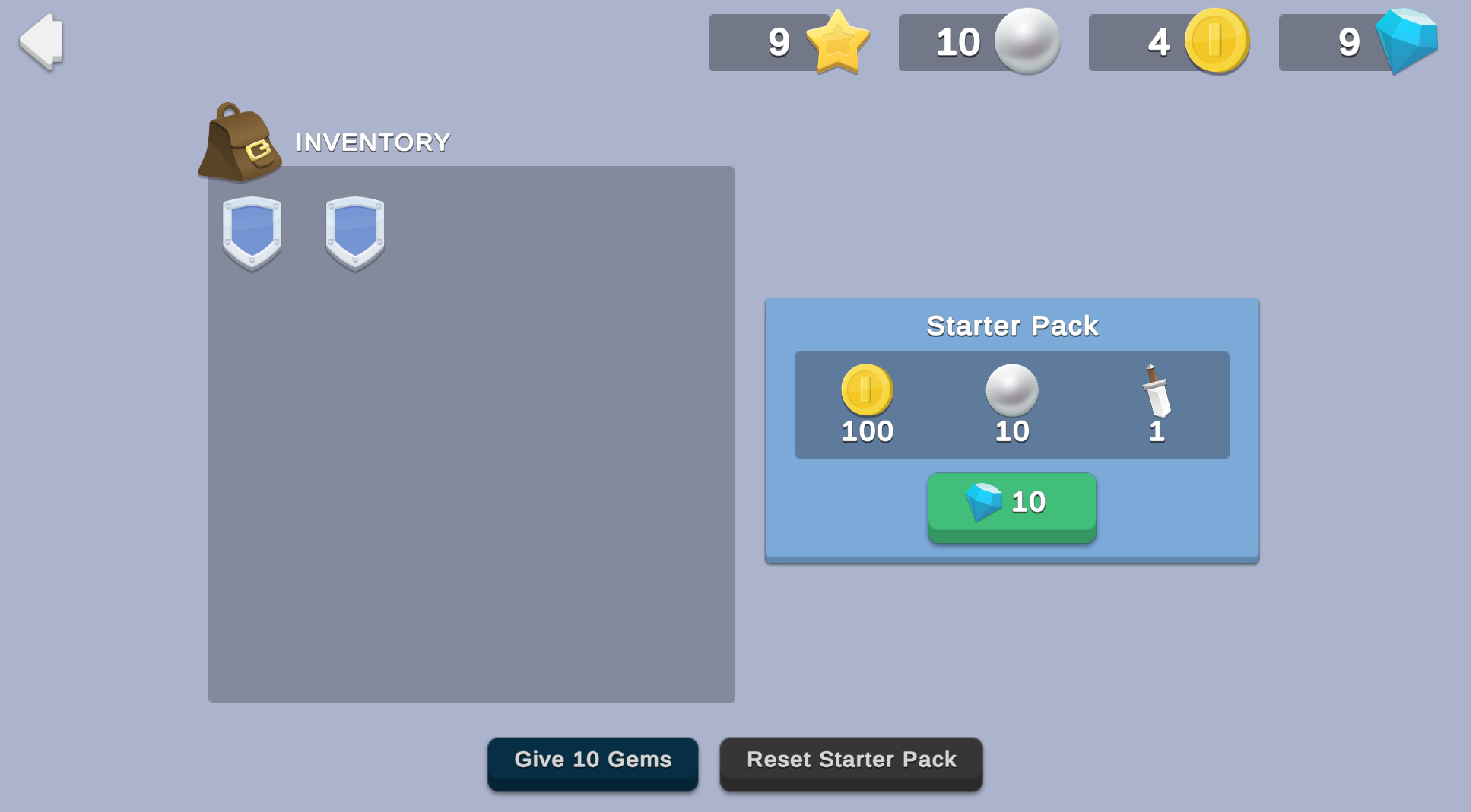
Starter packs are one-time deals that grant new players additional resources at a discount. Starter packs improve the onboarding process and boost engagement early, and can also help convert new players to paying users.This sample demonstrates how to create a one-time starter pack deal in your game that a player can purchase with in-game currency.
Prerequisites
To use this sample use case, you must download and install the UGS Use Cases project in your Unity project.
Overview
To see this use case in action, open the samples menu and navigate to Starter Packs. To open this scene directly and interact with the use case:
- In the Unity Editor Project window, select Assets > Use Case Samples > Starter Packs, then double-click to open the sample scene.
StarterPackSample.unity - Press Play to enter Play mode.
Initialization
The script performs the following initialization tasks in its function:
StarterPackSceneManager.csStart- Initializes Unity Gaming Services.
- Signs in the player anonymously using the Authentication service. If you’ve previously initialized any of the other sample scenes, Authentication will use your cached Player ID instead of creating a new one.
- Retrieves and updates the player's currency balances from the Economy service.
Functionality
Give 10 Gems
In this example, the starter pack costs 10 Gems. For demonstration purposes, this scene provides a button that grants the player 10 Gems each time it is clicked, which ensures enough currency to test the purchase. When you click the Give 10 Gems button, the following occurs:
- The button's method calls the
OnClickscript'sStarterPackSceneManager.csfunction.OnGiveTenGemsButtonPressed - The function calls the Economy service to add 10 Gems to the player's balance, and then the UI code updates the player's resources in the Currency HUD.
OnGiveTenGemsButtonPressed
Note that the purchase button is temporarily disabled while the currency balance updates.
Purchase starter pack
When you click the button to buy the starter pack having 10 or more Gems, the player consumes 10 Gems in exchange for the resources offered in the pack. The following occurs:
- The button's method calls the
OnClickscript'sStarterPackSceneManager.csfunction, which sends a request to the Cloud Code service to execute theOnBuyButtonPressedscript.PurchaseStarterPack.js - This script queries the Cloud Save service to verify that the player has not yet claimed the deal, and then initiates a purchase directly with the Economy service.
PurchaseStarterPack.js - If the player has not claimed the deal, the script calls the Economy service to subtract 10 Gems from the player's balance, and then sends an update to the Cloud Save service directly to set a flag that this player has now claimed the deal.
- The UI code updates the player's resources in the Currency HUD.
The purchase button also updates to indicate that the offer has already been claimed. At this point, you cannot purchase additional starter packs unless you click the Reset Starter Pack button, no matter how many Gems you have.
Reset Starter Pack
After purchasing a starter pack, the player cannot purchase another one unless they reset their game save. To illustrate this, this scene provides a button to reset the flag so the player can purchase it again. When you click the Reset Starter Pack button, the following occurs:
- The button's method calls the
OnClickscript'sStarterPackSceneManager.csfunction, which sends a request to the Cloud Code service to execute theOnResetPlayerDataButtonPressedscript.PurchaseStarterPack.js - The script sends an update to the Cloud Save service directly to set a flag that this player has not yet claimed the deal.
- The UI code re-enables the Starter Pack purchase button.
Setup
Requirements
To replicate this use case, you'll need the following Unity packages in your project:
Package | Role |
|---|---|
| Authentication | Signs in the user anonymously to keep track of their data server-side. |
| Cloud Code | Contains important validation logic server-side. |
| Cloud Save | Stores small pieces of data, such as a flag that indicates if the user has claimed their starter pack. |
| Deployment | Provides a cohesive interface to deploy assets for Cloud Services. |
| Economy | Retrieves and updates player's currency balances at runtime. |
To use these services in your game, activate each service for your Organization and project in the Unity Dashboard.
Unity Cloud services configuration
To replicate this sample scene's setup in your own Unity project, configure the following items:
- Cloud Code scripts
- Economy items
To configure these items you can use the Deployment package, or manually enter them using the Unity Dashboard.
The recommended best practice is to use the Deployment package as it greatly accelerates this process.
Using the Deployment package
To deploy configurations using the Deployment package:
- Open the Deployment window.
- Check in and
Common.Starter Pack - Click .
Deploy Selection
This deploys all the necessary items.
Using the Unity Dashboard
You can use the Unity Dashboard to manually configure your services by project and environment.
Refer to the following sections to configure this sample.
Cloud Code
Publish the following scripts in the Unity Dashboard:
Script | Parameters | Description | Location in project |
|---|---|---|---|
| None | Queries the Cloud Save service to verify that the player has not yet claimed the deal, before initiating a purchase directly with the Economy service. | |
| None | Resets the starter pack flag to indicate the current player has not yet claimed the deal. | |
Economy
Configure the following resources in the Unity Dashboard:
Resource type | Resource name | ID | Description |
|---|---|---|---|
| Currency | Gem | | The currency cost of the Starter Pack |
| Currency | Coin | | A currency reward from the Starter Pack |
| Currency | Pearl | | A currency reward from the Starter Pack |
| Inventory Item | Sword | | An inventory item reward from the Starter Pack. |