Environments API
Find how to use the Environments API and Environment Selector in the Unity Editor and at build and runtime to set the active Unity Gaming Services environment.
Read time 2 minutesLast updated a month ago
Environments are logical partitions for Unity Gaming Services that contain data associated with your project.
The Core package's singleton provides access to the environment state.
EnvironmentsApinamespace Unity.Services.Core.Environments.Editor{ public class EnvironmentsApi { public static IEnvironmentsApi Instance { get; } }}
Select an environment using the Environment Selector
The Environment Selector sets the current environment for all supported services.
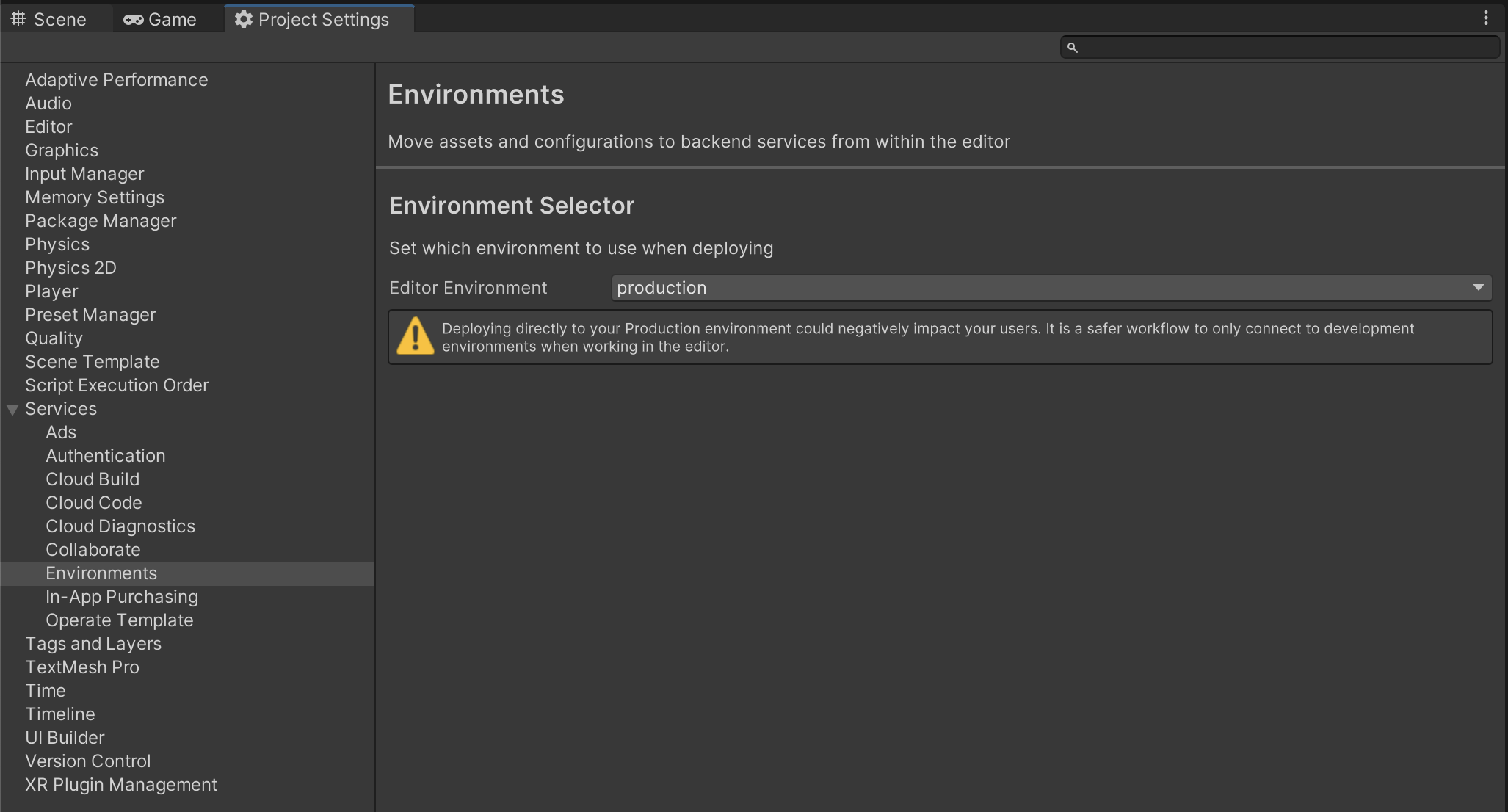
The global Environment Selector in the Unity Editor Project Settings.
To select an environment in the Unity Editor:
- Select Edit > Project Settings > Services > Environments.
- In the Editor Environment field, select the environment to use.
You can manage environments, such as adding or deleting environments, in the Unity Dashboard.
Access the active environment
You can access the active environment as the name or GUID.
The event informs you when the environment changes.
PropertyChangednamespace Unity.Services.Core.Environments.Editor{ public class EnvironmentsApi { public string ActiveEnvironmentName { get; set; } public System.Nullable<System.Guid> ActiveEnvironmentId { get; } public event System.ComponentModel.PropertyChangedEventHandler PropertyChanged; }}
Manage environments using the API
The allows you to refresh the environments list, get all environments, set the active environment, and validate that the active environment still exists remotely.
EnvironmentsApinamespace Unity.Services.Core.Editor.Environments{ public class EnvironmentsApi { public System.Collections.Generic.IReadOnlyCollection<EnvironmentInfo> Environments { get; } public System.Threading.Tasks.Task RefreshAsync(); public void SetActiveEnvironment(EnvironmentInfo environment); public System.Threading.Tasks.Task<ValidationResult> ValidateEnvironmentAsync(); }}
Understand build and runtime behavior
At build and runtime, the chosen environment uses a priority fallback mechanism to choose the correct environment. The order of precedence is , then the Environment Selector value, then the default environment ().
InitializationOptions"production"For an example that uses , refer to the Services Core SDK Initialization example.
InitializationOptionsAdd the EnvironmentView component
The component displays the currently active environment and allows quick access to the global Environment Selector.
EnvironmentView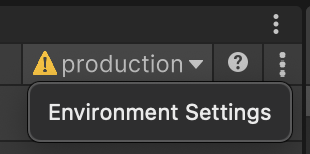
The EnvironmentView control on an Editor toolbar.
The following example shows how to add this component into a toolbar with UXML:
<ui:UXML xmlns:uie="UnityEditor.UIElements" xmlns:coreUi="Unity.Services.Core.Editor.Environments.UI" editor-extension-mode="True"> <uie:Toolbar> <coreUi:EnvironmentView /> </uie:Toolbar></ui:UXML>