Command Batching
Batch commands for server-side processing to optimize network efficiency, reduce overhead, and improve performance.
Read time 8 minutesLast updated 8 months ago
Command batching is the concept where each game action is a Command which can be collected into a queue to be sent to the server in batches for processing. Command batching optimizes your game’s bandwidth to be as energy efficient as possible, and prevent poor performance due to frequent server calls or rate limiting. This provides a smoother game experience with less downtime.
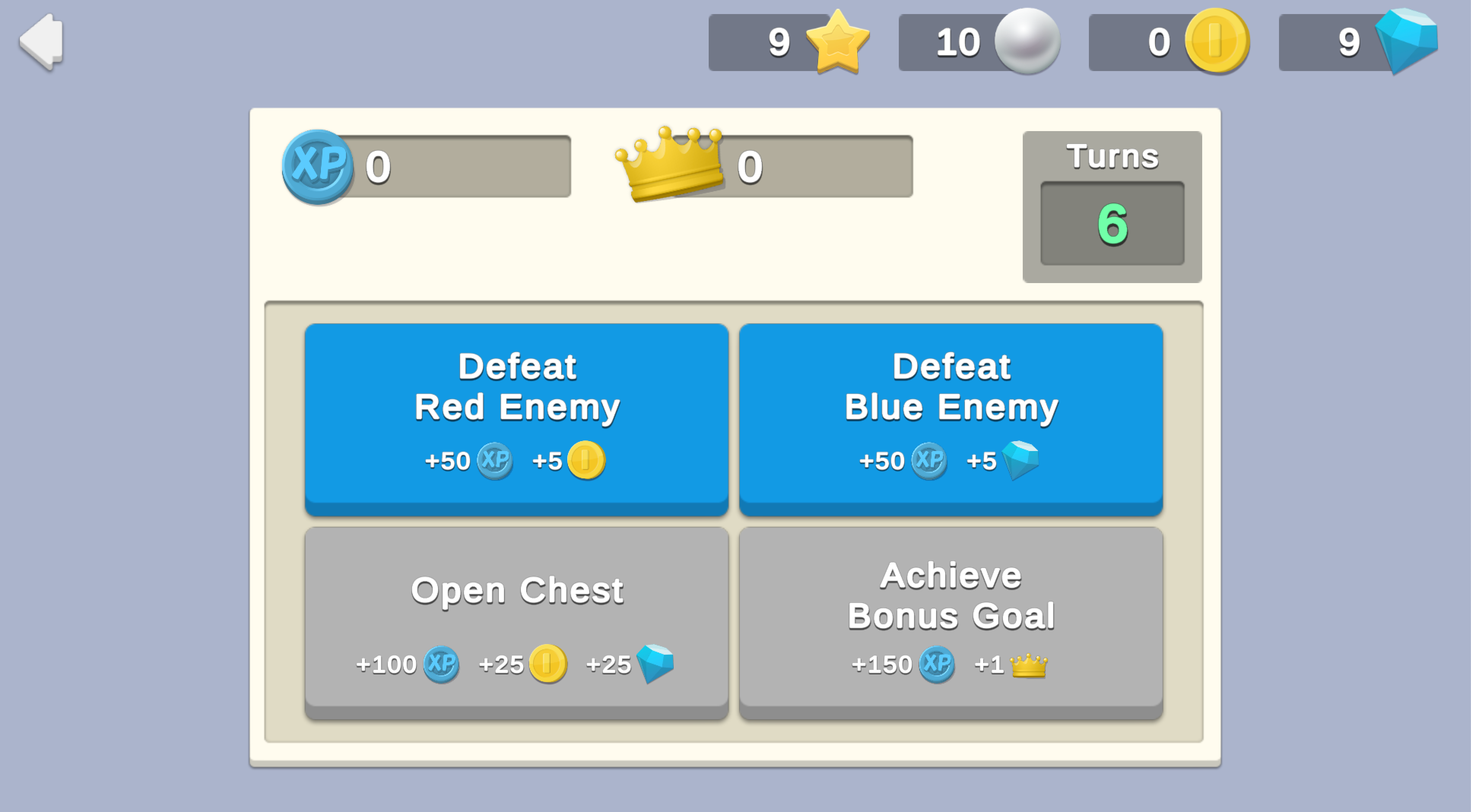
In this sample, the player has a fixed number of turns. Each simulated action generates a command that is cached, then executed by the server as part of a batch at the end of the game, thereby reducing the number of calls to the server.
For example, consider a game that distributes rewards after every action by calling Cloud Save to distribute player XP and Economy to distribute Coins. The player completes the following three actions:
- The first action results in 100 XP and 10 Coins.
- The second action results in 50 XP and 5 Coins.
- The third action results in 200 XP and 30 Coins.
These three actions would result in a minimum of six calls to various Unity Services (in this case, Cloud Save and Economy). However, if all three of these actions are stored as batch commands and processed a single time, the game would only make two Unity Services calls: one to Cloud Save to increase XP by 350, and one to Economy to add 45 Coins.
Prerequisites
To use this sample use case, you must download and install the UGS Use Cases project in your Unity project.
Overview
To see this use case in action, open the samples menu and navigate to Command Batching. To open this scene directly and interact with the use case:
- In the Unity Editor Project window, select Assets > Use Case Samples > Command Batching, then double-click to open the sample scene.
CommandBatchingSample.unity - Press Play to enter Play mode.
Initialization
The script performs the following initialization tasks in its function:
CommandBatchingSceneManager.csStart- Initializes Unity Gaming Services.
- Signs in the player anonymously using the Authentication service. If you’ve previously initialized any of the other sample scenes, Authentication will use your cached Player ID instead of creating a new one.
- Retrieves and updates the player's currency balances from the Economy service.
- Initializes the game interface and buttons.
Functionality
Player turns
In this sample, a single "game" involves making a fixed number of turns, where a single turn is completed by clicking on one of four buttons. Each button represents a simulated action with corresponding rewards. When you click on one of the action buttons, the following occurs:
-
The button’smethod calls the
OnClickscript, which consumes a turn.CommandBatchingSceneManager.cs -
The script then generates a command associated with the action you clicked and sends it to the batch queue for future server processing. Each command uses Remote Config values to map rewards for the corresponding action.
-
It also calls that action’s associatedscript to distribute rewards to the client.
CommandSystemNote: Local reward distribution allows players to immediately see the results of the turn, but is not server-authoritative. The server overwrites any local distributions after it validates and processes all commands at the end of the game. -
Finally, the calling script checks to see if the player is out of turns, in which case it triggers the game-over condition.
Gave over
When the player has zero turns remaining, the game is over. The following occurs:
- The client adds a final game over command to the batch queue.
- The client sends the entire command queue to Cloud Code as a single JSON.
- The Cloud Code script unpacks the JSON blob into a list of commands again, then verifies that the batch contains the exact number of expected commands in a valid order (for example, the player cannot trigger the Achieve Bonus Goal command until the Open Chest command occurs).
CommandBatch_ProcessBatch.js - If the batch is valid, the Cloud Code script retrieves the rewards to distribute from Remote Config values then issues them directly through the Economy (currencies) and Cloud Save (XP and ) services. If the batch is invalid, the script returns an error and rewards will not be distributed on the server.
GoalsAchieved
Mapping the rewards in Remote Config allows you to tune them remotely in a single place, affecting both the client-side and server-side distributions simultaneously. The rewards for all commands in the batch are grouped by type, so if multiple commands increase XP, the total XP gains are added up and updated with a single server call to Cloud Save.
Whether or not the Cloud Code script returns success or failure, the client code calls the Unity Services to retrieve their latest data. If the batch was processed successfully by the server, this should result in no visible change to the player's Currency, , or XP HUDs, because from their perspective the rewards were distributed immediately during game play. However, if the Cloud Code script failed to process an invalid batch, the client updates the player's status back to what it was before the game was played, overwriting the local state.
GoalsAchievedSetup
Requirements
To replicate this use case, you'll need the following Unity packages in your project:
Package | Role |
|---|---|
| Authentication | Automatically signs in the player as an anonymous user to keep track of their data server-side. |
| Cloud Code | Processes queued commands at the end of a game. |
| Cloud Save | Stores the mapping between commands and their corresponding rewards, which the client and Cloud Code references to distribute rewards. |
| Deployment | Provides a cohesive interface to deploy assets for Cloud Services. |
| Economy | Retrieves the player's starting and updated currency balances at runtime. |
| Remote Config | Maintains key-value stores for player stats, such as XP and Goals Achieved. |
To use these services in your game, activate each service for your Organization and project in the Unity Dashboard.
Unity Cloud services configuration
To replicate this sample scene's setup in your own Unity project, configure the following items:
- Cloud Code scripts
- Economy items
- Remote Config values
To configure these items you can use the Deployment package, or manually enter them using the Unity Dashboard.
The recommended best practice is to use the Deployment package as it greatly accelerates this process.
Using the Deployment package
To deploy configurations using the Deployment package:
- Open the Deployment window.
- Check in and
Common.Command Batching - Click .
Deploy Selection
This deploys all the necessary items.
Using the Unity Dashboard
You can use the Unity Dashboard to manually configure your services by project and environment.
Refer to the following sections to configure this sample.
Cloud Code
Publish the following script in the Unity Dashboard:
|
|
|
|
|---|---|---|---|
|
| Processes queued commands at the end of a game. | |
Economy
Configure the following resources in the Unity Dashboard:
Resource type | Resource name | ID | Description |
|---|---|---|---|
| Currency | Coin | | A reward for certain actions. |
| Currency | Gem | | A reward for certain actions. |
Remote Config
Set up the following config values in the Unity Dashboard:
|
|
|
|
|---|---|---|---|
| JSON | Maps the |
|
| JSON | Maps the |
|
| JSON | Maps the |
|
| JSON | Maps the |
|
| JSON | Maps the game over command (no more turns remain) to its corresponding rewards. |
|