Battle Passes
Implement seasonal battle passes with progressive rewards using UGS features.
Read time 19 minutesLast updated 8 months ago
Battle Passes provide additional content for your game, usually through a tiered reward system that players earn by playing the game and completing specific challenges. Battle Passes and their corresponding rewards are only available for a limited time, making them effective monetization and retention features.
Unlike time-based reward systems, Battle Passes require an element of skill to progress through the reward track. The Battle Pass in this sample adds another layer of exclusive appeal by offering a second premium track with additional rewards.
Prerequisites
To use this sample use case, you must download and install the UGS Use Cases project in your Unity project.
Overview
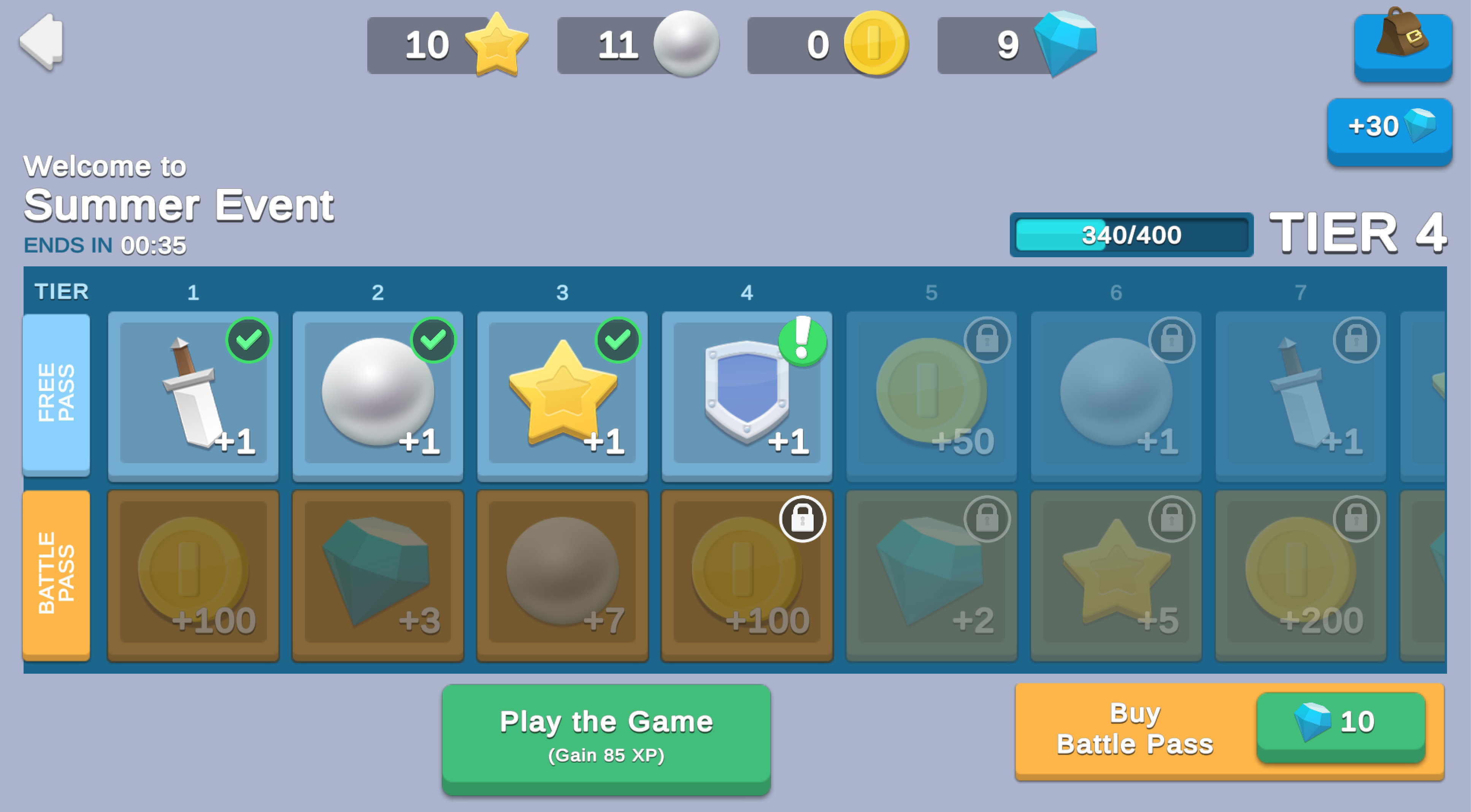
Each time a new season starts, the player sees a set of unique event rewards that they can unlock by earning Season XP. There are two reward tracks:
- The Free Pass contains normal rewards available to all players.
- The Battle Pass costs 10 Gems (premium currency), and grants additional premium rewards.
The Season XP and Battle Pass are only relevant to the active season. When a season ends, the player's Season XP progress and Battle Pass ownership resets, but they retain any claimed event rewards.
To see this use case in action, open the samples menu and navigate to Battle Passes. To open this scene directly and interact with the use case:
- In the Unity Editor Project window, select Assets > Use Case Samples > Battle Passes, then double-click to open the sample scene.
BattlePassSample.unity - Press Play to enter Play mode.
Initialization
The script performs the following initialization tasks in its function:
BattlePassSceneManager.csStart- Initializes Unity Gaming Services.
- Signs in the player anonymously using the Authentication service. If you’ve previously initialized any of the other sample scenes, Authentication will use your cached Player ID instead of creating a new one.
- Retrieves and updates the player's currency balances from the Economy service.
- Uses Cloud Code to query the Remote Config service for the current values of event-related keys, such as Battle Pass content.
Functionality
The Battle Pass ownership token and reward system is entirely powered by Cloud Code scripts.
Play the Game
Each time you click the Play the Game button, you earn 85 Season XP. The following occurs:
- The button’s method calls the
OnClickCloud Code script to validate the current Battle Pass season in case it needs to reset the player’s Season XP.BattlePass_GainSeasonXP.js - The same script then grants a fixed amount of Season XP.
- If the Season XP gain results in a tier increase, it updates the reward track accordingly and updates the player’s progress in Cloud Save.
The Season XP bar indicates your active reward tier and your progress towards unlocking the next tier. Each time you unlock a reward tier, its icon changes from a lock to an exclamation mark, indicating that you can claim the reward.
Claiming reward tiers
When you click an unlocked reward icon, a pop-up window prompts you to claim that reward tier. When you click the Claim! button, the following occurs:
- The button’s method calls the
OnClickCloud Code script to validate the current Battle Pass season in case it needs to reset the player’s Season XP.BattlePass_ClaimTier.js - The icon changes to a check mark, to indicate the reward has been claimed.
- The player’s tier progress is updated again in Cloud Save.
When the season event ends, all Season XP and tier levels reset, but the claimed rewards persist in your inventory.
Buy Battle Pass
Click the Buy Battle Pass button to purchase the Battle Pass for 10 Gems. Purchasing the Battle Pass retroactively grants the player Battle Pass-exclusive rewards for all previously obtained reward tiers, and makes them eligible to claim exclusive rewards for subsequent tiers. For testing purposes, you can click the +30 Gems button as many times as you want to add virtual currency to your account through the Economy service. When you click Buy Battle Pass, the following occurs:
- The button’s method calls the
OnClickCloud Code script, which validates that the player has enough Gems to make the Virtual Purchase through the Economy service.BattlePass_PurchaseBattlePass.js - If the player has enough Gems to purchase the Battle Pass, the Cloud Code script grants any previously unlocked Battle Pass rewards through the Economy service.
- Finally, the Cloud Code script updates the player’s Battle Pass ownership status in Cloud Save, and the UI code disables the Buy Battle Pass button until the next season.
At first glance, it may appear that some of these actions could be simpler calls directly to each service. For example, to get the player's progress, you could download the current player state directly from the Cloud Save SDK, and to purchase a Battle Pass you could make a call directly to the Economy SDK. However, these actions have potential ripple effects that are safer being server-authoritative:
- When retrieving the player's progress, you also need to reset the player's progress if the season has changed.
- When purchasing a Battle Pass, you also want to grant any premium rewards for tiers the player has already claimed.
Setup
Requirements
To replicate this use case, you'll need the following Unity packages in your project:
Package | Role |
|---|---|
| Addressables | Allows developers to retrieve an asset by using its address. In this sample, the service looks up event-specific images and prefabs based on the information received from Remote Config. |
| Authentication | Automatically signs in the user anonymously to keep track of their data server-side. |
| Cloud Code | Contains important validation logic server-side. In this sample, it has four main purposes: - Retrieving the player's season progress, or resetting their progress if the season has changed. - Gaining season XP, potentially unlocking new reward tiers. - Claiming a reward tier, granting currency or inventory items. - Purchasing a battle pass, which unlocks more rewards and possibly grants rewards for previously claimed tiers. |
| Cloud Save * | Stores the player's season XP progress and battle pass ownership token. This sample doesn't actually use the Cloud Save methods in C#, as all of the Cloud Save work occurs in Cloud Code scripts. |
| Deployment | Provides a cohesive interface to deploy assets for Cloud Services. |
| Economy | Retrieves the player's starting and updated currency balances at runtime. |
| Game Overrides* | Configures the four battle pass seasons and returns different reward tiers based on which Game Override is deemed active, based on the current time. Note: These season configurations are shared with the Seasonal Events use case sample. |
| Remote Config * | Provides key-value pairs where the value that is mapped to a given key can change on the server side, either manually or based on specific Game Overrides. |
* In this sample, the Cloud Save, Game Overrides and Remote Config services are only used on the Cloud Code (server) side. While these services play important roles in the use case, you aren’t required to install their SDKs in your Unity project.
To use these services in your game, activate each service for your Organization and project in the Unity Dashboard.
Unity Cloud services configuration
To replicate this sample scene's setup in your own Unity project, configure the following items:
- Cloud Code scripts
- Economy items
- Remote Config values
- Remote Config Game Overrides
To configure these items you can use the Deployment package, or manually enter them using the Unity Dashboard.
The recommended best practice is to use the Deployment package as it greatly accelerates this process.
Using the Deployment package
To deploy configurations using the Deployment package:
- Open the Deployment window.
- Check in and
Common.Battle Pass - Click .
Deploy Selection
This deploys the following items:
- Cloud Code scripts
- Economy items
- Remote Config values
The Deployment package doesn't support the following items:
- Remote Config Game Overrides
To configure them, refer to Using the Unity Dashboard.
Using the Unity Dashboard
You can use the Unity Dashboard to manually configure your services by project and environment.
Refer to the following sections to configure this sample.
Cloud Code
Publish the following scripts in the Unity Dashboard:
Script | Parameters | Description | Location in project |
|---|---|---|---|
| None | Retrieves and validates the current event configuration. | |
| The numeric amount of Season XP gained upon clicking the Play the Game button. | Checks to validate the current Battle Pass season in case it needs to reset the player’s Season XP, then grants a fixed amount of Season XP. | |
| The 0-based index of the reward tier to grant upon clicking the Claim! button. | Grants rewards from the appropriate indexed reward tier. | |
| None | Executes a Virtual Purchase for the Battle Pass by updating the player’s ownership token, deducting Gems, and retroactively granting any previously unlocked Battle Pass rewards. | |
Economy
Configure the following resources in the Unity Dashboard:
Resource type | Resource name | ID | Description |
|---|---|---|---|
| Currency | Gem | | A premium currency used to purchase the battle pass, and a potential reward for claiming Battle Pass reward tiers. |
| Currency | Coin | | A soft currency granted in some Battle Pass reward tiers. |
| Currency | Pearl | | A soft currency granted in some Battle Pass reward tiers. |
| Currency | Star | | A challenge reward during the spring and summer events |
| Inventory Item | Sword | | An inventory item granted by some Battle Pass reward tiers. |
| Inventory Item | Shield | | An inventory item granted by some Battle Pass reward tiers. |
In addition, configure the following virtual purchase for the battle pass:
Virtual Purchase name | ID | This purchase buys | This purchase costs |
|---|---|---|---|
| Battle Pass Purchase | | None * | Gems (10) |
* Instead of granting the player virtual items, Cloud Code grants the player Battle Pass ownership in Cloud Save.
Remote Config
Set up the following config values in the Unity Dashboard:
Key | Type | Description | Value |
|---|---|---|---|
| string | The name of the event to display in the scene. | |
| string | The key used to look up event-specific values, such as the addresses for the specific images. | |
| int | The last digit of the last minute during which the Game Override is active. Used when determining how much time is left in the current event. | |
| int | The total number of minutes for which a given season's Game Override is active. | |
| int | The total number of reward tiers each season (not overridden by Game Overrides in this example). | |
| int | The amount of season XP needed to unlock each tier (not overridden by Game Overrides in this example). | |
| JSON | The JSON that specifies which rewards the game distributes when the player claims each tier (overridden by seasonal Game Overrides). Note: The schema in this example only allows for one reward per tier. | Note: Reward tiers aren't valid outside of seasonal events. |
| JSON | The JSON that specifies which rewards the game distributes for each tier when the player owns the Battle Pass (overridden by seasonal Game Overrides). Note: The schema in this example only allows for one reward per tier. | Note: Reward tiers aren't valid outside of seasonal events. |
Game Overrides
Configure the following Overrides in the Unity Dashboard:
Details | Name the Override “ ”. |
Targeting | Select JEXL with the following JEXL code:
|
Content | Select Choose content type > Config Overrides, then enter override values for the following keys:
|
Scheduling | Set the following start and end dates:
|
Status | After finishing creating the Game Override, click Enable. |
Details | Name the Override “ ”. |
Targeting | Select JEXL with the following JEXL code:
|
Content | Select Choose content type > Config Overrides, then enter override values for the following keys:
|
Scheduling | Set the following start and end dates:
|
Status | After finishing creating the Game Override, click Enable. |
Details | Name the Override “ ”. |
Targeting | Select JEXL with the following JEXL code:
|
Content | Select Choose content type > Config Overrides, then enter override values for the following keys:
|
Scheduling | Set the following start and end dates:
|
Status | After finishing creating the Game Override, click Enable. |
Details | Name the Override “ ”. |
Targeting | Select JEXL with the following JEXL code:
|
Content | Select Choose content type > Config Overrides, then enter override values for the following keys:
|
Scheduling | Set the following start and end dates:
|
Status | After finishing creating the Game Override, click Enable. |