In-Game Mailbox
Implement an in-game mailbox system for sending messages and rewards to players, with delivery and expiration management.
Read time 21 minutesLast updated 3 months ago
In-game mailboxes allow game developers to communicate with their players. You can use them to tell players about in-game events, gift them useful resources, or help keep them coming back to your game.
Prerequisites
To use this sample use case, you must download and install the UGS Use Cases project in your Unity project.
Overview
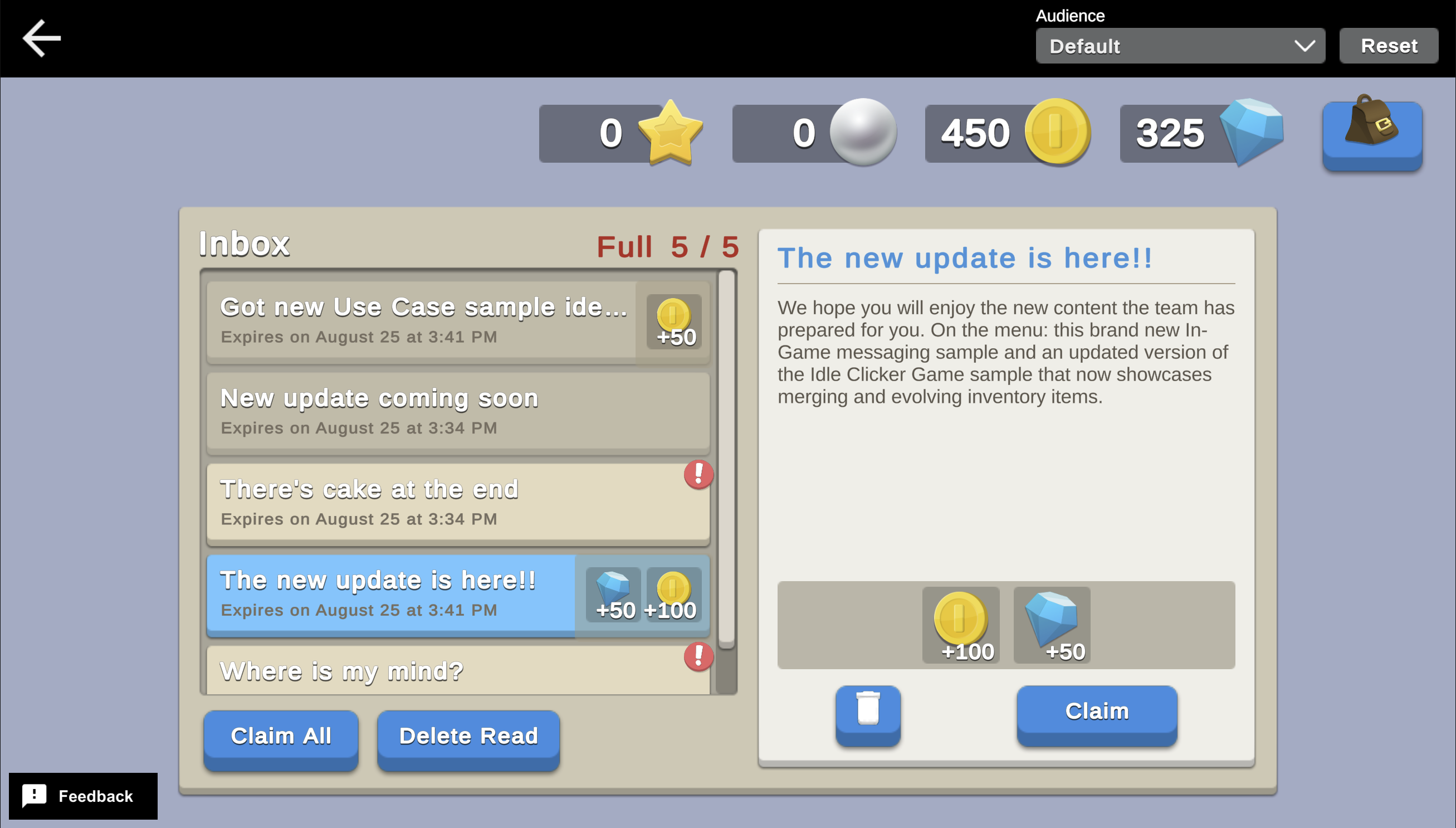
When a player loads the scene for the first time, they see an inbox with a list of messages waiting for them to read. On subsequent loads, the inbox is either in the state they left it, or an updated state due to messages expiring between sessions.
Players can interact with the messages, claim their attachments, delete messages, or reset the inbox to a brand new state.
To see this use case in action:
- In the Unity Editor Project window, select Assets > Use Case Samples > In-Game Mailbox, and then double-click to open the sample scene.
InGameMailboxSample.unity - Enter Play Mode to interact with the use case.
Initialization
When the scene loads, the script performs the following initialization steps:
InGameMailboxSceneManager-
Initializes Unity Gaming Services.
-
Signs in the player anonymously using the Authentication service. If you’ve previously initialized any of the other sample scenes, Authentication will use your cached Player ID instead of creating a new one.
-
Refreshes the Economy configuration data. If new Economy items were created since the last time the player opened the app, this will initialize those items in the player's configuration.
-
Retrieves and updates currency balances from the Economy service for that authenticated user.
-
Uses the sprite addresses stored in the Economy item configuration's custom data to load all possible currency and inventory item sprites from Addressables.
-
Retrieves the updated message info for the player's inbox:
- Downloads the list of all possible messages from Remote Config.
- Retrieves the player's current inbox data from Cloud Save.
- Checks whether any of the messages already saved in the player's inbox are expired, and deletes them if so.
- Checks for any new messages that were downloaded from Remote Config and not yet added to the player's inbox.
- Saves the updated inbox state for the player in Cloud Save.
-
Displays the updated list of inbox messages in the scene.
Functionality
The left panel in the scene displays the list of messages in the player's inbox. This list updates over time as messages expire, or based on player interaction.
Below the list, a counter displays how many messages are in the inbox and the max number of messages that can be in the inbox at any given time. When a player loads the scene for the first time, the inbox is full.
When all messages have been deleted from the inbox (either through player interaction or message expiration), a pop-up appears prompting the player to reset the inbox.
Open a message
When you select a message from the list, the following occurs:
- The full details of the message appears on the right side of the scene.
- The message is marked as read, and that status is saved to Cloud Save.
If the message has an attachment, there is also an indication of which Economy items are attached, along with a button to claim them.
Claim an attachment
When you press the Claim button, the client code calls the Cloud Code script with the selected message's ID included as a parameter. The following occurs on the backend:
Messages_ClaimAttachment.js- The client requests the Cloud Save inbox data, and locates the message with the supplied ID.
- The script checks whether the message has an unclaimed attachment.
- Assuming the message does have an unclaimed attachment, the script makes an Economy call using the Virtual Purchase ID from the
makeVirtualPurchasefield.message.messageInfo.attachment - If the purchase processes successfully, the field is set to
message.metadata.hasUnclaimedAttachmentand saved in Cloud Save, so that the player cannot claim the attachment again.false
Claim all attachments
When you press the Claim All button, the client code makes a call to the Cloud Code script. The following occurs on the backend:
Messages_ClaimAllAttachments.js-
The client requests inbox data from Cloud Save.
-
Cloud Save returns a list of inbox messages filtered to only show messages withset to
message.metadata.hasUnclaimedAttachment.true -
For each message in this filtered list:
- The script makes an Economy call using the Virtual Purchase ID from the
makeVirtualPurchasefield.message.messageInfo.attachment - If the purchase processes successfully, is set to
message.metadata.hasUnclaimedAttachment, andfalseis set tomessage.metadata.isRead.true
- The script makes an Economy
-
Once all message attachments are claimed, the updated message list is saved in Cloud Save.
Delete a message
When you press the Delete button for a message:
- The message is removed from the local list of inbox messages.
- If the inbox was previously full, such that deleting the message created space for a new message, the client rechecks the list of all possible messages downloaded from Remote Config against the message ID of the last message saved in Cloud Save to see if there are any new messages to add to the inbox. If there are, it adds as many of those messages to the inbox as will fit.
- The updated list of inbox messages is then saved in Cloud Save.
- Finally, the view refreshes to show the updated list. If the deleted message was previously selected, this also updates the UI to not display the deleted message's detail view.
Delete all read and claimed attachments
When you press the Delete Read button:
- The script loops through the list of inbox messages, and removes each message that has both set to
message.metadata.isReadandtrueset tomessage.metadata.hasUnclaimedAttachment. This implementation does not delete messages with unclaimed attachments, to prevent players from accidentally deleting messages with available attachments.false - If the inbox was previously full, such that deleting the message created space for a new message, the client rechecks the list of all possible messages downloaded from Remote Config against the message ID of the last message saved in Cloud Save to see if there are any new messages to add to the inbox. If there are, it adds as many of those messages to the inbox as will fit.
- The updated list of inbox messages is then saved in Cloud Save.
- Finally, the view refreshes to show the updated list. If the deleted message was previously selected, this also updates the UI to not display the deleted message's detail view.
Reset the inbox for a specific audience
At the bottom of the scene, you can reset the inbox while impersonating a particular audience:
- Default
- All Spenders
- Unengaged Players
- French Speakers
- New Players
Each of the non-default audiences adds a message to the message list that is specific to that particular audience. These messages are determined by Game Overrides.
When you reset the inbox for the given audience, the following occurs:
- The scene resets, clearing the selected message field and deleting the Cloud Save inbox data.
- The client queries Remote Config with the specified audience, to retrieve the list of potential messages that includes any audience specific ones that were previously omitted.
- The maximum number of messages are added to the inbox from the Remote Config data, and saved in Cloud Save.
- The view refreshes to show the new list of messages.
Open the player inventory
When you press the inventory bag icon, the following occurs:
- The client calls to refresh the player's list of owned Economy inventory items.
EconomyService.Instance.PlayerInventory.GetInventoryAsync() - A pop-up window displays the resulting list of inventory items.
Setup
Requirements
To replicate this use case, you need the following Unity packages in your project:
Package | Role |
|---|---|
| Addressables | Allows developers to retrieve an asset by using its address. In this sample, the service looks up Economy item sprites based on the information stored in the Economy item's custom data. |
| Authentication | Automatically signs in the user anonymously to keep track of their data server-side. |
| Cloud Code | Stores important validation logic server-side. In this use case it is used to validate that message attachments haven't already been claimed, and to process the virtual purchase that stores the attachment rewards. |
| Cloud Save | Stores the player's inbox state, including the message info downloaded from Remote Config, and the player-specific message metadata like whether the message has been read yet. |
| Deployment | Provides a cohesive interface to deploy assets for Cloud Services. |
| Economy | Maintains the player's wallet and inventory, and the virtual purchase info associated with a given message's attachment. |
| Game Overrides | Defines the audience grouping and message data for messages that you want to only send to a certain audience. |
| Remote Config | Provides key-value pairs where the value that is mapped to a given key can change on the server side, either manually or based on specific Game Overrides. In this sample, we store the message info in Remote Config. Messages that should only be sent to a particular audience are stored as blank messages and are completed by Game Overrides. |
To use these services in your game, activate each service for your Organization and project in the Unity Dashboard.
Unity Cloud services configuration
To replicate this sample scene's setup in your own Unity project, configure the following items:
- Cloud Code scripts
- Economy items
- Remote Config values
- Remote Config Game Overrides
To configure these items you can use the Deployment package, or manually enter them using the Unity Dashboard.
The recommended best practice is to use the Deployment package as it greatly accelerates this process.
Using the Deployment package
To deploy configurations using the Deployment package:
- Open the Deployment window.
- Check in and
Common.In-Game Mailbox - Click .
Deploy Selection
This deploys the following items:
- Cloud Code scripts
- Economy items
- Remote Config values
The Deployment package doesn't support the following items:
- Remote Config Game Overrides
To configure them, refer to Using the Unity Dashboard.
Using the Unity Dashboard
You can use the Unity Dashboard to manually configure your services by project and environment.
Refer to the following sections to configure this sample.
Cloud Code
Publish the following scripts in the Unity Dashboard:
Script | Parameters | Description | Location in project |
|---|---|---|---|
| The ID of the message that owns the attachment the player wants to claim. | Fetches the appropriate attachment for the given message, validates that the attachment hasn't already been claimed, calls Economy's process purchase method for that Virtual Purchase, and marks the attachment as claimed. | |
| none | Gets the list of messages in a player's inbox, finds all messages that have an unclaimed attachment, and calls Economy's process purchase method for each Virtual Purchase, marking each message as read and attachment as claimed. | |
Economy
Configure the following resources in the Unity Dashboard:
|
|
|
|
|
|---|---|---|---|---|
Currency | Gem | GEM |
| A premium currency gifted by some messages. |
Currency | Coin | COIN |
| A soft currency gifted by some messages. |
Inventory Item | Sword | SWORD |
| An inventory item gifted by some messages. |
Inventory Item | Shield | SHIELD |
| An inventory item gifted by some messages. |
In addition, configure the following virtual purchases:
Item name | ID | This purchase rewards | This purchase costs |
|---|---|---|---|
| Message 003 Gift for New Players | | Sword (1), Shield (1), Coin (100) | Nothing* |
| Message 004 Gift for Unengaged Players | | Gem (50) | Nothing* |
| Message 005 Gift | | Coin (50) | Nothing* |
| Message 008 Gift | | Coin (100), Gem (50) | Nothing* |
| Message 010 Gift | | Gem (50) | Nothing* |
| Message 011 Gift | | Sword (1) | Nothing* |
Remote Config
Set up the following config values in the Unity Dashboard:
|
|
|
|
|---|---|---|---|
| JSON | The JSON list of all possible message IDs that exist in the Unity Dashboard, listed in the order they should be downloaded in. |
|
| JSON | One of the messages that a player could receive. |
|
| JSON | One of the messages that a player could receive. |
|
| JSON | One of the messages that a player could receive. |
|
| JSON | One of the messages that a player could receive. |
|
| JSON | One of the messages that a player could receive. |
|
| JSON | One of the messages that a player could receive. |
|
| JSON | One of the messages that a player could receive. |
|
| JSON | One of the messages that a player could receive. |
|
| JSON | One of the messages that a player could receive. |
|
| JSON | One of the messages that a player could receive. |
|
| JSON | One of the messages that a player could receive. |
|
Game Overrides
Configure the following Overrides in the Unity Dashboard:
Details | Name the Override “Messages All Spenders Overrides”. |
Targeting | Select JEXL with the following JEXL code*:
|
Content | Select Choose content type > Config Overrides, then enter override values for the following key:
Key:
Value:
|
Scheduling | Set the following start and end dates:
|
Status | After finishing creating the Game Override, click Enable. |
Details | Name the Override “Messages French Speaker Overrides”. |
Targeting | Select JEXL with the following JEXL code*:
|
Content | Select Choose content type > Config Overrides, then enter override values for the following key:
Key:
Value:
|
Scheduling | Set the following start and end dates:
|
Status | After finishing creating the Game Override, click Enable. |
Details | Name the Override “Messages New Players Overrides”. |
Targeting | Select JEXL with the following JEXL code*:
|
Content | Select Choose content type > Config Overrides, then enter override values for the following key:
Key:
Value:
|
Scheduling | Set the following start and end dates:
|
Status | After finishing creating the Game Override, click Enable. |
Details | Name the Override “Messages Unengaged Players Overrides”. |
Targeting | Select JEXL with the following JEXL code*:
|
Content | Select Choose content type > Config Overrides, then enter override values for the following key:
Key:
Value:
|
Scheduling | Set the following start and end dates:
|
Status | After finishing creating the Game Override, click Enable. |