Cloud Mini Game
Build a cloud-hosted mini game to advance gameplay or provide users additional rewards.
Read time 6 minutesLast updated a month ago
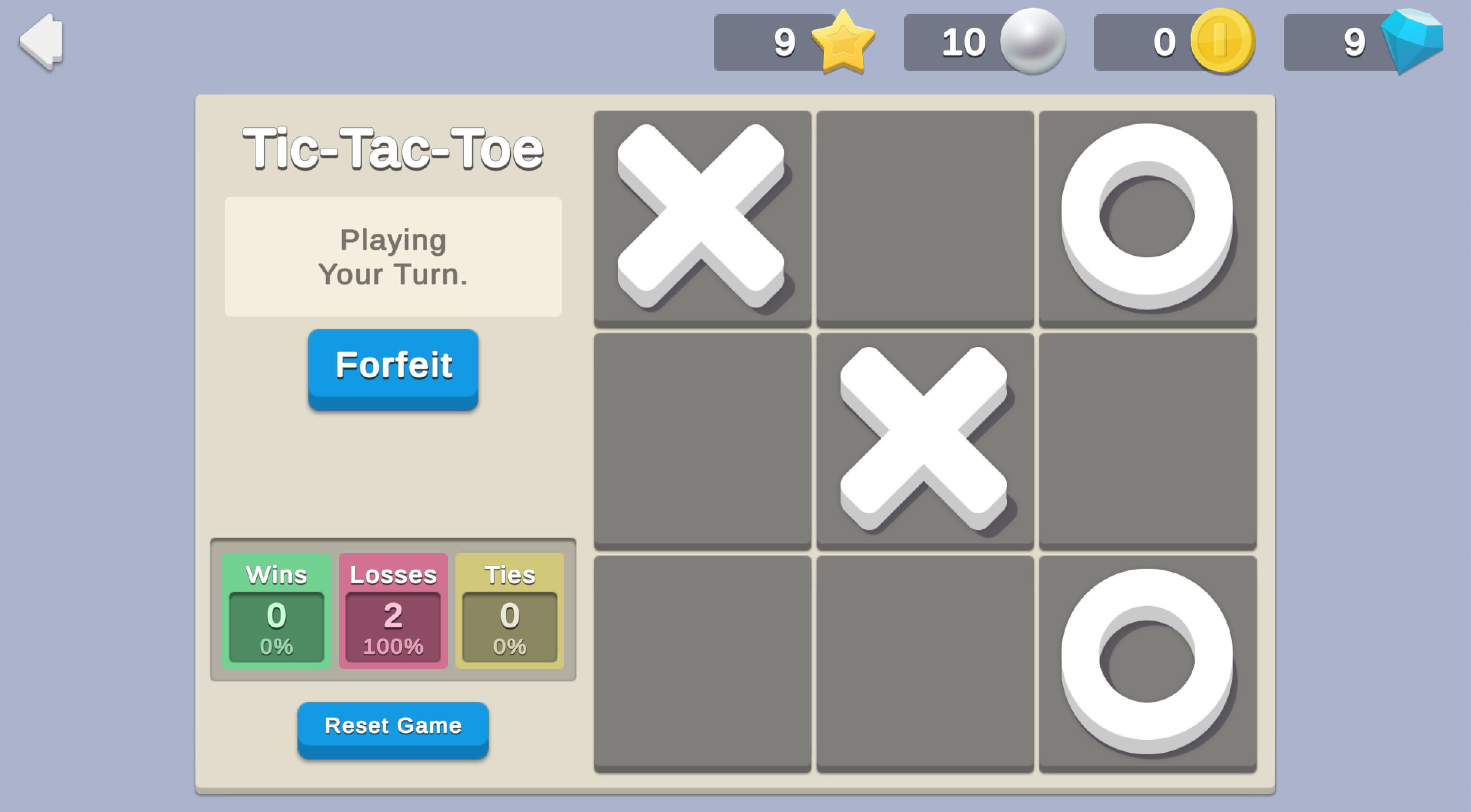
Mini-games introduce fun ways to earn additional rewards or advance gameplay. This sample demonstrates how to use Cloud Code with other UGS packages to validate game play by implementing a simple artificial opponent against the player in a tic-tac-toe mini-game.
Prerequisites
To use this sample use case, you must download and install the UGS Use Cases project in your Unity project.
Overview
In this sample, each mini-game begins with a random player (50% human, 50% AI) and progresses until a player successfully places 3 pieces in a row (win) or the board is full (tie). The player receives 100 Coins for a win, 25 Coins for a tie, and nothing for a loss.
To see this use case in action, open the samples menu and navigate to Cloud AI Mini Game. To open this scene directly and interact with the use case:
- In the Unity Editor Project window, select Assets > Use Case Samples > Cloud AI Mini Game, then double-click to open the sample scene.
CloudAIMiniGameSample.unity - Press Play to enter Play mode.
Initialization
The script performs the following initialization tasks in its function:
CloudAIMiniGameSceneManager.csStart- Initializes Unity Gaming Services.
- Signs in the player anonymously using the Authentication service. If you’ve previously initialized any of the other sample scenes, Authentication will use your cached Player ID instead of creating a new one.
- Retrieves and updates the player's currency balances from the Economy service.
- Calls the Cloud Code script to retrieve the current game state from the Cloud Save service, and updates the game state for the current tic-tac-toe game or creates a new one.
CloudAi_GetState.js
Functionality
When you click the New Game button (or the Forfeit button when a game is in progress), the following occurs:
- The button’s method calls the
OnClickCloud Code script to check if a game is in progress (theCloudAi_StartNewGame.jsvariable isisGameOver).false - If a game is in progress, the player receives a loss for forfeiting.
- The script then creates a new game, clearing the board and randomly choosing the player or AI to go first.
- If the AI is selected to go first, the AI places a piece on a random spot on the board.
- The new game state is returned to the client.
When a game is in progress you can click on a game tile to attempt to place a piece. The following occurs:
-
The client calls theCloud Code script, passing your click coordinates to the script.
CloudAi_ValidatePlayerMoveAndRespond.js -
The move is validated based on the coordinate inputs. If the game is over or the tile is occupied, the move is invalid.
-
If the move is valid, the script updates the game state to reflect the new piece placement, then places the piece on the client-side game board.
-
The script checks to see if the new move triggers a game-over condition (either three in a row, or the board is full).
-
If the game is not over, the script places an AI piece according to the following logic:
- If the AI can win, it always will (for example, if the AI has 2 pieces in a row with an empty space, it will make the winning play).
- If the player has 2 in a row, the AI will always block the player's winning move.
- If neither a or b are true, it plays randomly.
-
If the game is over, the script calls the Economy service to distribute rewards directly, according to the win condition detected. If the player won, they receive 100 Coins. If the board is full, they receive 25 Coins.
The Cloud Save service keeps a JSON record of the full game state, using the key string. The associated value stores sequential moves made by each player, the overall state, flags for game-over, player turn, whether this is a new game or move, and a persistent counter for wins, losses, and ties.
CLOUD_AI_GAME_STATEThe Reset Game button exists to demonstrate the full game cycle. At the start of the first game (or when manually resetting the game), Cloud Code removes the key from Cloud Save and calls the Cloud Code script to reset the Coin balance to 0, create a new save state with all counters set to 0, generate a new game board, and choose a random starting player.
CLOUD_AI_GAME_STATECloudAi_GetState.jsExample Cloud Save game states
CLOUD_AI_GAME_STATE for a new game with the AI going first
{ "winCount":1, "lossCount":1, "tieCount":0, "playerPieces":[], "aiPieces":[{"x":0,"y":1}], "isNewGame":true, "isNewMove":true, "isPlayerTurn":true, "isGameOver":false, "status":"playing"}
CLOUD_AI_GAME_STATE when the player wins the game
{ "winCount":2, "lossCount":1, "tieCount":0, "playerPieces":[{"x":0,"y":0},{"x":0,"y":2},{"x":2,"y":2},{"x":1,"y":1}], "aiPieces":[{"x":0,"y":1},{"x":2,"y":0},{"x":1,"y":2}], "isNewGame":false, "isNewMove":false, "isPlayerTurn":false, "isGameOver":true, "status":"playerWon"}
Setup
Requirements
To replicate this use case, you'll need the following Unity packages in your project:
Package | Role |
|---|---|
| Authentication | Automatically signs in the player as an anonymous user to keep track of their data server-side. |
| Cloud Code | Generates random games, validates game logic, executes AI turns, and grants Economy rewards based on game outcomes. |
| Cloud Save | Stores the active game state. |
| Deployment | Provides a cohesive interface to deploy assets for Cloud Services. |
| Economy | Retrieves the starting and updated currency balances at runtime. |
To use these services in your game, activate each service for your Organization and project in the Unity Dashboard.
Unity Cloud services configuration
To replicate this sample scene's setup in your own Unity project, configure the following items:
- Cloud Code scripts
- Economy items
To configure these items you can use the Deployment package, or manually enter them using the Unity Dashboard.
The recommended best practice is to use the Deployment package as it greatly accelerates this process.
Using the Deployment package
To deploy configuration using the Deployment package:
- Open the Deployment window.
- Check in and
Common.Cloud AI Mini Game - Click .
Deploy Selection
This deploys all the necessary items.
Using the Unity Dashboard
You can use the Unity Dashboard to manually configure your services by project and environment.
Refer to the following sections to configure this sample.
Cloud Code
Publish the following scripts in the Unity Dashboard:
Script | Parameters | Description | Location in project |
|---|---|---|---|
| None | Creates and saves a random game if no game is in progress. If it’s the player's first game (or their first game after clicking the Reset Game button) it also resets the Coin quantity to 0, then returns the current game state. | |
| The [x,y] coordinates for the player piece to add. | Validates the player's requested move and adds it to the game state based on the coordinates of the mouse click. After updating the game state, it checks for game-over conditions. if the game is not over, it places an AI piece then checks for game-over conditions again, and returns the final updated state to the client. If the player wins or ties, it awards Coins directly using the Economy service. | |
| None | Called when clicking the New Game or Forfeit button, to assign the player a loss in the case of a forfeit and generate a new random game with a random starting player. | |
Economy
Configure the following resource in the Unity Dashboard:
Resource type | Resource name | ID | Description |
|---|---|---|---|
| Currency | Coin | | Currency awarded for wins and ties. |