Loot Boxes with Cooldown
Implement loot boxes with cooldown mechanics to limit player earning rates and manage game economy balance.
Read time 4 minutesLast updated a month ago
Whether they're receiving items, currencies, extra lives, or power-ups, players love free stuff! Awarding daily gifts to players that return to your game boosts engagement, intrinsic motivation to check in regularly, and overall interest in your game. Daily rewards can also act as a precursor to introducing monetized in-app purchases in the future. This sample demonstrates how to grant randomized rewards on a timed cooldown.
After a player claims their reward, they must wait a preset amount of time before claiming another reward.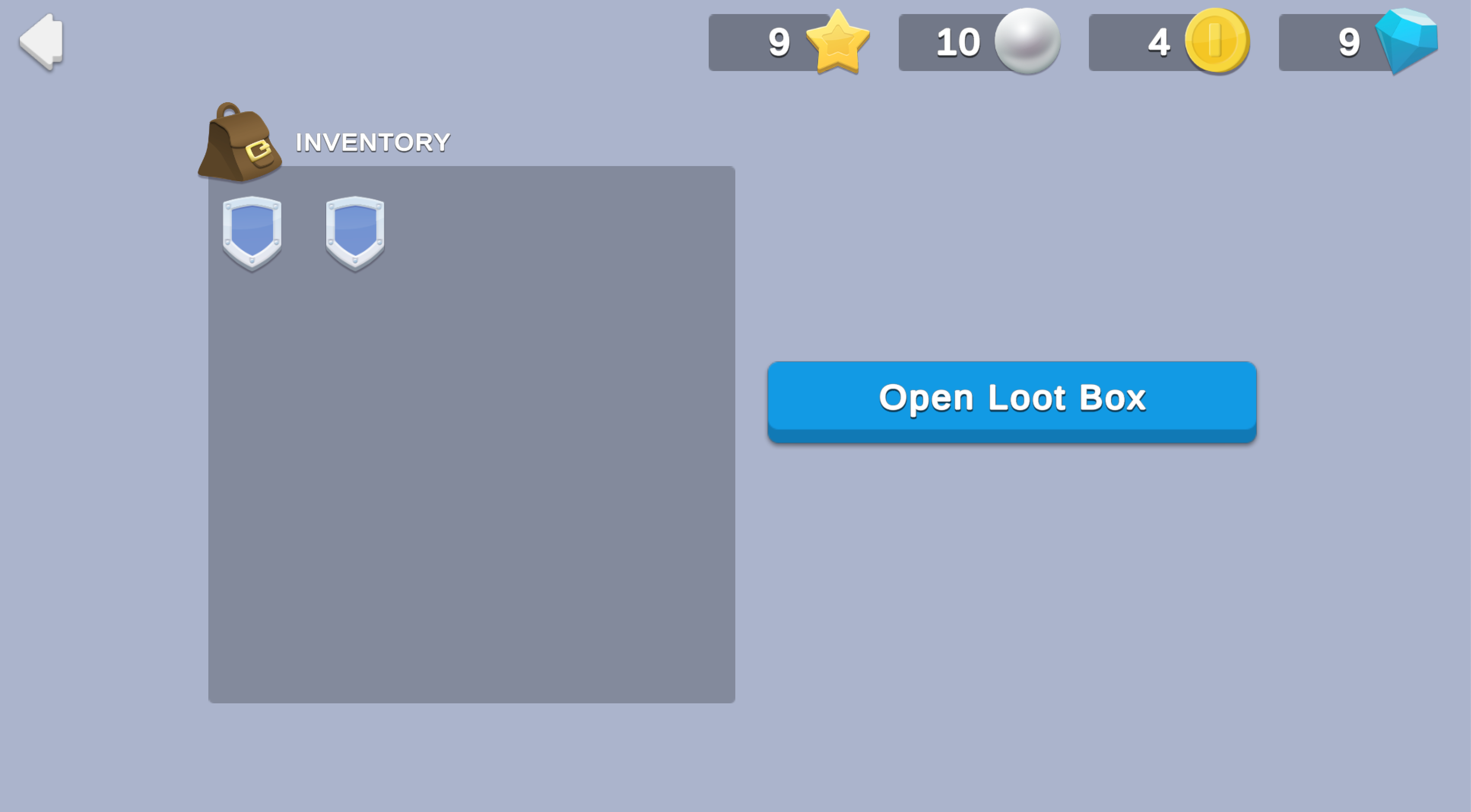
Prerequisites
To use this sample use case, you must download and install the UGS Use Cases project in your Unity project.
Overview
To see this use case in action, open the samples menu and navigate to Loot Boxes With Cooldown. To open this scene directly and interact with the use case:
- In the Unity Editor Project window, select Assets > Use Case Samples > Loot Boxes With Cooldown, then double-click to open the sample scene.
LootBoxesWithCooldownSample.unity - Press Play to enter Play mode.
Initialization
The script performs the following initialization tasks in its function:
DailyRewardsSceneManager.csStart- Initializes Unity Gaming Services.
- Retrieves and updates the player's currency balances from the Economy service.
Functionality
When you click the Claim Daily Reward button, you receive a random amount of rewards from the available pool (indicated in the currency HUD). For demonstration purposes, the cooldown is set to 60 seconds. The following occurs:
- The button's method calls Cloud Code to execute the
OnClickfunction, which picks random currencies and inventory items from internal lists to award.GrantTimedRandomReward - The Economy service directly grants the reward and returns the final results to the client.
This example also uses Cloud Code to access Cloud Save to implement a cooldown between rewards and returns:
- A flag if the Claim Daily Rewards button should be enabled.
- The current cooldown in seconds.
- The default cooldown needed to reset the timer locally when a reward is claimed.
Setup
Requirements
To replicate this use case, you'll need the following Unity packages in your project:
Package | Role |
|---|---|
| Authentication | Automatically signs in the player as an anonymous user to keep track of their data server-side. |
| Cloud Code | Accesses the cooldown status, picks and grants random currency and inventory items through the Economy server, and then returns the result of the reward. |
| Cloud Save | Stores and retrieves the last granted reward time to allow cooldown values to persist between sessions. |
| Deployment | Provides a cohesive interface to deploy assets for Cloud Services. |
| Economy | Retrieves the starting and updated currency balances at runtime. |
To use these services in your game, activate each service for your Organization and project in the Unity Dashboard.
Unity Cloud services configuration
To replicate this sample scene's setup in your own Unity project, configure the following items:
- Cloud Code scripts
- Economy items
To configure these items you can use the Deployment package, or manually enter them using the Unity Dashboard.
The recommended best practice is to use the Deployment package as it greatly accelerates this process.
Using the Deployment package
To deploy configurations using the Deployment package:
- Open the Deployment window.
- Check in and
Common.Loot Boxes - Click .
Deploy Selection
This deploys all the necessary items.
Using the Unity Dashboard
You can use the Unity Dashboard to manually configure your services by project and environment.
Refer to the following sections to configure this sample.
Cloud Code
Publish the following scripts in the Unity Dashboard:
Script | Parameters | Description | Location in project |
|---|---|---|---|
| None | Checks if the cooldown has expired (or was never set), then selects a random reward from the reward pool, grants the reward to the player, and then updates the cooldown timer. | |
| None | Checks for the last grant time and returns a flag indicating if the player is eligible for a reward. | |
Economy
Configure the following resources in the Unity Dashboard:
Resource type | Resource name | ID | Description |
|---|---|---|---|
| Currency | Coin | | A currency for the randomized loot box reward pool. |
| Currency | Gem | | A currency for the randomized loot box reward pool. |
| Currency | Pearl | | A currency for the randomized loot box reward pool. |
| Currency | Star | | A currency for the randomized loot box reward pool. |
| Inventory item | Sword | | An inventory item for the randomized loot box reward pool. |
| Inventory item | Shield | | An inventory item for the randomized loot box reward pool. |