Documentation

​
​

Development

User Acquisition

Monetization

Industry

Asset Transformer Studio

2026.5.0

Supported
​

User Manual

Python API

Changelog

Asset Transformer Studio

2026.5.0

Supported
​

​
​
Get started
  • About Asset Transformer Studio
  • Getting started
  • Additional Resources
User Interface
  • Overview
  • Menu Bar
  • Toolbars
  • Window
    • History
    • Inspector
    • Output
    • Product Structure (Tree)
    • Scripting
    • Tools
    • Variants and PMI
    • Viewer
      • Navigation Controls
      • Selection Controls
      • Lighting Modes
      • Selection Display
      • Viewport Right-click Menus
      • Viewer Issue
    • Visualization
  • Customizing the User Interface
Data Preparation Fundamentals
  • Overview
  • General Information
  • Typical Data Preparation Workflow
  • About 3D Models Types
  • About the Product Structure (Tree)
  • About Occurrences
  • About Instances & Prototypes
  • About Face and Vertex Normals
  • About UVs
  • About Tessellation
  • About Decimation
  • About Animation
  • Glossary
Working With Asset Transformer Studio
  • Overview
  • Videos and Tutorials
  • Supported File Formats
  • Importing Files
  • Exporting Files
  • Scripting With the Python API
  • Interrupting a Process
  • Plugins
  • Errors in Asset Transformer Studio
Python API Reference
  • Overview
Changelog
  • Changelog
  1. Asset Transformer Studio
  2. User Interface
  3. Window
  4. Viewer

Lighting Modes

Lighting modes in the Asset Transformer Studio viewer
Read time 2 minutes
Last updated 9 hours ago

Lighting Modes
3D objects (parts) present in an Asset Transformer Studio scene are rendered in real-time in the Viewer, thanks to virtual lighting and the virtual materials applied to them.
The Viewer can be used with 2 different lighting modes:
  • HDR lighting
  • Standard lighting

HDR Lighting

Being able to visualize a model in a more realistic fashion, closer to what it will look like in the final application where it is meant to be used, can be important in a data preparation process.
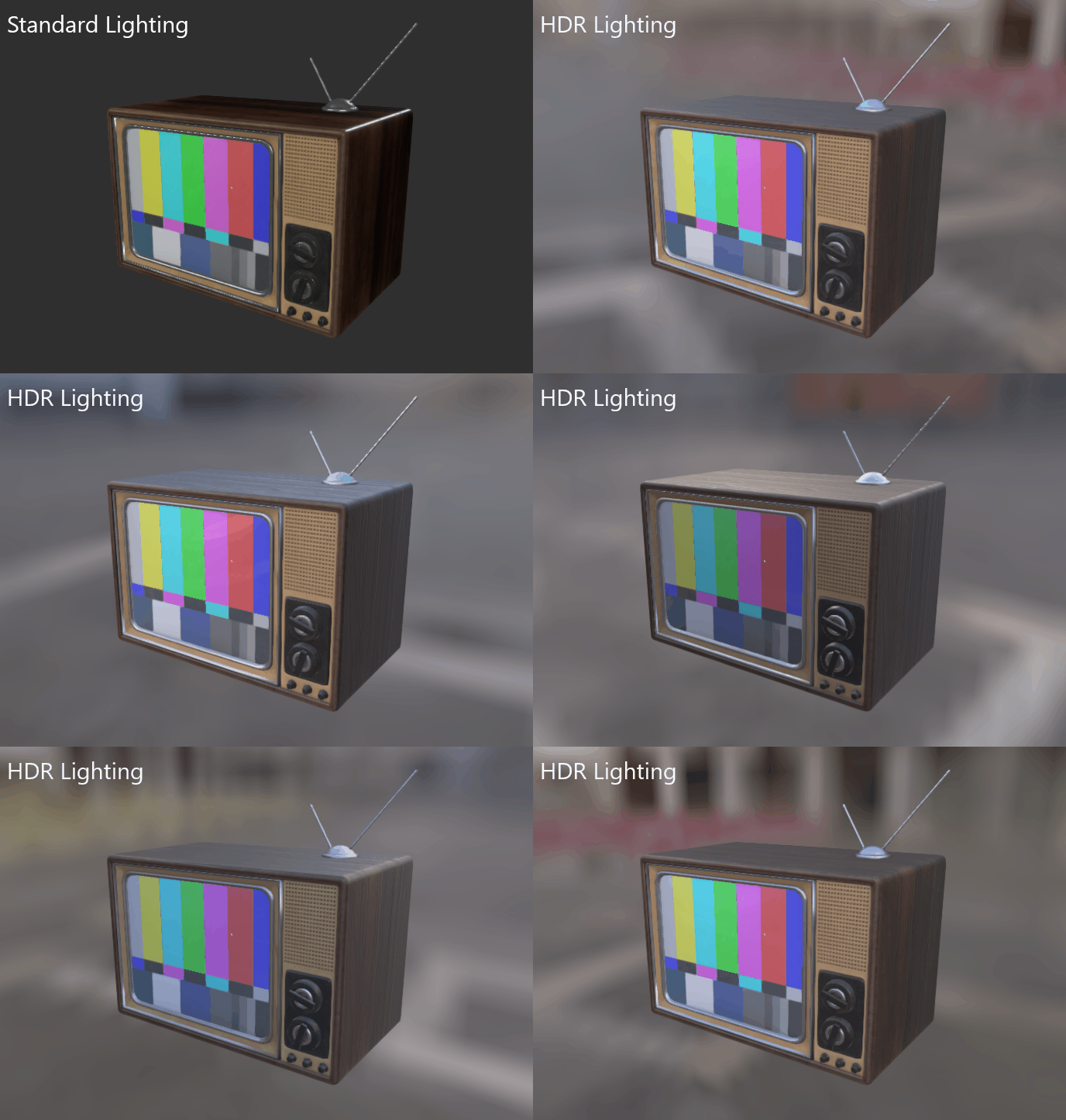
That is why by default, the Viewer lights Parts from the scene using HDR lighting (or IBL). Meaning an HDR environment map is used to light the scene by default.
Thanks to HDR lighting, the Viewer displays shaders in a more realistic way, giving a better look-and-feel to materials.
All material types (Standard, PBR, Color…) are affected by the HDR environment map.
8 HDR maps are available out-of-the-box and accessible from the
Lighting & Environment
folder of the Visualization panel.
HDR maps

Standard Lighting

Since it can be also important to visualize the scene with a simpler lighting, it is possible to choose a Standard lighting, using 4 simple directional lights placed around the scene (Legacy mode).
Note
When switching from
Standard Lighting
to
HDR Lighting
, the 4 default lights used with the Standard Lighting are disabled. Also, the default lights can be inserted in the Product Structure (from the Create menu), in order to be tuned.

Ambient Occlusion

An Ambient Occlusion post-process (SSAO) can be turned on to mimic contact shadows between surfaces, and add a little bit of realism to the render displayed in real-time in the Viewer.
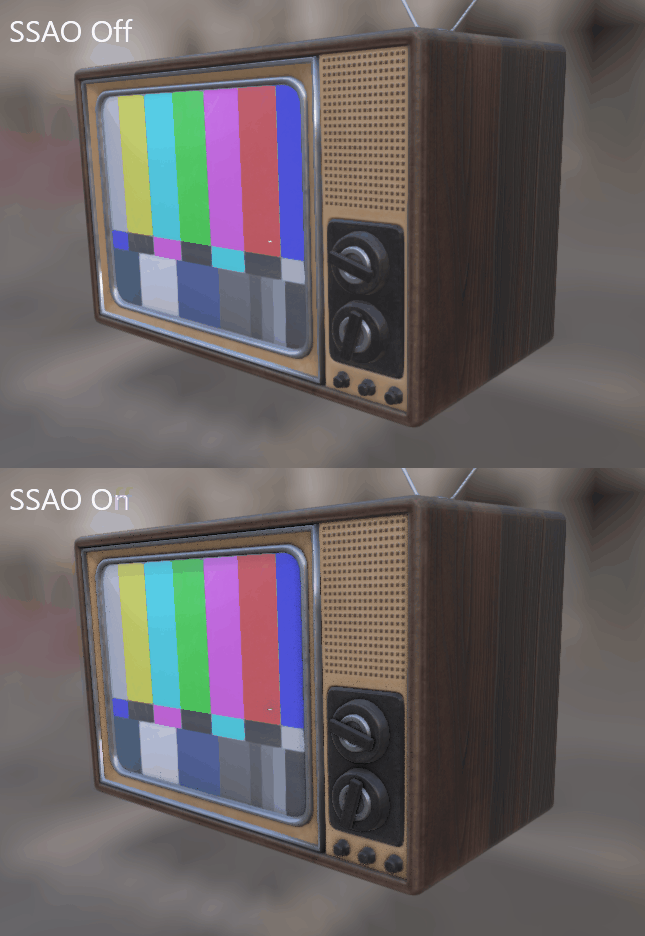
SSAO
Note
SSAO being a post-effect based on the whole image displayed on the screen, all the objects visible in the final image rendered in the viewport will be affected by the effect, including the grid, the transformation gizmo, the lines, the scene axis… Turn off their visibility if necessary.

Copyright © 2026 Unity Technologies
LegalPrivacy PolicyCookiesDocumentation Terms of UseDo Not Sell or Share My Personal InformationYour Privacy Choices (Cookie Settings)

"Unity", Unity logos, and other Unity trademarks are trademarks or registered trademarks of Unity Technologies or its affiliates in the U.S and elsewhere (more info here). Other names or brands are trademarks of their respective owners.

Some pages are machine-translated for convenience, and may contain inaccuracies. In the event of conflicting information, the English version is authoritative.

  • On this page
    • HDR Lighting

    • Standard Lighting

    • Ambient Occlusion