Chartboost 통합
iOS에서 Chartboost를 Unity 레벨플레이 연동합니다. 이 가이드는 계정 설정, 앱 설정, 광고 위치 생성, 캠페인 설정, 파라미터 검색, Unity Dashboard 활성화, 어댑터 통합, COPPA 설정 대해 다룹니다.
읽는 시간 3분최근 업데이트: 24일 전
이 가이드에서는 iOS에서 Chartboost를 Unity 레벨플레이 연동하는 방법을 설명합니다. 계정 설정부터 Chartboost 어댑터 및 SDK를 프로젝트에 통합하기까지 전체 프로세스를 다룹니다.
필수 조건
Unity 레벨플레이 Chartboost를 활성화하기 전에 앱과 프로젝트의 필수 조건을 충족해야 합니다.
- 앱은 보상형 비디오, 인터스티셜 광고 또는 배너 광고를 통합합니다.
- 프로젝트에 레벨플레이 SDK가 포함되어 있습니다.
- 앱이 iOS 11 이상과 호환됩니다.
보상형 비디오 광고, 인터스티셜 광고 또는 배너 광고를 애플리케이션 올바르게 연동했는지 확인합니다. 연동 지침은 다음 플랫폼별 가이드를 참고하십시오.
ChartBoost 계정을 생성하고 설정합니다.
앱을 추가하고, 결제 세부 정보를 설정하고, Unity 레벨플레이 Mediation 광고 위치를 준비할 수 있도록 Chartboost 계정을 생성하고 설정.
- Chartboost 계정에 가입하세요.
- 이메일 확인을 통해 Chartboost 계정을 생성하고 인증합니다.
- 다음 단계에 따라 Chartboost 대시보드에 로그인하고 계정을 설정하십시오.
- 지급 세부 정보 추가 - Chartboost가 수익을 어디로 보낼지 확인합니다.
- 알림 설정 구성.
- 필요에 따라 추가 사용자 추가.
Chartboost 대시보드에 앱 추가하기
Chartboost 대시보드에 앱을 등록하여 SDK 통합 및 캠페인 설정을 시작합니다. Chartboost를 처음 사용하는 경우, 첫 번째 설정의 단계를 따르십시오. 그렇지 않으면 등록된 Chartboost 사용자로 앱 추가로 이동합니다.
처음 설정
Chartboost 대시보드에 처음 로그인하는 경우:
- 선택 금융 시작!
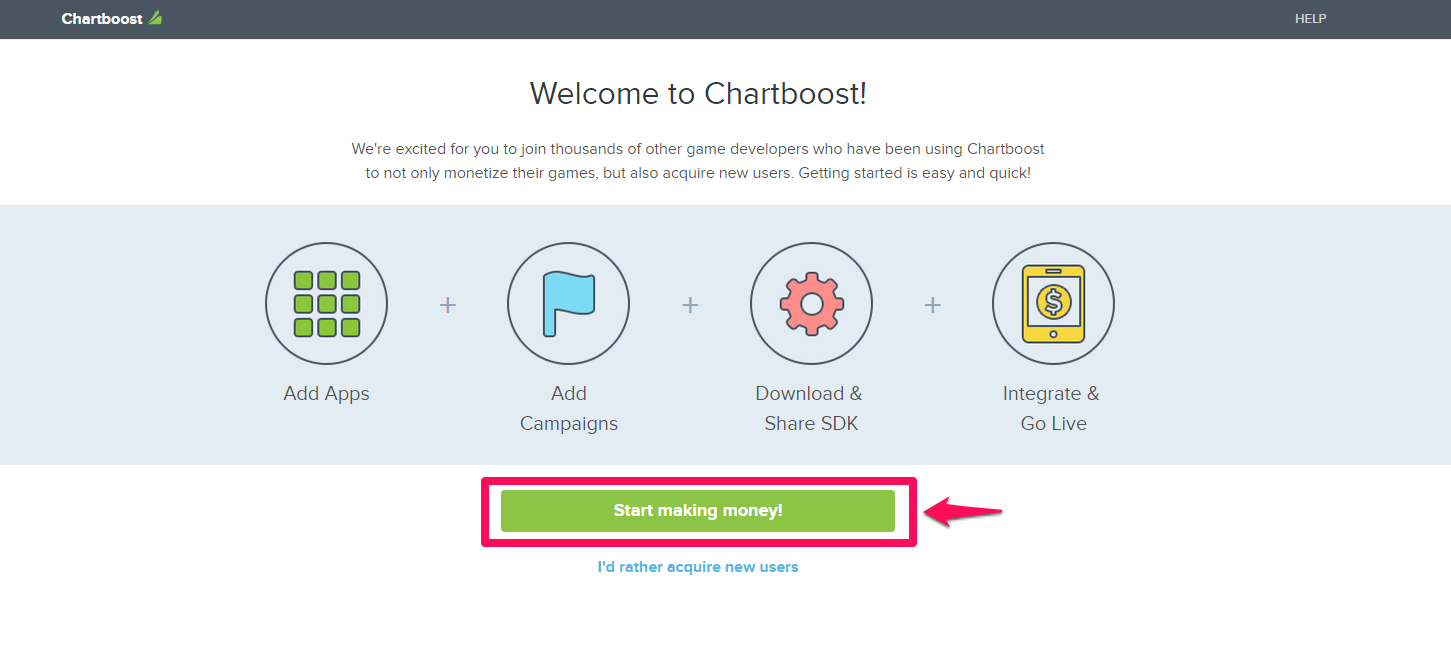
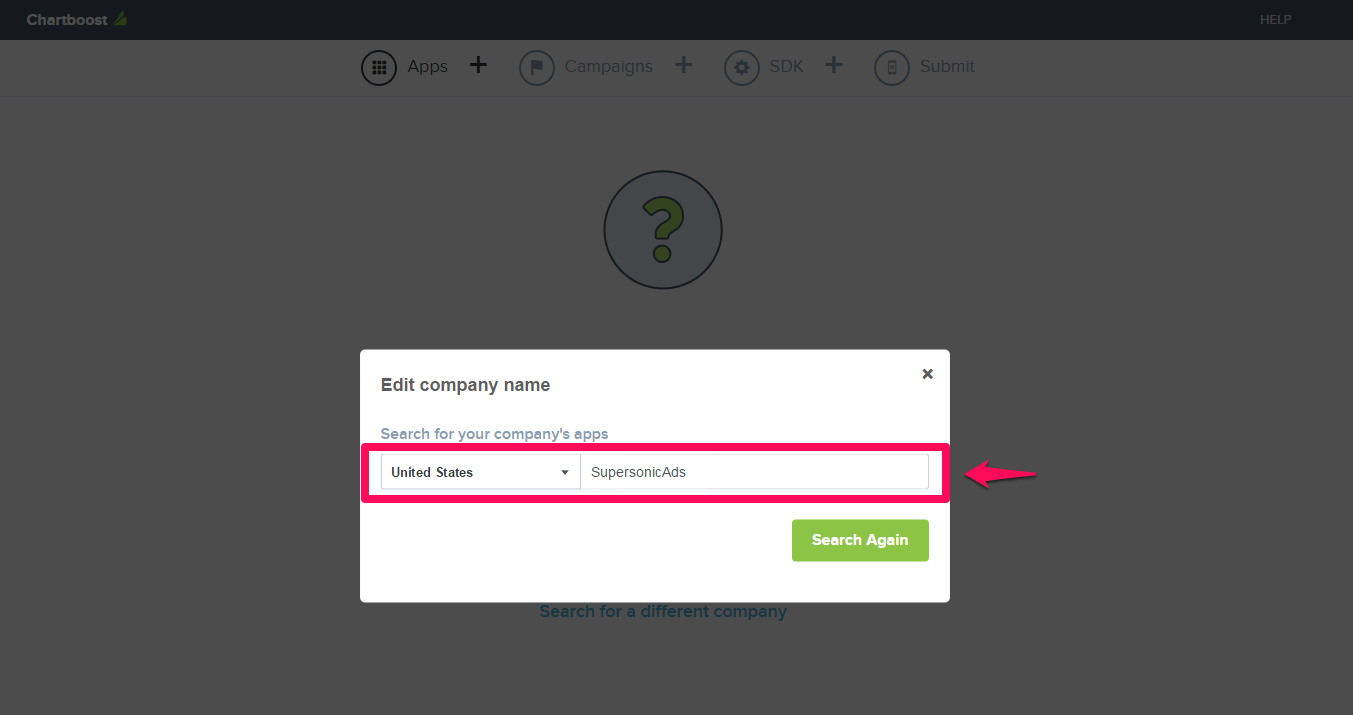
- Chartboost는 라이브 앱 자동으로 감지하려고 시도합니다. 앱이 감지되지 않으면 다음 중 하나를 선택합니다.
- 회사 수동 검색
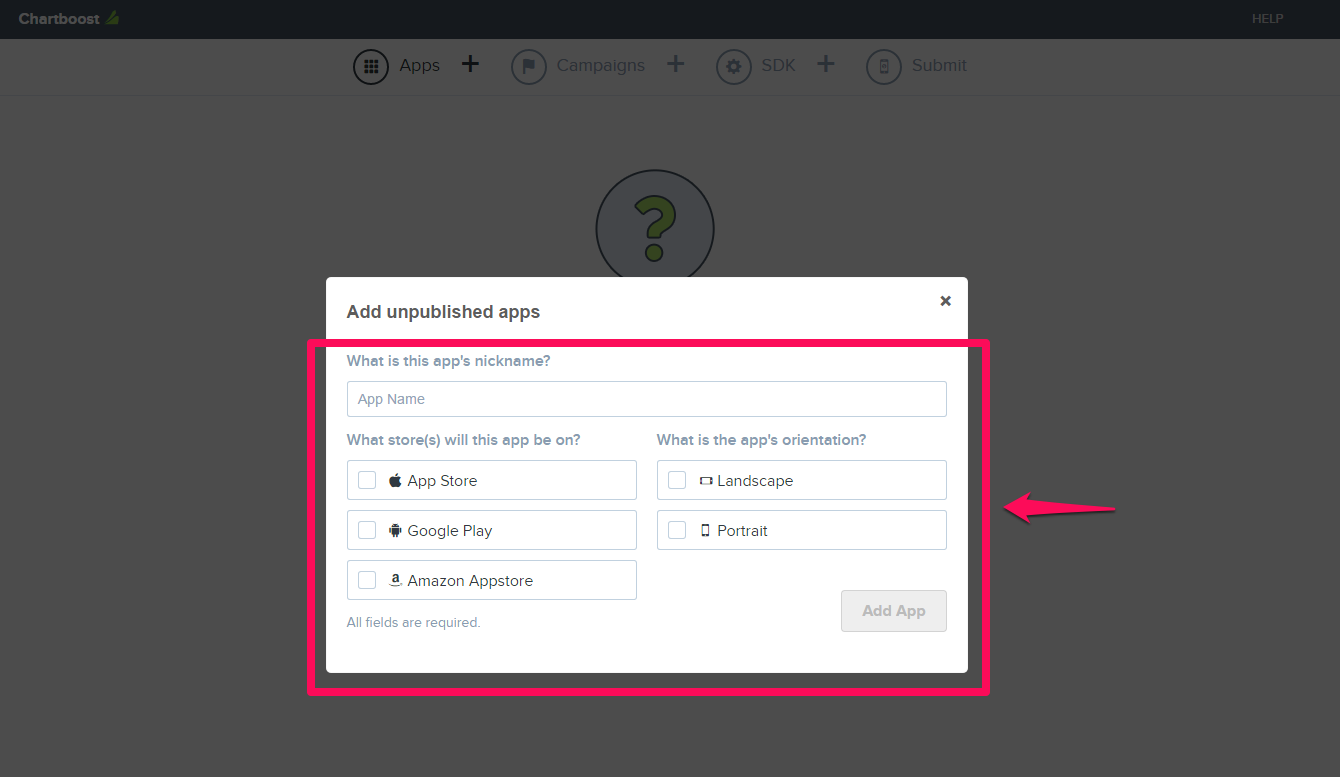
- 앱을 수동으로 추가합니다(앱 아직 퍼블리시되지 않은 경우).
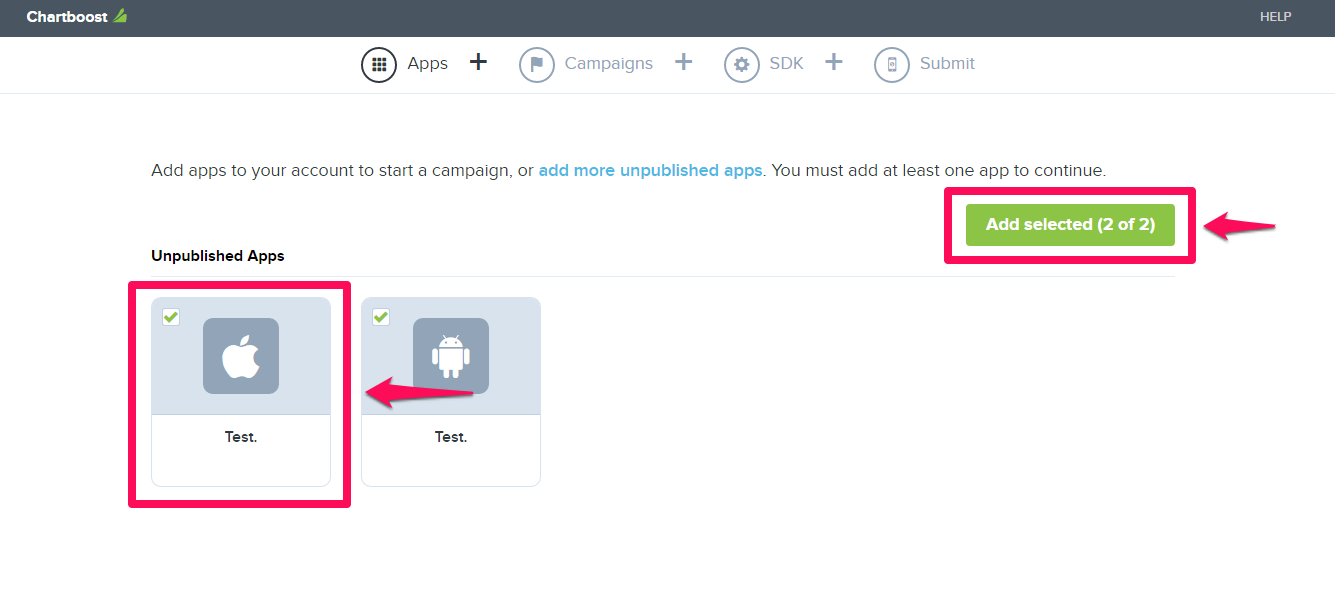
- 추가할 앱을 선택한 다음 Add Selected를 선택합니다.
앱을 등록된 Chartboost 사용자 추가
이미 Chartboost 계정이 있고 새 앱을 추가하는 경우:
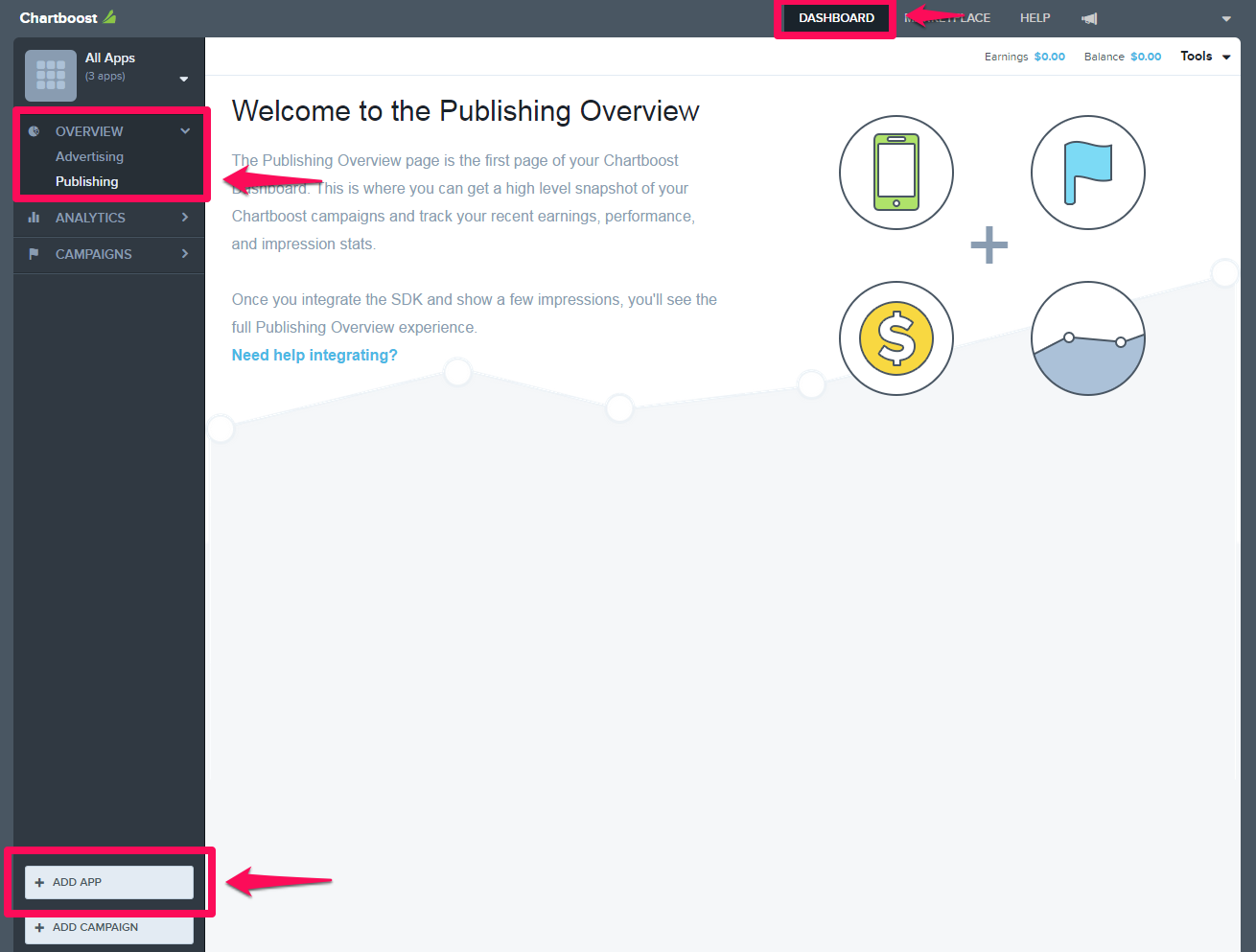
- 대시보드 > 퍼블리싱 > 앱 추가로 이동합니다.
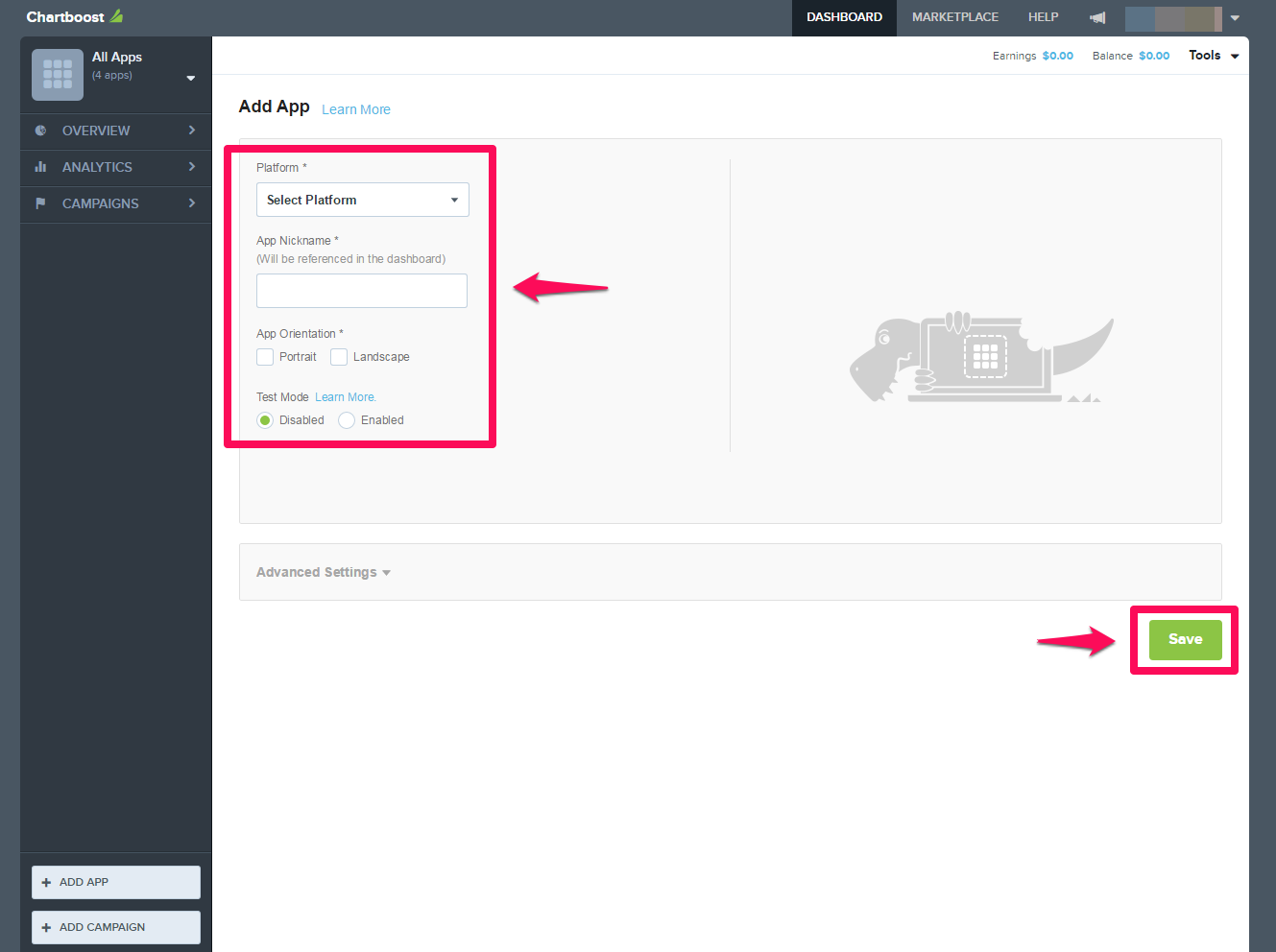
- 앱 세부 정보를 입력합니다.
- Platform: 앱이 실행되는 운영체제를 선택합니다(iOS 또는 Android).
- 앱 별명: 대시보드에서 앱을 식별 표시 이름을 입력합니다.
- 방향: 앱이 지원하는 기본 화면 방향, 방향 설정 선택합니다.
- 테스트 모드 설정: 설정 및 QA 중에 테스트 광고를 게재하려면 테스트 모드를 활성화하다, 사용 가능하다.
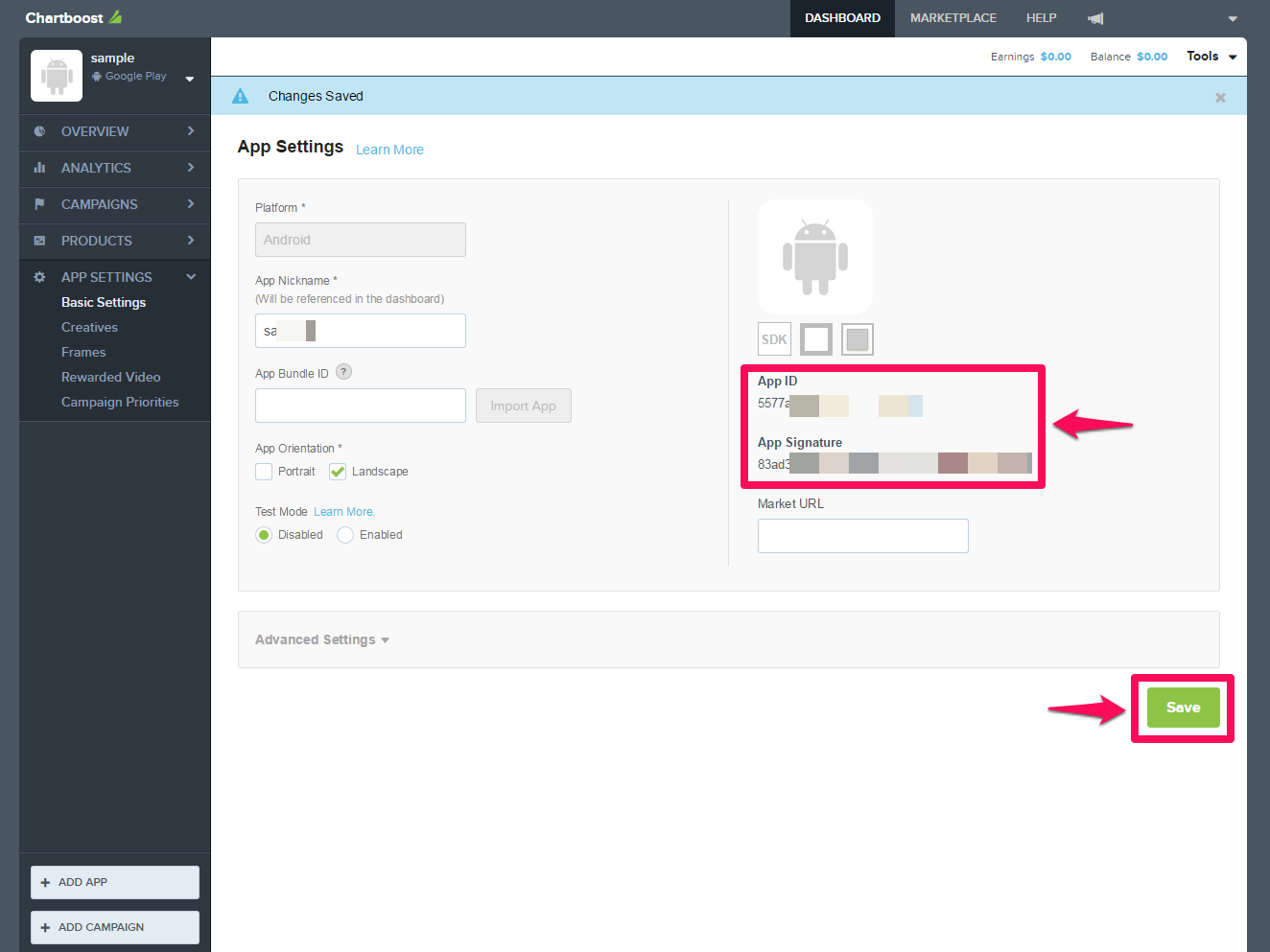
- 앱을 저장하여 앱 ID와 앱 서명을 가져옵니다.
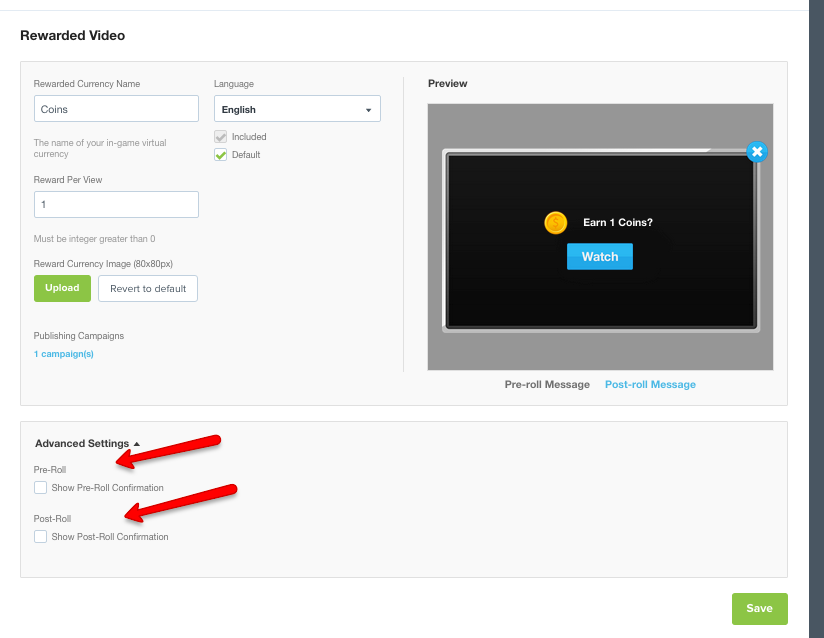
보상형 비디오 대한 사전/포스트롤 메시징 비활성화하다, 무효화하다, 사용 안 함
레벨플레이 통해 Chartboost 보상형 비디오 게재하는 경우 Chartboost의 사전 롤 및 사후 롤 메시지를 비활성화하다, 무효화하다, 사용 안 함.
- Chartboost 대시보드에서 앱을 엽니다.
- 기본 설정 > 보상형 비디오 > 고급으로 이동합니다.
- 사전 롤 및 사후 롤 메시징 옵션을 모두 선택 선택 해제.
- Save를 선택합니다.
배너 광고: 배너 광고에는 Chartboost의 퍼블리싱 캠페인이 필요하지 않습니다. 이는 Chartboost Exchange를 통해 제공되며 Unity 레벨플레이 어댑터 사용하여 SDK를 통해 직접 호출됩니다.
광고 위치 생성
광고 위치는 ChartBoost가 앱에 광고를 표시하는 위치와 시간을 정의합니다. Chartboost 대시보드에서 광고 위치를 생성하고 관리할 수 있으며, 앱 및 위치 유형당 최대 100개의 고유 위치 이름을 추가할 수 있습니다.
광고 위치를 생성하고 관리하는 자세한 단계는 Chartboost Ad Locations 문서를 참조하십시오.
광고 위치 이름은 대소문자를 구분하며 다음 규칙을 준수해야 합니다.
- 최대 80자
- 허용되는 대문자/소문자
- 0~9 숫자가 허용됨
- 허용되는 특수 문자:
$ & - _ , + / \ - 공백이 허용되지 않음
중요: Unity 레벨플레이를 인앱 입찰과 함께 사용하는 경우 입찰 광고 위치만 생성합니다. 고정 CPM 위치를 사용하면 인앱 입찰이 올바르게 작동하지 않습니다. 입찰 광고 위치 유형은 Chartboost의 실시간 입찰 솔루션인 인앱 입찰을 사용하여 Chartboost Exchange에 단가 퍼블리셔를 위한 것입니다.
ChartBoost 퍼블리싱 캠페인 생성
인터스티셜 광고 광고와 보상형 광고 광고의 경우 Chartboost 대시보드에서 다음과 같이 퍼블리싱 캠페인을 생성합니다.
- Chartboost 대시보드에서 Add a Campaign > Network 퍼블리싱을 선택합니다.
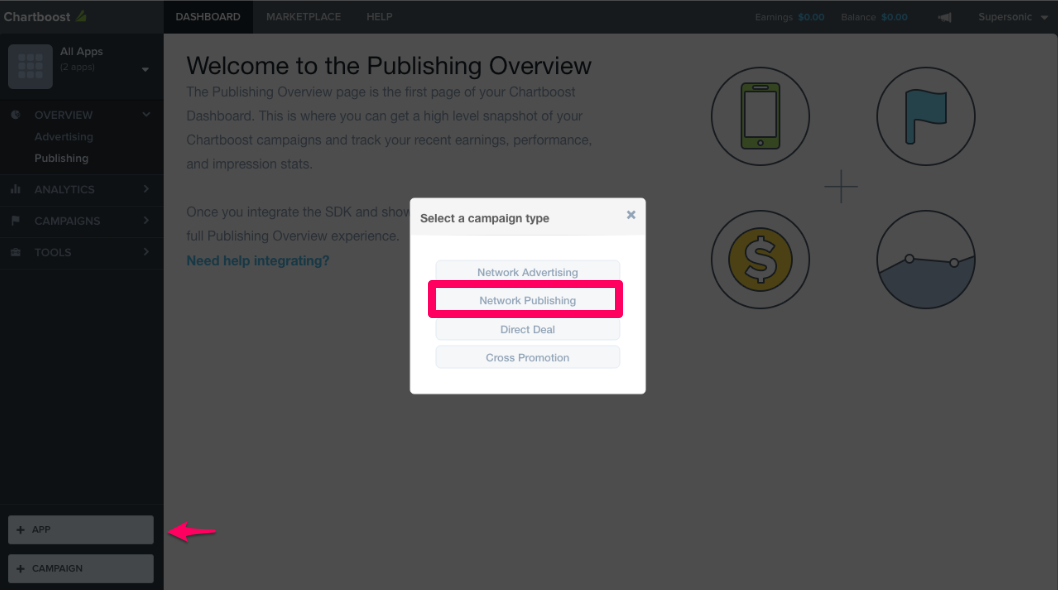
- 보상형 비디오 또는 정적 인터스티셜 광고를 선택합니다.
- 두 포맷을 모두 제공하는 경우 별도의 캠페인을 생성합니다.
- 필요에 따라 타게팅을 설정(예: 지역, 기기 또는 사용자 타게팅).
- 캠페인을 저장합니다. 참고로 라이브로 전환하는 데 최대 20분이 걸릴 수 있습니다.
필수 파라미터 검색
Unity 레벨플레이 다음과 같은 Chartboost 파라미터를 요구하여 Unity 레벨플레이 Chartboost에 광고 요청을 전송하고 리포트 데이터를 임포트 수 있도록 합니다.
- App ID
- App Signature
- 위치 ID
- 사용자 ID
- 사용자 서명
이 파라미터를 찾을 수 있는 위치
다음 대시보드 경로를 사용하여 각 파라미터 찾습니다.
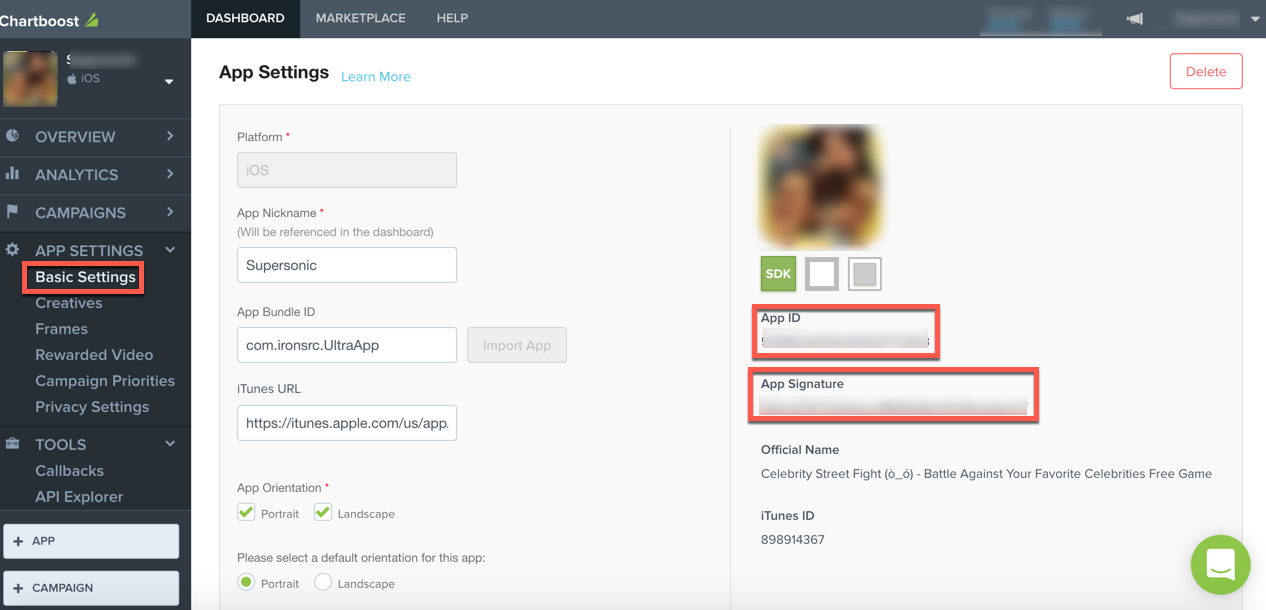
- 앱 ID 및 앱 서명: 대시보드 > 앱 설정 > 기본 설정
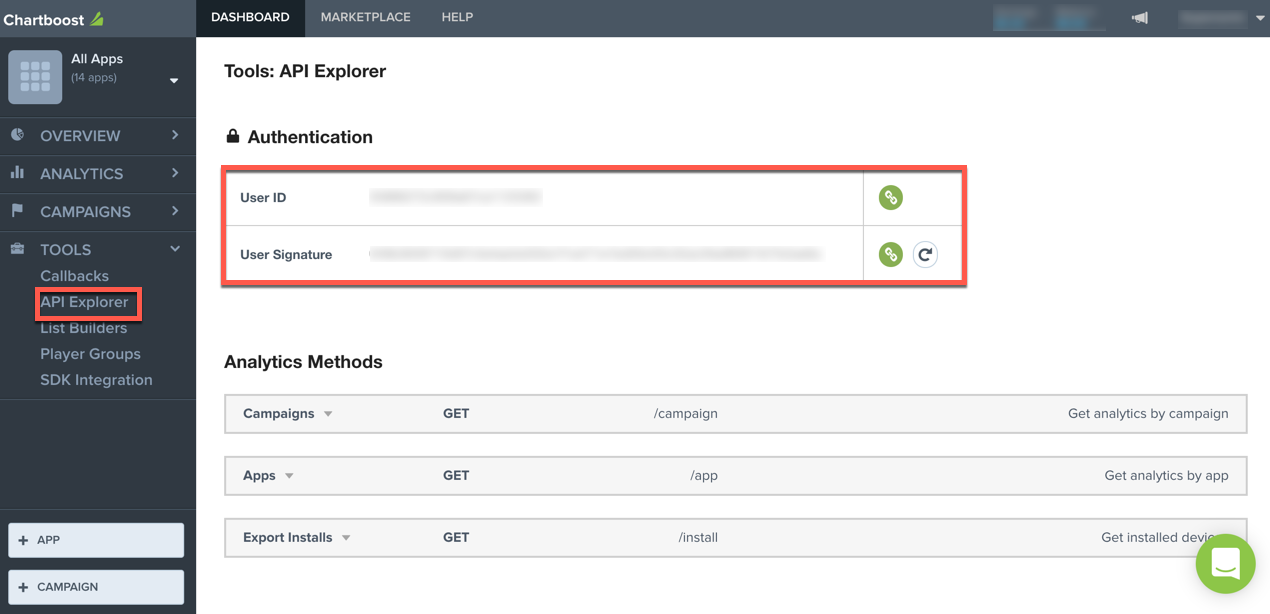
- 사용자 ID 및 사용자 서명: 도구 > API 탐색기
Unity Dashboard ChartBoost 활성화
Chartboost에서 앱과 캠페인을 설정 필요한 파라미터를 가져온 후 Unity 레벨플레이 Chartboost를 활성화.
먼저 Chartboost에서 파라미터를 가져옵니다.
앱 ID 및 앱 서명: 대시보드 > 앱 설정 > 기본 설정으로 이동합니다.
사용자 ID 및 사용자 서명: 도구 > API 탐색기로 이동합니다.
그런 다음 레벨플레이 계정에서 Chartboost를 설정.
- Unity Dashboard에 로그인합니다.
- Grow > LevelPlay > Setup > SDK Networks로 이동합니다.
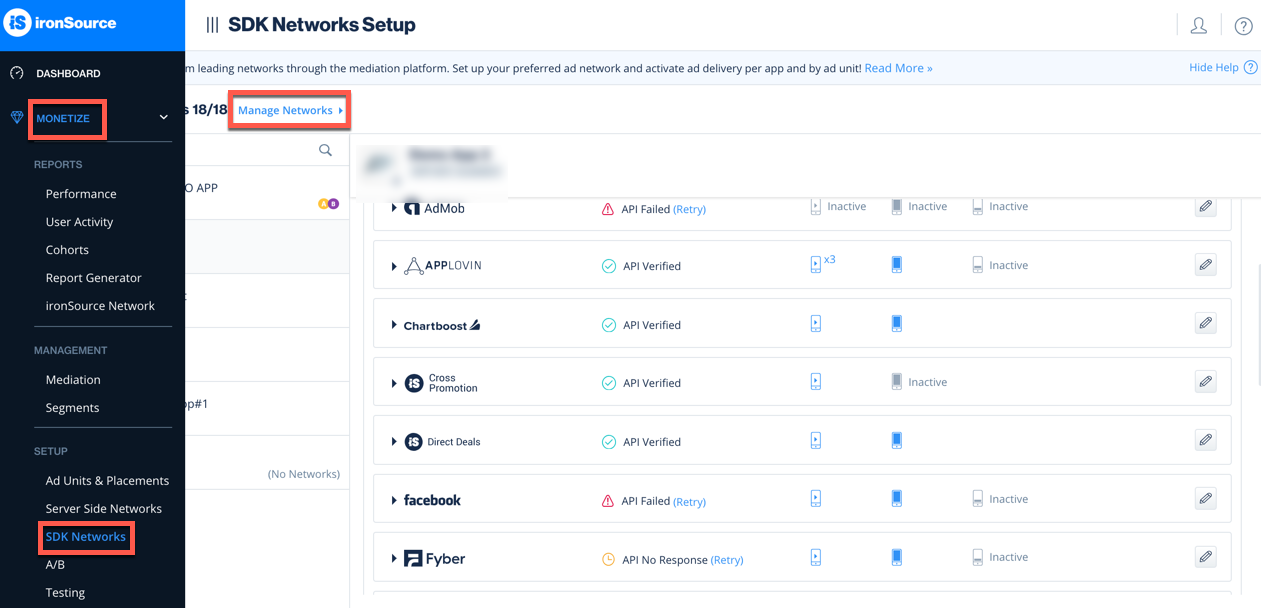
- 네트워크 목록에서 Chartboost를 선택합니다.
- 사용자 ID 및 사용자 서명을 입력합니다.
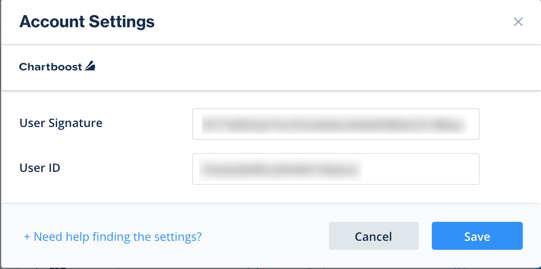
iOS 프로젝트에 Chartboost 어댑터 추가
Chartboost SDK를 iOS 앱에서 Unity 레벨플레이 연동하려면 CocoaPods를 사용하여 Chartboost 어댑터 프로젝트에 추가하거나 수동으로 설치할 수 있습니다.
CocoaPods 사용
CocoaPods를 사용하여 Chartboost 어댑터 추가하는 방법은 다음과 같습니다.
-
Podfile을 엽니다.
-
다음 코드 라인을 추가합니다.pod 'IronSourceChartboostAdapter', '5.3.0'
-
를 실행하여 어댑터를 설치합니다.
pod install
지원되는 최신 어댑터 버전을 확인하려면 Chartboost 어댑터 변경 기록을 참조하십시오.
수동 설치
다음 단계에 따라 Chartboost SDK를 수동으로 설치하고 설정.
-
중요: Chartboost 어댑터 Chartboost SDK가 포함되지 않습니다. Chartboost SDK를 다운로드 프로젝트에 추가합니다.
-
Xcode 프로젝트에 Chartboost 어댑터 SDK를 모두 추가합니다.
-
Xcode 빌드 설정에서 다음을 확인합니다.
- 지지대 SDK는 iOS 7.0 이상으로 설정되어 있습니다.
- armv6 아키텍처 포함되지 않습니다.
광고 네트워크 연동 확인
레벨플레이 통합 도우미를 사용하여 Unity 레벨플레이 SDK, Chartboost SDK 및 Chartboost 어댑터가 올바르게 통합되었는지 확인합니다.
개발 빌드에서 Unity 레벨플레이 SDK를 초기화하기 전에 다음 메서드를 호출하여 어댑터 디버그 로그를 활성화하다, 사용 가능하다.
[레벨플레이 setAdaptersDebug:YES];
참고: 어댑터 디버그 로그는 SDK 버전 6.5.2 이상에서 지원됩니다. 앱을 릴리스하기 전에 이 호출 제거합니다.
Chartboost COPPA 동작 설정
Chartboost는 앱이 자식 지정인지 여부를 지정해야 합니다. 사용자 레벨 COPPA 지원에는 레벨플레이 SDK 7.3.0 이상 및 Chartboost iOS 어댑터 4.3.14 이상이 필요합니다.
앱 코드에서 Unity 레벨플레이 SDK를 초기화하기 전에 메타데이터 키를 설정하여 앱이 Chartboost의 자식 지정 여부를 설정합니다.
CHARTBOOST_COPPA자식:
[LevelPlay setMetaDataWithKey:@"CHARTBOOST_COPPA" value:@"YES"];
자식이 아닌:
[LevelPlay setMetaDataWithKey:@"CHARTBOOST_COPPA" value:@"NO"];
Chartboost 대시보드에 앱을 추가할 때 COPPA 설정을 지정해야 합니다. 인앱 메타데이터와 Chartboost 대시보드 설정이 앱의 실제 잠재 고객과 일치하는지 확인합니다.
자세한 내용은 Chartboost의 COPPA 문서를 참조하십시오.
다음 단계
이제 Unity 레벨플레이 통해 Chartboost 광고를 게재할 수 있습니다.
Unity 레벨플레이를 통해 추가 광고 네트워크를 활용하려면 어댑터를 통합하고 통합 가이드를 따르십시오.