Yandex Ads インテグレーション
LevelPlay のメディエーションプラットプラットフォームを使用して、React ネイティブ アプリケーションに Yandex Ads を広告ネットワークワークとして設定します。
読み終わるまでの所要時間 2 分最終更新 1ヶ月前
このガイドでは、Unity LevelPlay で Yandex Ads を広告ネットワークとして稼働させる方法をステップごとに説明します。
前提条件
リワード広告、インタースティシャル広告、またはバナー広告をアプリケーションに正しく統合していることを確認します。インテグレーション手順については、以下のプラットフォーム固有のガイドを参照してください。
ステップ 1. Yandex Ads アカウントの作成
Yandex Ads でアカウントを作成します。ここで行うことができます。
ステップ 2. Yandex Ads へのアプリケーションの追加
Yandex Ads アカウントにアプリケーションを追加します。ここでその方法を学ぶ
ステップ 3. 広告単位の作成
収益化に使用する広告ユニット (リワード型、インタースティシャル、バナー広告) を Yandex Ads プラットフォームに設定します。詳細
ステップ 4. LevelPlay SDK Networks モジュールで Yandex Ads をアクティベートする
-
LevelPlay アカウントにログインし、LevelPlay サイド Nav Bar > 設定> SDK Networks に移動します。
-
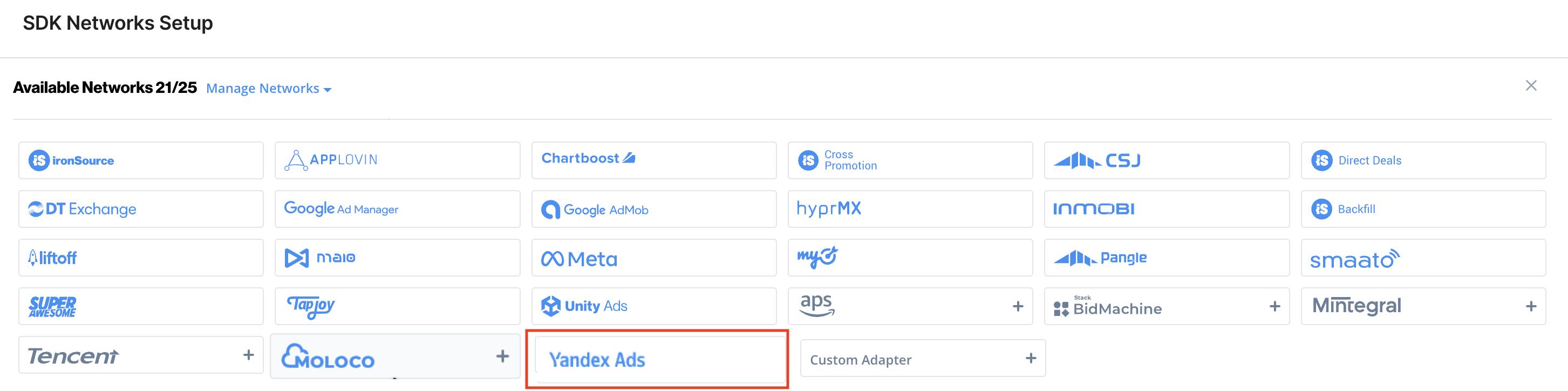
Manage Networks を選択します。
-
使用可能な広告ネットワークのリストからYandex Adsを選択します。
-
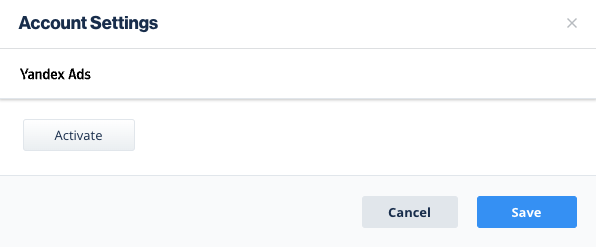
アクティベートを選択してネットワークをオンにします。
-
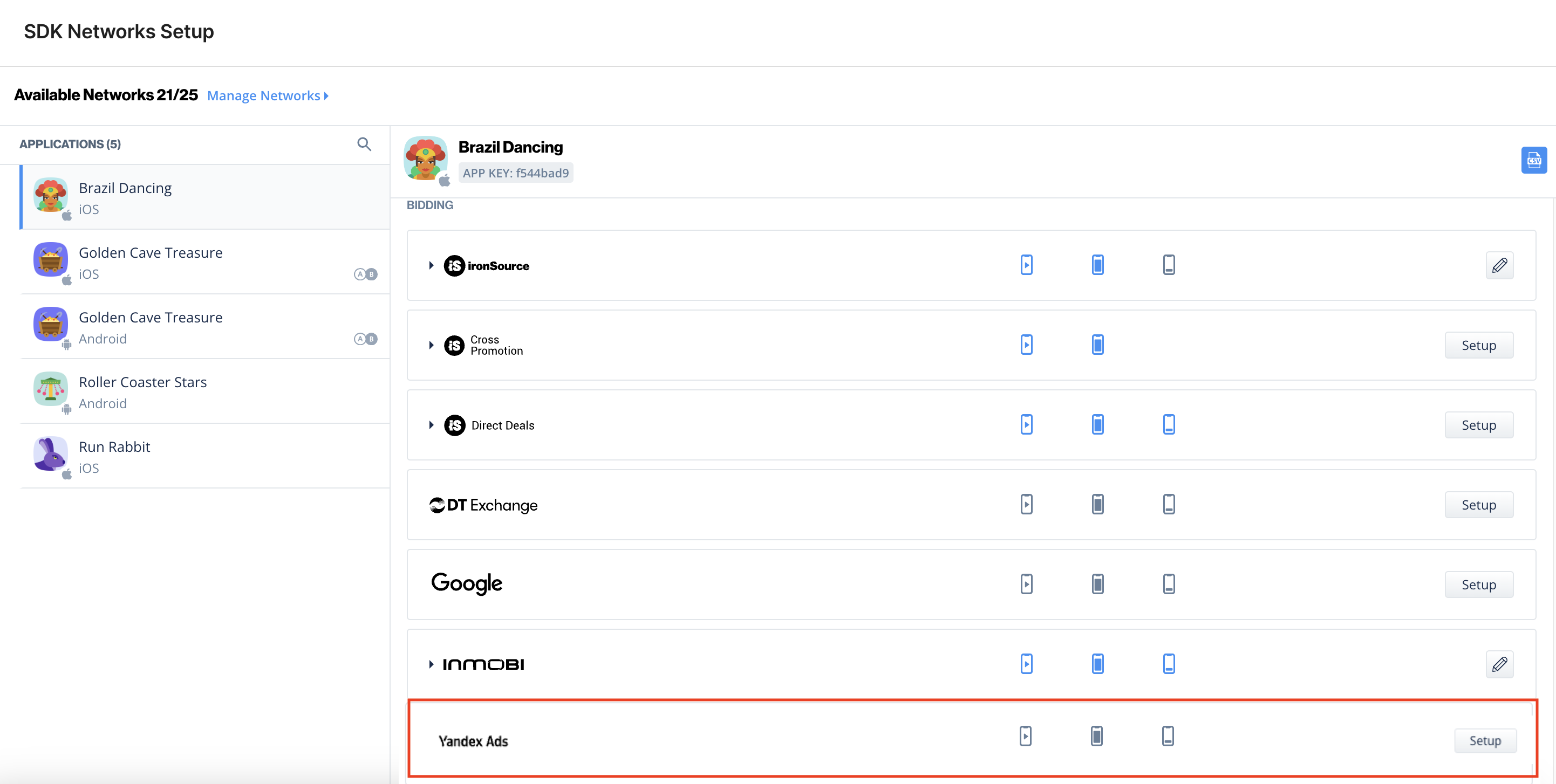
次に、Yandex Ads 入札で Unity LevelPlay の Mediation を実行するアプリケーションを選択します。
-
広告ネットワークのリストから「Yandex Ads」を選択し、ツール設定アイコンを選択します。
-
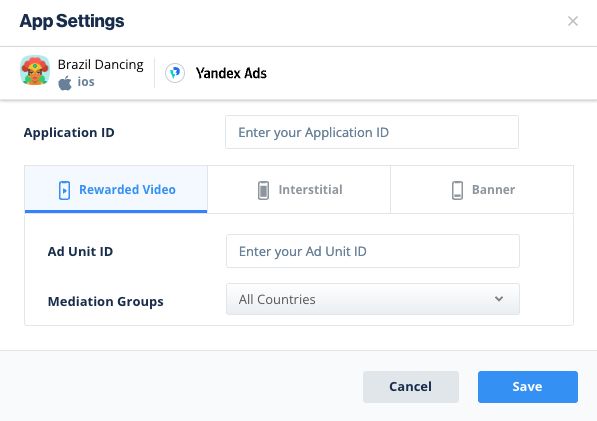
次に、Interstitial (インタースティシャル)、リワード広告 (リワード型広告)、バナー Settings (バナー設定) の下に、アプリケーション キー (ステップ 2) と Ad 単位 ID (ステップ 3) を挿入します。Save (保存) を選択します。
ステップ 5.ビルドへの Yandex Ads Adapter の追加
ステップ 6.Yandex Ads の追加設定
ユーザーレベルのCOPPA
LevelPlay を使用すると、パブリッシャーは Yandex Ads のユーザーレベルの COPPA 設定を Yandex Ads ネットワークに直接通知できます。この特徴は、LevelPlay SDK 8.1.0 以降、Yandex Ads アダプター 4.3.1 以降を使用して有効化されます。
以下の構文を使用して、Yandex Ads COPPA ユーザー状態を true に更新します。
「Unity-levelplay-mediation」からのインポート{ LevelPlay }LevelPlay.setMetaData('Yandex_COPPA', ['true'])
以下の構文を使用して、Yandex Ads COPPA ユーザー状態を false に更新します。
「Unity-levelplay-mediation」からのインポート{ LevelPlay }LevelPlay.setMetaData('Yandex_COPPA', ['false'])
LevelPlay SDK を初期化する前に を呼び出します。
LevelPlay.setMetaDataアプリケーション内で Yandex Ads を配信できるようになりました。
次のステップ
Unity LevelPlay を通じて追加の広告ネットワークを活用するには、アダプタを統合し、インテグレーションガイドに従ってください。