Google Bidding インテグレーション
LevelPlay SDK を使用して、Google Bidding を React ネイティブ アプリケーションにメディエーションネットワークワークとして統合します。
読み終わるまでの所要時間 17 分最終更新 1ヶ月前
このガイドでは、LevelPlay Mediation で Google を入札者ネットワークとして設定する手順をステップごとに説明します。
Google入札者様は、以下のステップ1を完了したときに自動設定ツールを使用できます。自動設定ツールはアプリケーションと入札者の配置を作成し、AdMobから配置の詳細を取得するため、LevelPlayとAdMobのプラットフォームを切り替える必要はありません。または、設定全体を手動で完了することもできます。
前提条件
AdMob アカウントの作成
- LevelPlay Mediation を使用して Google の広告インベントリにアクセスするには、AdMob でアカウントを作成する必要があります。
- AdMob アカウントのタイムゾーンを LevelPlay プラットフォームに合わせて UTC に調整することをお勧めします。これにより、正確なレポートが保証されます。詳細
AdMob でのアプリケーションと広告単位の作成
アプリケーションの追加
- AdMob アカウントにログインします。ダッシュボードで、Apps、Add applicationを選択します。
- モーダルが表示されます。ここで、アプリケーションの検索、アプリケーションの手動追加、既存のアプリケーションを選択して収益化できます。
- 広告単位形式としてinterstitial、rewarded video、またはbannersを選択し、関連する詳細を入力します。
広告単位設定の構成
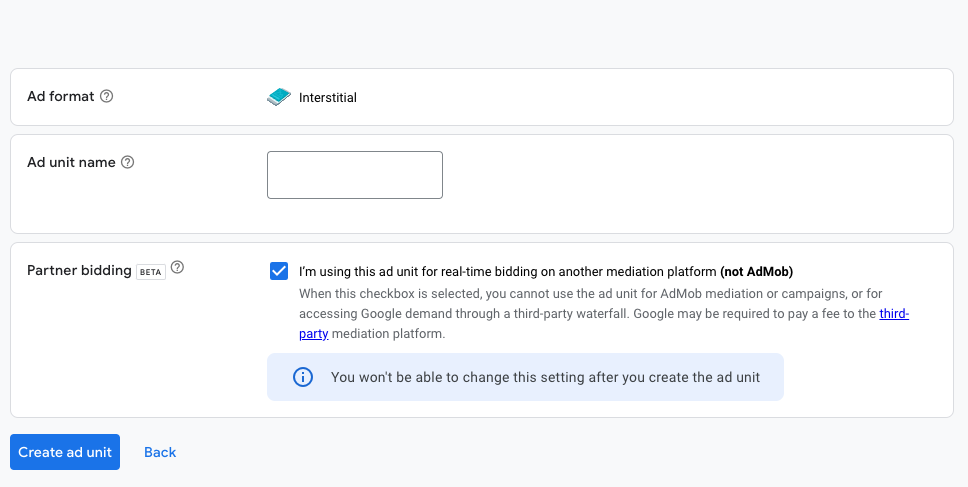
Interstitial (インタースティシャル)
- 広告ユニット名: 広告単位に直感的な名前を付け、配信する広告単位として認識しやすくします。
- パートナー入札:チェックボックスをオンにして、別のメディエーションプラットフォームで入札を使用していることを示します。
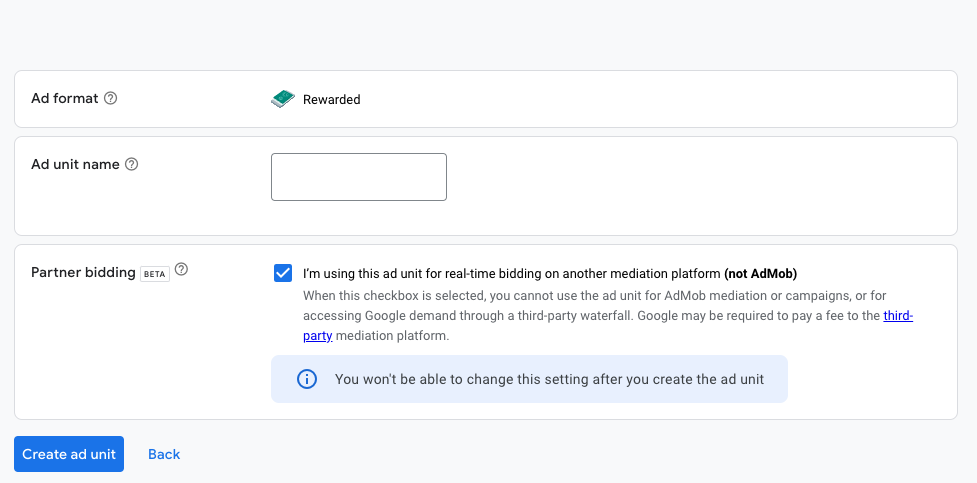
動画リワード
- 広告ユニット名: 広告単位に直感的な名前を付け、配信する広告単位として認識しやすくします。
- パートナー入札:チェックボックスをオンにして、別のメディエーションプラットフォームで入札を使用していることを示します。
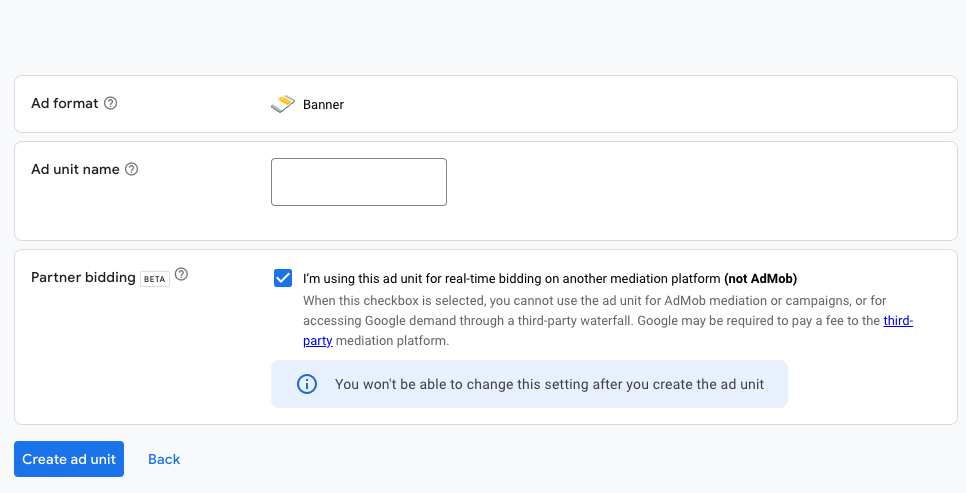
バナー
- 広告ユニット名: 広告単位に直感的な名前を付け、配信する広告単位として認識しやすくします。
- パートナー入札:チェックボックスをオンにして、別のメディエーションプラットフォームで入札を使用していることを示します。
Interstitial (インタースティシャル)
- 広告ユニット名: 広告単位に直感的な名前を付け、配信する広告単位として認識しやすくします。
- パートナー入札:チェックボックスをオンにして、別のメディエーションプラットフォームで入札を使用していることを示します。
動画リワード
- 広告ユニット名: 広告単位に直感的な名前を付け、配信する広告単位として認識しやすくします。
- パートナー入札:チェックボックスをオンにして、別のメディエーションプラットフォームで入札を使用していることを示します。
バナー
- 広告ユニット名: 広告単位に直感的な名前を付け、配信する広告単位として認識しやすくします。
- パートナー入札:チェックボックスをオンにして、別のメディエーションプラットフォームで入札を使用していることを示します。
LevelPlay ネットワークワーク設定モジュールで Google をアクティベートする
自動設定
- LevelPlay アカウントにログインし、LevelPlay サイドのナビゲーション バー> 設定> Networks に移動します。
- 使用可能な広告ネットワークのリストから Google AdMob を選択します。
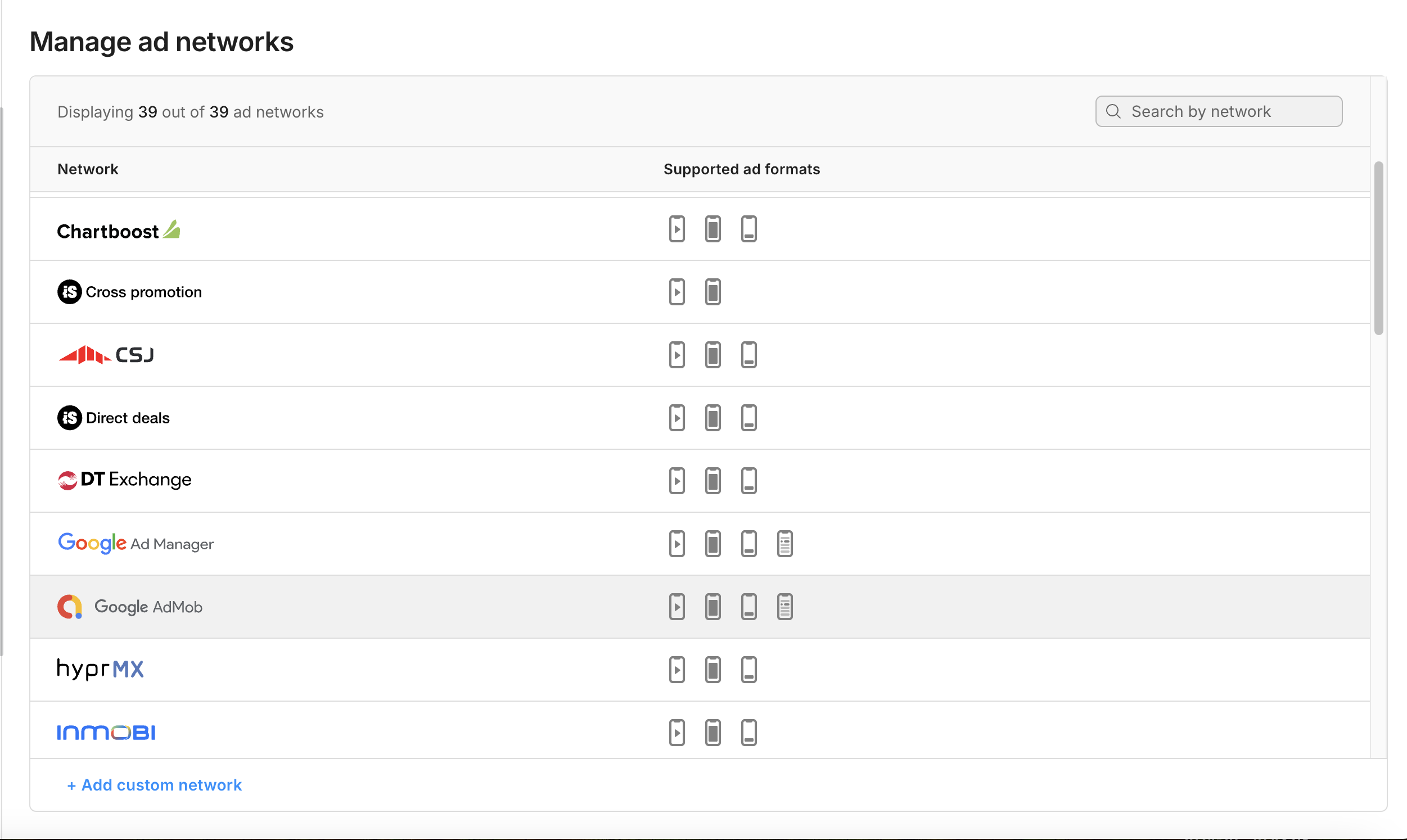
- Login with Googleを選択し、承認済みのGoogleアカウントでログインします。
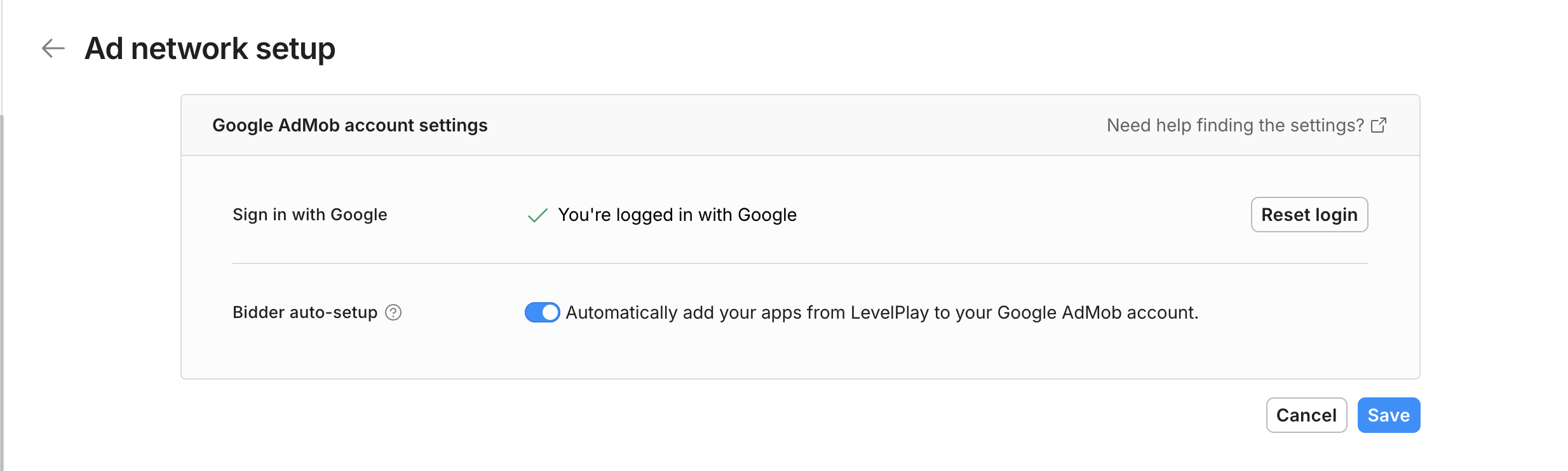
- すでにログインしている場合は、リセット ログインを選択します(新しいログインが必要です)。
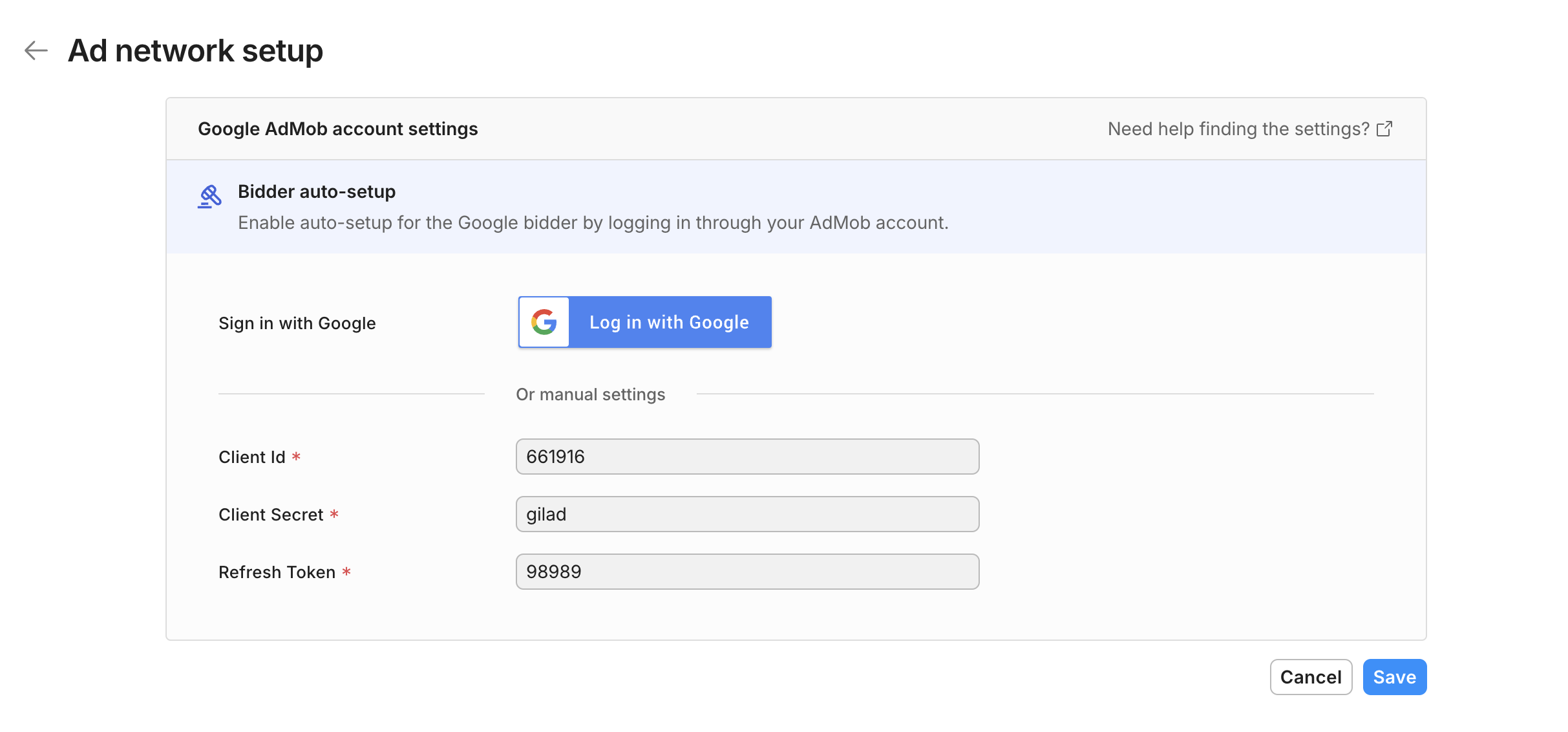
- ログインしたら、Google自動設定入札者をトグル
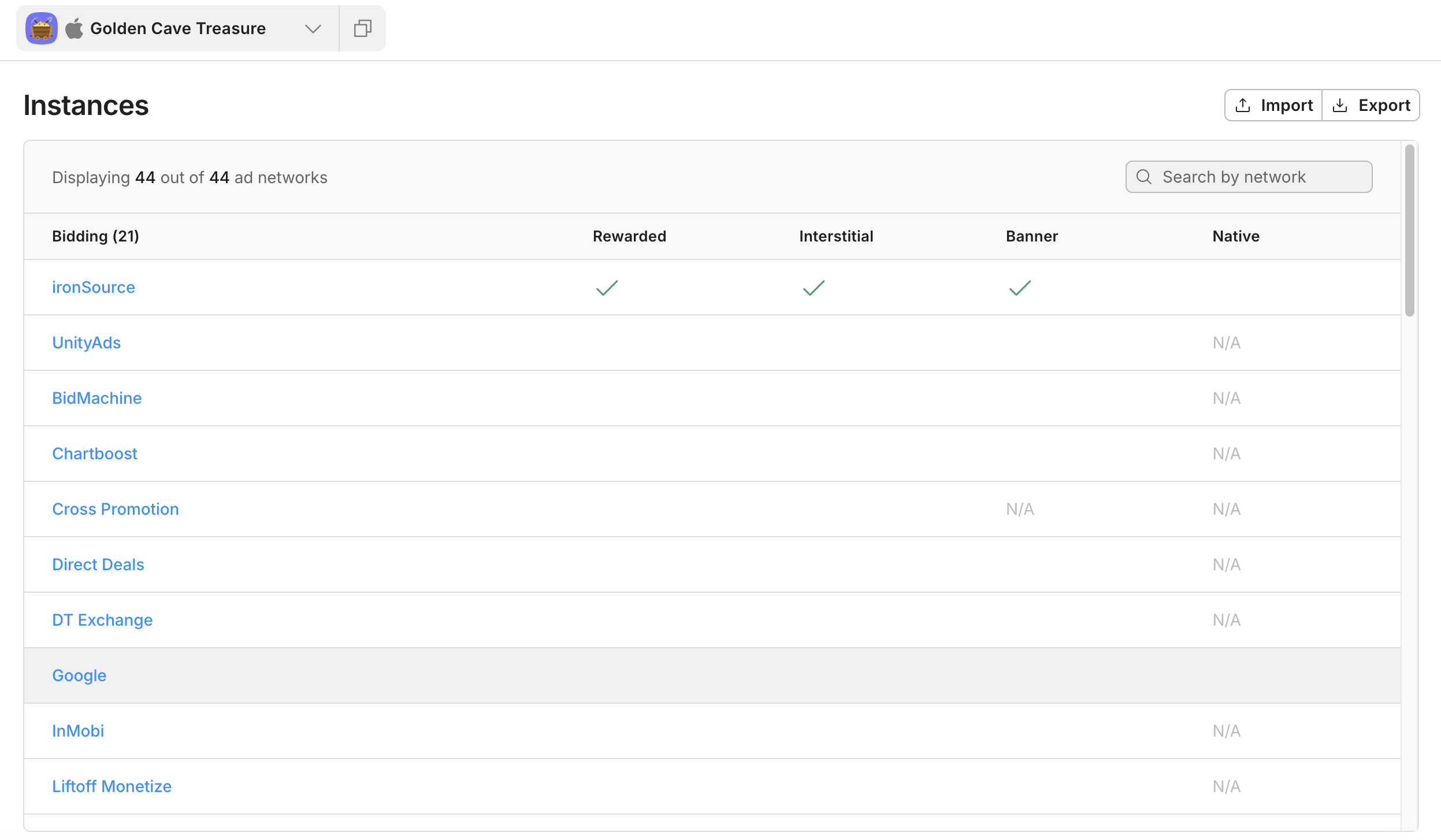
- Instancesページに移動し、Googleのインタースティシャル広告、リワード広告、バナー広告を実行するアプリケーションを選択します。
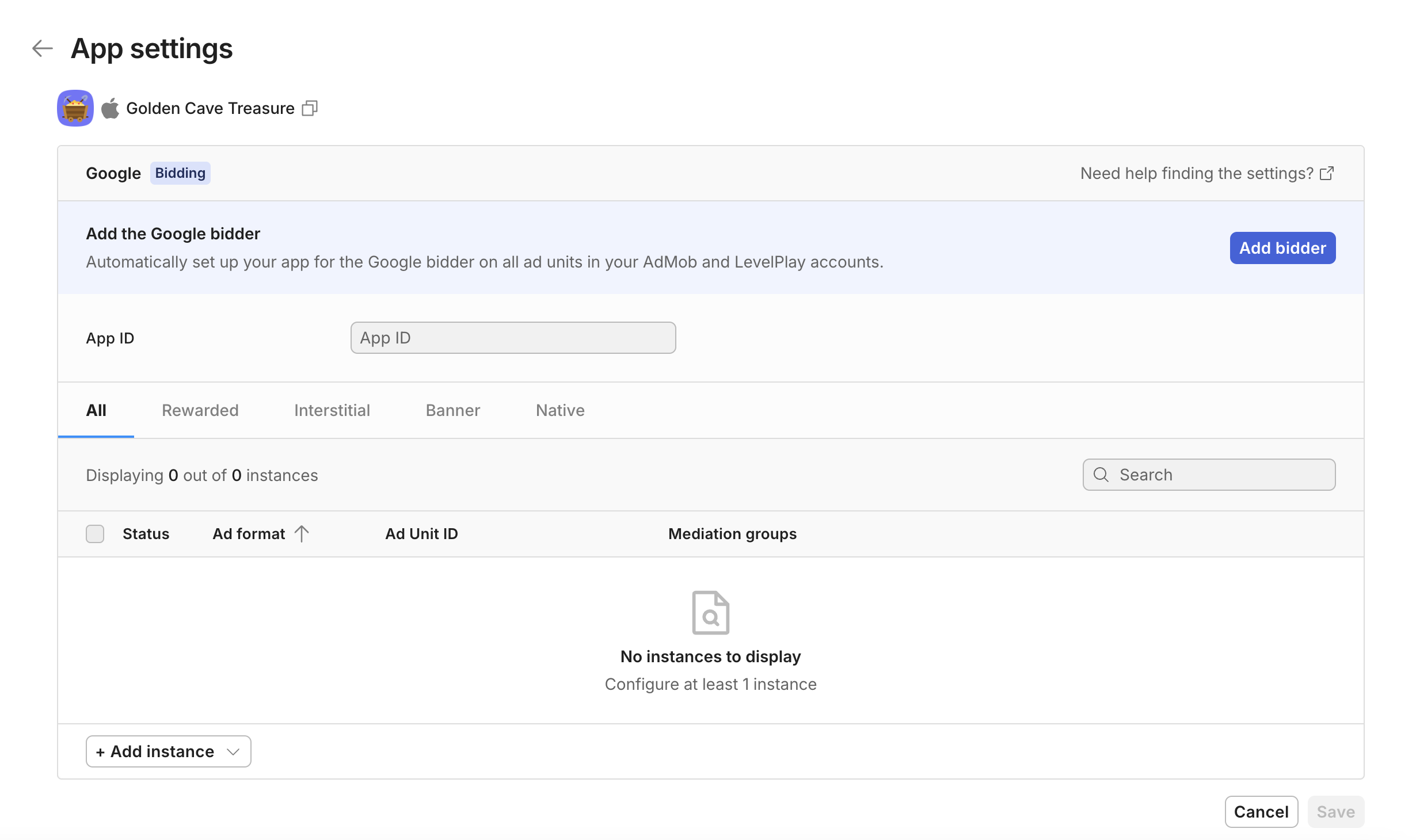
- 「Add Bidder(入札を追加)」を選択すると、AdMobプラットフォームに新しいアプリケーションと入札プレースメントが自動的に作成され、広告単位IDがインポートされます。アプリケーションにすでにApp IDがアタッチされている場合、広告単位IDパラメーター値を指定せずに配置が1つ以上あれば自動設定ツールを使用できます。この場合、新しい入札配置が作成されます。
- Save (保存) を選択して、すべての設定を承認および承認します。保存せずにモジュールを閉じると、データを LevelPlay プラットフォームにインポートせずに AdMob プラットフォームにアセットが作成されます。
手動設定
- LevelPlay アカウントにログインし、LevelPlay サイドのナビゲーション バー> 設定> Networks に移動します。
- 使用可能な広告ネットワークのリストから Google AdMob を選択します。
AdMob が LevelPlay SDK で正しく動作するためには、AdMob アカウントのデータの一部を LevelPlay ネットワーク設定モジュールに挿入する必要があります。
パラメーター | 説明 |
|---|---|
| App ID (アプリ ID) | AdMob のダッシュボードでアプリケーションに割り当てられた一意の ID。 |
| 広告単位 ID | AdMob のダッシュボードでアプリケーションの広告単位に割り当てられた一意の ID。 |
| クライアント ID | これは、アカウントと広告単位の関係を指定する一意の識別子です。 |
| クライアントシークレット | クライアント ID とペアになる秘密鍵 |
| リフレッシュトークン | これは、クライアントアプリケーションがすでに受信した更新トークンです。 |
この情報を取得したら、AdMob のパラメーターを LevelPlay に設定する必要があります。
App ID (アプリ ID)
App ID を取得するには、AdMob のプラットフォームの左側のサイドバーにある Apps (アプリケーション) タブに移動し、アプリケーション設定を選択します。アプリケーションの設定とApp IDが表示されます。
広告単位 ID
広告単位 ID を取得するには、AdMob のプラットフォームの左側のサイドバーにある Apps (アプリケーション) タブに移動し、Ad Units (広告単位) を選択します。アプリケーションの広告単位と広告単位 ID が表示されます。
クライアント ID とクライアントシークレット
- クライアントIDとクライアントシークレットを取得するには、GoogleのAPIマネージャにアクセスします。
- ページの左上にある API Project ドロップダウンを選択し、Create a project を選択するか、このアプリケーション用にすでに作成したプロジェクトを選択します。この目的で新しいプロジェクトを作成する場合は、表示されるダイアログボックスにプロジェクト名、課金アカウント、および場所を入力し、Create (作成) を選択します。
- 左側のサイドバーで、[Credentials] を選択し、[OAuth consent screen] タブを選択します。Product Name (製品名) を入力し、Save (保存) を選択します。
- 左側のサイドバーで、「ダッシュボード」を選択し、「Enable APIs and services」に移動します。
- 次に、AdMob API を有効にします。
- 左側のサイドバーでCredentialsタブを選択します。Create Credentials ドロップダウンを選択し、OAuth client ID を選択します。
- ウェブアプリケーションを選択し、アプリケーションの名前を指定します。下のフィールドに、少なくとも 1 つの Authorized リダイレクト URI のを入力する必要があります。例を次に示します。
https://developers.google.com/oauthplayground- Authorized JavaScript origins:(任意)
https://YOUR_NAMESPACE - Authorized リダイレクト URI:
https://developers.google.com/oauthplayground
- Authorized JavaScript origins:
- Create を選択すると、クライアント ID とクライアントシークレットが表示されます。
リフレッシュトークン
- リフレッシュトークンを取得するには、OAuth 2.0 Playground に移動します。
- 右上隅の設定アイコンを選択します。承認プロンプトの強制というラベルのボックスをオフにし、Use your own OAuth credentials をオンにします。クライアント ID とクライアントシークレットを入力。
- 次に、ステップ 1:& Authorize APIs を選択し、と入力して Authorize APIs を選択します。
https://www.googleapis.com/auth/admob.report - AdMob データへのプロジェクトアクセスの許可
- 次に、ステップ1から承認コードを受け取り、Exchange承認コード for tokensボタンを選択できるようになります。次に、更新トークンとアクセストークンが取得されます。
これらのパラメータをすべて設定したら、LevelPlay の Google AdMob アカウント設定に入力します。
- 次に、Instances (インスタンス) ページに移動します。LevelPlay のメディエーションを Google 入札で実行するページ上部のアプリケーションを選択します。
- 広告ネットワークの設定リストからGoogleを選択し、定義アイコンを選択します。次に、Interstitial, Rewarded VideoまたはBanner SettingsにApp IDと広告単位IDを入力します。
ビルドへの AdMob アダプタの追加
広告ネットワークインテグレーションの確認
LevelPlay SDK を使用すると、メディエーションのインテグレーションが正常に完了したことを簡単に確認できます。LevelPlay とその他の Ad Networks のインテグレーションを検証するには、このドキュメントを参照してください。
これで、アプリケーション内で AdMob Ads を配信する準備が整いました。
次のステップ
追加のメディエーション広告ネットワークを活用するには、アダプタを統合し、インテグレーションガイドに従います。