Smaatoインテグレーション
LevelPlay SDK を使用して、React ネイティブ アプリケーションにメディエーションネットワークワークとして Smaato を統合します。
読み終わるまでの所要時間 4 分最終更新 1ヶ月前
このガイドでは、LevelPlay Mediation プラットフォームで Smaato を広告ネットワークとして稼働させる方法をステップごとに説明します。
前提条件
LevelPlay のバナー広告がアプリケーションに正しく統合されていることを確認します。
Smaato アカウントの作成
LevelPlay のメディエーションプラットフォームから Smaato 広告インベントリにアクセスするには、Smaato のアカウントを作成する必要があります。ここで行うことができます。
Smaato アカウント ID とレポートキーの取得
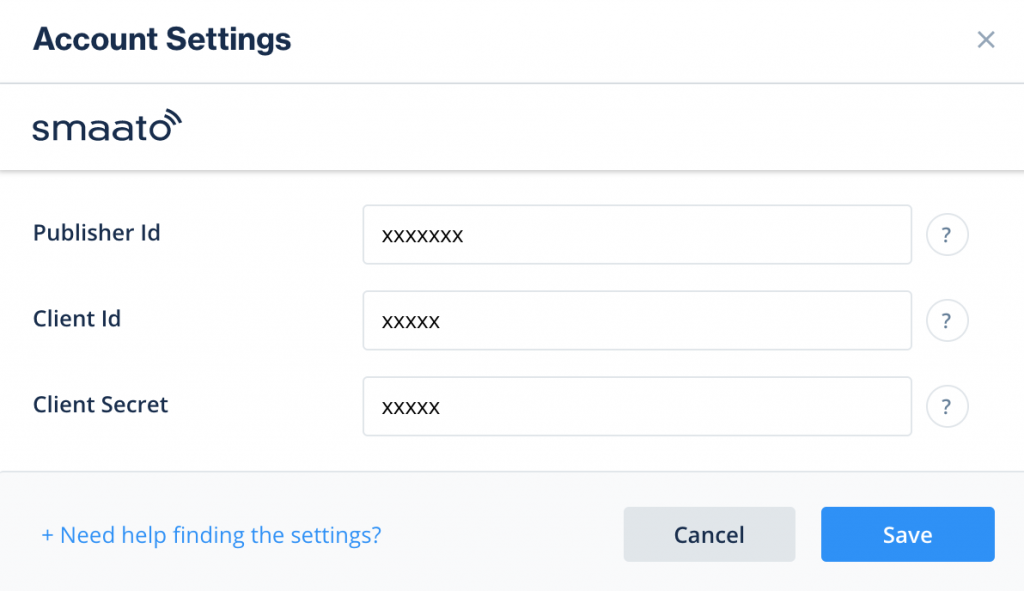
以下の手順に従って、LevelPlay ネットワークワーク設定モジュールに挿入する必要がある Smaato アカウントを取得します。
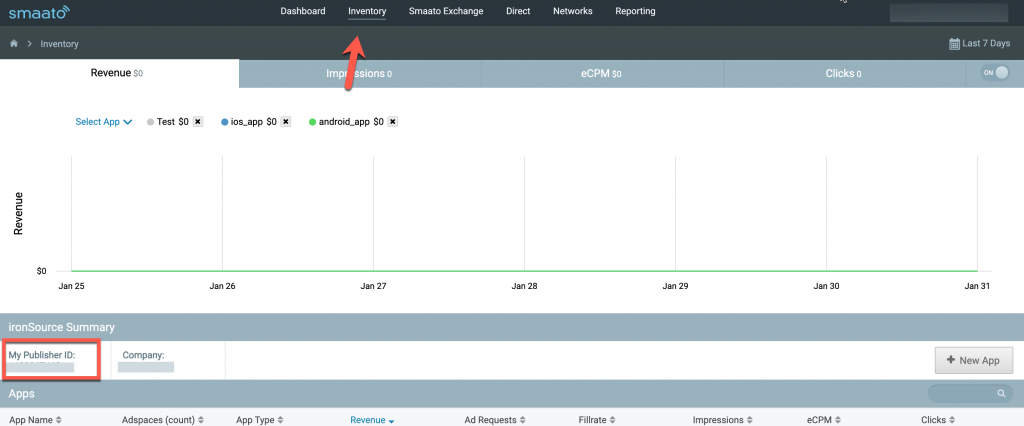
- パブリッシャーID – Smaatoアカウントで、インベントリ>パブリッシャーIDに移動します。
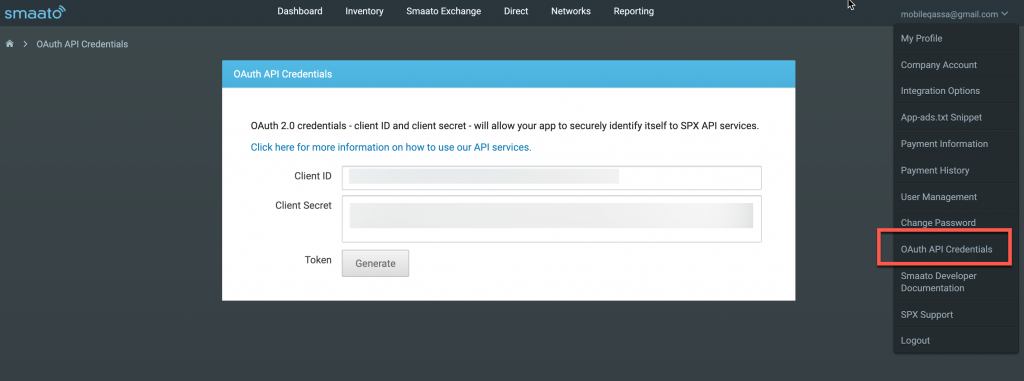
- クライアント ID とクライアントシークレット – QAuth API クレデンシャル> クライアント ID とクライアントシークレット に移動します。
Smaato ネットワークでのアプリケーションの作成
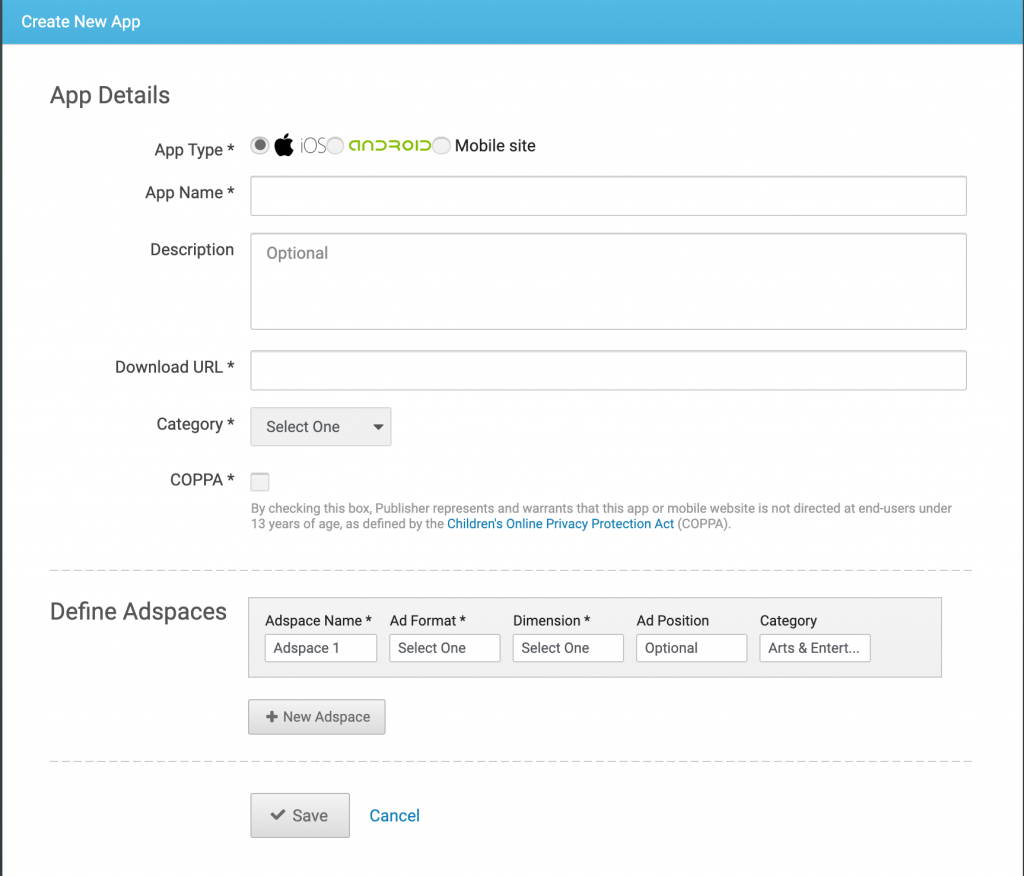
以下の手順に従って、Smaato アプリケーションを作成します。
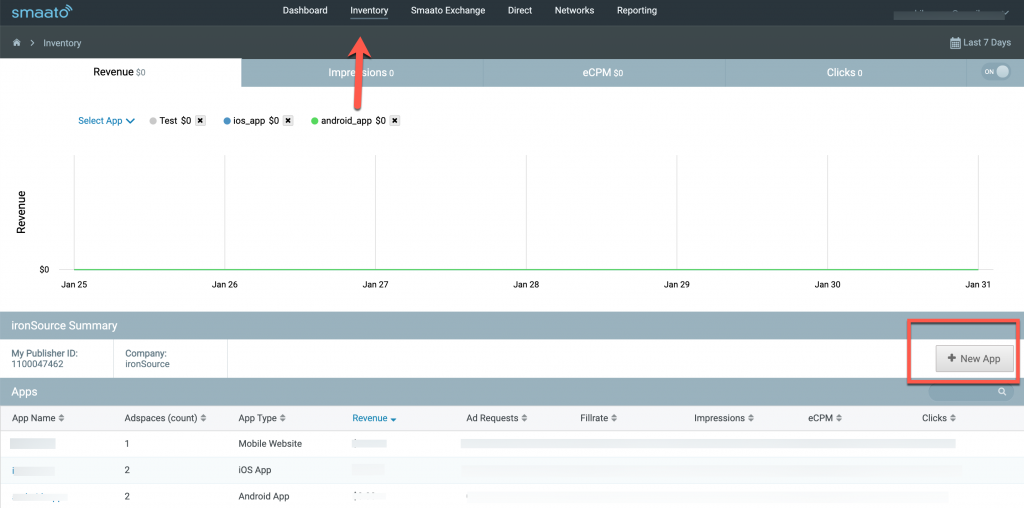
- Smaato アカウントで、インベントリ>新しいアプリケーションに移動します。
Smaato ネットワークワークをアクティベート
- 必要なパラメータがすべて揃ったら、LevelPlay アカウントにログインし、Monetize (収益化) > 設定> SDK Networks に移動します。
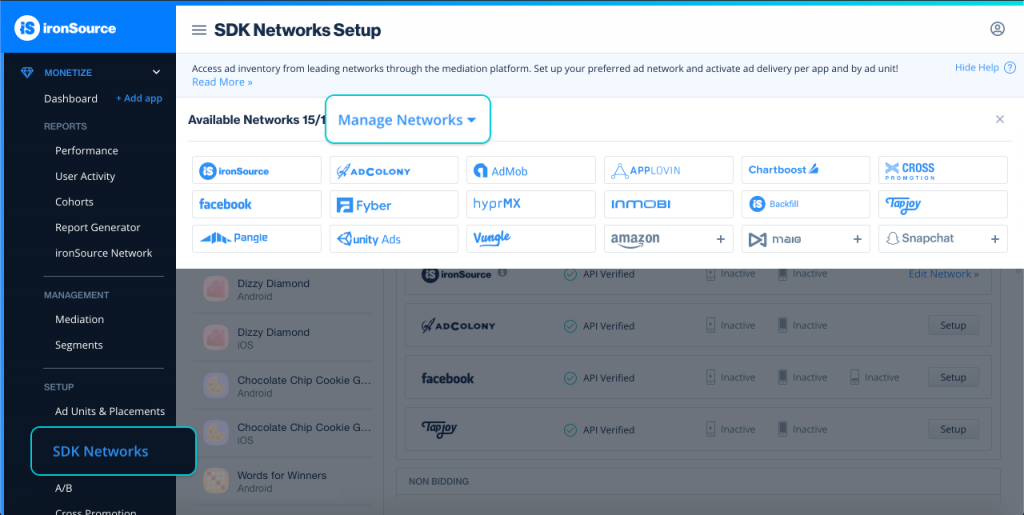
- Available Networks のテーブルから Smaato を選択し、パラメータを追加して、アクティベートを選択します。次に、Save (保存) を選択します。
- 広告ネットワークのリストから Smaato を選択し、設定 を選択します。
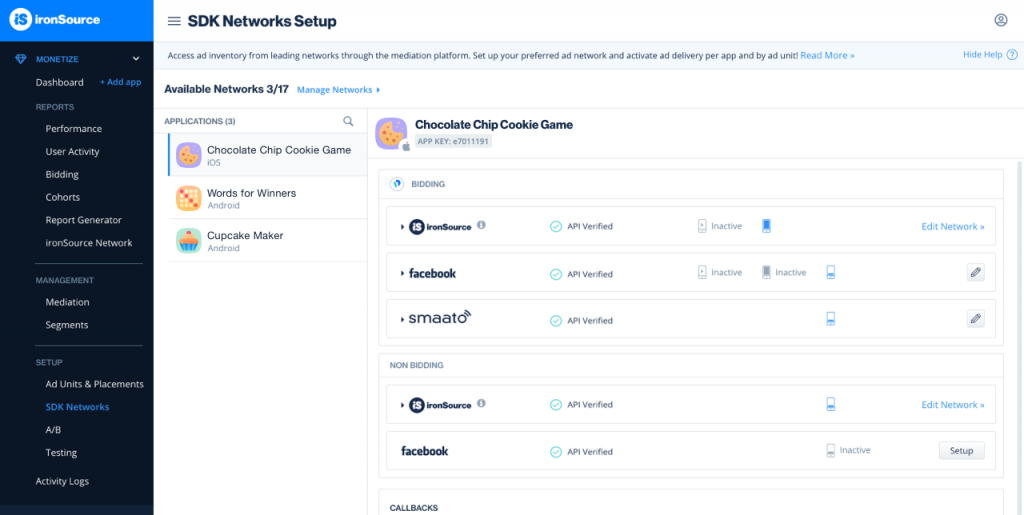
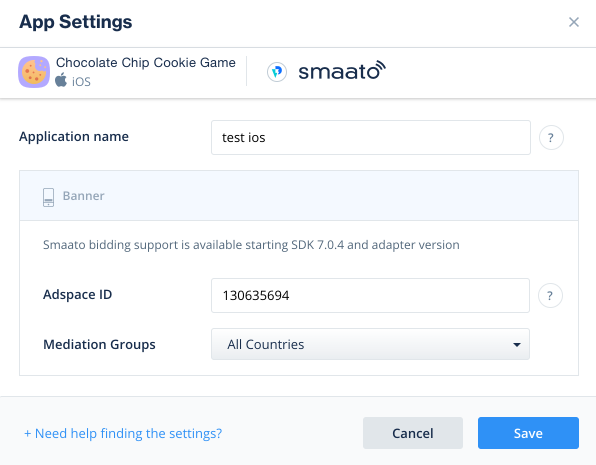
- アプリケーションの Smaato アプリケーション名と広告スペース ID を入力します。状態を Active (アクティブ) に設定し、Save (保存) を選択します。設定ダッシュボードに、Smaatoが「Active for Mediation(メディエーションに対してアクティブ)」と表示されます。