DT Exchangeインテグレーション
LevelPlay SDK を使用して、React ネイティブ アプリケーションにメディエーションネットワークワークとして DT Exchange を統合します。
読み終わるまでの所要時間 6 分最終更新 1ヶ月前
このガイドでは、LevelPlay MediationでDT Exchangeを広告ネットワークとして稼働させる方法について、ステップバイステップで説明します。
前提条件
DT Exchange アカウントの作成
DT Exchange Webサイトでアカウントを作成します。
アカウントが確認されると、DT ExchangeパートナーWebサイトにサインインできます。
アプリケーションとプレースメントの作成
LevelPlay プラットフォーム内で DT Exchange インベントリにアクセスするには、最初にアプリケーションを追加し、DT Exchange アカウントにプレースメントを設定する必要があります。
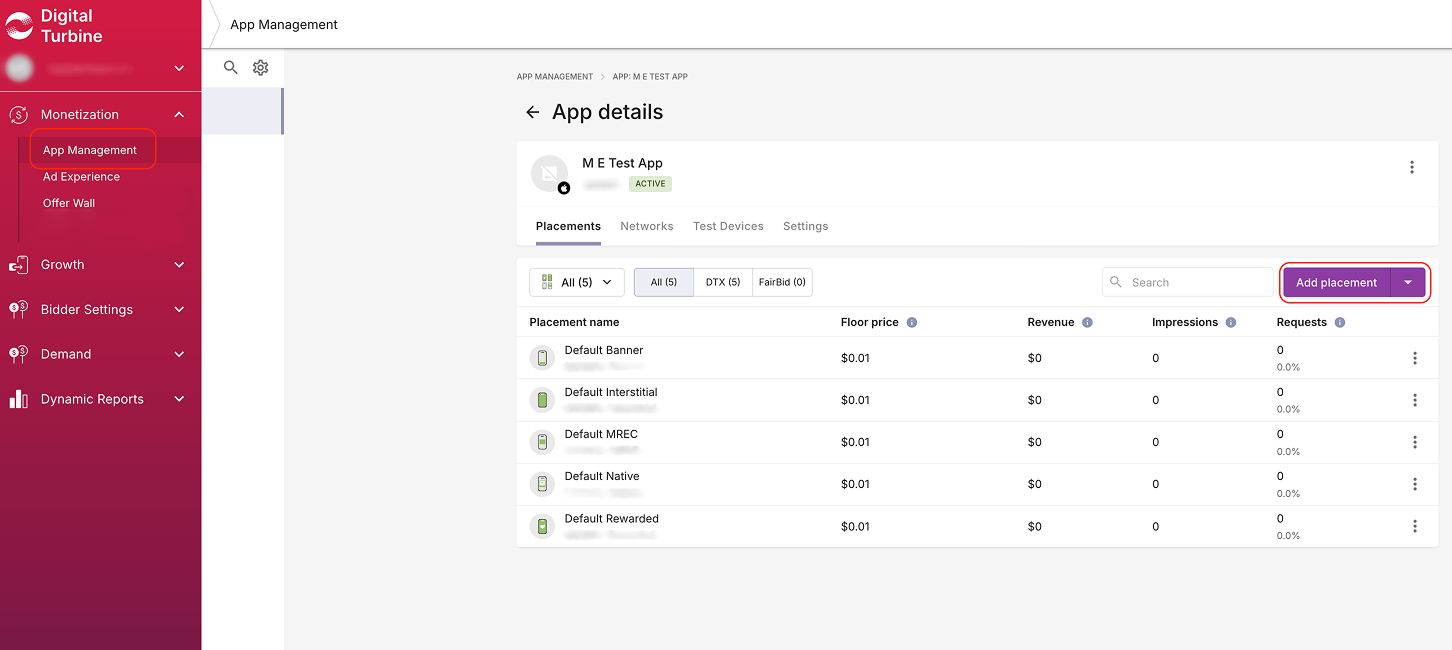
- DT Exchangeアカウントにサインインし、収益化>アプリケーション管理に移動します。
- Add アプリケーション を選択します。
- アプリケーションの設定を定義します。プラットフォームとカテゴリを選択します。
- プレースメントの追加:リワード、インタースティシャル、バナー、または MREC。
- Create アプリケーション を選択します。
SDK Networks 設定モジュールで DT Exchange をアクティベート
DT Exchange アカウントで、LevelPlay プラットフォームの SDK ネットワーク設定モジュールに以下のパラメータを追加します。
パラメーター | 説明 |
|---|---|
| パブリッシャーID、コンシューマーキー、コンシューマーシークレット | DT Exchange アカウントの一意の識別子。LevelPlay プラットフォームで、レポートと最適化に使用するパフォーマンス データを DT Exchange アカウントからインポートできます。 |
| App ID (アプリ ID) | DT Exchange システム内のアプリケーションの一意の識別子。 |
| プレースメント ID | DT Exchange が広告を配信する一意のスポット。 |
DT Exchangeパラメーターの取得
パブリッシャー ID、コンシューマーキー、コンシューマークレット
- ユーザープロファイルページに移動します。
- Reporting API Keys の下のパラメータを探します。
App ID と配置 ID
- インベントリ> Manage Apps & Sites (アプリとサイトの管理) に移動します。
- リストから関連するアプリケーションを選択します。
- 右メニューで、インテグレーションオプションを選択します。
LevelPlayアカウントでDT Exchangeパラメーターを設定
- LevelPlay アカウントにサインインし、Monetize > Mediation > SDK Networks に移動します。
- 使用可能な広告ネットワークのリストからDT Exchangeを選択し、DT ExchangeのパブリッシャーID、コンシューマーキー、コンシューマーシークレットを入力してから、Saveを選択します。
- DT ExchangeでLevelPlayを実行するアプリケーションを定義します。広告ネットワークの設定リストのDT Exchangeの行に移動し、設定を選択します。
- アプリケーションレベルのApp IDと、関連する広告ユニットの配置IDを挿入します。
- Save (保存) を選択します。
- リクエストされた広告ユニットをアクティベートします。
- Reporting API とのインテグレーションを確認します。この列では、Reporting API を通じたインテグレーションを確認し、次の 3 つの応答候補を返します。検証済み、失敗、無反応。インテグレーションと上で入力した情報を確認し、検証済み が表示されるまで 再試行 を選択します。
広告ネットワークインテグレーションの確認
LevelPlay SDK とその他の広告ネットワークインテグレーションを検証するには、React ネイティブのインテグレーションヘルパー を参照してください。