VK Adネットワークインテグレーション
LevelPlay SDK を使用して、VK Ad ネットワーク を React ネイティブ アプリケーションにメディエーションネットワークワークとして統合します。
読み終わるまでの所要時間 4 分最終更新 6日前
このガイドでは、VK AdネットワークをLevelPlayで広告ネットワークとして稼働させる方法についてステップバイステップで説明します。
前提条件
必要な Gradle ビルドツールは 3.5.4 以降
VK Ad ネットワーク アカウントの作成
VK Ad ネットワークでのアプリケーションの作成
以下の手順に従って、VK Ad ネットワーク アプリケーションを作成します。
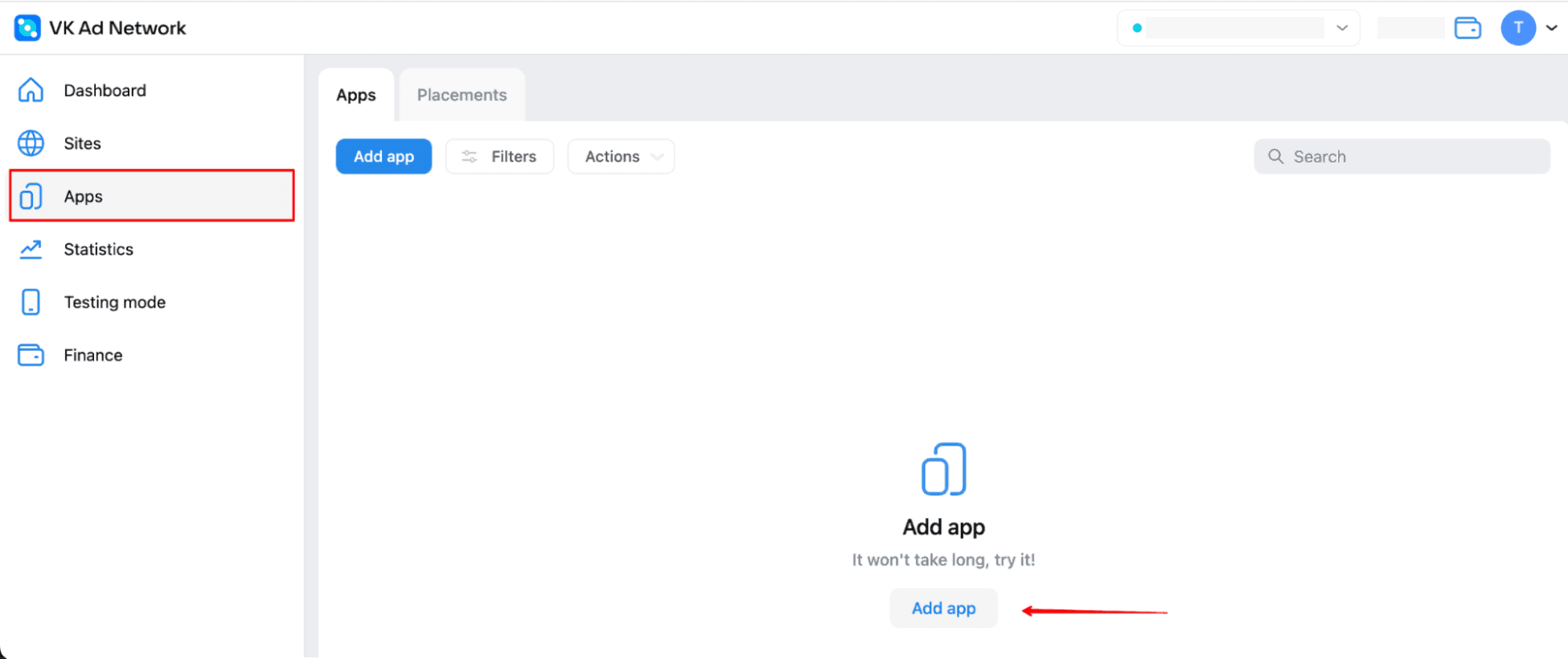
- VK Ad ネットワークアカウントで、Apps (アプリ) > Add app (アプリケーションの追加) に移動します。
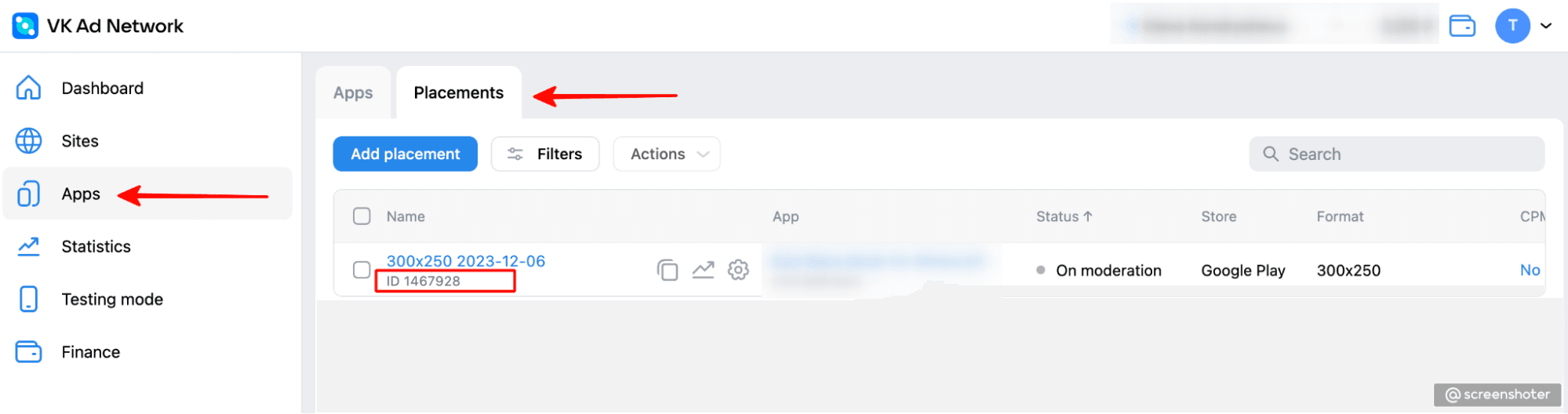
- 新しいアプリケーションを設定すると、LevelPlay で設定する配置 ID を取得できます。
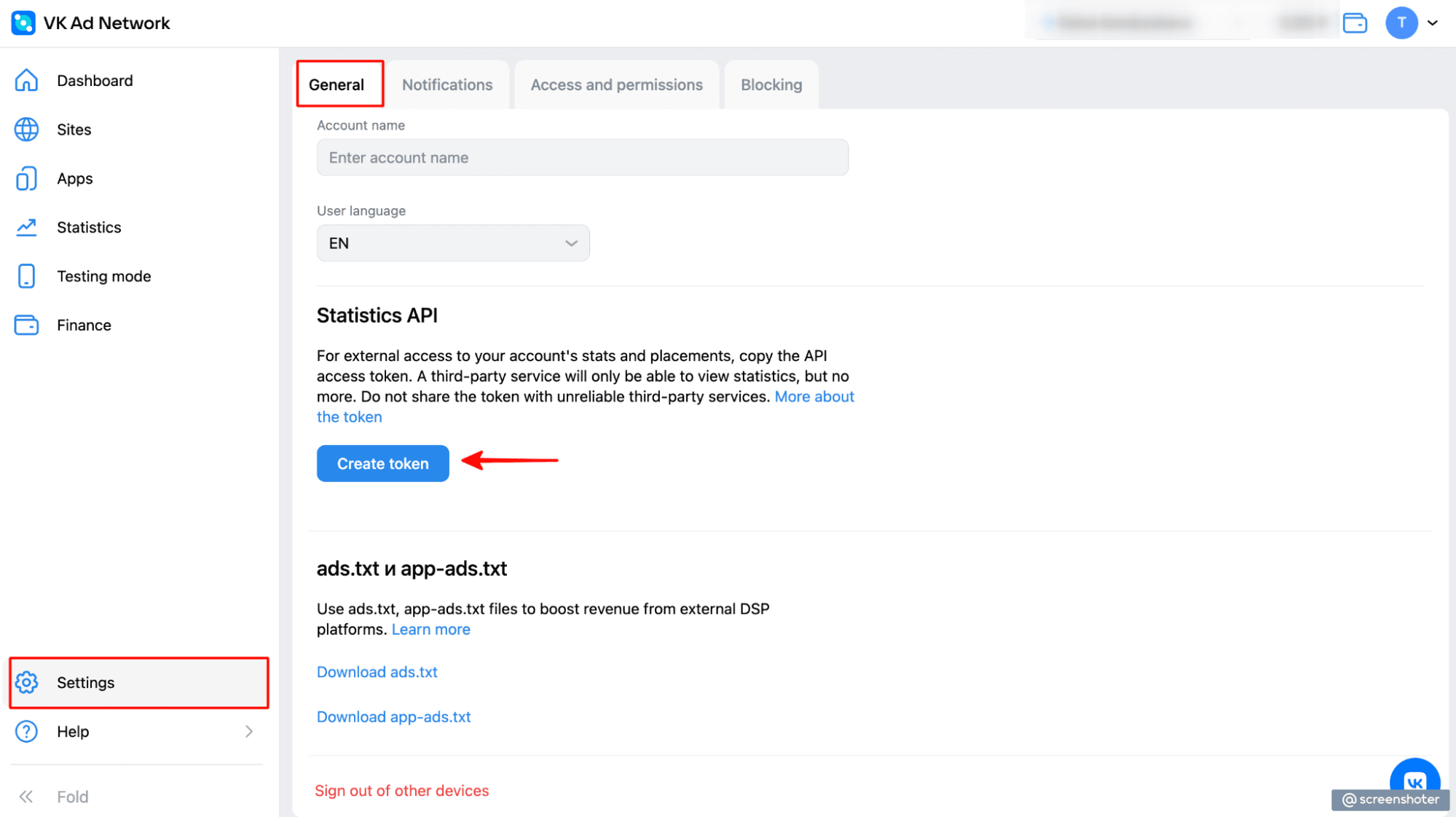
VK Ad ネットワークワークキーの取得
- VK Ad ネットワークアカウントで、「Settings(設定)」>「General(一般)」を選択します(下にスクロール)。
Mediation 設定モジュールで VK Ad ネットワークをアクティベート
LevelPlay プラットフォーム内で、SDK Networks 設定にアクセスして、LevelPlay アカウントに VK Ad ネットワークパラメータを設定します。
- LevelPlay アカウントで、Monetize> 設定> SDK Networks に移動します。
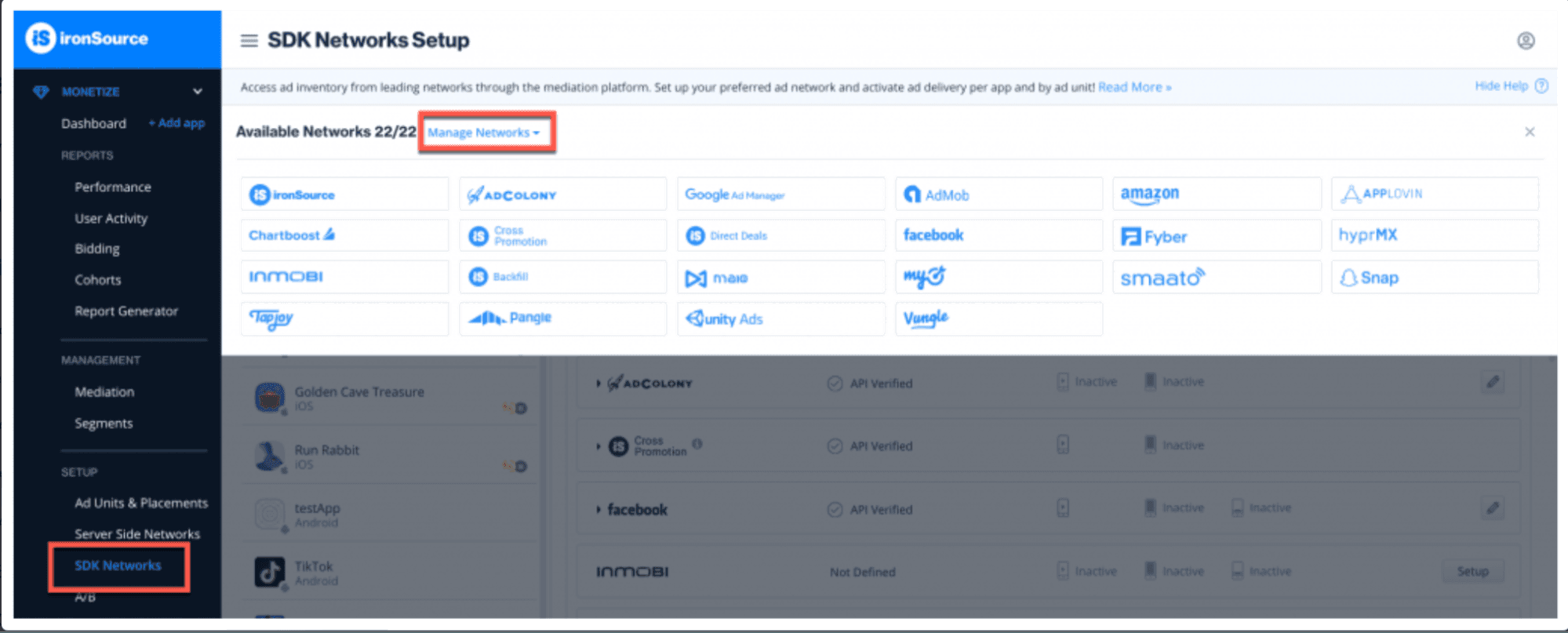
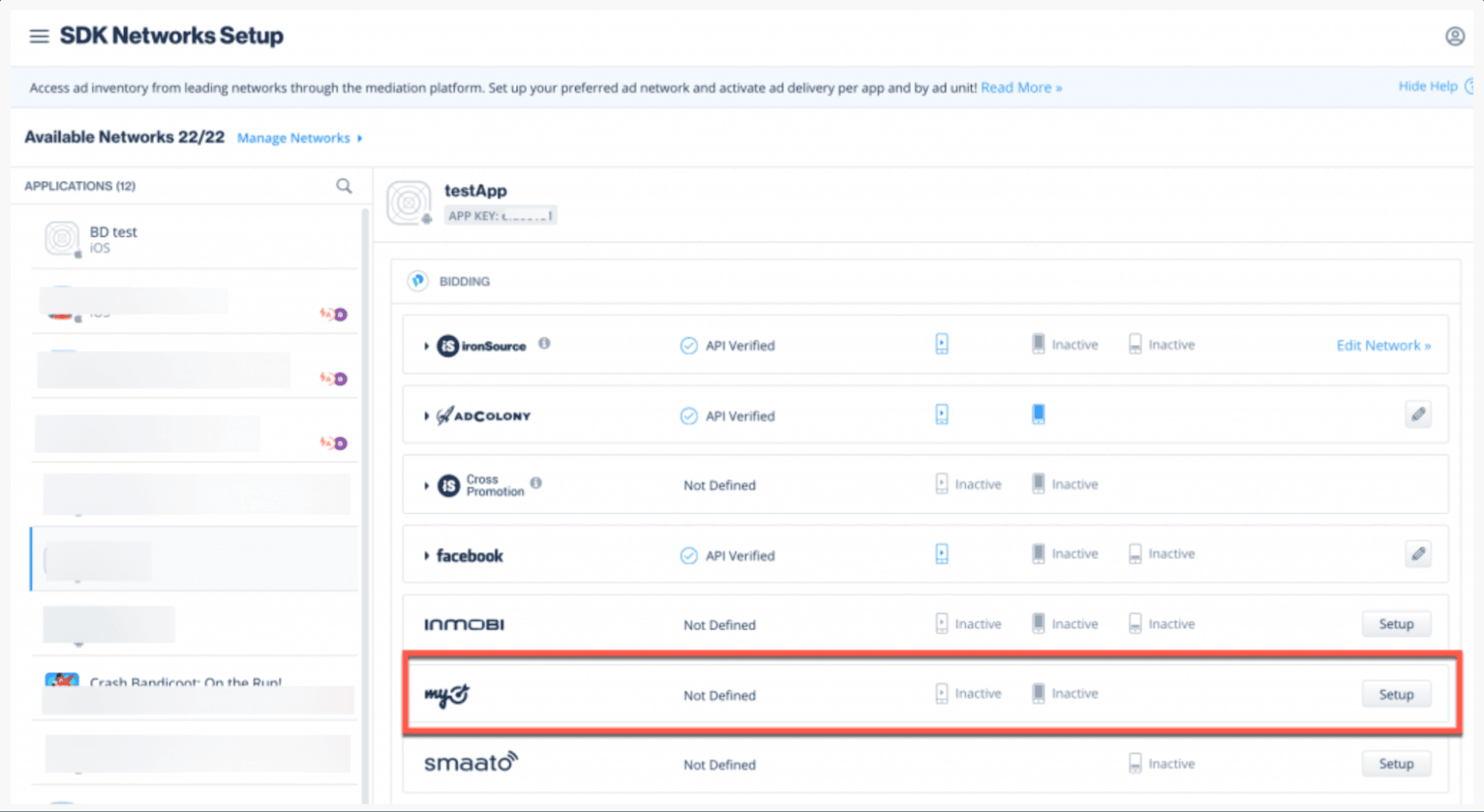
- [Available Networks] のテーブルから VK Ad Network を選択し、パラメータを追加して、アクティベートを選択します。次に、Save (保存) を選択します。
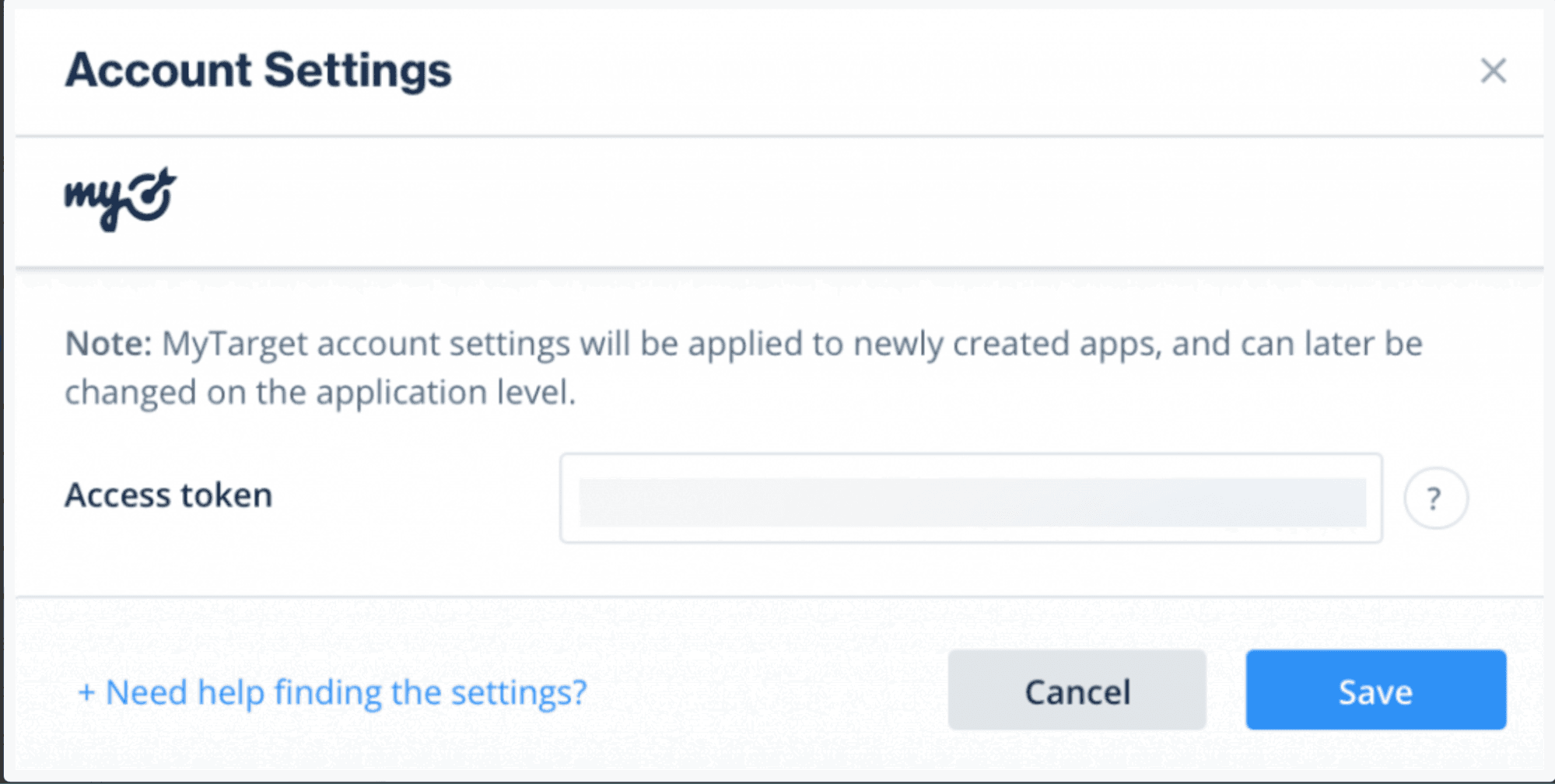
- 広告ネットワークのリストからVK Ad Networkを選択し、設定を選択します。
- VK Adネットワークアプリケーションの生成トークンを入力し、各広告単位にステップ1(ポイント2)のIDを2回追加します。状態を Active (アクティブ) に設定し、Save (保存) を選択します。設定ダッシュボードに、VK広告ネットワークが**「メディエーションに対してアクティブ**」と表示されます。
LevelPlay Mediation ネットワークアダプタの統合
これで、アプリケーション内で VK Ad ネットワーク 広告を配信する準備が整いました。
次のステップ
LevelPlay Mediation を通じて追加の広告ネットワークを活用するには、アダプタを統合し、インテグレーションガイドに従ってください。